


How to add B-roll
to a talking-head video
What B-roll is, and why a talking head needs it
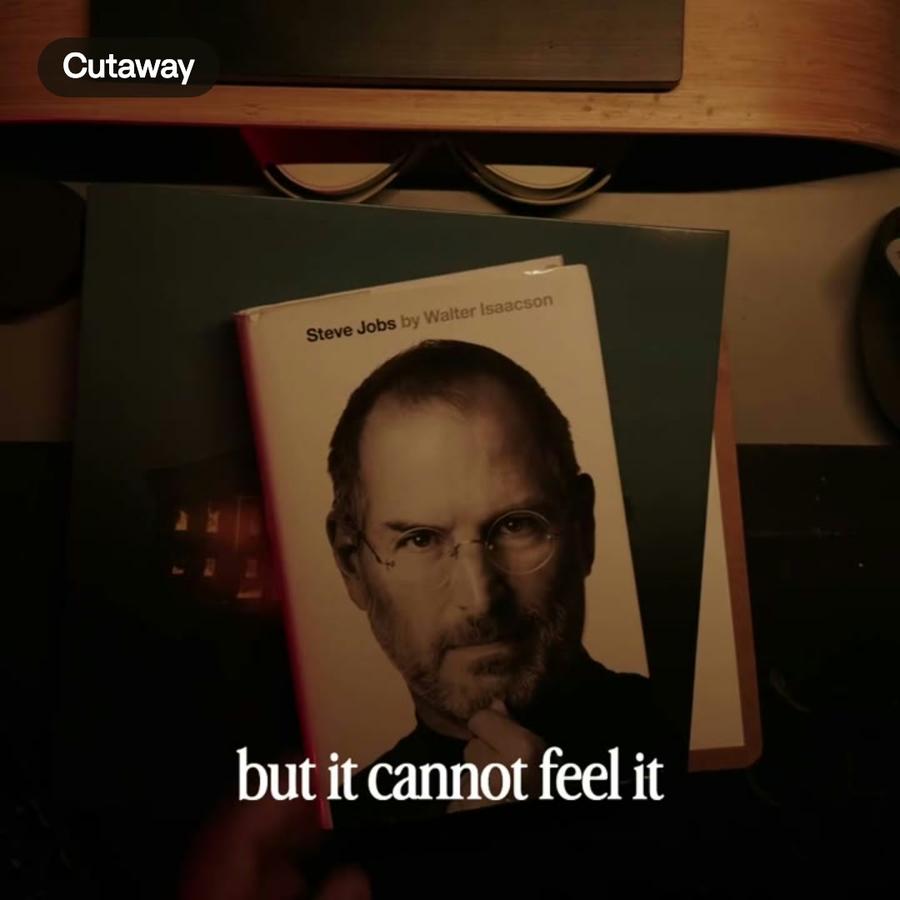
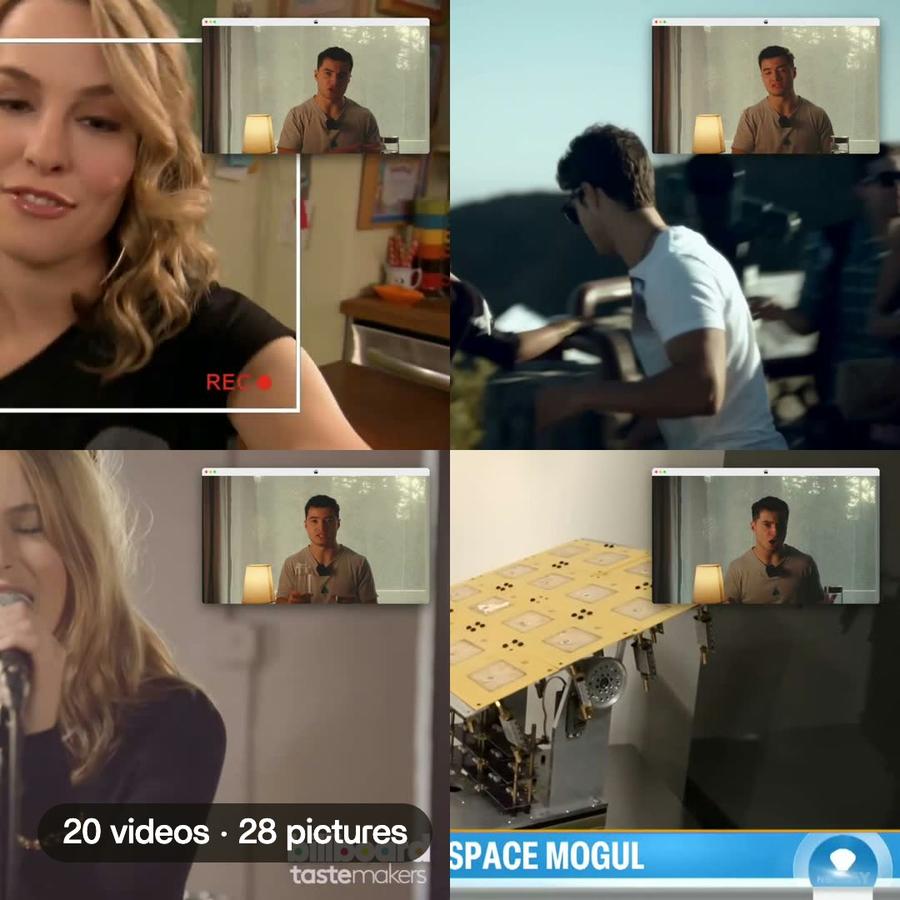
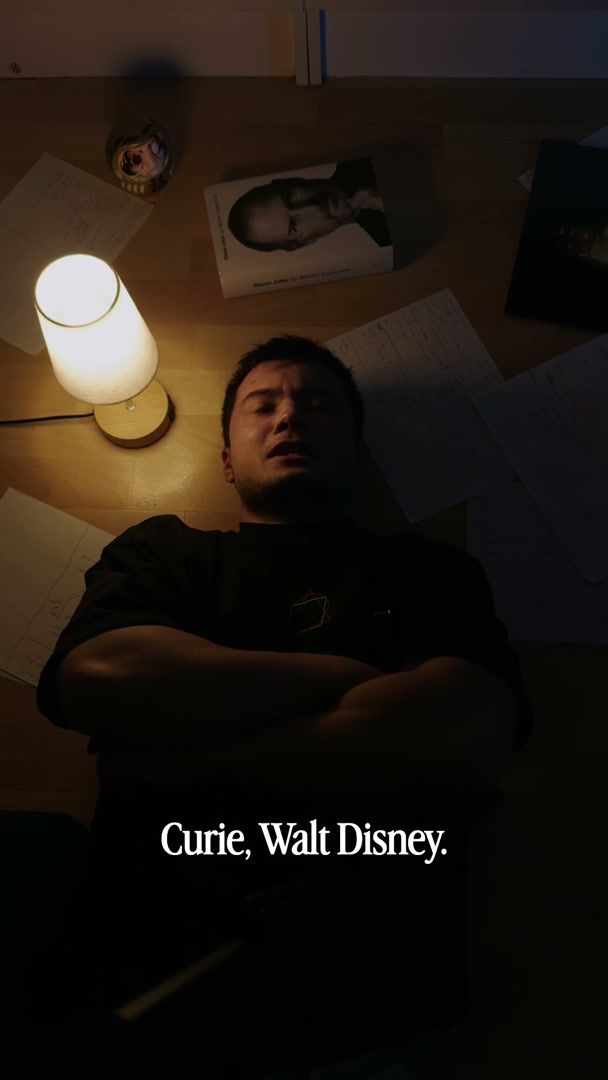
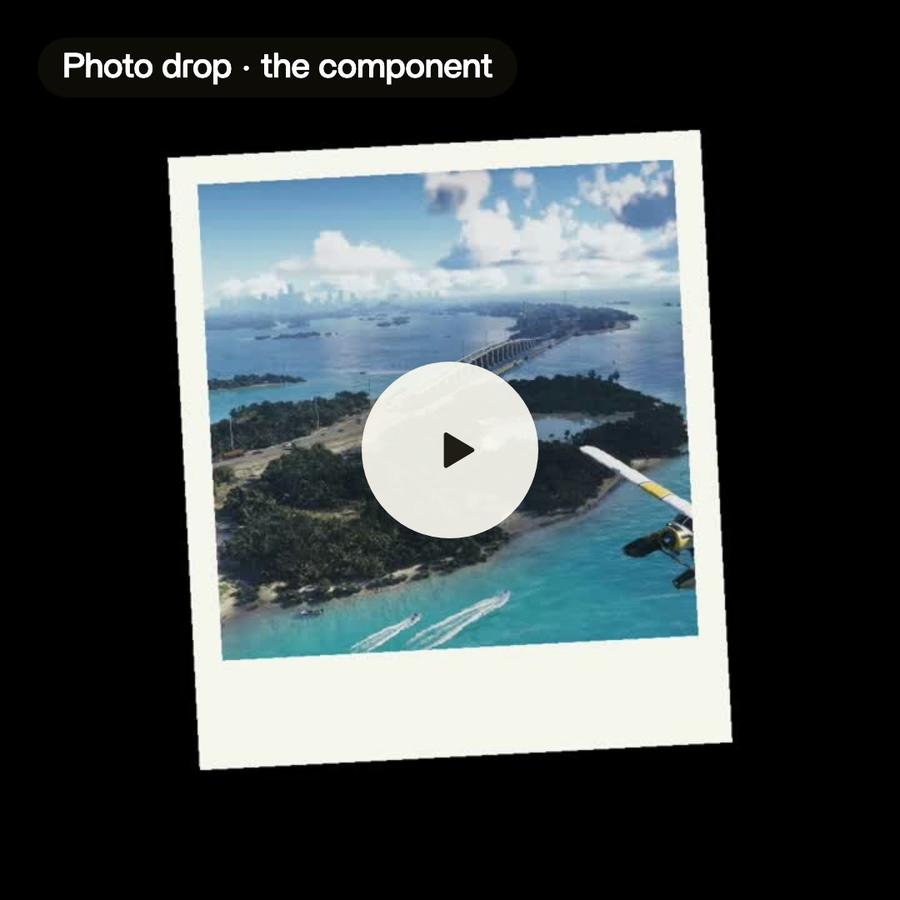
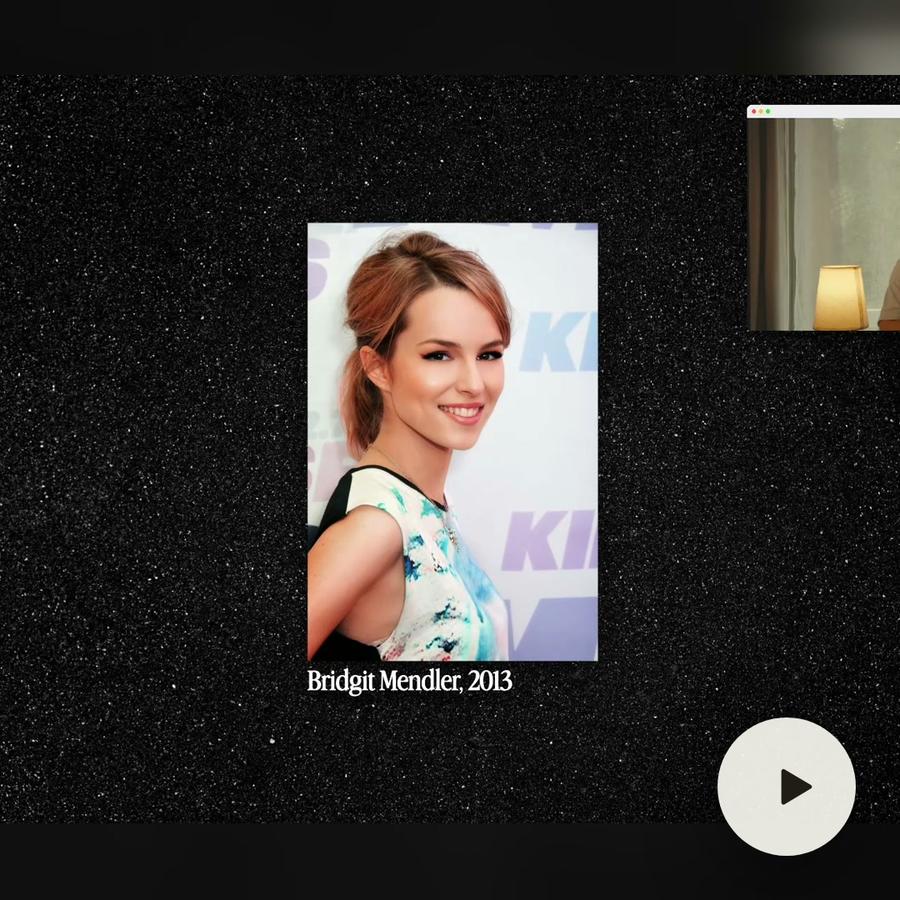
B-roll is any shot that plays over the main footage while the voice keeps going. A product on a desk. A screen recording. A street outside the window. The person keeps talking, and the viewer gets something new to look at.
A talking-head video without it asks a lot of the viewer. The same face, the same frame, for minutes. B-roll breaks that up. It also shows what the words describe: when someone says « the new dashboard », the dashboard appears.
How to add B-roll by hand
In a classic editor, the steps are always the same. You watch the whole talk and note the moments that need a picture. You go through your footage to find a shot for each one. You drag each clip onto a track above the main video, trim it to the right length, and check that it starts and ends on the right words.
None of it is hard. It is long. On a ten-minute talk, finding the moments and matching the shots is most of the job, and you do it again on every new video.
How to add B-roll automatically with Montage
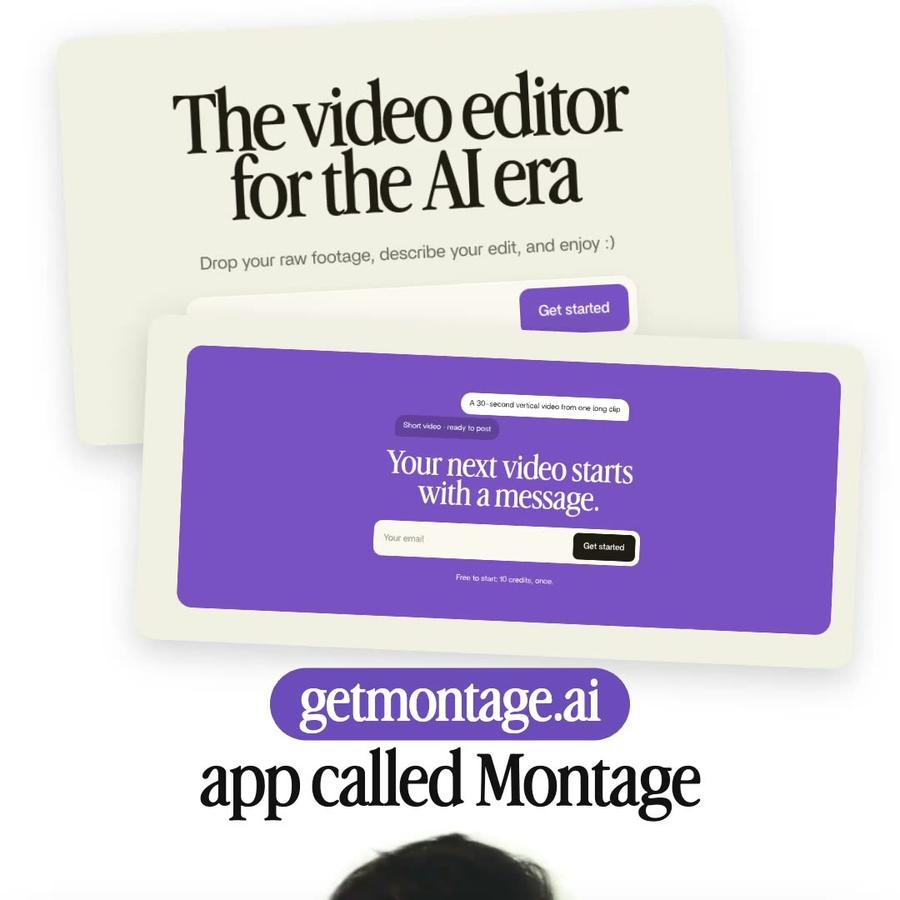
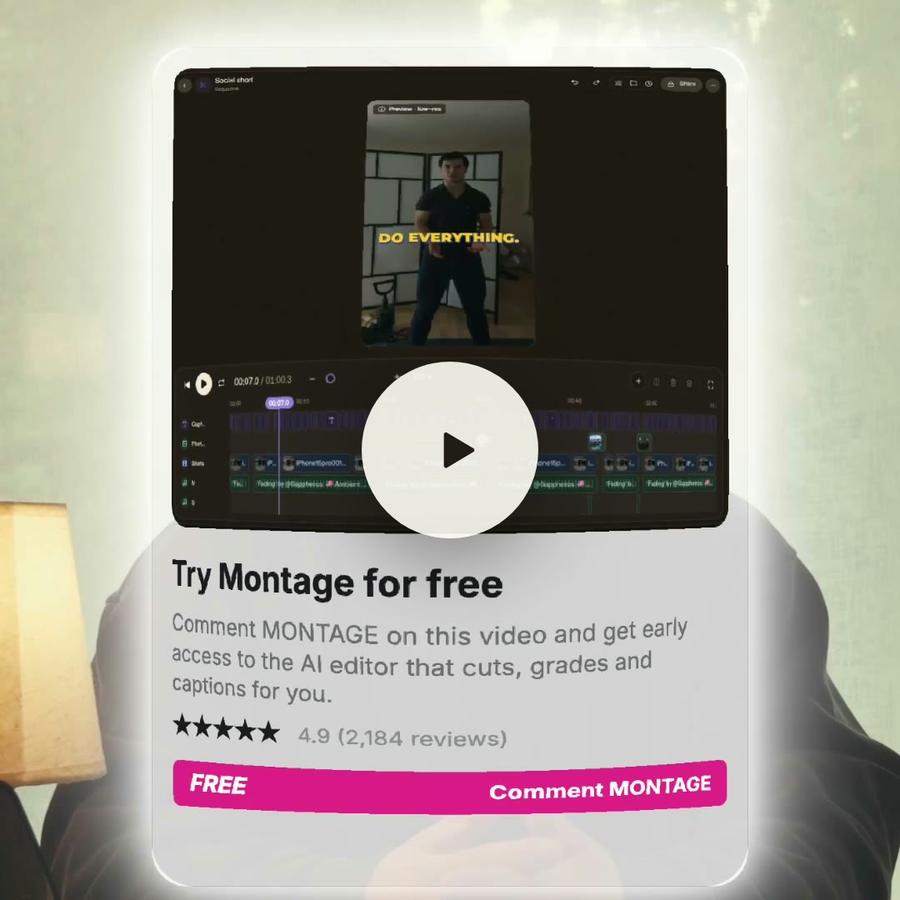
Upload the talk and the shots you want to use: product shots, screen recordings, extra footage. Then ask Montage: « Add B-roll where it helps. »
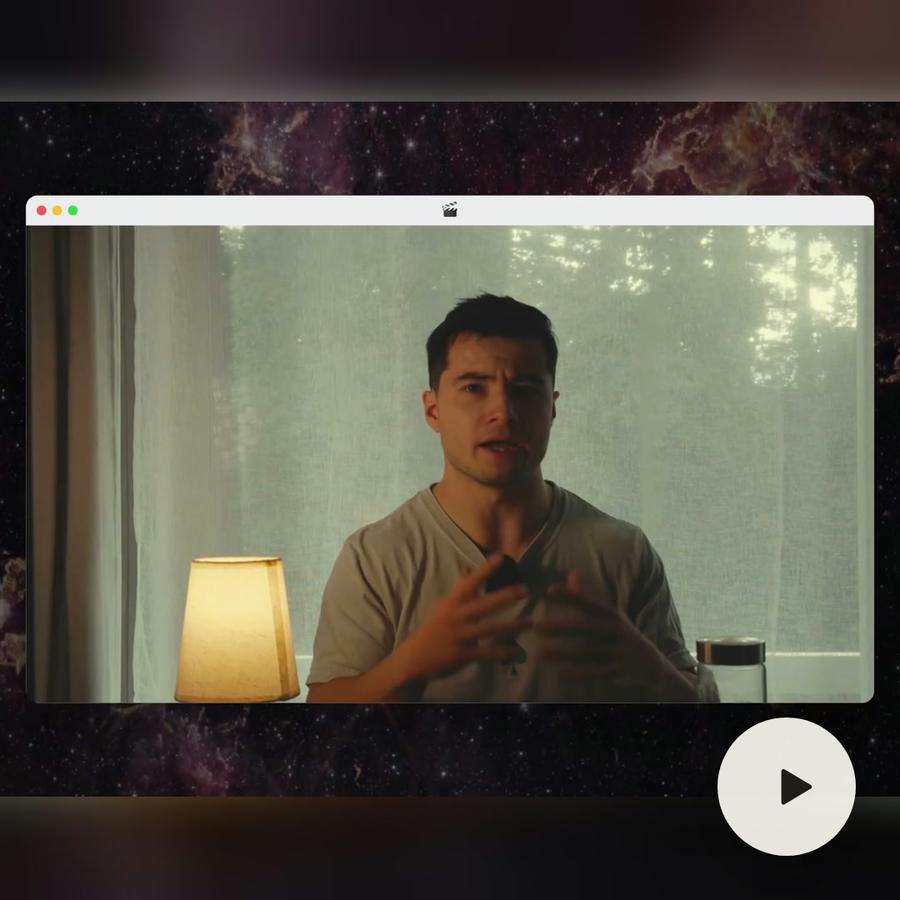
Montage reads what you say in the talk and lays your shots over the video at the moments they match. The shots play over the main video, at the moments they match. You can open it, see every clip, and change any of them.
You can also be precise. Name the moment: « Put the product shot over the part about pricing. » Or set the pace: « Don't let it sit on my face for 30 seconds. » Each request changes the video, and you can ask again until it feels right.
Choosing good B-roll shots
The best B-roll shows what the words say. A few habits help:
- Film it on purpose. After a talk, take five minutes to film the product, the screen and the place. That footage is what the edit draws from.
- Keep shots short. Two to five seconds is usually enough. Longer shots start to feel like a new scene.
- Mix close and wide. A close shot of a hand on a keyboard, then a wide shot of the room, keeps the eye moving.
- Name your files. A shot called « pricing-page.mp4 » is easier to place than « IMG_4821.mp4 », for you and for the edit.
Where B-roll goes, and where it doesn't
B-roll works best when the speaker explains, lists or describes. It works less well on the moments that carry emotion: a laugh, a strong opinion, a direct look at the camera. Those moments need the face.
If a shot lands on a moment you want to keep on the speaker, ask: « Keep my face during the intro. »
Questions people ask about AI B-roll
Does it use my own footage? It uses the shots you upload, so the B-roll looks like your brand and not like everyone else's.
Can I move a B-roll clip? Yes. Ask for one to go, or for another shot. Move it, swap it or ask for another one.
Can I export it? Yes: the video ready to post, B-roll included, or the cut for Premiere Pro or DaVinci Resolve.