






How to remove the background
from a video
Why remove the background from a video
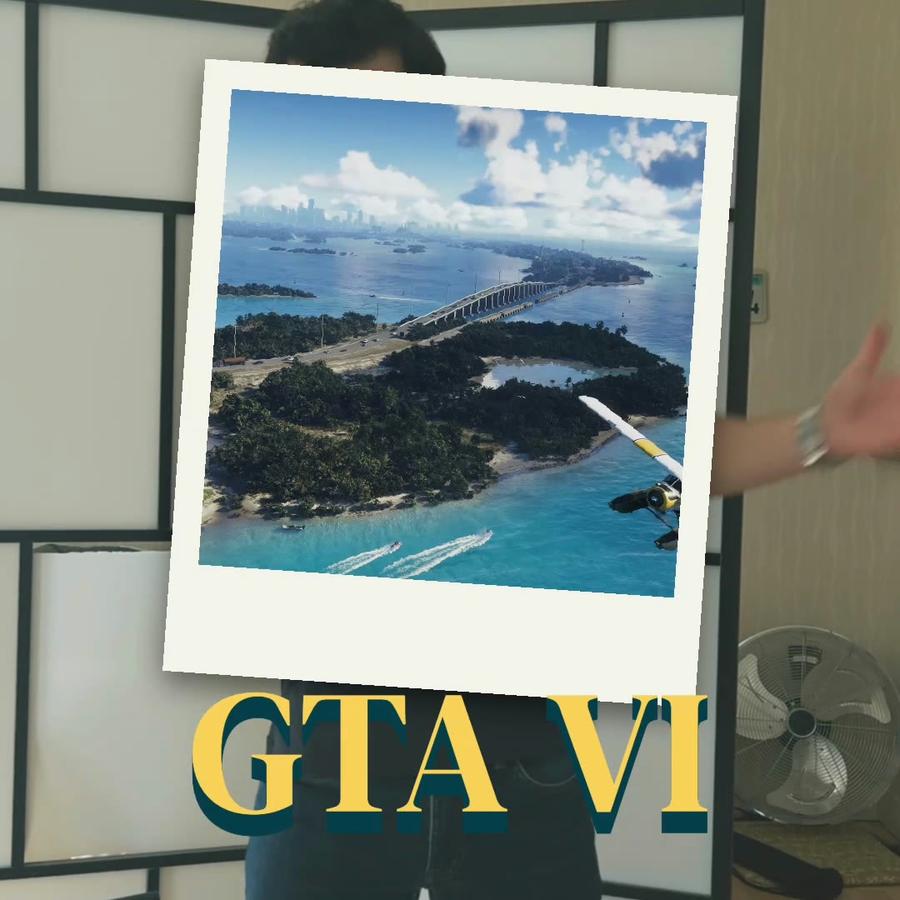
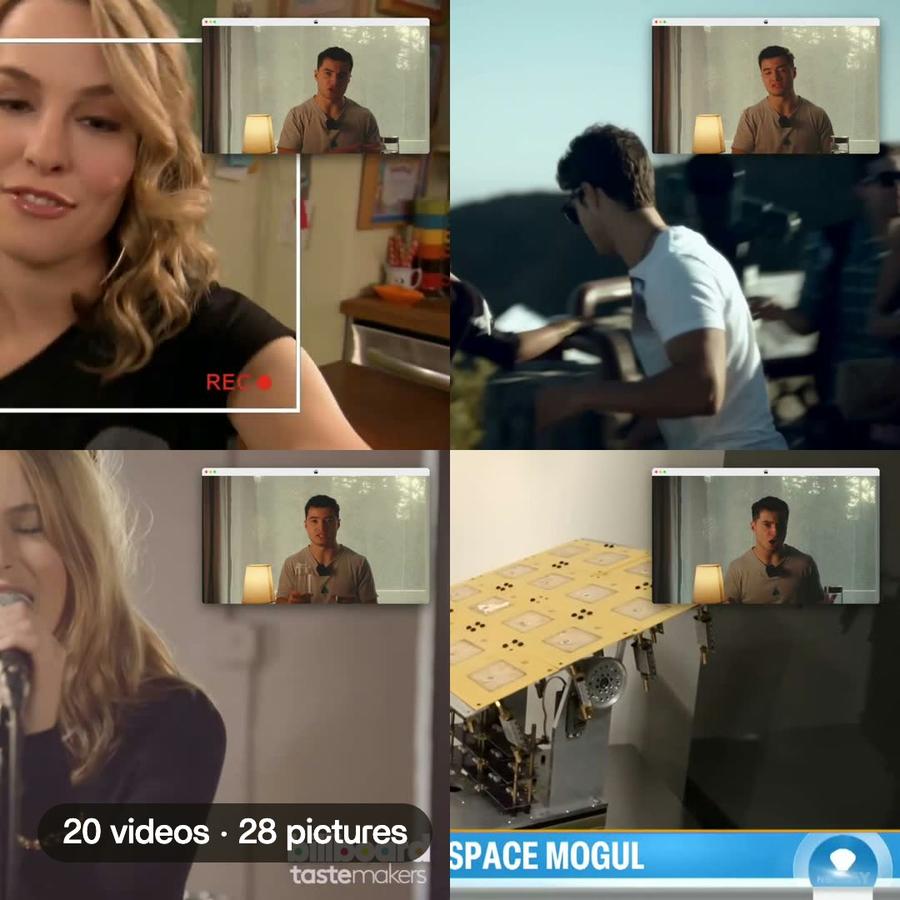
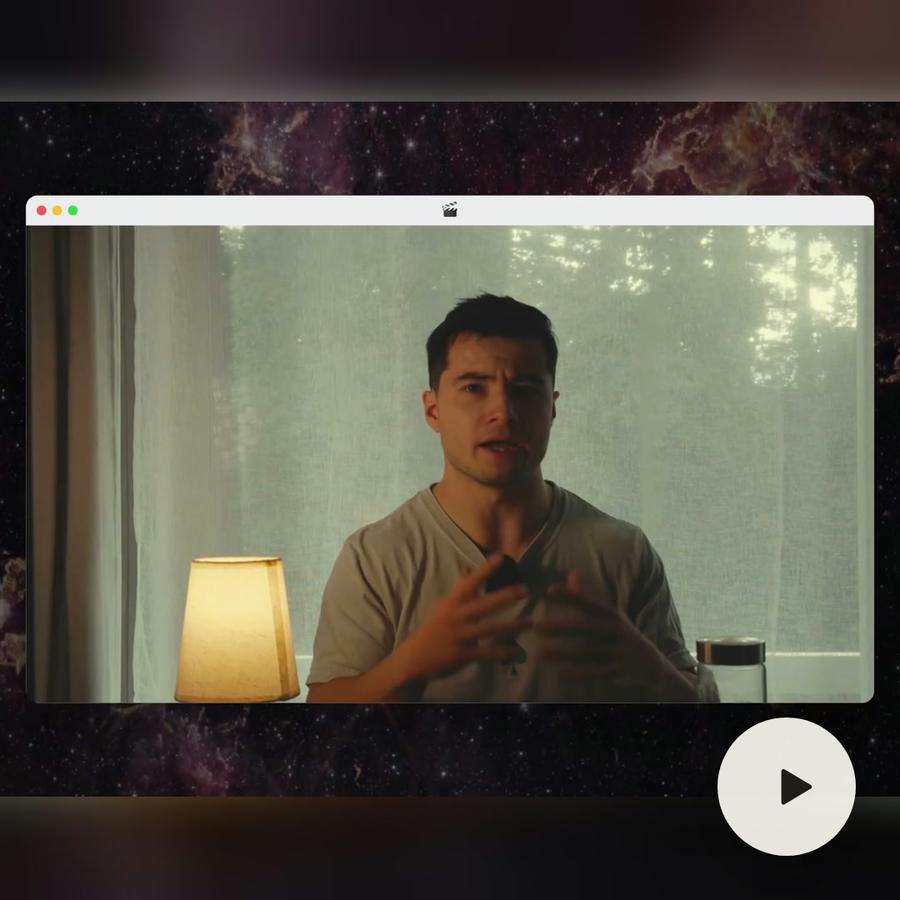
A shot is often good except for what sits behind it. A messy room, people walking past, a wall that does not match the brand. Taking the background away lets the person stand on their own. You can then put them in front of a product shot, a slide, a color or another clip. It is also how a talking head ends up on top of a screen recording, or how one person gets cut out to sit inside a title.
Remove video background without a green screen
The classic way is a green screen. You light a green wall evenly, film in front of it, then key the green out in the editor. It works well in a studio. It works badly in a living room, with uneven light, green reflections on the skin and hair that frays at the edges. And it only works if you planned it before filming. Most footage was never shot in front of anything green.
The other way is to let the computer find the person in the picture, frame by frame, and keep only them. That is what most editors call a mask or a matte. It needs no special wall and works on footage you already have.
How to remove the background in Premiere Pro, DaVinci Resolve or After Effects
The usual editors can all do it, each in its own way. You select the person, let the software track them through the clip, then check the edges and fix the frames where it slipped. In some of them you draw the stretch to work on first. In others the result is kept beside the project and has to be rebuilt if it goes missing. It is precise work, and on a long clip the checking is where the time goes.
How to remove a video background with Montage
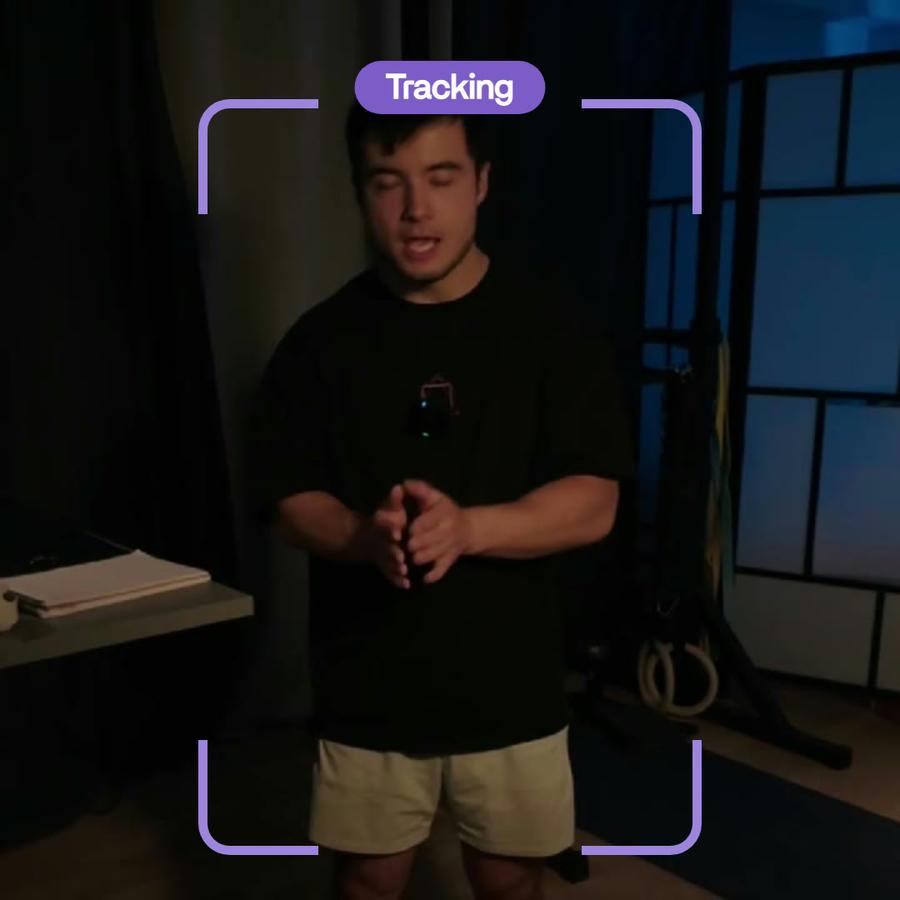
In Montage you say who to keep, in plain words: « keep the woman in the red jacket », « remove the background behind me ». It finds that person at the start of the clip and follows them to the end. Everything else is taken away. The result is part of the video, so you see it as you watch and get it in the export.
The cut-out is kept with the footage. Trim the clip and nothing has to be redone. Make it longer and only the new seconds are worked out. You can then ask for anything behind the person: another clip, a picture, a color. It goes behind them, and you swap it by asking.
Tips for a clean cut-out
- Name the person clearly. « The man in the blue shirt » works better than « him » when two people are in the shot.
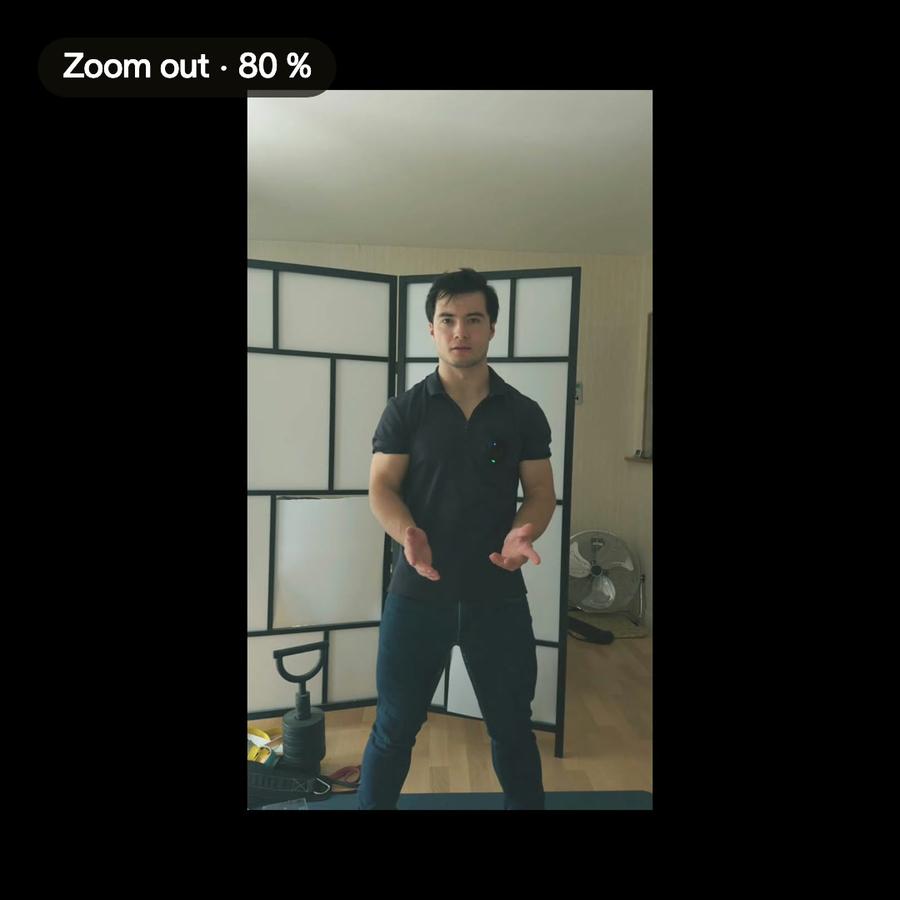
- Start the clip where the person is fully visible. They are found on the first frame and followed from there.
- Keep the clip to the part you need. Less footage means less to follow.
- Check the edges on a moment with fast movement or loose hair, then ask for a change if something slipped.
- Pick the background before you style the rest. Captions and titles read differently on a busy clip and on a plain color.