

How to add captions
to a video automatically
Why add captions to a video
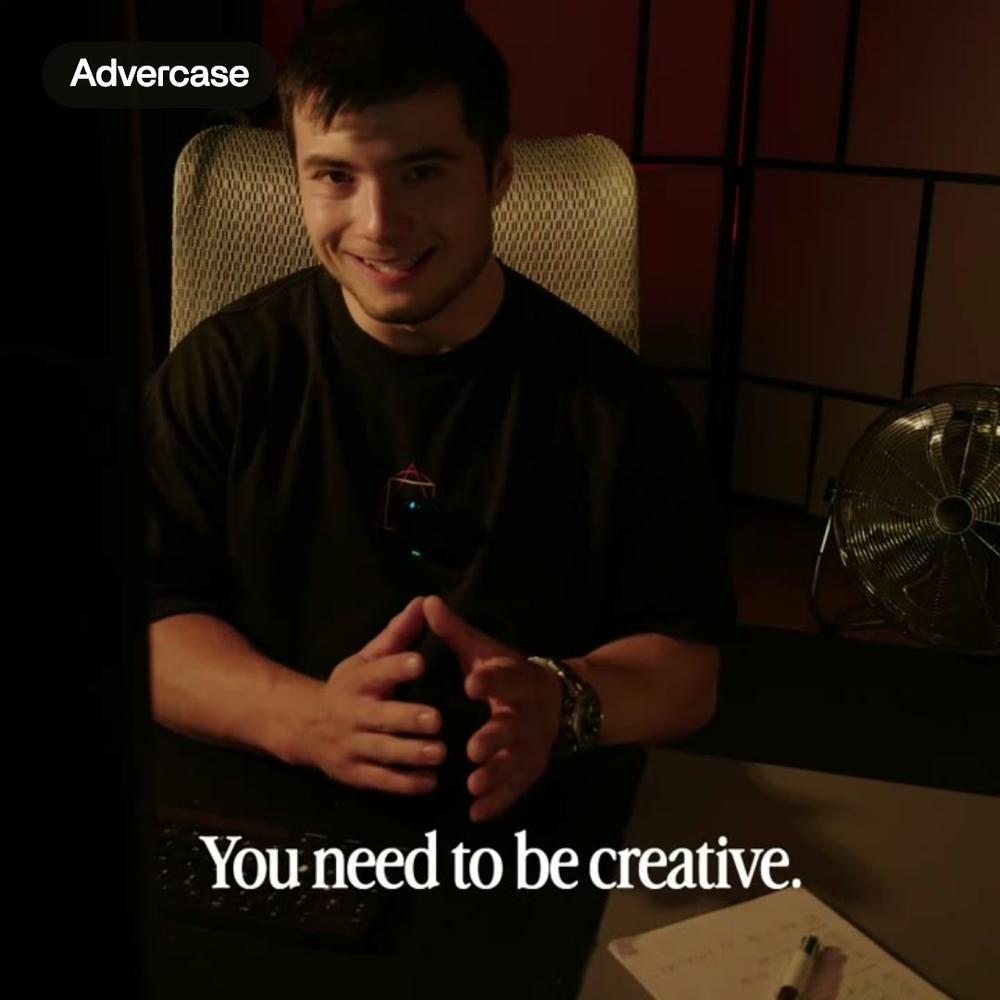
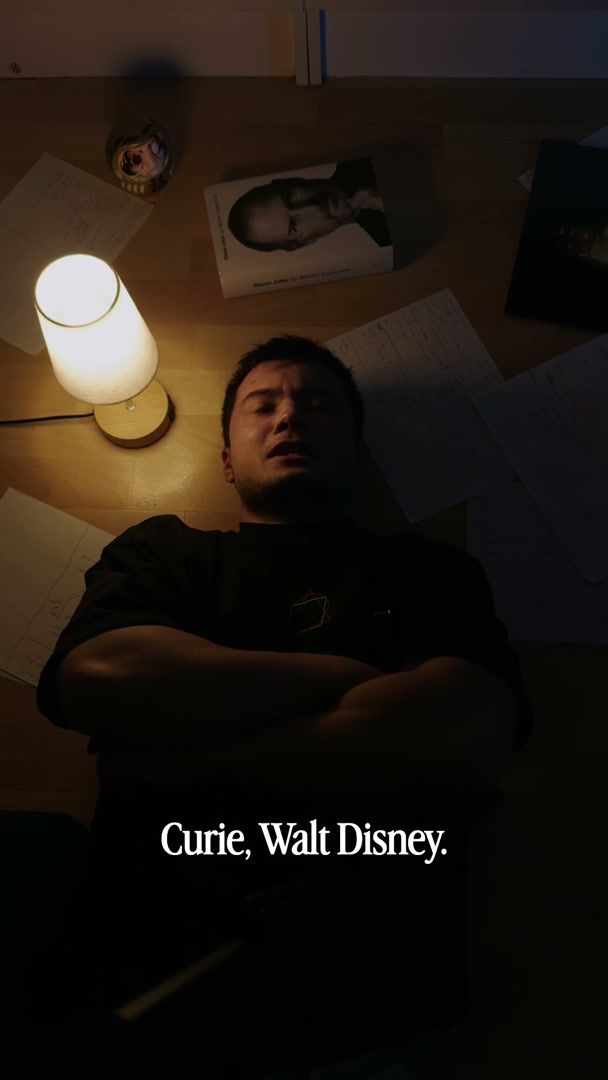
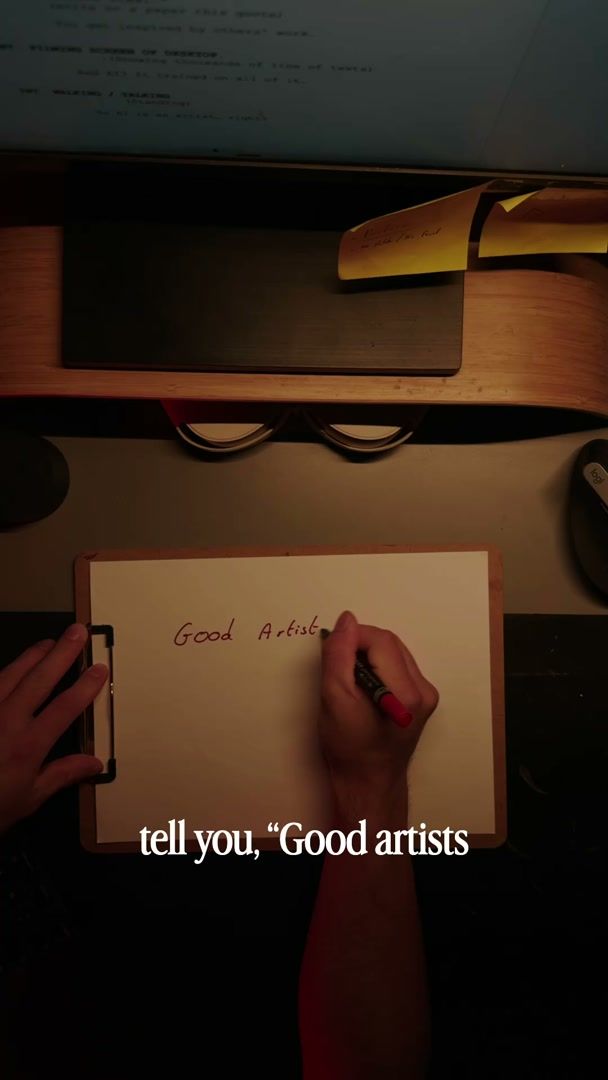
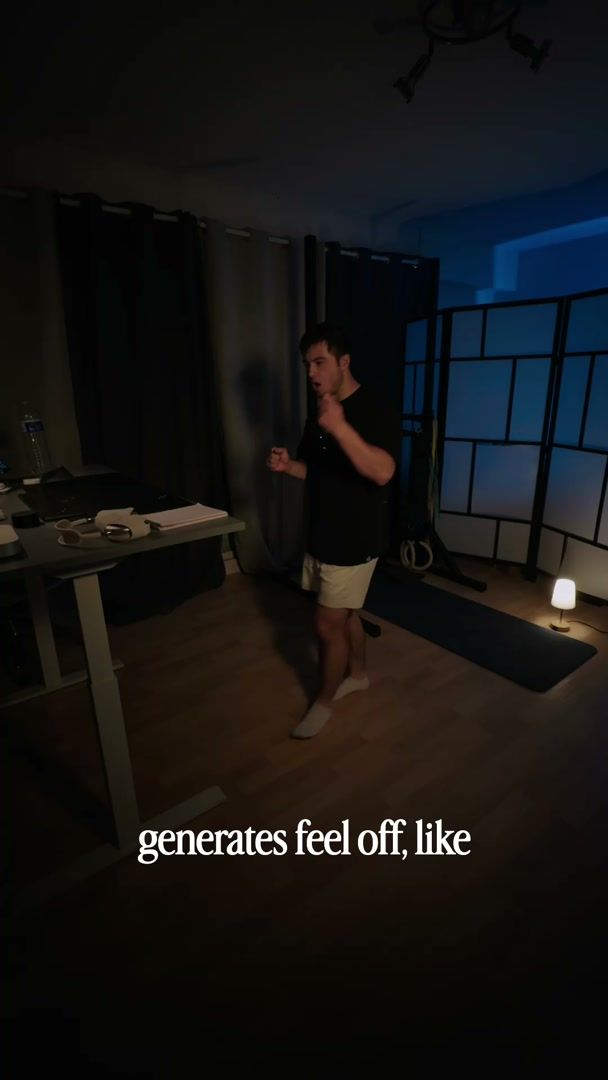
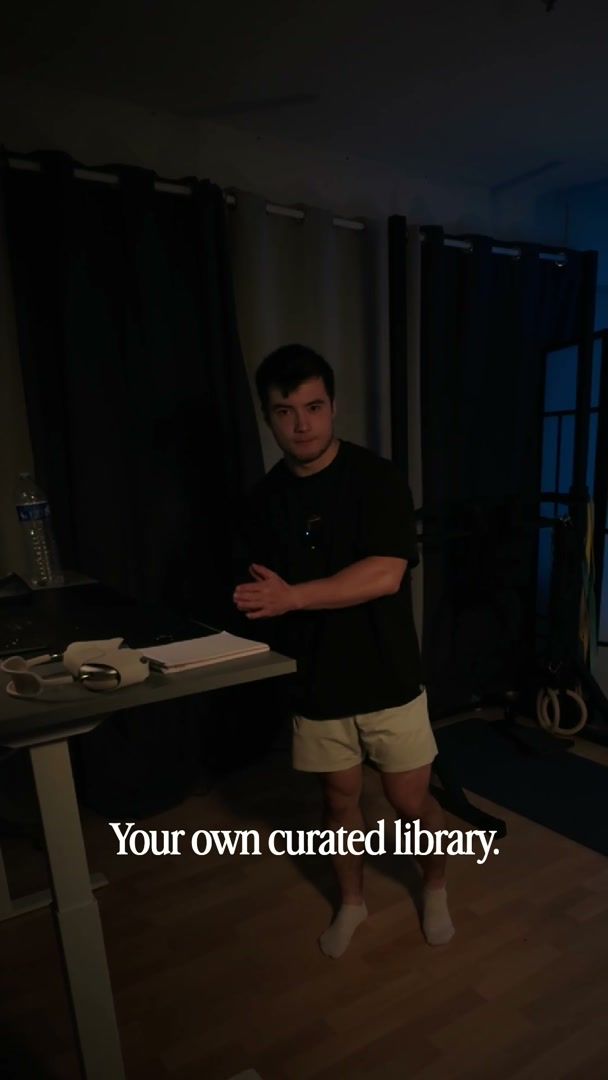
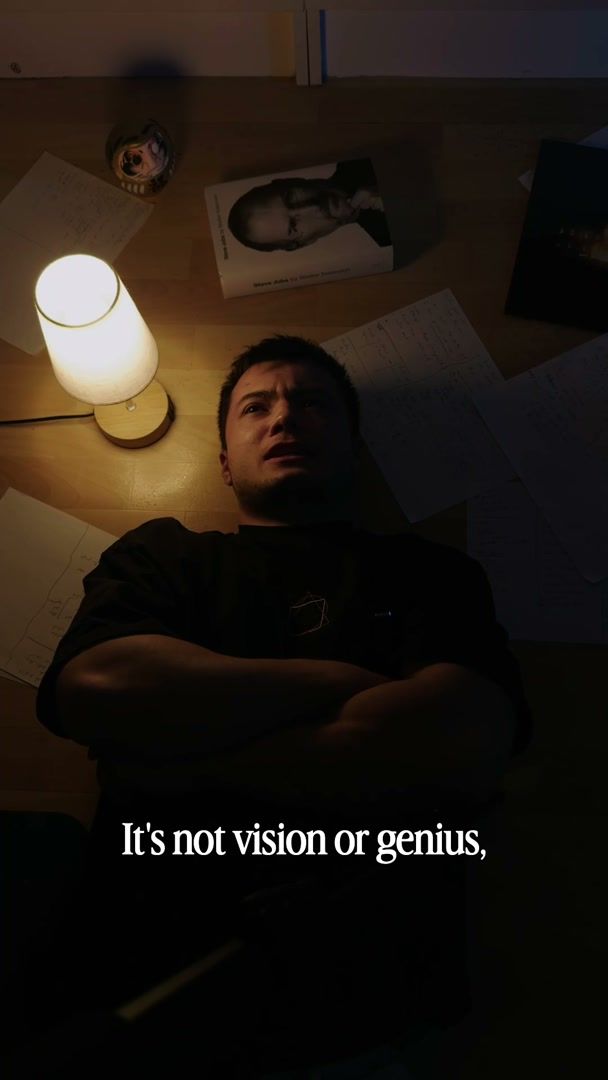
Many people watch with the sound off, on a phone, in a feed. Without captions they scroll past. Captions also help people who are deaf or hard of hearing, people watching in a second language, and anyone in a noisy place. On short vertical videos they have become part of the look.
How to add auto captions in Premiere Pro, DaVinci Resolve or CapCut
Most editors can now write captions from the speech for you. Premiere Pro builds captions from a transcript of the footage. DaVinci Resolve can create subtitles from the audio in its Studio version. CapCut has auto captions too.
The writing is the fast part. Then comes the slow part: fixing the words it got wrong, choosing a font, a size and a color, placing the captions where they do not cover a face, and redoing the style when you change your mind. On a long video, or on many short ones, that adds up.
Auto captions in your brand's fonts and colors
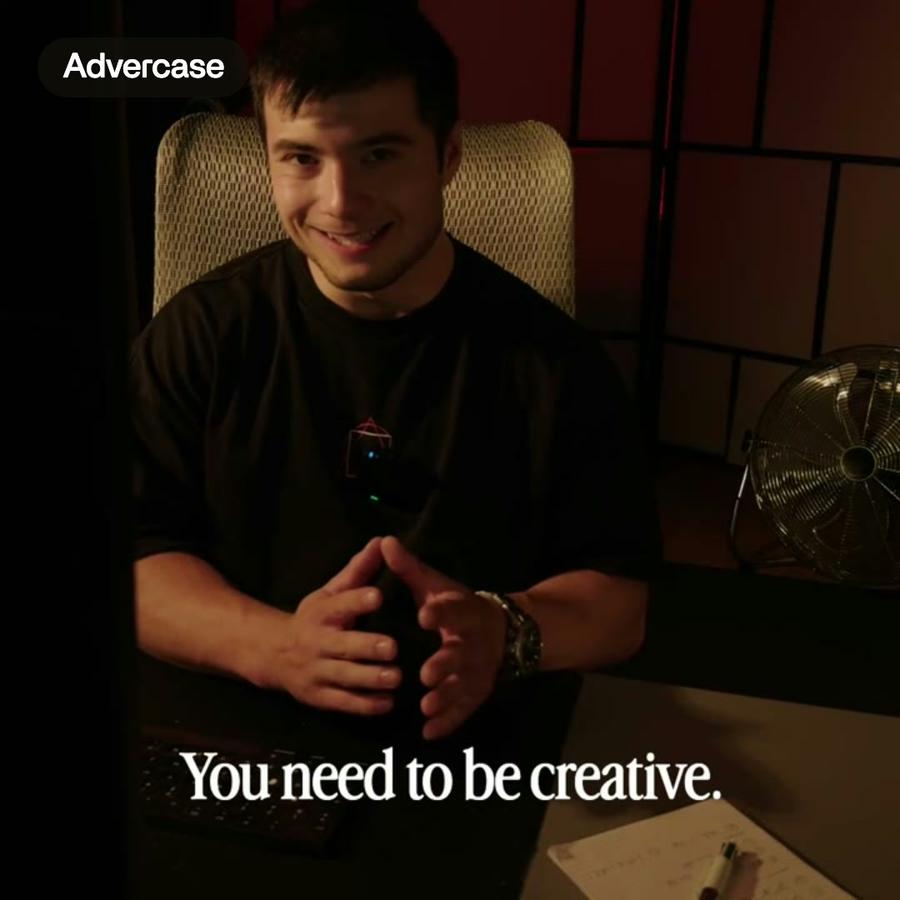
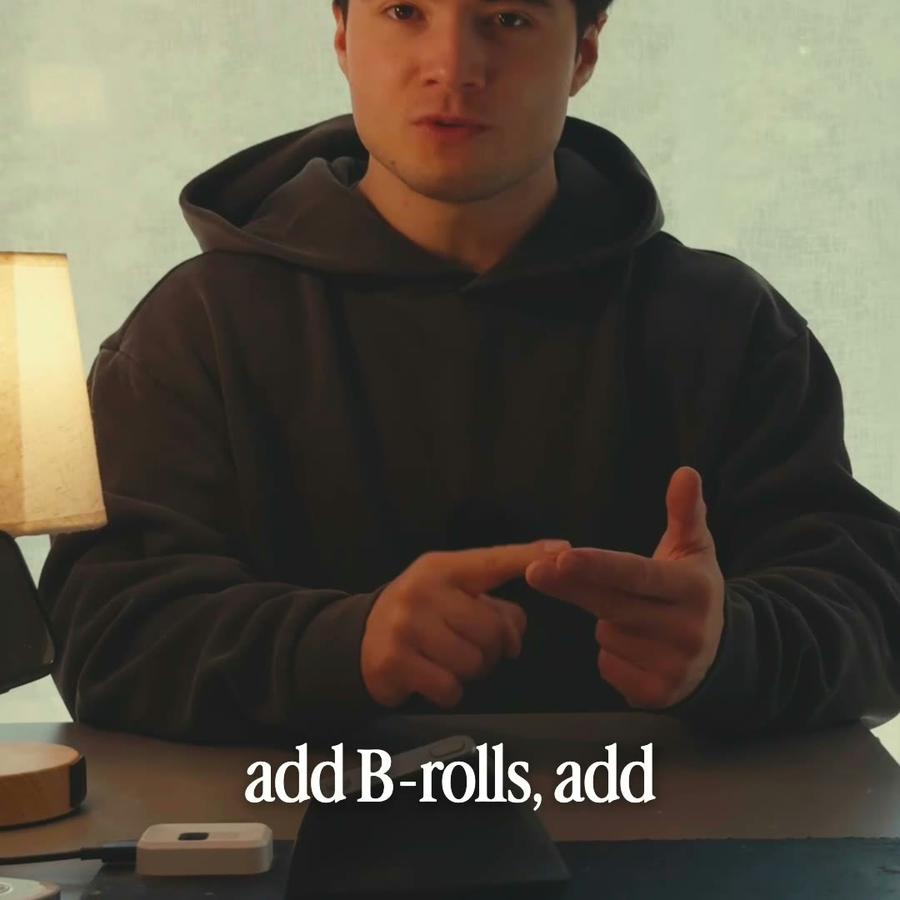
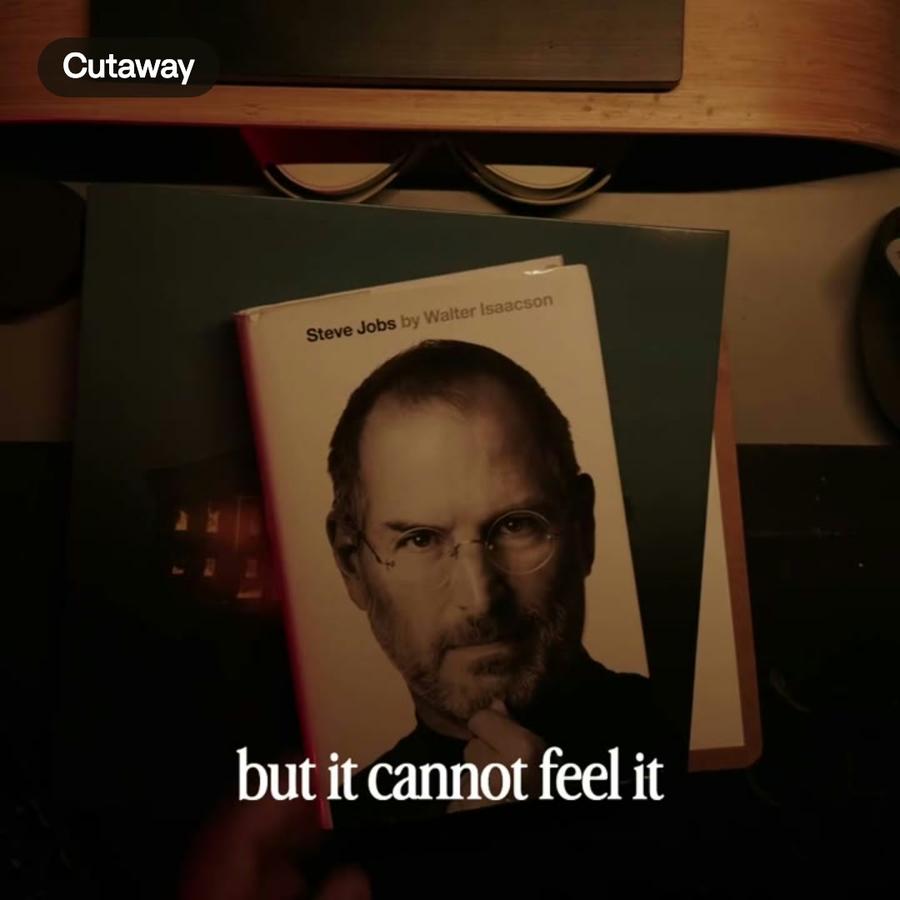
In Montage you ask: "add captions in our brand colors". The captions are written from what is said in every clip, in the order of the edit, a few words at a time, the way professional editors cut them: short lines that stay on screen long enough to read.
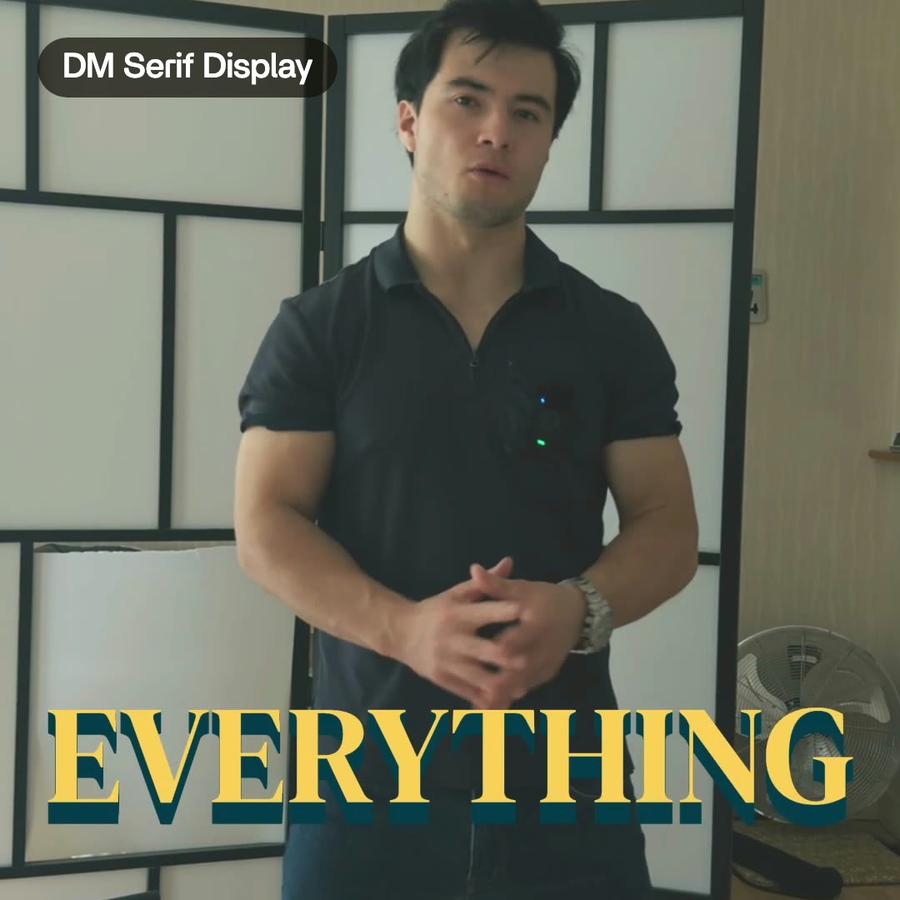
Save your style once and the captions use your fonts and colors. You can also start from a ready-made caption style and ask for changes: bigger, centered, one line at a time, higher on the screen.
How to fix a word in the captions
Every caption changes by asking, one word or all of them. To fix a word, say it: "change gonna to going to", or leave a comment on the moment. To change the look of every caption at once, ask once: the change applies to all of them. To make one caption stand out, ask for that one only.
If you add captions again after changing the edit, they are written again from the new cut.
Captions as a subtitle file
Some platforms prefer a subtitle file to captions burned into the picture. Montage can export the captions as an SRT file, on every plan, so you can upload them next to the video on YouTube or anywhere that takes subtitles.
Tips for captions people can read
- Big enough to read on a phone. Check the video at phone size before you post.
- Short lines. One or two lines at a time are easier to follow than a block of text.
- Mind the face. Keep captions clear of the speaker's mouth and eyes.
- Cut first, caption after. Captions follow the words, so remove silences and retakes before you add them.
- One style per channel. Using the same caption style on every video makes the work recognisable.