











How to export a video,
ready to post
Three ways to finish
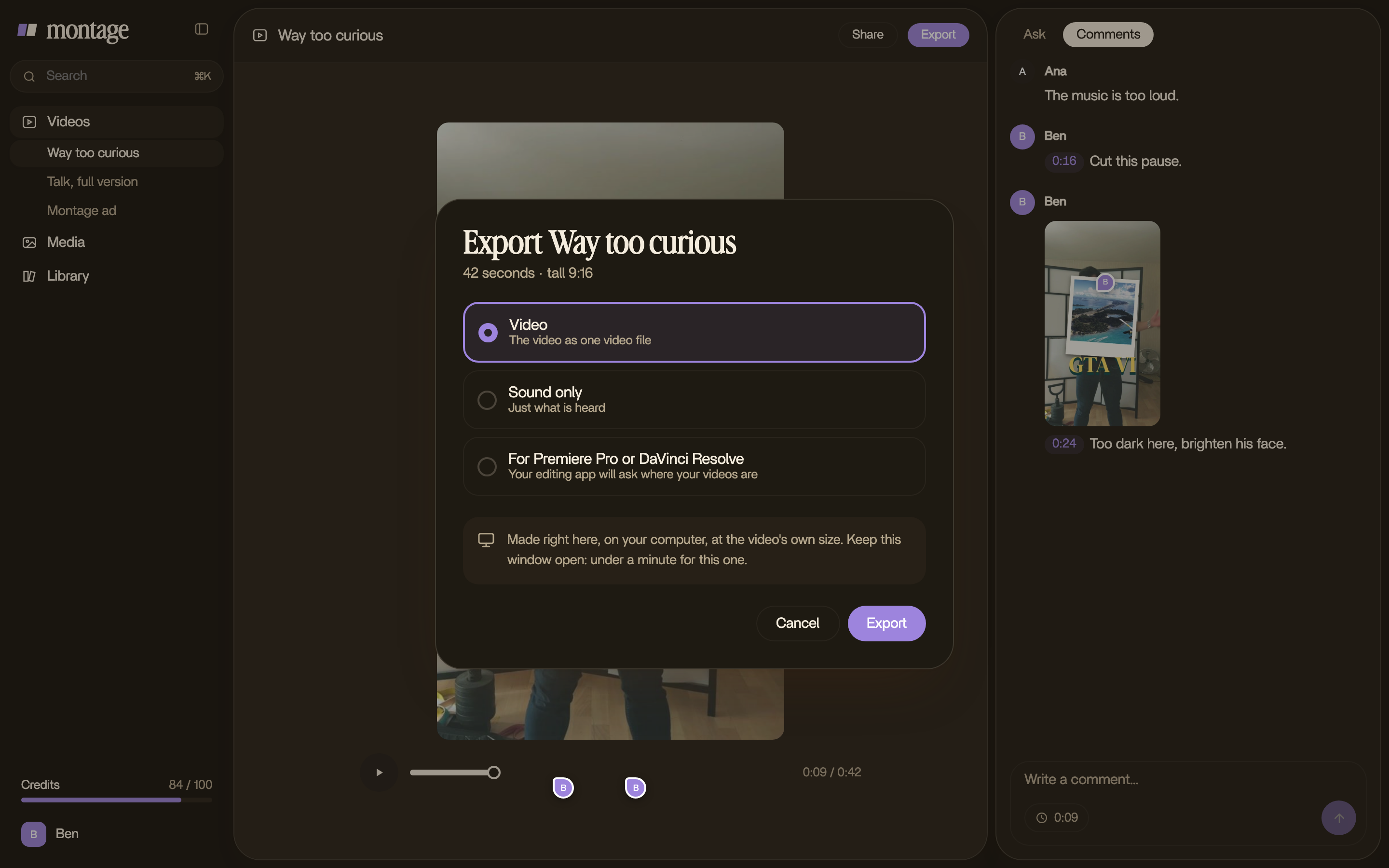
When the edit is done, press Export and pick what you need:
- Video: one MP4, ready for YouTube, TikTok, Reels or your site.
- Sound only: just what is heard, for a podcast or a voice-over.
- For Premiere Pro or DaVinci Resolve: the cut, to keep editing there. Every clip comes in its place, and what those apps can't rebuild, like titles and captions, comes beside it as small videos. Your editing app asks where your footage is: point it to your files.
Made on your own computer
The export runs right in your browser, on your own computer. It reads your original footage, so every frame comes out at its full size, and nothing is sent anywhere to be made. There is nothing to install.
Every shape
Vertical for Shorts, Reels and TikTok, square for a feed, wide for YouTube: the video comes out in the shape it was made in. Ask Montage for another shape first, and export that one too.
Tips for a clean export
- Export for where it goes. Vertical for Shorts, Reels and TikTok. Wide for YouTube.
- Keep your footage where it is. The export reads your original files on your computer: keep them until the video is out.
- Keep the window open. The video is made in that window, and a long one takes a little while.
Questions about exporting
Which formats? Three: the video, an MP4 at the full size of your footage; the sound alone; or the cut for Premiere Pro or DaVinci Resolve.
Can I finish the edit in Premiere Pro or DaVinci Resolve? Yes. Export « For Premiere Pro or DaVinci Resolve », open the file there, and point the app to your footage.
Where is the video made? On your own computer, in your browser, from your original files.
Do exports carry a watermark? On the free plan, yes. Every paid plan exports without one.