Video editing software for beginners:
how to pick.
Every list compares features. I think that's the wrong question. Let me show you the right one, with one real video taken apart.
 Ben, founder of Montage · · 8 min read
In this post7 parts
The short answer.
Ladies and gentlemen, let's start with the answer.
The best video editing software for beginners is the one that makes you do the fewest things by hand for the video you want to make. Not the one with the most features. Most beginner lists compare features, prices and platforms, then tell you to try them all. Truth is, the programs on those lists are pretty much the same kind of program.
Beginner software comes in three kinds:
- A timeline editor (iMovie, CapCut, Clipchamp, Filmora, DaVinci Resolve): you make every cut by hand.
- Templates and one-click tools (CapCut's templates, iMovie's Magic Movie and Storyboards): fast, as long as your video fits the template.
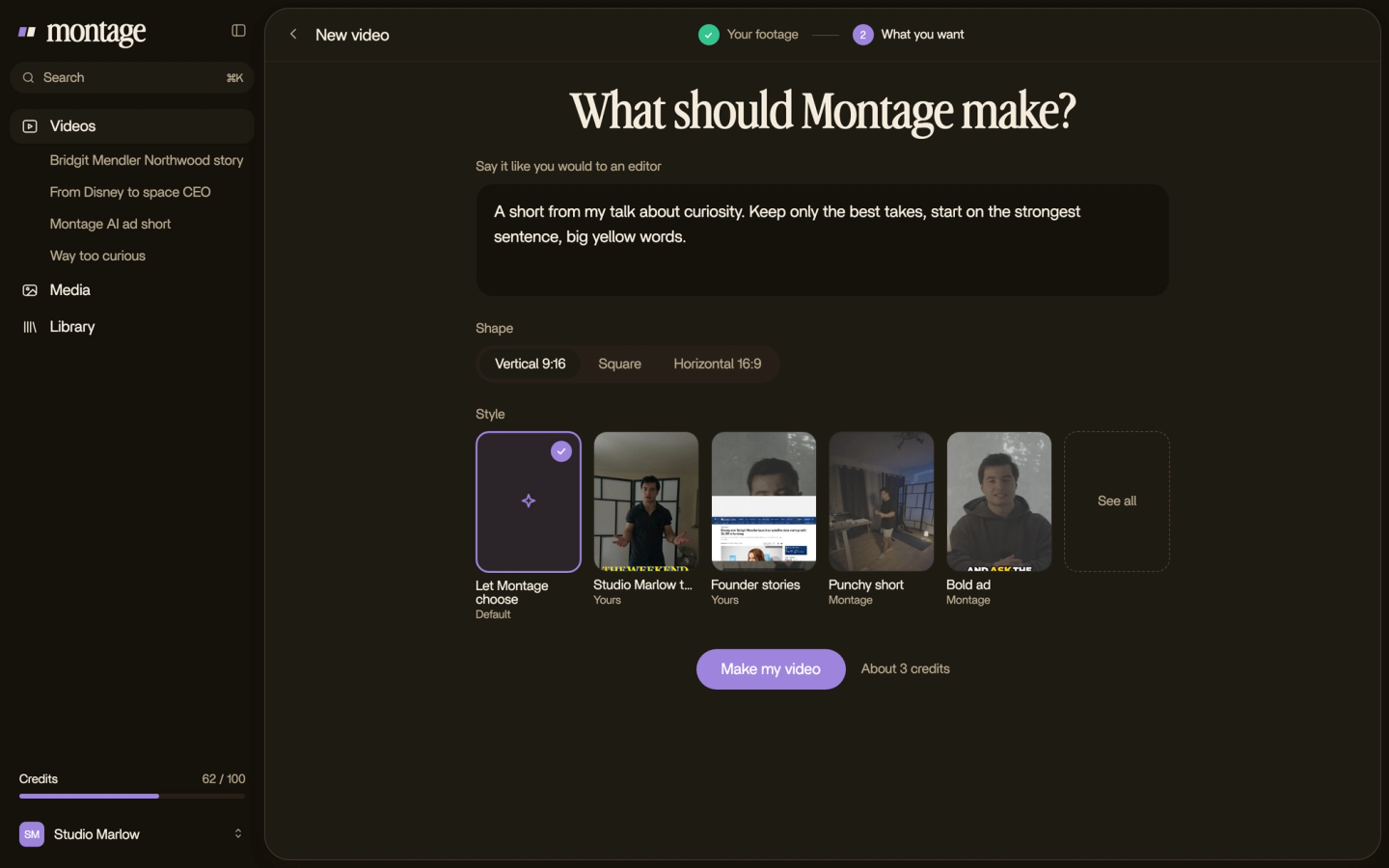
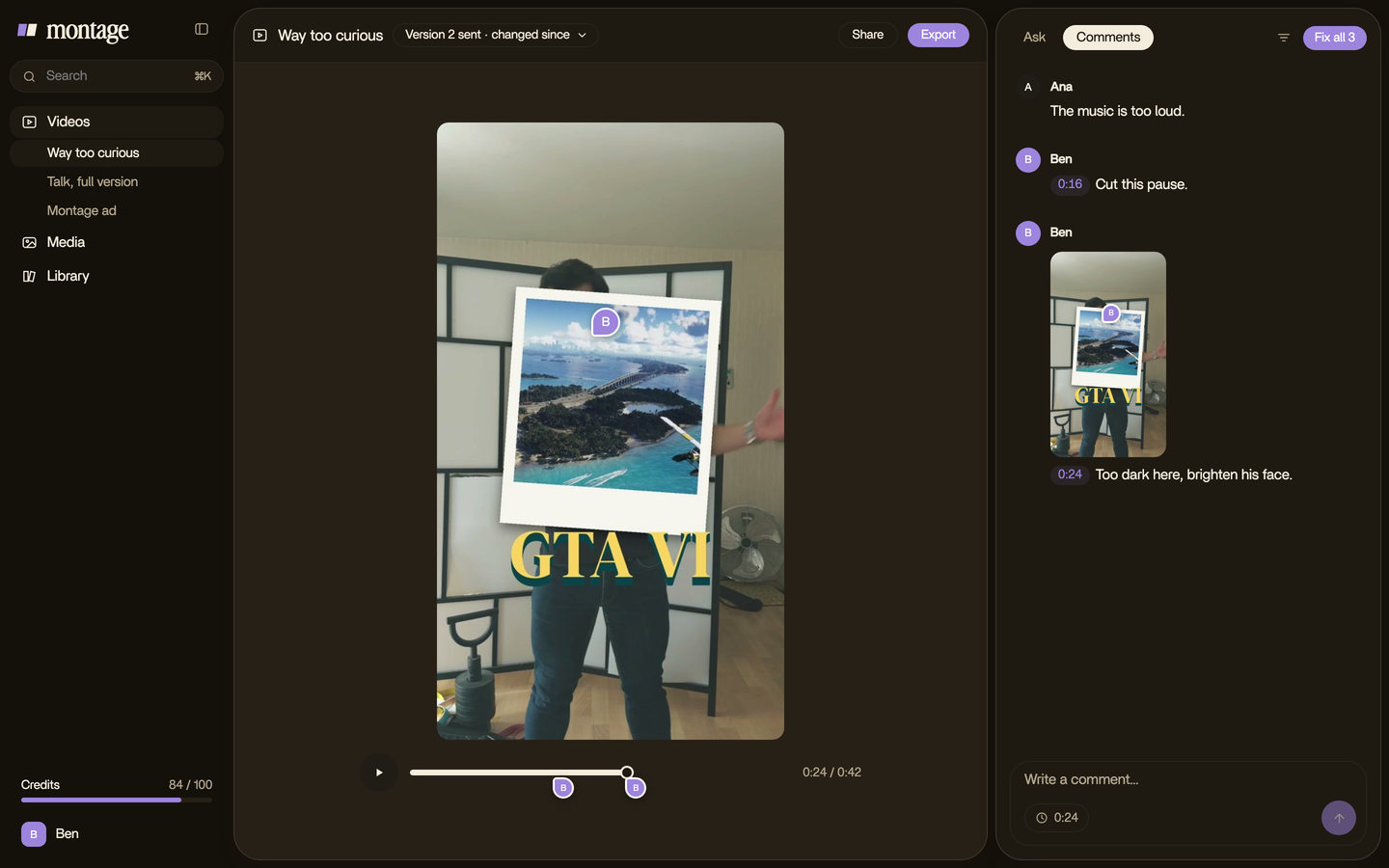
- An AI editor you talk to (Montage): you say what you want, watch it, and comment on what's wrong.
So which one? If you want to learn editing as a craft or a job, pick a timeline editor. If you just want your videos out, I think the third kind is the fastest way to start. And if you're not sure what an edit even does yet, read where to start with video editing first.
Don't count the features. Count the decisions you make by hand.
Three kinds of beginner software.
Okay. Let's look at each kind, the same way.
1. Timeline editors
What it is: the classic editor. Your clips sit on a strip, left to right, and you cut, move and adjust each one.
Examples: iMovie (free, already on a Mac, also on iPhone and iPad), CapCut (most of its tools are free), Clipchamp (free, exports up to 1080p with no watermark on the free tier), Filmora, and DaVinci Resolve (it has a free version). Those facts come from TechRadar's beginner picks; the Resolve one from simular.ai.
What it makes you do: every decision, by hand. Which take, where it starts, where it ends, what goes on top.
Good for: anyone who wants full control, or who wants a job as an editor someday.
Not for: people who want to post this week and never open a tutorial.
2. Templates and one-click tools
What it is: a finished look you pour your footage into. Pick a template, drop your clips, done.
Examples: CapCut's templates, iMovie's Magic Movie and Storyboards.
What it makes you do: very little. That's the point. But the template decides the look, the pacing and the length.
Good for: a quick video that looks like a lot of other videos.
Not for: a video in your own style, or anything the template didn't plan for.
3. An AI editor you talk to
What it is: you drop your footage in and say what the video is for. The AI makes the edit. You watch it, pause where something's off, and comment on it. Then it fixes everything at once. That's what Montage is: an AI editor you talk to.
What it makes you do: say what you want, and say what's wrong. No timeline.
Good for: creators who film themselves and want videos out, in their own style.
Not for: anyone who wants to learn the craft of editing by hand. For that, a timeline editor is the right school.
One real video, taken apart.
So what does « fewer decisions by hand » actually look like? Let me explain with a real video.
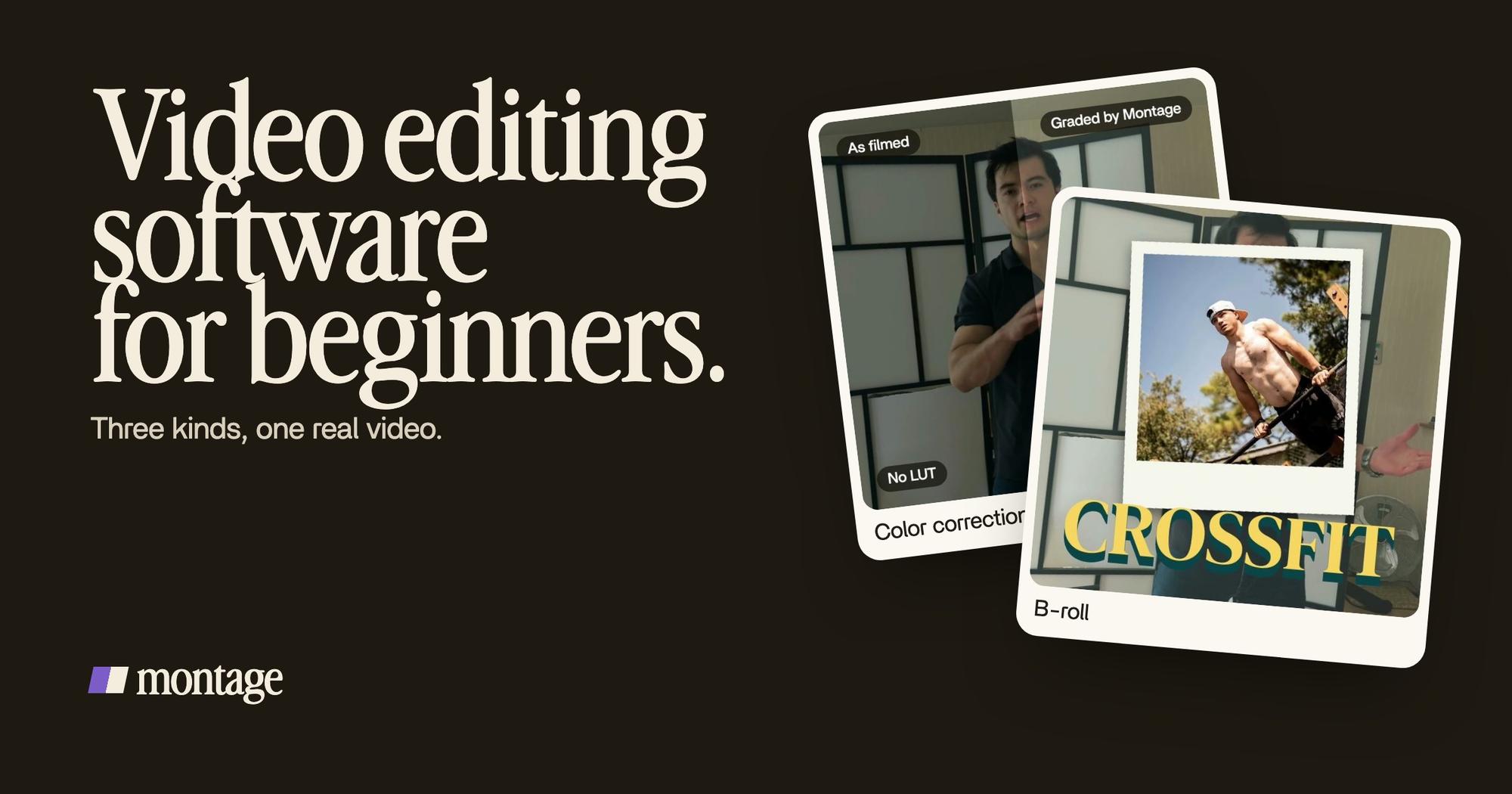
Way too curious is a 56-second vertical video, filmed on an iPhone. Here are three of its parts.
 Color correctionFilmed too dark on an iPhone. I asked for a grade, no LUT: Montage lifted it on its own. Same frame, split.
 CaptionsYellow, uppercase, a blue drop shadow, and the key word drawn bigger.
 B-rollI say CrossFit, my photo drops in. One picture for each thing I love.
Now let's take each part, and see what each kind of software would make you do.
The color. It was filmed too dark.
- In a timeline editor: open the color tools, raise the exposure, adjust the contrast, check the skin, and do it again for every clip that needs it.
- With a template: whatever filter the template has.
- In Montage: I asked for a grade, no LUT, and Montage lifted it on its own. Here's how to fix footage that's too dark.
The captions. Yellow, uppercase, a blue drop shadow, and the key word drawn bigger.
- In a timeline editor: generate the captions, fix the words it got wrong, set the font, the color and the shadow, then find each key word and make it bigger, one by one.
- With a template: the template's caption style, not yours.
- In Montage: I asked for that style, in words. Here's how to get captions in your own style.
The B-roll. I say CrossFit, my photo drops in. One picture for each thing I love.
- In a timeline editor: import every photo, find the exact moment each word is said, place each picture on a track above the take, and set how it comes in.
- With a template: there's usually no way to tie a picture to a word.
- In Montage: I asked for it, and the photo drops in on the word.
And there's a fourth part: a slow push-in on every shot, and on « everything » and « curious » the picture pulls back on black. In a timeline editor, that's keyframes on every shot.
Do you see the difference? Same video, same footage. The question was never « which program has captions? ». They all have captions. The question is how many of those steps you do yourself.
The best video editing software for beginners, by kind of beginner.
Here they are side by side, with a verdict for each kind of beginner.
| If you are… | Pick | Why |
|---|---|---|
| A creator who films yourself and wants videos out | An AI editor you talk to (Montage) | You say what you want and comment on what's wrong. No timeline to learn. |
| Someone who wants to learn editing as a craft or a job | DaVinci Resolve or Premiere Pro | That's what the industry uses, and there are years of free tutorials. Resolve has a free version. |
| A Mac user making family videos | iMovie | It's free, already on your Mac, and also on iPhone and iPad. |
| Someone who wants a quick video in a ready-made look | CapCut's templates | Fast, as long as the template fits your video. |
| Someone who wants a simple free timeline for social media | Clipchamp | Free, 1080p with no watermark on the free tier. |
| Someone who wants CapCut's ease without the timeline | Montage | Here's a CapCut alternative with no timeline. |
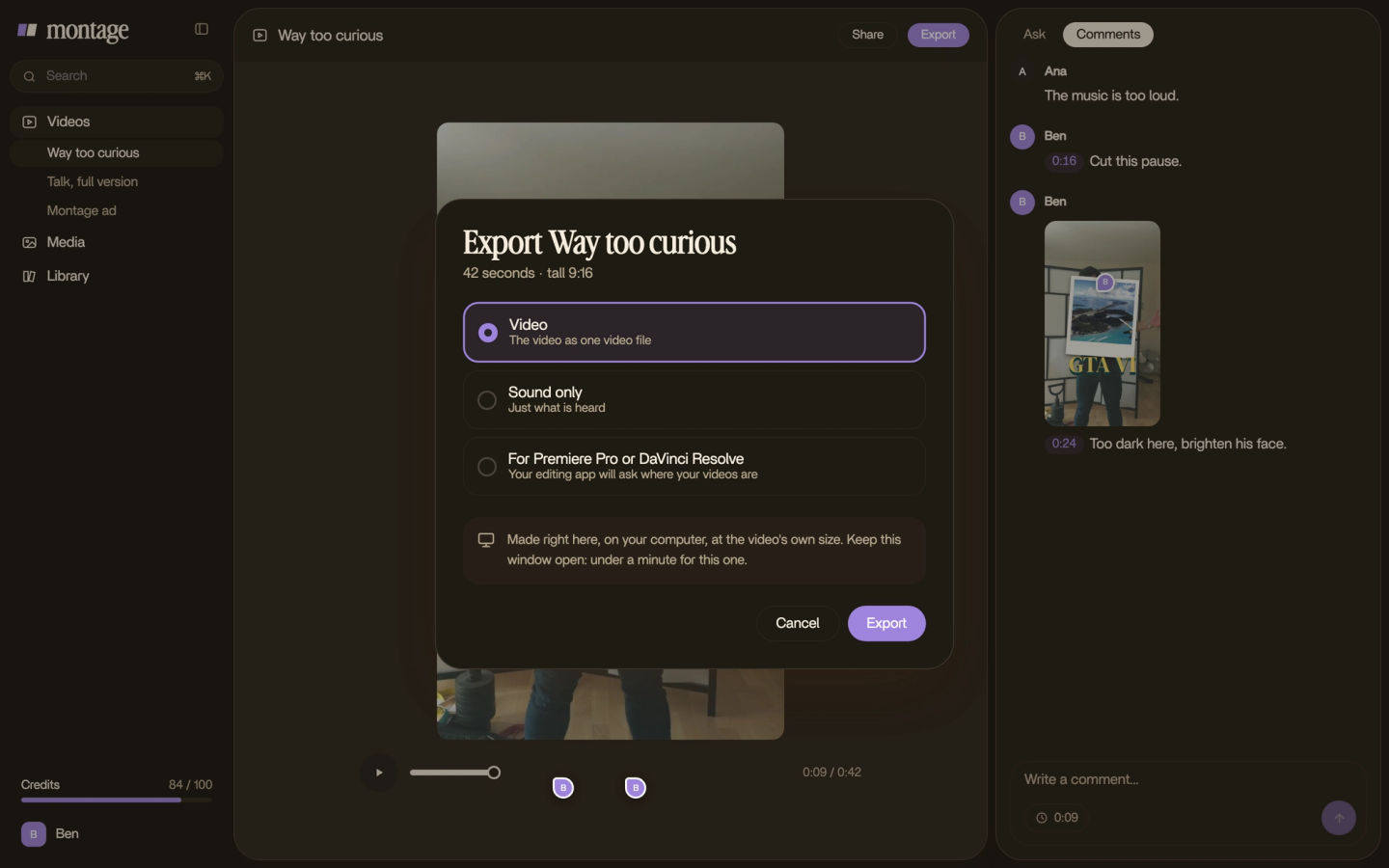
Sure. But what if you start with Montage and outgrow it? Then you take your cut with you. Montage exports the MP4, the sound only, or the cut for Premiere Pro or DaVinci Resolve.
Start with the kind of tool that fits your video. Not the one with the longest feature list.
One more thing: Montage runs in the browser, and your originals stay on your computer. If you want to pay for more, the plans are Plus at $25, Pro at $50, Max at $100 and Ultra at $200 a month.
What no list tells you.
Here's the thing: the software is rarely what stops a beginner. The footage is. Let's be clear: I hit the first three with my own videos.
 Color correctionFilmed flat in Apple Log, my LUT on every shot. Same frame, split down the middle.
 RotateThe notebook shots were filmed from above, upside down. Montage turned them the right way up.
- Footage that looks grey. How to be creative was filmed flat in Apple Log. It looks grey on purpose, until a LUT goes on every shot. Whatever software you pick, check that it can do that.
- Shots upside down. My notebook shots were filmed from above, upside down. Montage turned them the right way up. In a timeline editor, that's a rotate on each clip.
- Footage that's too dark. Way too curious was filmed too dark on an iPhone. Phones don't always get the light right, so grade before you judge a shot.
- No backup. Use the 3-2-1 rule: 3 copies of your footage, on 2 kinds of storage, 1 somewhere else (the rule as nofilmschool.com and Lexar give it).
And it isn't only for shorts. In From Disney star to space CEO, a long-form YouTube film, my face cam is a component on every one of the 216 cuts.
 Components
Questions about video editing software for beginners.
Which video editing software is best for beginners?
The one that makes you do the fewest things by hand for your kind of video. To learn the craft, DaVinci Resolve (free
version) or Premiere Pro. For family videos on a Mac, iMovie. To get your own videos out without learning a timeline, an
AI editor you talk to, like Montage.
What is the 3:2:1 rule in video editing?
It's a backup rule: 3 copies of your footage, on 2 different kinds of storage, with 1 copy off-site, like the cloud.
Is CapCut beginner friendly?
Yes. Most of its tools are free, and its templates are fast. But it's still a timeline editor: anything outside a
template, you do by hand. TechRadar also notes it asks for access to your whole photo library.
Is DaVinci Resolve really free?
Yes, DaVinci Resolve has a free version, and it goes a long way. There's also a paid Studio version. To be honest, it's
a great program to learn the craft, but it isn't the fastest way to a first video.
See it in real videos.
Every part in this article comes from a real video, each one asked for in words. The four videos in the showcase show what went in and how each one was made.
 9:18
 2:07
 0:56
 0:38
That's it for this one. Now pick your tool, and go film something.
See you in the next one.