Video editing tips:
12, and most you can see in real videos.
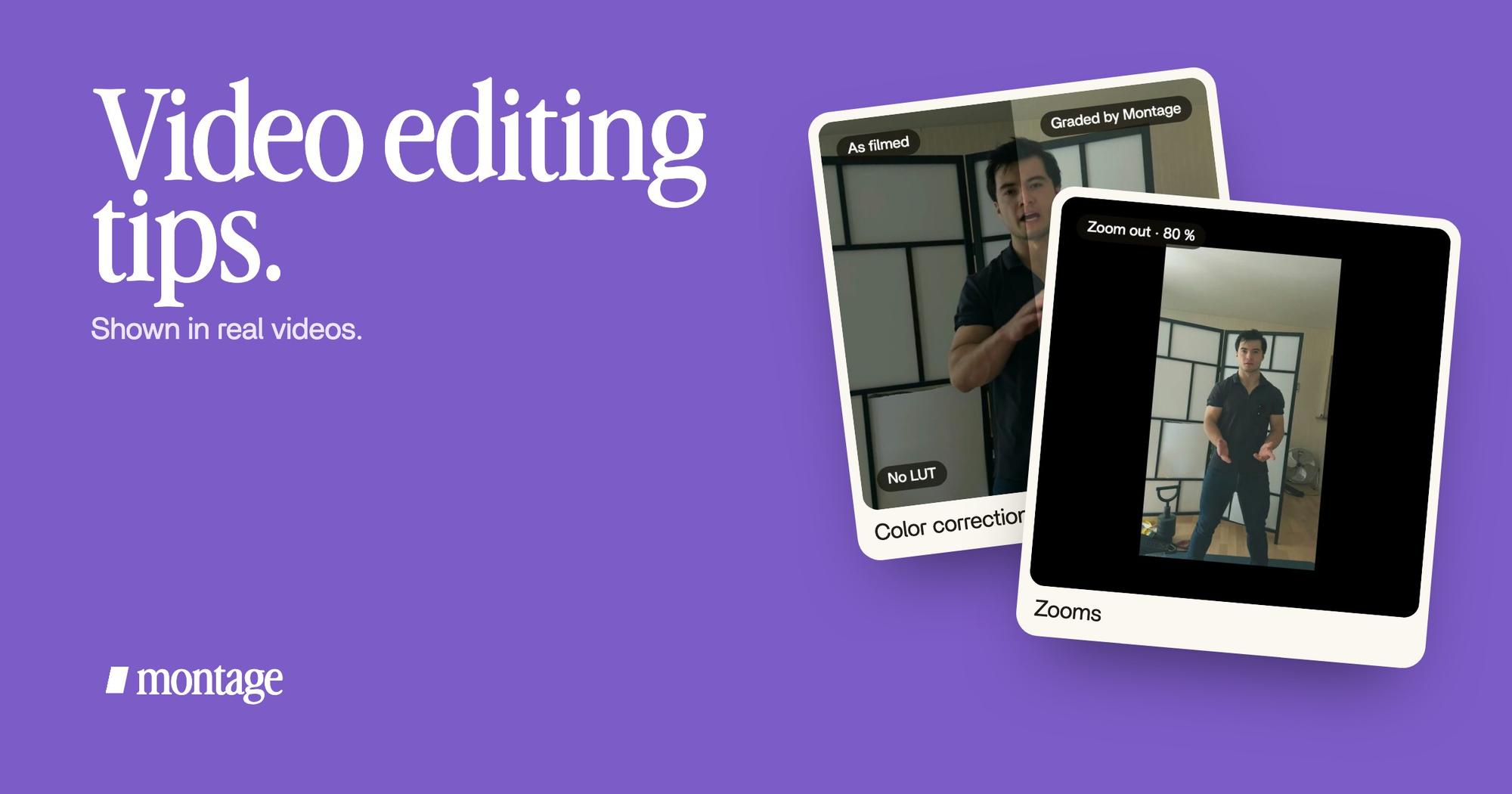
Most video editing tips are rules. Here are twelve, and ten of them you can actually see working in a real video.
 Ben, founder of Montage · · 9 min read
In this post11 parts
The short answer.
Ladies and gentlemen, let's start with the answer.
The video editing tips that matter most fit in one paragraph. Cut every pause and every retake. Show what you're talking about while you say it. Keep captions short, and make the key word bigger. Fix the color of your phone footage before you put anything on top of it. Keep your voice on top and the music under it. And on a long video, make the thing you repeat once, then reuse it.
That's it. Everything below is those tips, one by one, most of them shown in one of my four showcase videos. If you've never edited a video, start with where to start with video editing first, then come back.
Here's the thing: most tips articles you'll find say « use B-roll » or « zoom in 10% ». Fine. But you never see it.
A tip you can't see working is just a rule.
So let me show you.
Tips for cutting.
1. Cut the pauses and the retakes first
Before color, before captions, before music: cut. The pauses, the « ums », the takes where you lost your words. Every other decision is easier on a tight cut.
My film From Disney star to space CEO was seven takes, 33 minutes filmed on an iPhone. The finished video is 9 minutes and 18 seconds, with 216 cuts. Montage cut the ums and dead air and kept the best take of each line. That's the first pass, and to be honest, the one you least want to do by hand.
2. Punch in to hide a jump cut
When you cut inside one shot, the picture jumps a little. That's a jump cut, and on YouTube and TikTok it's normal. A punch-in, a zoom from one cut to the next, makes it feel on purpose.
In Way too curious: « A slow push-in on every shot, and on « everything » and « curious » the picture pulls back on black. » The zooms land on the words that matter, not at random. That's how you get punch-ins on every cut that mean something.
One warning from Brightcove's editing guide: a punch-in only holds up on HD footage. Zoom into low-resolution video and it looks grainy.
3. Use a dissolve only when time has passed
A straight cut says « same place, same time ». A dissolve says « later ». That's the rule diyvideoeditor.com gives, and it's a good one. On a talking-head video, you'll almost never need a dissolve. Cut.
Tips for what people see.
4. Show what you say, the moment you say it
When you say « my notebook », the notebook should be on screen. Those extra shots are B-roll, and they're what keeps a talking head moving.
 B-rollI say CrossFit, my photo drops in. One picture for each thing I love.
 B-rollWhile I talk, it cuts to the right shot: the book, the notebook, the whiteboard.
 B-rollThe site drops in on a white stage while I say « go to this app called Montage ».
In Way too curious: « I say CrossFit, my photo drops in. » In How to be creative, it cuts to the book, the notebook, the whiteboard while I talk. In Edit it all with AI, the site drops in on a white stage while I say « go to this app called Montage ». Same tip, three ways. Here's how to add B-roll while you talk.
Brightcove's rule of thumb, if you film your own B-roll: get three shots of the same thing, wide, medium and close.
5. If you move, let the frame follow you
Walking around while you talk is great for energy. It's terrible for framing. In How to be creative, I walk around the room, and Montage keeps the frame locked on me. So film the way you talk best, and fix the framing in the edit.
Tips for captions and text.
6. Keep captions short enough to read
A lot of people watch with the sound off, so captions are part of the video. Brightcove puts it simply: « Most viewers can read about three words per second. » So one short line at a time, not a paragraph.
 CaptionsYellow, uppercase, a blue drop shadow, and the key word drawn bigger.
 Auto captionsEvery line on screen in my own font, timed to my voice.
7. Make the key word bigger, and animate only that
Not every word matters the same. In Way too curious the captions are yellow, uppercase, with a blue drop shadow, and the key word is drawn bigger. In How to be creative, every line is in my own font, timed to my voice.
The same tip works for text on screen. In From Disney star to space CEO, an article tilts in and a red marker underlines the number. Only the number. That's what your eye should go to, so that's what moves.
Animate one thing, and people see it. Animate everything, and they see nothing.
Once you like a look, keep it. A caption style you reuse on every video is how people recognise you before they hear you.
Tips for phone footage.
Now, this is the part none of the tips articles I read covers. Most of us film on a phone. And a phone brings its own problems.
 Color correctionFilmed too dark on an iPhone. I asked for a grade, no LUT: Montage lifted it on its own. Same frame, split.
 Color correctionFilmed flat in Apple Log, my LUT on every shot. Same frame, split down the middle.
 RotateThe notebook shots were filmed from above, upside down. Montage turned them the right way up.
8. Filmed too dark? Grade it before you add anything on top
Way too curious was filmed too dark on an iPhone. I asked for a grade, no LUT, and Montage lifted it on its own. Same frame, split: you can see the before and after on the card. Fix this right after the cut, because every caption color and every B-roll choice looks different on a lifted picture.
9. Filmed in Log? Put a LUT on every shot
How to be creative was filmed flat in Apple Log, which looks grey on purpose. A LUT, a file that turns flat footage into a finished look, went on every shot. Forget one shot and it sticks out. Here's how to grade flat or dark phone footage.
10. Turn the upside-down shots before you judge them
My notebook shots in How to be creative were filmed from above, upside down. Montage turned them the right way up. It sounds obvious. But a shot that looks wrong gets thrown out, when it only needed a rotation.
Tips for sound.
11. Your voice first, the music under it
Your voice is the video. Music goes under it, quiet enough that every word stays clear. Then a sound on the moments that matter, and nowhere else.
I know, it sounds backwards. But people forgive a so-so picture much more than sound they can't follow. Watch your edit once with your eyes closed. If you lose the thread, fix the sound before the picture.
Tips for long videos.
12. Make it once, then reuse it
On a 30-second short, you make everything once. On a 9-minute video, you repeat things: the face cam, the cards, the sponsor. So make each one once, and reuse it.
 ComponentsMy face cam is a component: a macOS window over the James Webb images, on every one of the 216 cuts. Click to watch it.
 Reusable componentsOne media card, used 26 times: a picture or a clip, its caption, on the dark page. Click to watch it.
 Picture in pictureThe guest gets a window of her own: Bridgit at TechCrunch Disrupt, over a Mac desktop, while I keep talking.
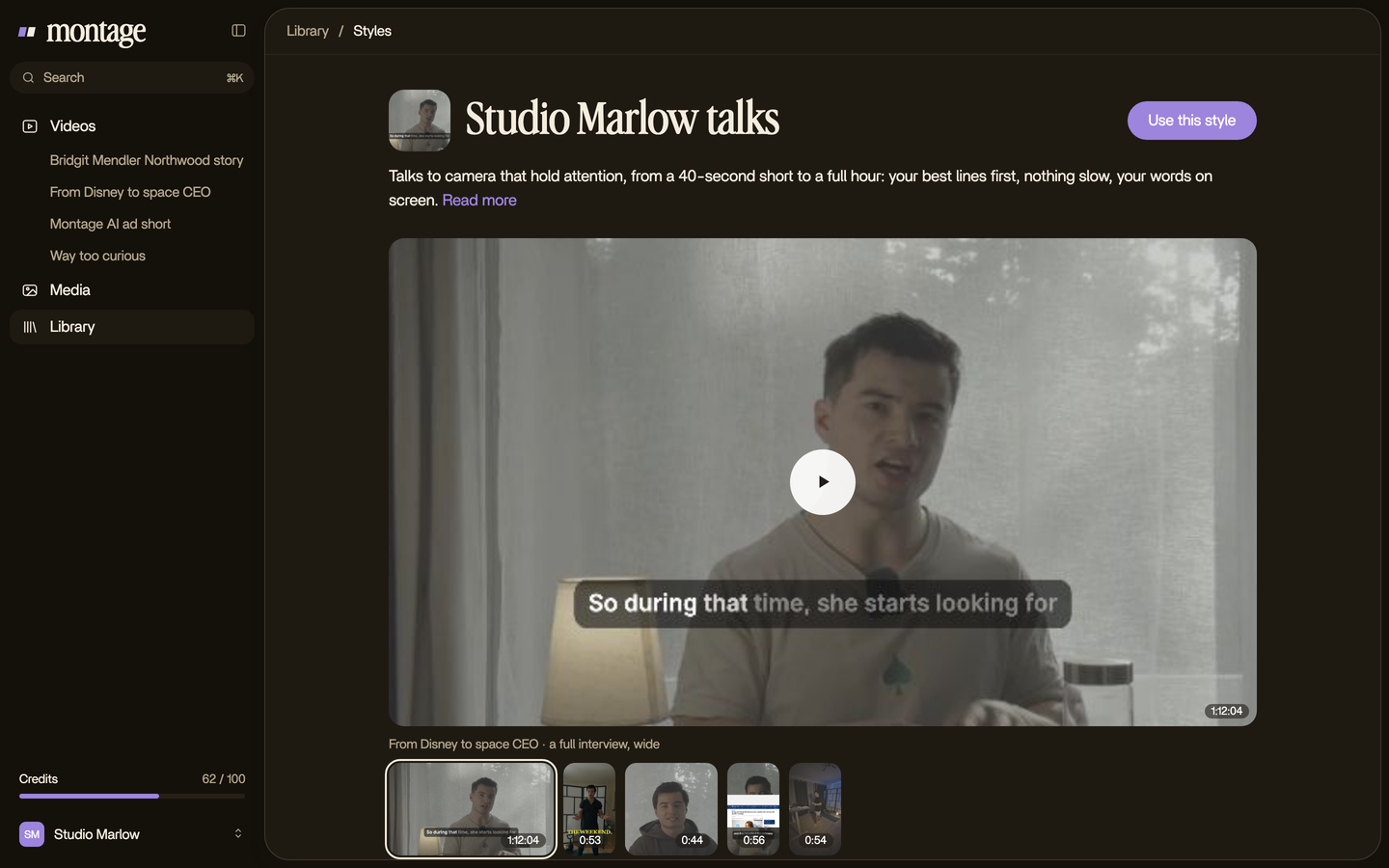
In From Disney star to space CEO, my face cam is a component: a macOS window over the James Webb images, on every one of the 216 cuts. One media card, a picture or a clip with its caption, is used 26 times. And when the guest shows up, she gets a window of her own: Bridgit at TechCrunch Disrupt, over a Mac desktop, while I keep talking.
It works on shorts too. In Edit it all with AI, the hook is a white Instagram reply, made as a component and reused.
Make it once. Use it everywhere.
The video editing tips that still matter, at a glance.
Okay. Here are all twelve side by side.
| Tip | Why it works | Where you can see it |
|---|---|---|
| 1. Cut pauses and retakes first | Every other decision is easier on a tight cut | From Disney star to space CEO, 216 cuts |
| 2. Punch in on a jump cut | The jump looks on purpose | Way too curious, zooms |
| 3. Dissolve only when time passes | A cut says « same time », a dissolve says « later » | (diyvideoeditor.com) |
| 4. Show what you say | Keeps a talking head moving | Way too curious, How to be creative, Edit it all with AI |
| 5. Let the frame follow you | Film freely, frame later | How to be creative, tracking |
| 6. Short captions | About three words a second (Brightcove) | How to be creative, Way too curious |
| 7. Key word bigger, animate one thing | The eye goes where you want | Way too curious, From Disney star to space CEO |
| 8. Grade dark footage early | Everything else depends on the picture | Way too curious |
| 9. A LUT on every Log shot | One forgotten shot sticks out | How to be creative |
| 10. Rotate before you judge | A good shot isn't thrown out | How to be creative |
| 11. Voice first, music under | Bad sound feels broken | Your own edit, eyes closed |
| 12. Make it once, reuse it | Long videos stay consistent | From Disney star to space CEO |
The tips you can skip now.
Let's be clear: this one is my opinion.
A lot of the classic tips are about operating a timeline. Name every clip « Scene1_Shot1_Wide ». Color-code your tracks. Test transition durations frame by frame. Set the X and Y position of every title. Those tips are about where to click, not about what makes the video good.
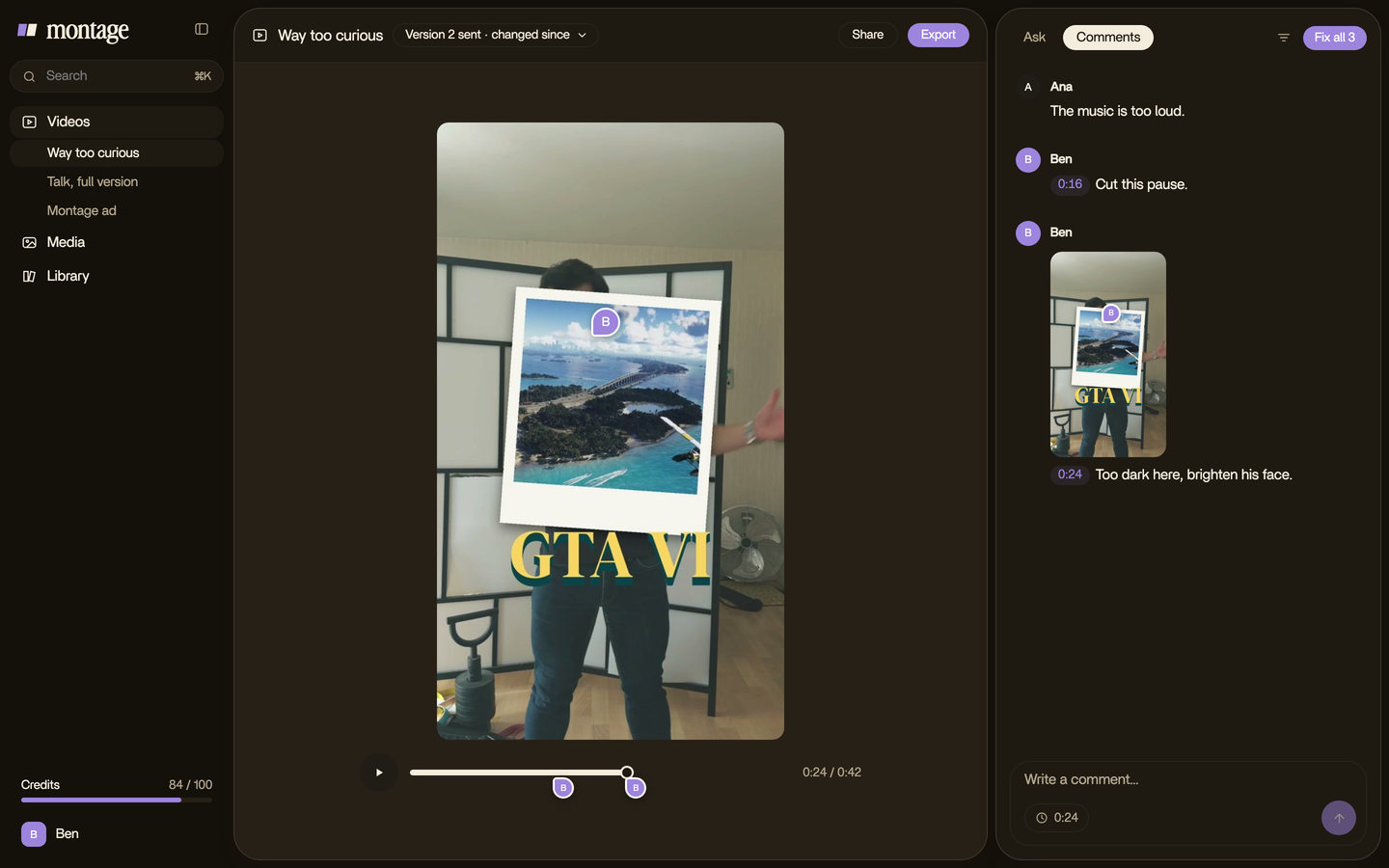
When you describe the edit and comment on what's wrong, you skip that part. What stays are the decisions: what to cut, what people see, what they read, what they hear.
Sure. But if you edit in a timeline, or you want a job as an editor? Keep those tips. They'll save you hours. When you're ready, here's which editing software to start with, and how to edit a video like a pro.
Video editing tips FAQ.
How do I make my video editing better?
Cut harder than feels comfortable, show what you say while you say it, and keep your captions short. Then watch the
whole video once without stopping, note where you get bored, and fix those moments. Good video editing is mostly
taking things out.
What are the best video editing tips for beginners?
Start with the five decisions every edit makes: cut, show, caption, color, sound. Tips 1, 4, 6, 8 and 11 above cover
them. The rest come with your second and third video.
What is the 3:2:1 rule in video editing?
It's a backup rule: keep 3 copies of your footage, on 2 different kinds of storage, with 1 copy somewhere else, like the
cloud.
Do these tips work in CapCut or Premiere Pro?
Yes. They're decisions, not buttons, so they work in any editor. What changes is who does the hand work: you on a
timeline, or the editor you describe it to.
See every tip in the real videos.
Ten of these tips come from a real video, each one asked for in a sentence. Watch the four videos these tips come from, and see what went in and how each one was made.
 9:18
 2:07
 0:56
 0:38
That's it for this one. Now go cut something.
See you in the next one.