Can you edit a YouTube video after posting? Yes:
here's what you can change.
Yes, but only a little. YouTube lets you take things out of a posted video, not fix what's in it. Here's the line between the two, and what to do on each side.
 Ben, founder of Montage · · 8 min read
In this post8 parts
The short answer.
Let's start with the answer. Can you edit a YouTube video after posting? Yes. But only a little.
In YouTube Studio, on a computer, you can trim the start, the middle or the end of a posted video, blur a face, and add a track from the Audio Library. You can change the title, the description, the thumbnail, the cards and the end screens whenever you want. The link, the views and the comments stay where they are (YouTube Help, « Trim your videos »).
What you can't do is change the picture itself. A shot too dark, a shot sideways, a typo in your captions, a better take you forgot to use: YouTube can't fix any of those. For those, you fix the edit and upload again, and the new upload gets a new link.
YouTube lets you take things out. It doesn't let you fix them.
If you're still working on the edit itself, start with how to edit a YouTube video, start to finish. This one is about the video that's already live.
What you can edit on a YouTube video after posting.
Okay. Here's every change, and which side of the line it falls on. The rules come from YouTube's own help pages (answers 55770 and 9057455).
| The change | On YouTube, after posting? | Where |
|---|---|---|
| Title, description, thumbnail | Yes | YouTube Studio, on a computer or in the app |
| Cards and end screens | Yes | YouTube Studio |
| Category, privacy (public, unlisted, private) | Yes | YouTube Studio |
| Trim the start or the end | Yes, keeps the link and the views | Studio Editor, on a computer |
| Cut a part out of the middle | Yes, keeps the link and the views | Studio Editor, on a computer |
| Blur a face or an object | Yes | Studio Editor |
| Add music from the Audio Library | Yes | Studio Editor |
| Fix the color (too dark, too flat) | No | Fix the edit, upload again |
| Turn a sideways or upside-down shot | No | Fix the edit, upload again |
| Captions burned into the picture | No | Fix the edit, upload again |
| Swap in a better take, add B-roll, add text | No | Fix the edit, upload again |
| Replace the video with a new file | No: a new upload is a new video, with a new link | Upload again |
So what's the pattern? Studio can only take away, and change what's around the video. Anything that changes the picture, or adds to it, means a new upload.
One thing people mix up: YouTube's subtitles (the CC button) are a separate track, and you can edit that track after posting. Captions drawn into the picture, the styled ones you see on Shorts, are part of the video. Those can't be edited on YouTube.
How to trim a posted video in YouTube Studio.
Here's how it goes, on a computer.
- Open YouTube Studio and go to Content.
- Click the video you want to change.
- Click Editor in the menu on the left.
- Click Trim & cut.
- To trim the start or the end, drag the blue edges of the box. To cut the middle, click New cut and drag over the part to take out.
- Watch the preview once, all the way through.
- Click Save.
Now, three limits YouTube states, so you don't get surprised:
- Videos under six hours. Longer ones can't be trimmed in Studio.
- Over 100,000 views. If your channel isn't in the YouTube Partner Program, you may not be able to save edits on a video with more than 100,000 views, except blurring faces.
- No undo. Since June 2025, a saved edit can't be taken back with « Revert to original ». Save only what you're sure of.
Trim like it's permanent. Because it is.
And on your phone? In the YouTube Studio app you can change the title, the description and the thumbnail. Trimming needs a computer.
What YouTube Studio can't fix.
So what are the mistakes you actually spot after posting? Truth is, they're rarely « the intro is ten seconds too long ». They're things like these.
The shot is too dark, or flat and grey. Phones don't always get the light right, and footage filmed in Apple Log looks grey until it's graded. Studio has no color tools.
A shot is sideways or upside down. It happens with shots filmed from above. Studio can't turn them.
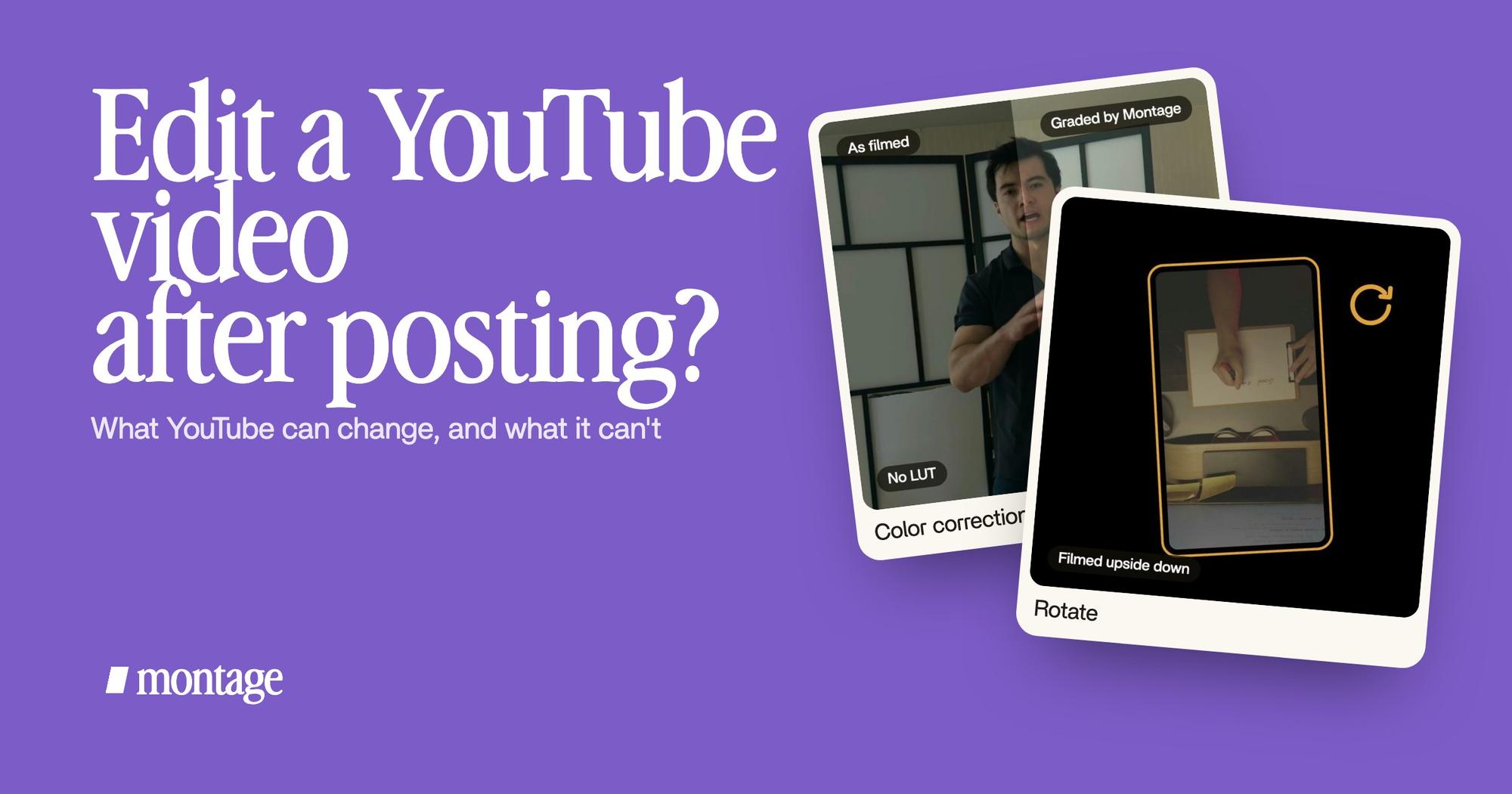
 Color correctionFilmed too dark on an iPhone. I asked for a grade, no LUT: Montage lifted it on its own. Same frame, split.
 RotateThe notebook shots were filmed from above, upside down. Montage turned them the right way up.
Both of these are real fixes from my showcase videos. Way too curious was filmed too dark on an iPhone: I asked for a grade, no LUT, and Montage lifted it. In How to be creative, the notebook shots were filmed from above, upside down, and Montage turned them the right way up. That's how you fix a shot that's too dark or turn a sideways shot upright. In the edit. Never on YouTube.
A typo in your captions. If the captions are drawn into the picture, the typo is in the video. Fixing it means fixing the edit.
 Auto captionsEvery line on screen in my own font, timed to my voice.
 CaptionsYellow, uppercase, a blue drop shadow, and the key word drawn bigger.
In How to be creative, every line is on screen in my own font, timed to my voice. In Way too curious, the captions are yellow, uppercase, with a blue drop shadow and the key word drawn bigger. Change one word in a caption like that, and the video has to be exported again.
A retake you left in, or a pause. A cut in the middle can go in Studio. But if you wanted the better take in its place, that's the edit again. Next time, cut the retakes and pauses before you post.
How to fix the edit and post again.
Here's the thing nobody says: to fix any of the above, you need your original project. Not the YouTube video. Your footage and your edit.
Montage can't import a video from a YouTube link. So what you fix from is the footage you filmed. Keep it.
In Montage, a project stays open after you export it. So the fix looks like this:
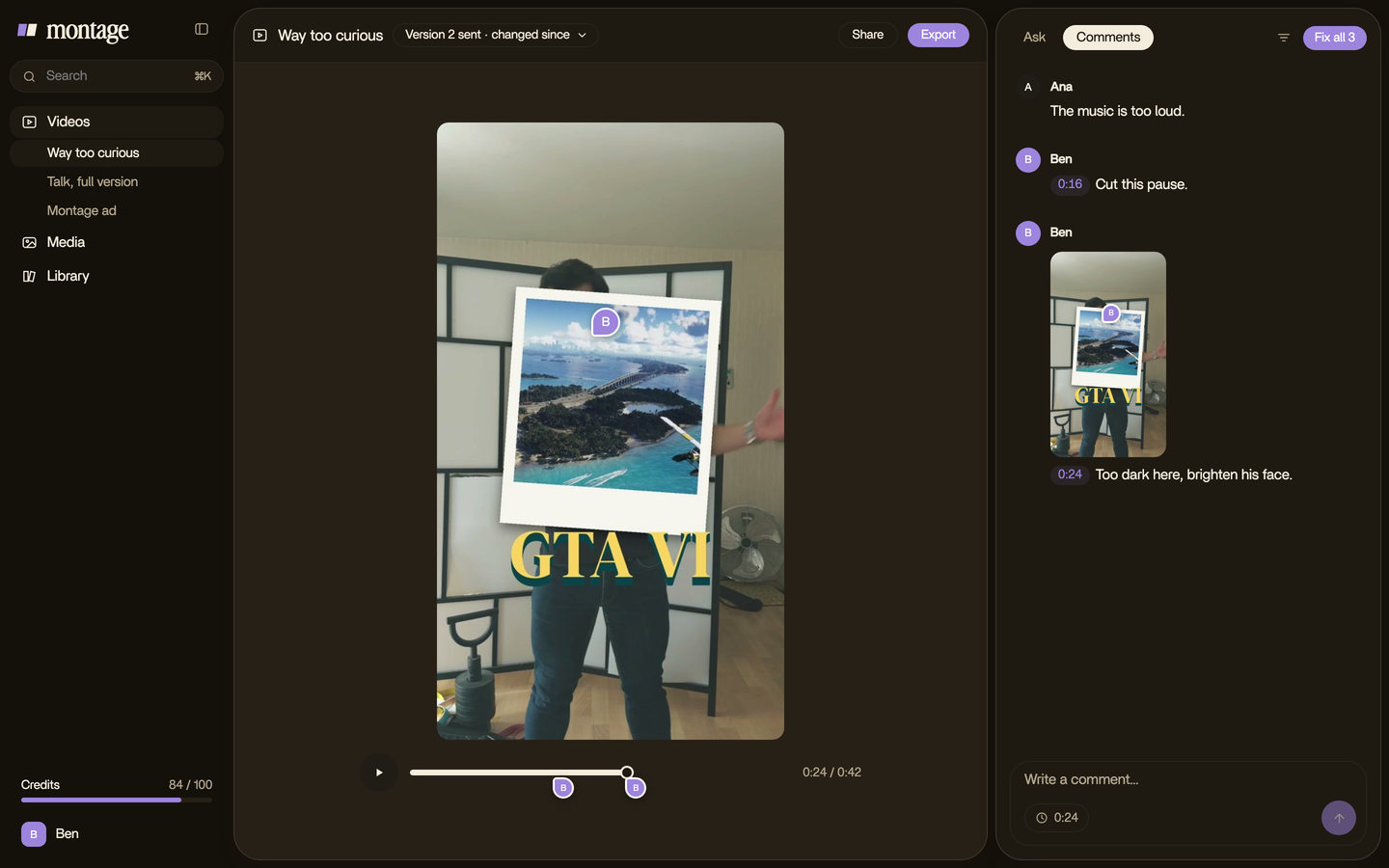
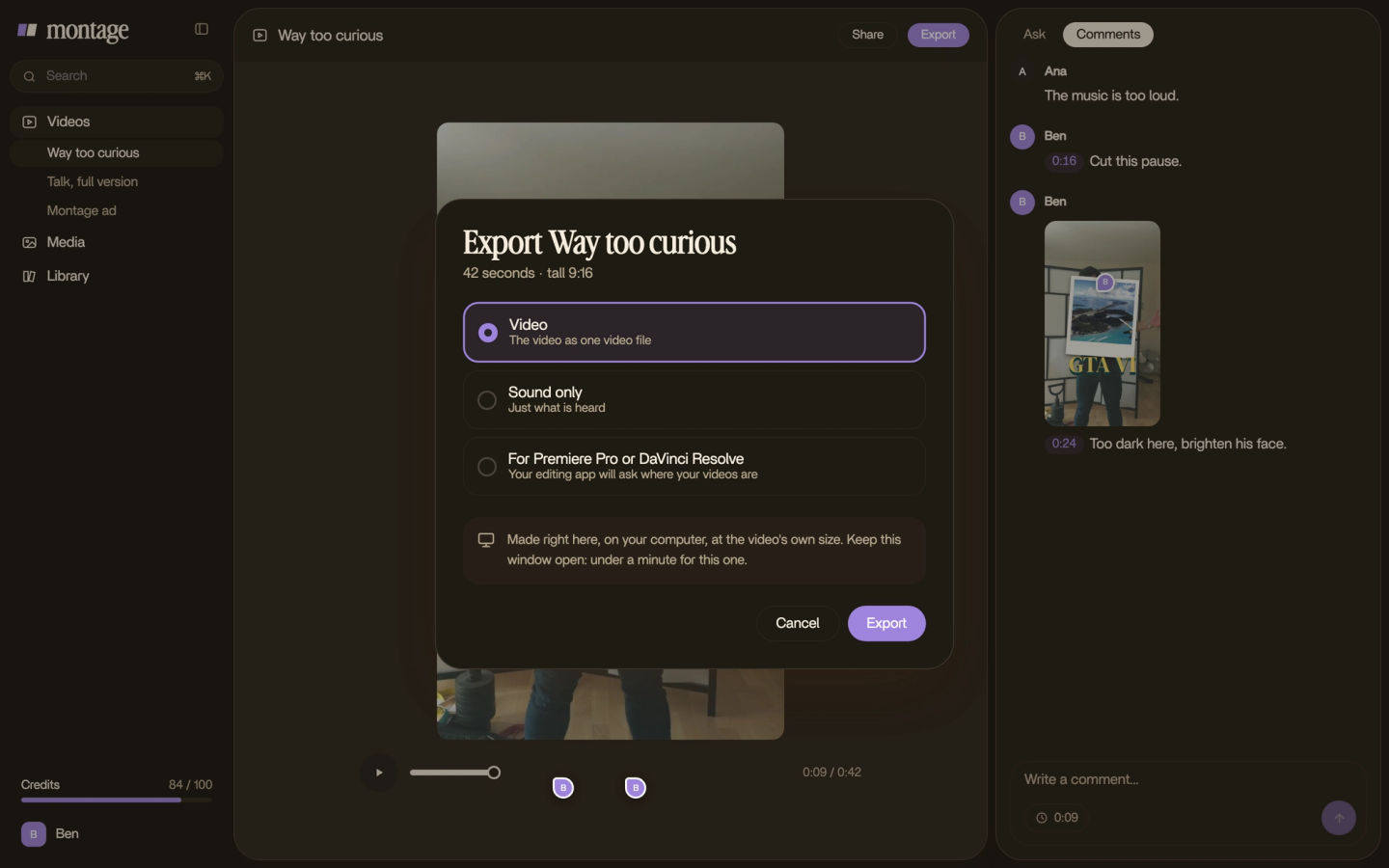
Then you upload the new file to YouTube as a new video. And you decide what happens to the old one: private, unlisted, or deleted.
Should you re-upload? Here's my rule.
Okay. Should you fix it at all? In my opinion, it depends on two things: what's wrong, and how many views the video has.
- A small cut (a long intro, a dead moment, the end): trim it in Studio. Keep the link and the views. Your retention graph shows where people leave.
- A fix to the picture or the sound, in the first day or two: fix the edit and re-upload. Do it before the views pile up, and set the first one to private.
- An old video with views: leave it. Change the title or the thumbnail, and do it right in the next one.
Sure, a typo on a video with 50,000 views stings. But a re-upload starts from zero: no views, no comments, and a new link instead of the one people shared. Most of the time, it's not worth it.
The best fix for an old video is a better next video.
So check the shots before you post. These video editing tips for YouTube and filming it right the first time will save you most of these.
Your questions: can you edit a YouTube video after posting?
Can you edit a YouTube video after posting?
Yes. In YouTube Studio you can trim, cut a part out, blur faces and add Audio Library music, and the link and the views
stay. You can't change the picture: color, rotation, burned-in captions or new shots mean a new upload.
Can I edit a YouTube video title after posting?
Yes, any time, in YouTube Studio on a computer or in the YouTube Studio app. The description and the thumbnail too.
Can I trim my video on YouTube after uploading?
Yes, with the Studio Editor's « Trim & cut », on a computer. The video has to be under six hours, and a saved trim can't
be undone.
Can you replace a YouTube video after uploading?
No. YouTube has no way to swap the file. A new upload is a new video, with a new link and zero views.
Can you edit a YouTube video on your phone?
Partly. The YouTube Studio app changes the title, the description and the thumbnail. Trimming needs Studio on a computer.
Can you undo an edit in YouTube Studio?
Not any more. Since June 2025, a saved edit can't be reverted to the original, so watch the preview before you save.
See the fixes in real videos.
The color fix, the rotation and the captions in this article come from real videos, each one asked for in a sentence. The four videos in the showcase show what went in and what came out. And if YouTube is where you post, here's an AI video editor for YouTube.
 9:18
 2:07
 0:56
 0:38
That's it. Trim what you can, fix the rest in the edit, and keep your footage.
See you in the next one.