How to record YouTube videos:
record for the edit.
Pressing record is the easy part. Recording something the edit can use is the real job. Here's how, with a real 33-minute recording and the video it became.
 Ben, founder of Montage · · 8 min read
In this post9 parts
- The short answer
- Recording on a phone, a camera, a webcam or your screen
- How to record YouTube videos, step by step
- A real recording, and the video it became
- What you can fix after recording, and what you can't
- What people see while you talk
- Recording someone else's YouTube video
- Questions about recording YouTube videos
- Next: the edit
The short answer.
Ladies and gentlemen, let's start with the answer.
How to record YouTube videos: you record with your phone, a camera, a webcam or a screen recorder, then you upload the file. YouTube itself can't do the recording on a computer. In its own help pages, YouTube says it « does not have a webcam feature to record videos on your computer » (YouTube Help). So you record first, somewhere else, and upload after.
Now, here's the thing: every guide stops at the record button. But the recording only matters for what the edit can do with it. So record for the edit. Keep rolling through your mistakes, say the line again, and film the things you'll talk about. Then edit the YouTube video from all of it.
Recording on a phone, a camera, a webcam or your screen.
So what do you record with? Honestly, your phone is enough to start.
Here's what each one does well, and its catch.
| Records well | The catch | |
|---|---|---|
| Phone | You, talking to the camera, anywhere. Use the back camera, not the selfie one (ScreenPal's advice) | The built-in mic is far from your mouth once the phone is on a tripod |
| Camera | You, with more control over the picture | More settings to get wrong, and the files are big |
| Webcam | You at your desk, straight to the computer. On a Mac, Photo Booth records it; on Windows, the Camera app (YouTube Help) | Webcams struggle in low light (ScreenPal) |
| Screen recorder | Tutorials, demos, anything on your screen. QuickTime on Mac, Game Bar on Windows, Control Center on iPhone, the built-in recorder on Android 12 and later (Descript) | Notifications pop up mid-take: turn on Do Not Disturb first (Descript) |
And what do YouTubers use on the computer? On r/NewTubers, someone asked exactly that. The top answer: « 99% of the time I use OBS Studio ». That's one Redditor's pick, not a rule. But OBS is free, and it records your screen and your camera together.
Start with what's in your pocket. Upgrade the mic before the camera.
Why the mic first? ScreenPal puts it well: « viewers are more likely to forgive bad video quality than bad audio quality ». I agree.
How to record YouTube videos, step by step.
Okay. Here's how I'd do it, from the setup to the upload.
1. Set up the light
Face the light. A window in front of you, not behind you. If the window is behind you, you're a silhouette.
2. Set up the camera
Lens at eye level, on a tripod or a stack of books. A medium shot: your head and shoulders, some room above your head.
3. Set up the sound
Get the mic close to your mouth. A cheap clip-on mic beats the phone's own mic from two metres away. Then record five seconds and listen back with headphones. Every time.
4. Press record, and keep rolling
This is the one most people get wrong. You lose your words, you stop, you start a new file. Then another. Then another.
Don't. Keep the camera rolling.
Don't stop on a mistake. Say it again and keep rolling.
The edit can cut the retakes and the pauses later. What it can't do is make up a take you never recorded. So say each line two or three times, and keep the best one in the edit.
5. Record what you'll talk about
If you say « my notebook », film the notebook. If you mention a website, record the screen. Five minutes after the main take is enough. Those shots are the B-roll, and the edit needs them on hand.
6. After you record: drop every take
Every take, as it is. No sorting, no renaming, no deleting the bad ones yet.
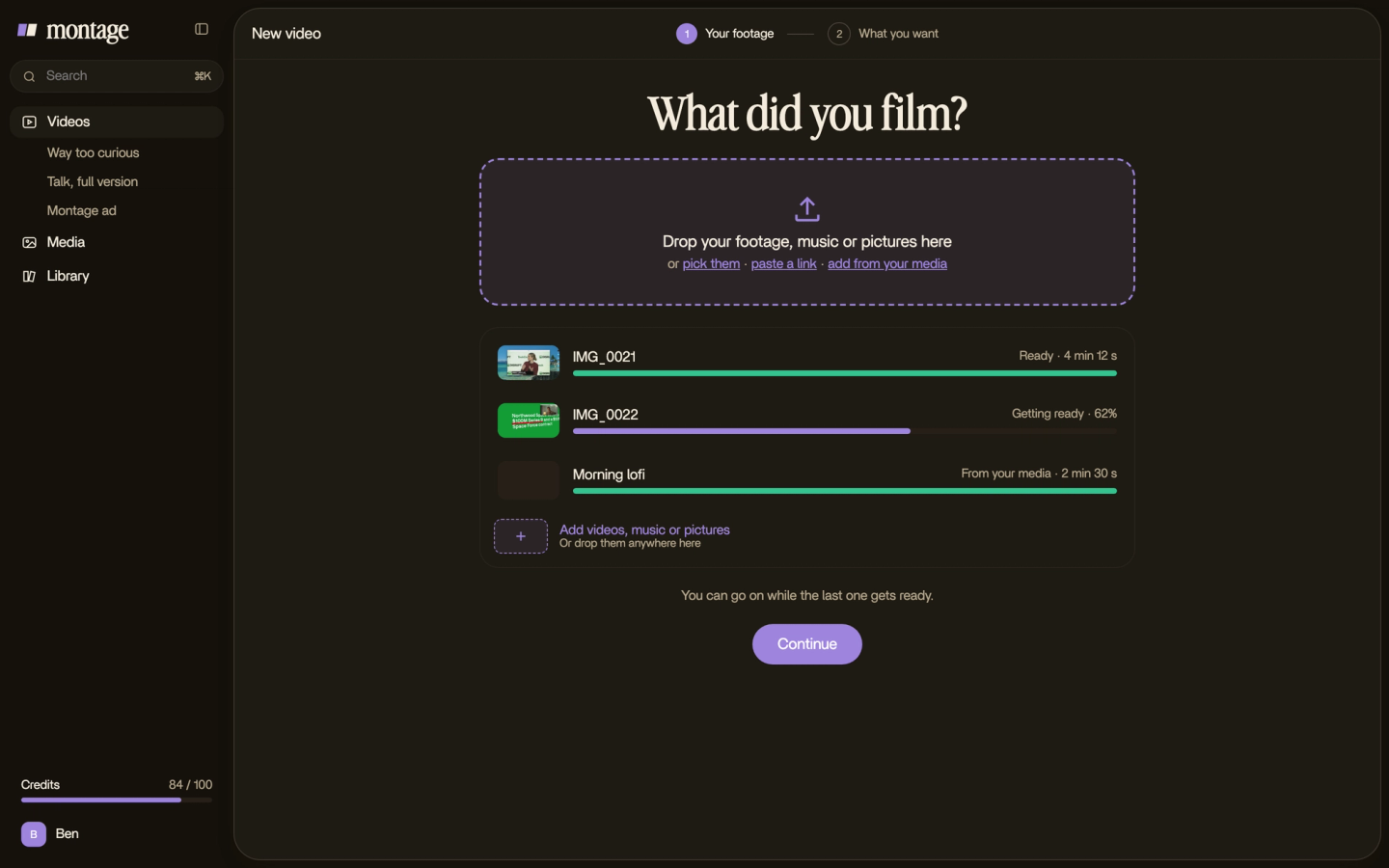
7. Say what you want
Then you say what the video is for. « A YouTube video, 16:9. Keep the best take of each line, cut the pauses, put a LUT on the flat takes. »
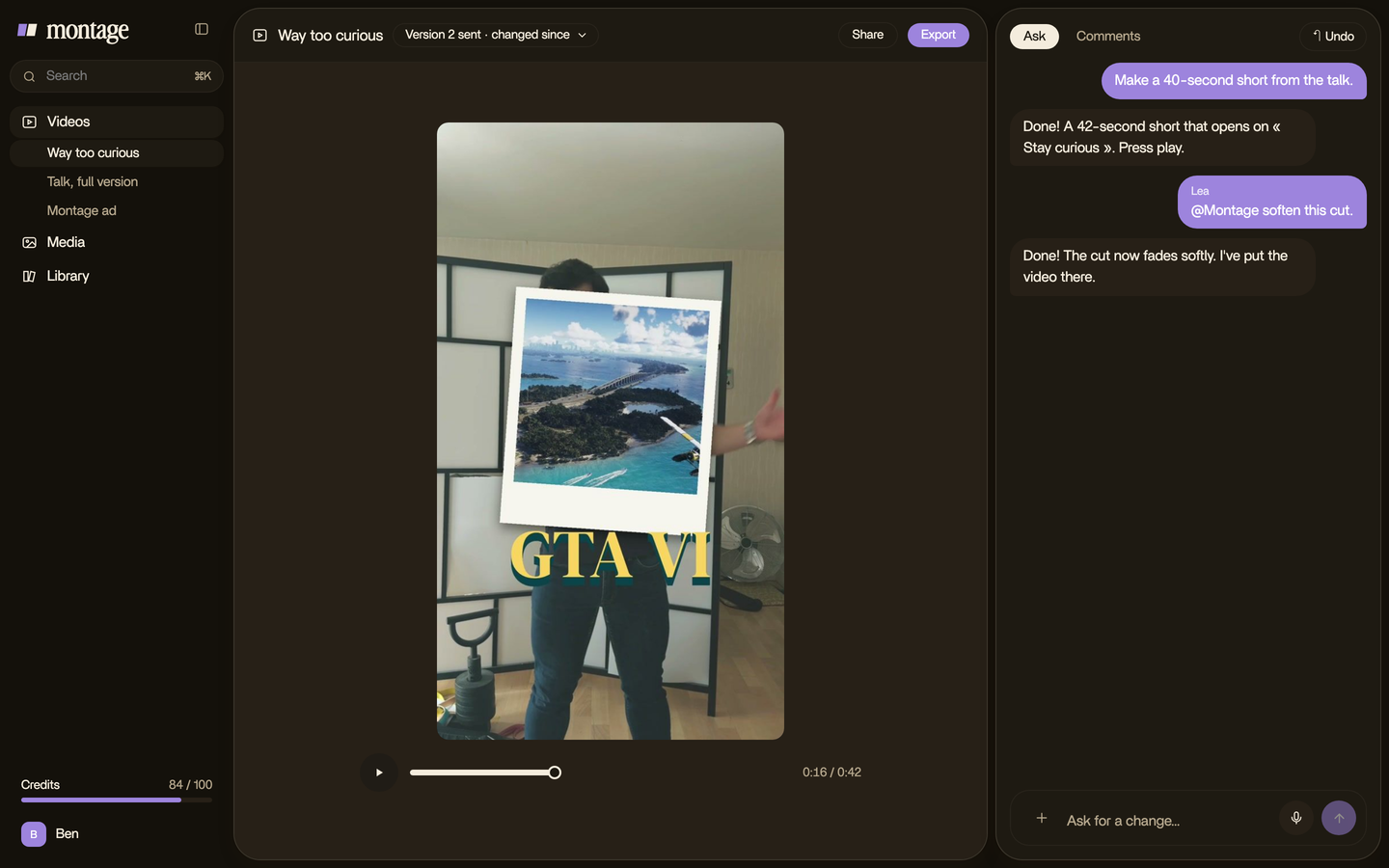
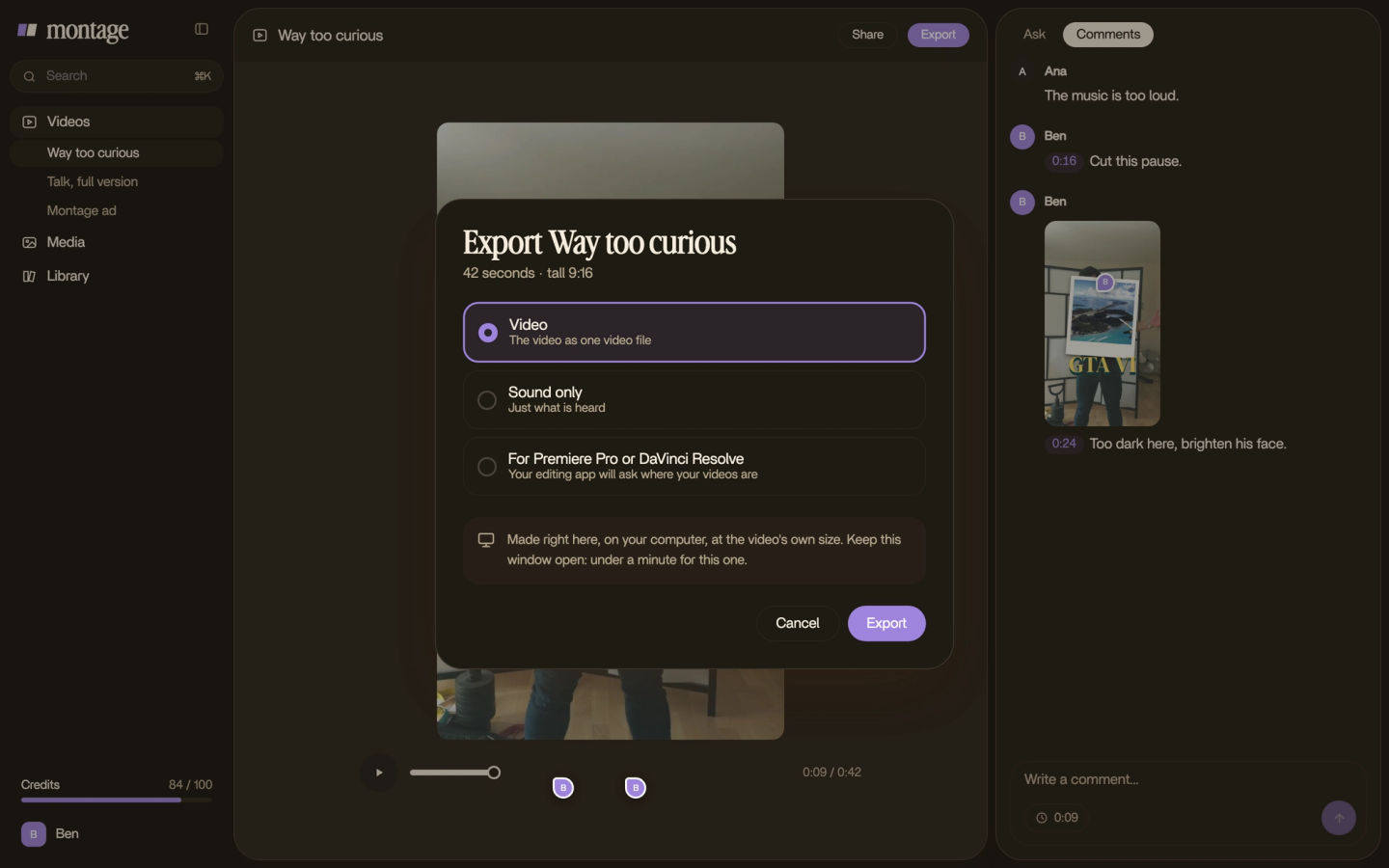
8. Export and upload
Export the MP4 and upload it to YouTube. Montage doesn't upload for you: you do that part in YouTube Studio. If you'd rather finish by hand, Montage also exports the cut for Premiere Pro or DaVinci Resolve.
A real recording, and the video it became.
So does keeping the takes rolling really work? Let me show you.
From Disney star to space CEO started as seven takes, 33 minutes filmed on an iPhone. The finished YouTube video is 9 minutes and 18 seconds long, with 216 cuts.
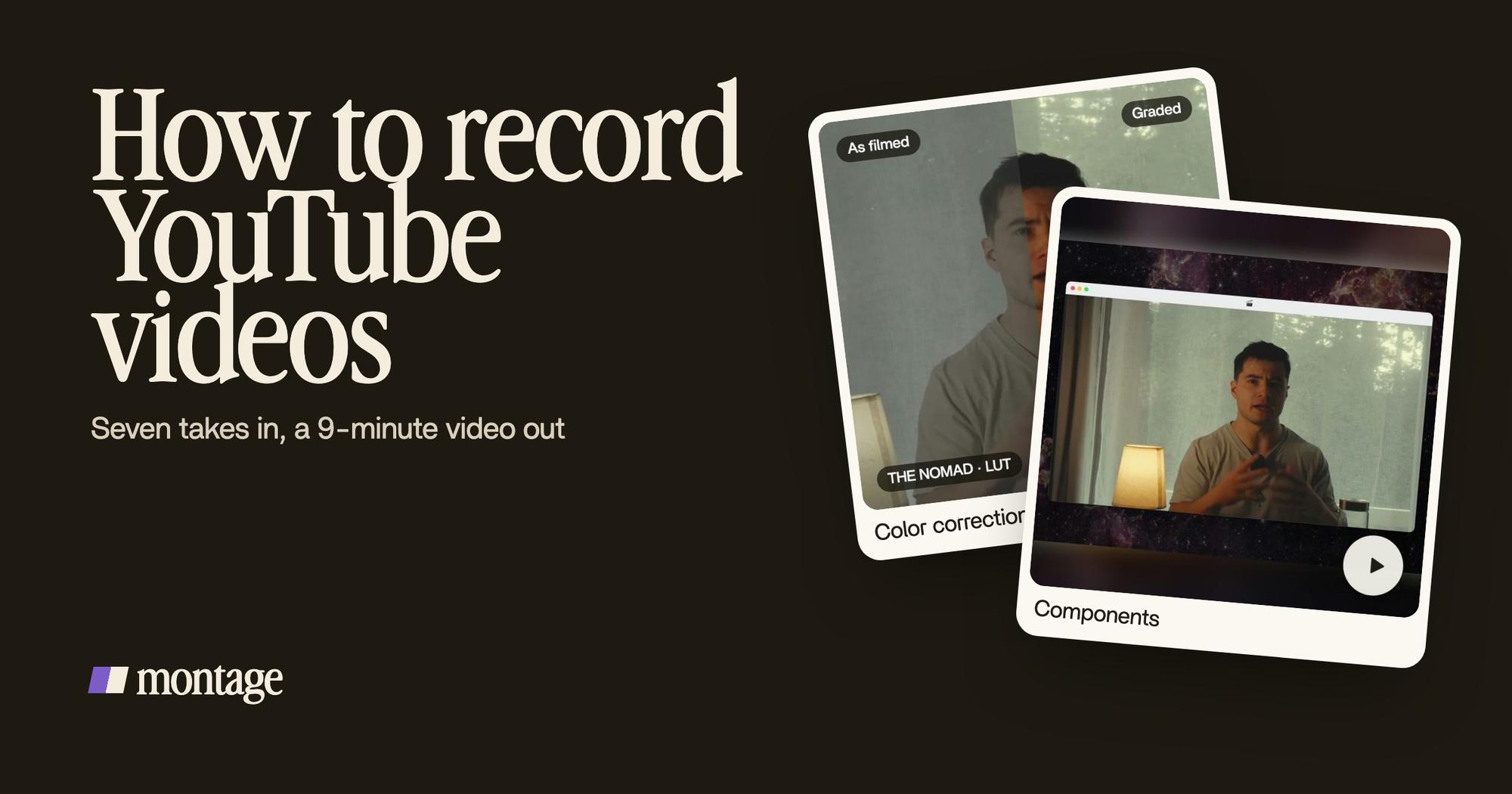
 Color correctionTakes 4 to 7 were filmed flat: the NOMAD LUT on each, the first three left as they were. Same frame, split.
 ComponentsMy face cam is a component: a macOS window over the James Webb images, on every one of the 216 cuts. Click to watch it.
 Picture in pictureThe guest gets a window of her own: Bridgit at TechCrunch Disrupt, over a Mac desktop, while I keep talking.
Takes 4 to 7 were filmed flat, so the edit put a LUT on each and left the first three as they were. The face cam became a component: a macOS window over the James Webb images, on every one of the 216 cuts. And the guest, Bridgit, gets a window of her own while I keep talking.
None of that was set up at the recording. It was all in the edit. The recording only had to give it the takes.
Record more than you need. The edit decides what stays.
What you can fix after recording, and what you can't.
Now, let's be clear about this, because it saves a lot of stress.
Some recording problems are fixable later. A picture that's too dark. Footage that looks grey. A shot filmed the wrong way up.
 Color correctionFilmed too dark on an iPhone. I asked for a grade, no LUT: Montage lifted it on its own. Same frame, split.
 Color correctionFilmed flat in Apple Log, my LUT on every shot. Same frame, split down the middle.
 RotateThe notebook shots were filmed from above, upside down. Montage turned them the right way up.
Way too curious was filmed too dark on an iPhone, and a grade lifted it with no LUT. How to be creative was filmed in Apple Log, which looks flat until a LUT goes on every shot. Its notebook shots were filmed from above, upside down, and turned the right way up in the edit. That's how you fix footage that's too dark or flat.
Other problems you can't fix. Sound that was never recorded. A voice drowned in noise. A shot out of focus. No editor brings those back.
So spend your care where it counts: the sound and the focus. The rest, the edit can handle.
What people see while you talk.
Here's a question you should ask before you film: what will people see while I talk?
If the answer is « just my face, for nine minutes », record more. Film the things you mention. Record the screen when you show something on it. Then the edit has B-roll to drop in while you talk.
 B-rollGood Luck Charlie, Ready or Not, Billboard, the TODAY antenna: the face cam moves to the corner while each plays.
 B-rollWhile I talk, it cuts to the right shot: the book, the notebook, the whiteboard.
In From Disney star to space CEO, the face cam moves to the corner while each clip plays. In How to be creative, the edit cuts to the book, the notebook and the whiteboard while I talk. Those shots exist because they were recorded.
Recording someone else's YouTube video.
Some people searching this want something else: to record a video that's already on YouTube.
The screen recorders in the table above can do it. But watching it later on your own device is one thing, re-uploading it is another (Descript makes the same point). Fair use, in YouTube's words as Descript quotes them, covers things like « criticism, commentary, and news reporting ». Re-uploading someone else's video as your own isn't that.
That's all on this one. Back to recording your own.
Questions about recording YouTube videos.
How do you record a YouTube video?
Record with your phone, a camera, or your computer's webcam or screen recorder: YouTube can't record from a computer
itself. Keep the takes rolling through mistakes, edit, then upload the file.
How do YouTubers record their videos?
Most film themselves on a phone or a camera, on a tripod, with a mic close to their mouth. On a computer, OBS Studio is
a common pick: it was the top answer when r/NewTubers asked. Then they edit and upload.
How do you record yourself and put it on YouTube?
Face a window, put the lens at eye level, and record a few takes of each line. Edit them into one video, export the MP4,
and upload it in YouTube Studio.
Can you record YouTube videos on a phone?
Yes. Use the back camera, put the phone on a tripod, and add an external mic if you can. A phone is enough to start a
channel.
Next: the edit.
The recording is half the job. Next comes the edit: here's how to edit a YouTube video, the editing software YouTubers use, and how long the edit takes. For the whole picture, there's producing a YouTube video, from idea to upload, plus editing tips for YouTube and your intro. And if no one's behind the camera, here's how to film yourself on your own.
Or let Montage do the edit: an AI video editor for YouTube takes your takes and a sentence. The real videos show what went in, and what came out.
 9:18
 2:07
 0:56
 0:38
That's it. Now go record something, and keep rolling.
See you in the next one.