How to add music to a YouTube video:
before or after you upload.
There are two ways to add music to a YouTube video, and they don't do the same job. Here's which one to pick, how each works, and the part every guide skips: keeping the music under your voice.
 Ben, founder of Montage · · 8 min read
In this post9 parts
- The short answer
- Before or after upload: the two ways compared
- Add music in your editor, before upload
- The hard part: the music under your voice
- How to add music to a YouTube video in YouTube Studio, step by step
- Music you're allowed to use
- Keep the music a layer
- Adding music to a YouTube video: your questions
- See it in a real video
The short answer.
Ladies and gentlemen, let's start with the answer.
There are two ways to add music to a YouTube video. Before you upload, in your editor: any track you have the rights to, and full control of the volume. After you upload, in YouTube Studio's editor: you keep your views and comments, but you can only use songs from YouTube's Audio Library, and only on a computer.
So which one do you pick? To be honest, if the video isn't up yet, add the music in the edit. Studio is the fallback, not the plan.
And whichever way you go, the music goes under your voice. If you talk to the camera, it has to drop every time you speak. That's the hard part, and I'll show you how to ask Montage to put the music under your voice in one sentence. One thing first: if your voice itself sounds noisy, clean up the sound of your voice first. Music won't hide it.
Before or after upload: the two ways compared.
Okay. Let's put them side by side. The Studio column is from YouTube's own help page, « Add an audio track to your video », checked on 29 October 2026.
| Before upload, in your editor | After upload, in YouTube Studio | |
|---|---|---|
| Which music | Any track you have the rights to | YouTube's Audio Library only |
| Volume | Full control, sentence by sentence | Place and trim the track |
| Where | Computer or phone, depending on the editor | A computer only, not the YouTube mobile app |
| Undo | Change it and export again | Since June 2025, a saved change can't be reverted to the original |
| Views and comments | A new upload starts at zero | Kept |
| Limits | None from YouTube | Videos under 6 hours; past 100,000 views, changes may not save unless you're in the YouTube Partner Program |
So here's my verdict. A new video? Add the music in the edit. A video already up, with views you want to keep? Studio.
The music goes under your voice. Never on top of it.
Add music in your editor, before upload.
Every editor does it the same way. CapCut, iMovie, Premiere Pro, DaVinci Resolve: Thematic's guide walks through each of them, and the gesture doesn't change.
- Import the track with your footage. A file you have the rights to (more on that below).
- Drop it on the timeline, under your video, on its own audio track.
- Trim it to the length of the video, or loop it if it's short.
- Pull the volume down so every word stays clear.
- Fade it in and out, so it doesn't start or stop like a switch.
- Export for YouTube. Thematic gives YouTube's recommended settings: MP4, H.264 video, AAC audio at 48 kHz.
Pretty simple, right? For a video with no one talking, it is. Step 4 is where it gets hard.
The hard part: the music under your voice.
Here's the thing: if you talk to the camera, one volume for the whole track doesn't work. Loud enough in the pauses means too loud under your sentences. Quiet enough under your sentences means you can't hear it in the pauses.
So the music has to go down every time you speak and come back when you stop. That's called ducking.
In a timeline editor, that's a volume keyframe at the start and end of every sentence. On a two-minute video, that's a lot of little dots to drag. Some apps do it for you: Thematic names ducking in iMovie and in Premiere Pro's Essential Sound.
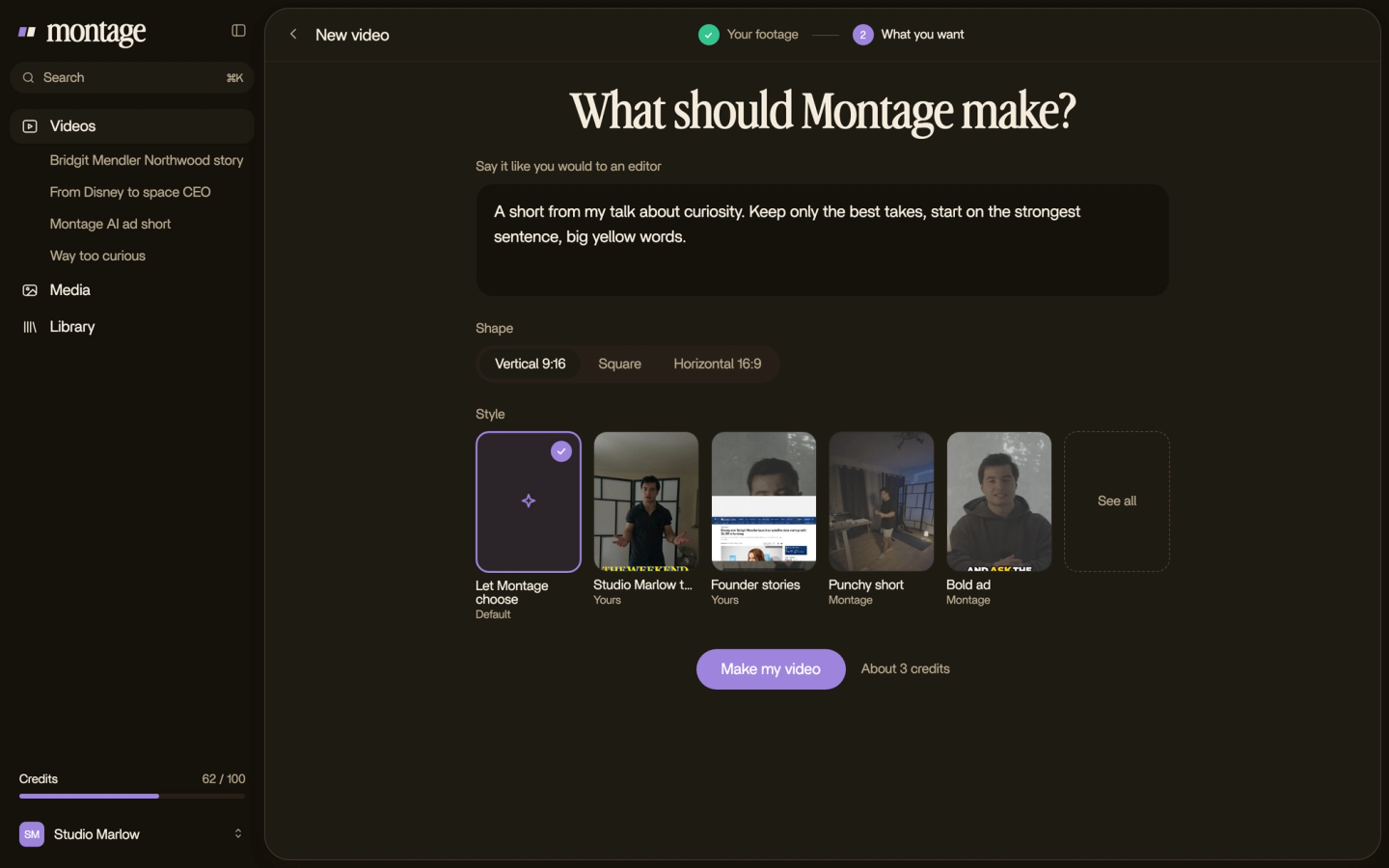
In Montage, it's one sentence. You drop in your footage and the music file, and you say:
« Put this track under the whole video, lower it every time I talk, and fade it out at the end. »
Why does that work? Because Montage reads every word you say, and when you say it. Let me show you what I mean, with a real video.
 Auto captionsEvery line on screen in my own font, timed to my voice.
 B-rollWhile I talk, it cuts to the right shot: the book, the notebook, the whiteboard.
In How to be creative, every line is on screen timed to my voice, and while I talk, it cuts to the right shot: the book, the notebook, the whiteboard. Those cards are captions and B-roll, not music. But it's the same timing: knowing when you speak is what lets the music step back on exactly those moments.
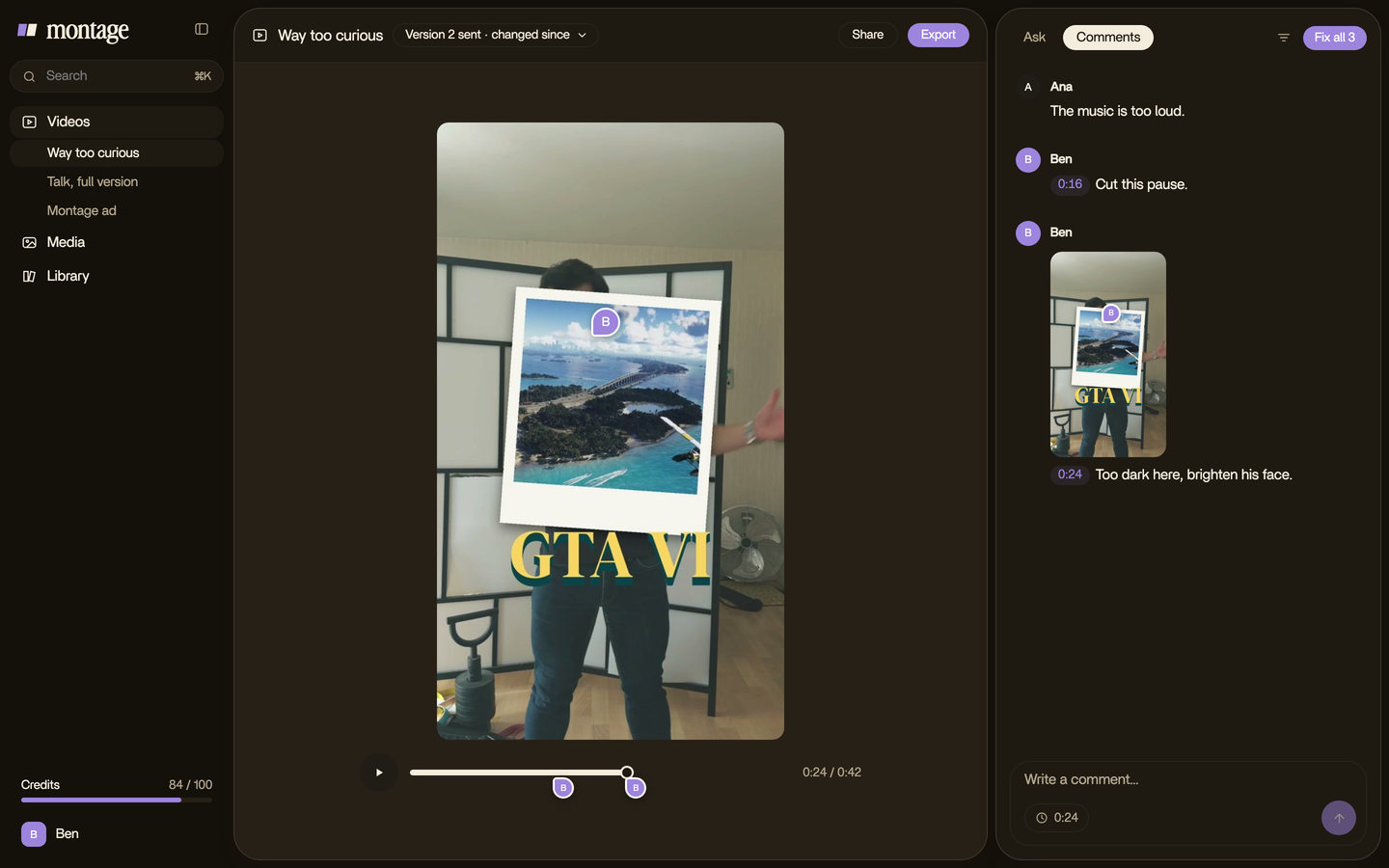
Then you watch it once. Still too loud somewhere? Pause there, comment on that moment, and press « Fix all ».
Let's be clear about what Montage doesn't do: it has no music library and doesn't make music. You bring the track. And it can't add music to a video that's already on YouTube. For that, there's Studio.
How to add music to a YouTube video in YouTube Studio, step by step.
Your video is already up and you want to keep its views? Here's how to add music to a YouTube video in YouTube Studio, following YouTube's help page.
- Sign in to YouTube Studio on a computer.
- Open Content in the left menu.
- Click the video you want to change.
- Open Editor in the left menu.
- Click Audio, then Add, to browse the Audio Library.
- Pick a track and add it.
- Drag it to where it should start.
- Drag its edges to trim it.
- Save.
Now, the limits, in YouTube's own words. Only Audio Library songs. Not from the mobile app. Only videos under 6 hours. Past 100,000 views, you may not be able to save, unless you're in the YouTube Partner Program. And since June 2025, once you save, « Revert to original » can't take the change back.
So check it twice before you press Save.
And what about a song that isn't in the Library? Thematic's guide is clear: you'd have to re-upload, and a new upload loses the views and comments.
Music you're allowed to use.
Short version: you need the rights to the track. Three ways to have them.
- Music you made, or that you paid someone to make for you.
- Music licensed for YouTube, from a music service that says so in its license.
- YouTube's Audio Library, free inside Studio.
Two things that are not a license, both from Thematic's guide. A credit in the description doesn't give you the right to use a song. And a streaming subscription, like Spotify, is a right to listen, not to put the song in your videos.
If a song gets claimed anyway, Thematic lists what Studio lets you do: trim the part out, mute it, replace it, erase the song, or dispute the claim.
Where to find the tracks is its own topic: here's the best background music for a YouTube video. And if you want a whoosh or a pop on the moments that matter, that's sound effects.
Keep the music a layer.
One more thing nobody tells you. Once the music is added in Studio, or baked into the MP4 you uploaded, it's gone as a layer. Want another track next month? You start over.
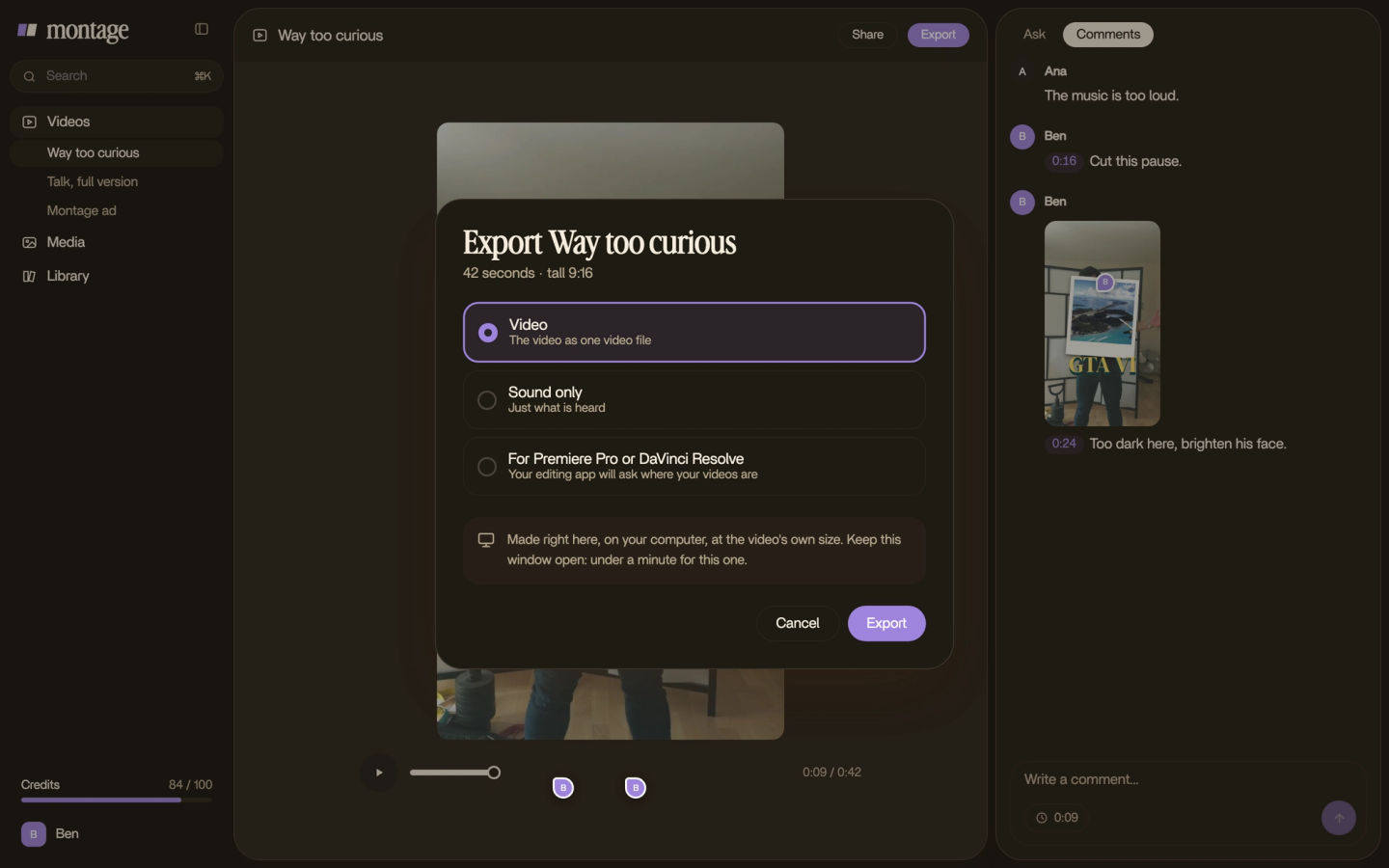
So keep the music a layer. In Montage, next to the MP4, you can export the sound only, or the cut for Premiere Pro or DaVinci Resolve, so the edit doesn't end as one flat file. That's it.
Adding music to a YouTube video: your questions.
How do I add music to a YouTube video?
Two ways. Before upload, put the track in your editor, under your voice, and export. After upload, open YouTube Studio
on a computer, then Content, the video, Editor, Audio, and add a song from the Audio Library.
Can I add music after I upload?
Yes, in YouTube Studio's editor, with songs from the Audio Library only. Per YouTube's help page, a saved change can't be
reverted since June 2025, and videos past 100,000 views may not be able to save.
Can I put any song in my YouTube video?
No. You need the rights to it. A credit isn't a license, and a streaming subscription only lets you listen.
Can I add music on my phone?
Not in YouTube Studio: YouTube's help page says it's no longer possible from the mobile app. On a phone, add it in an
editor before you upload. Riverside's guide shows iMovie on an iPhone.
How loud should the music be?
Low enough that every word is clear. You'll see percentages online, but they don't agree: Thematic's own guide gives
20 to 30% in one place and 10 to 20% in another. Trust your ears, on a phone speaker.
What if there's music I don't want in the video?
That's the opposite job. Here's how to take out music that's already in the
video.
See it in a real video.
Everything Montage does to the moment you speak, you can watch in the two-minute video filmed in Apple Log. And if YouTube is your main channel, here's an AI video editor for YouTube.
That's it for this one. Now go find a track you're allowed to use.
See you in the next one.