How to remove background music from video:
and keep your voice.
Music under your voice, and you want it gone? Before you upload anything to a separator, ask one question: is the music baked into the file, or is it still a layer? Let me explain.
 Ben, founder of Montage · · 8 min read

In this post8 parts
The short answer.
Let's start with the answer, because you've got a video with music you don't want.
To remove background music from video and keep the voice, there are two ways, and which one you use depends on one thing: do you still have the layers?
- You made the video, and the music is a track in your project. Go back to the project and delete the music track, or lower it. Nothing to separate. Your voice stays exactly as you recorded it.
- The music was playing in the room, or you only have the final MP4. Then the music is baked into the same sound as your voice. That's when you need a separator: a tool that splits the sound into a voice track and a music track, so you can keep the voice and drop the rest.
In Montage, the first way is one sentence: you ask Montage to take the music out, or to lower the music under your voice. The second way, Montage doesn't do. More on that below.
Deleting a layer is perfect. Separating one never is.
First question: is the music baked in?
So is the music baked in? Let me explain.
When you edit a video, the music usually goes in as its own clip, next to your voice. As long as you're in the project, those two sounds are separate. You can delete one without touching the other.
Then you export. And the export mixes everything into one sound. From that moment, the music and your voice are the same file. To get one without the other, a tool has to guess which part of the sound is which.
To be honest, most people reach for a separator when they still have the project. They download a tool, upload the MP4, wait, and get back a voice that's a little off. When the clean version was one click away the whole time.
So before anything else: open your project. If the music is a track there, you're pretty much done.
Remove the music when you still have the project.
If you made the video in a timeline editor, find the music track, select it, delete it. Or turn its volume down until your voice sits clearly on top. Then export again.
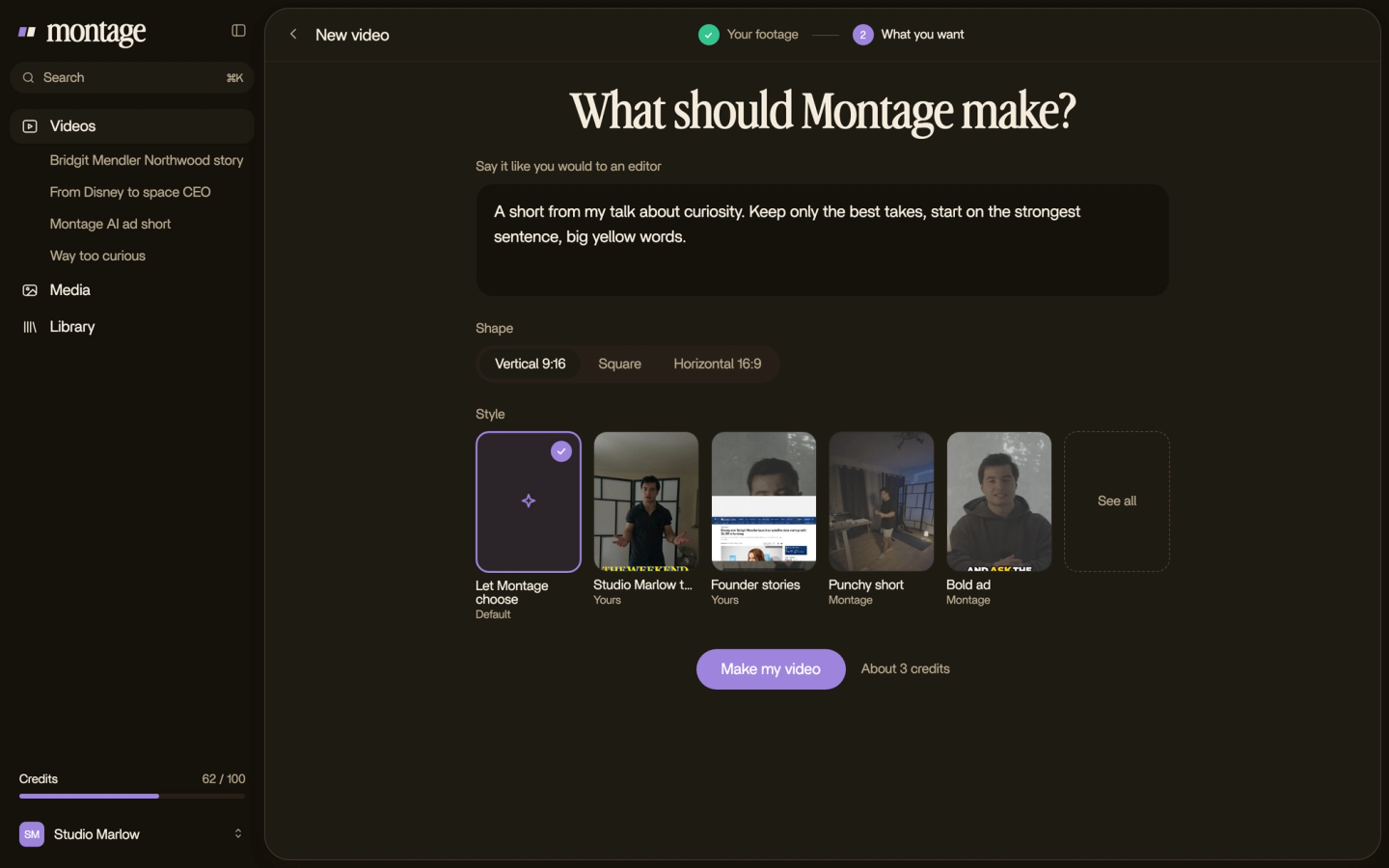
In Montage, there's no track to find. Sound and music are something you ask for, like the rest of the edit, so you just say it:
- « Take the music out. »
- « Lower the music under my voice. »
- « Keep the music on the intro, take it out after that. »
Then watch it. If the music is still too loud at one moment, pause there and comment on it. Then « Fix all », and Montage fixes it.
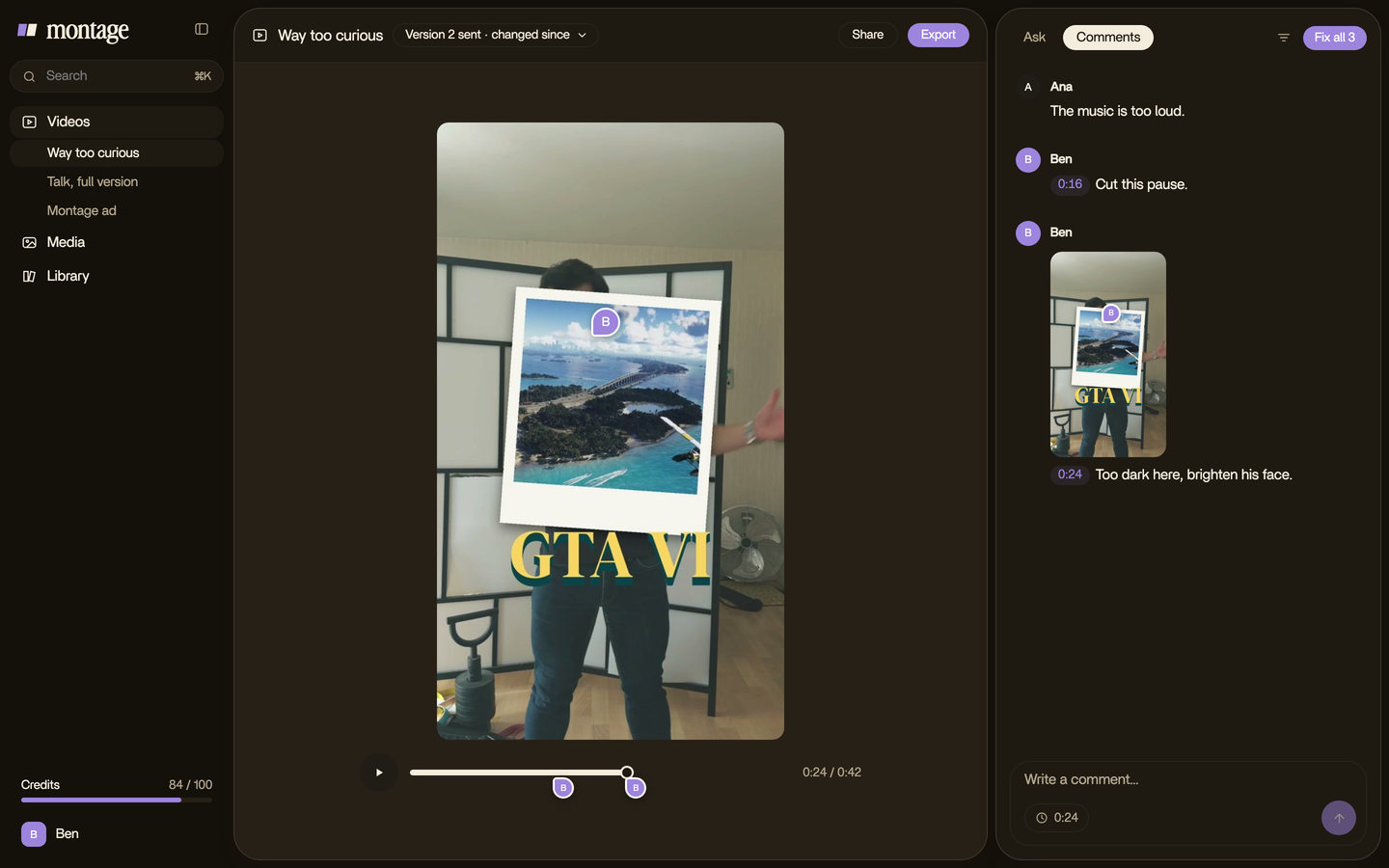
And your raw takes never change: the originals stay on your computer. If you change your mind, Undo takes back Montage's last change.
Remove background music from video with a separator, step by step.
Now, the other case. The music was playing in the café, the gym, the event. Or someone sent you the final MP4 and there's no project. Then a separator is the right tool. Here's how I'd do it.
- Pick a tool for what you want to keep. Only your voice? Any two-track tool works. Your voice and the room, the footsteps, the sound effects? Pick a tool that splits the sound in three (voice, music, everything else), so only the music goes.
- Upload the video. Check the file limit first (in the table below). A long video may go over the free part.
- Preview the voice track before you download it. Listen with headphones, all the way through.
- Check the moments where music and speech overlap. That's where separators struggle: a song with lyrics under your voice is the hardest case.
- Download the voice, or the video with the new sound. Some tools give you the MP4 back with the music gone; some give you the tracks to put back in your editor.
- Put new music in, as its own layer. If you want music at all, add new music to the video in your project, so next time it's a track you can delete.
A separator guesses. A project knows.
The separators, side by side.
Okay. Let's compare the tools that rank for this search. Every figure is from each tool's own page, read on 29 October 2026. Prices change, so check before you pay.
| Tool | What it keeps | Free | Price | File limit | Its own caveat |
|---|---|---|---|---|---|
| Audo | Three tracks: dialogue, music, sound effects. Only the music is taken out | The first 45 seconds of a file, 3 times a day, no sign-up | $0.08 a minute ($4.80 an hour) | 10 GB | Says speech-only cleaners treat effects as noise and leave scenes « hollow » |
| Music Remover | Three tracks: vocal, background music, other | Says it's free; no limit stated | Not stated on its page | Up to 3 hours | Quality « depends on the mix », especially where speech and singing overlap |
| remove.music | Two tracks: voice and music | 21 minutes with an account | Not stated on its page | 500 MB | None stated |
| Clumi | Two tracks: vocals and music (built for musicians first) | 3 uses, files up to 10 minutes and 100 MB | Not stated on its page | 100 MB free | None stated |
| VocalDock | A voice-only MP4, a silent video, or the separated tracks | 150 credits, « about 4–5 minutes » in Fast mode | Credit packs or a Pro plan; no price on the page | 1,000 MB | Loud music over speech can leave residue or alter the voice |
| Adobe Podcast | Three tracks: speech, music, ambience. Remove the music or lower it | A 7-day trial of Adobe Firefly Pro | Part of Adobe Firefly Pro | Not stated on its page | None stated |
So, which one? If it's a vlog and you want to keep the room, the footsteps, the life of the scene: a three-track tool, like Audo, Music Remover or Adobe Podcast. If it's a talking head and only your voice matters: any two-track tool does the job.
remove.music also says it's « 95%+ » accurate and processes in « under 10 seconds ». Those are its own claims; its page doesn't say how they were measured.
Why the layer always wins.
Here's the thing: the separators say it themselves. Music Remover writes that the quality depends on the mix. VocalDock writes that loud music over speech can leave music behind, or make your voice sound altered. They're honest about it, and that's to their credit.
Deleting a layer can't do any of that. There's nothing to guess. The voice you get back is the voice you recorded.
So the real fix isn't a better separator. It's never flattening the only copy of your edit.
Keep the layers next time.
That's how Montage builds an edit: out of separate pieces, not one flat file. Take my film From Disney star to space CEO: my face cam is one component, placed on every one of the film's 216 cuts. One media card is used 26 times. Each one stays a piece of its own in the edit.
 ComponentsMy face cam is a component: a macOS window over the James Webb images, on every one of the 216 cuts. Click to watch it.
 Reusable componentsOne media card, used 26 times: a picture or a clip, its caption, on the dark page. Click to watch it.
Same idea in a 38-second ad: the hook is a component, made once and reused.
 Components
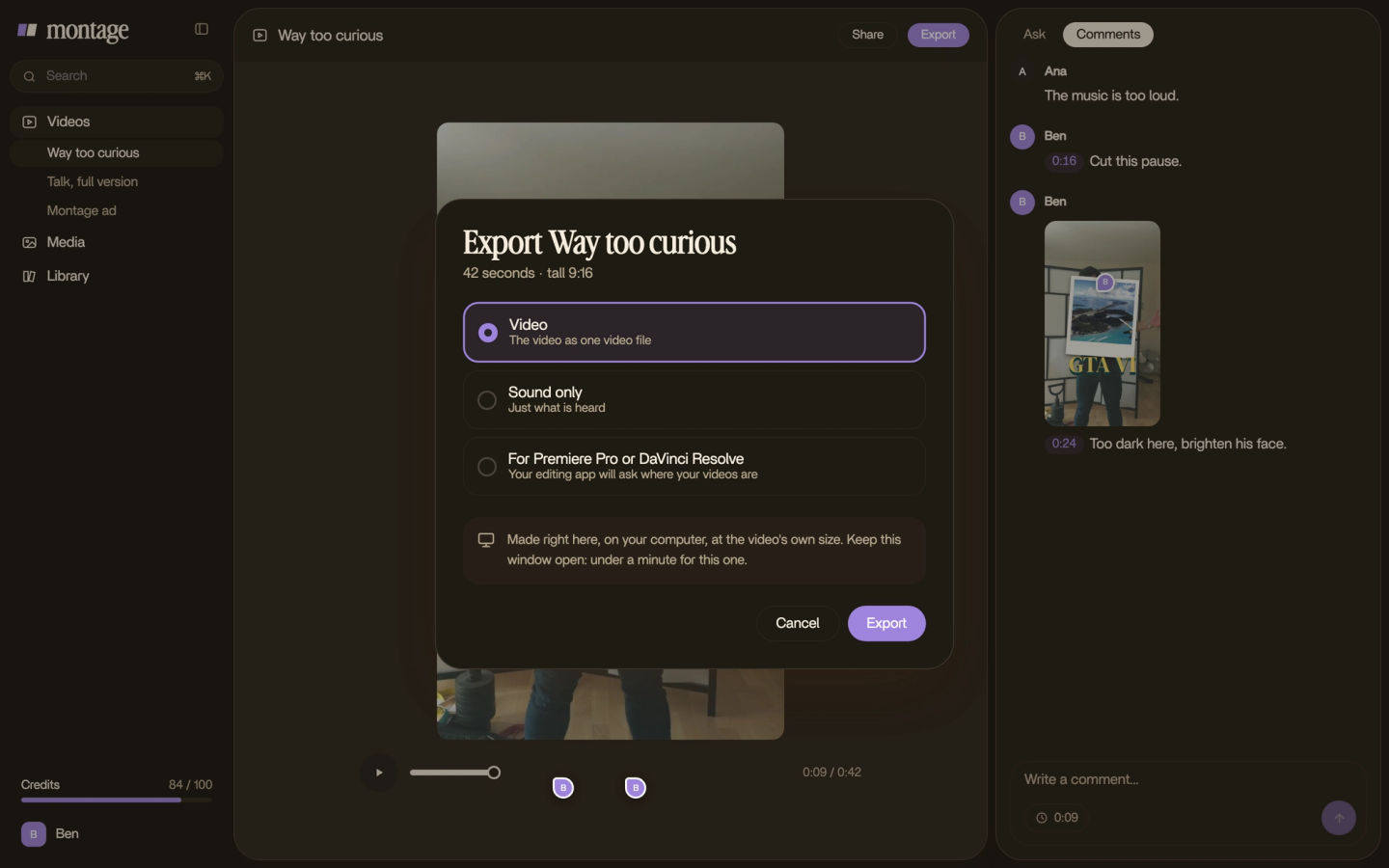
And when you export, you don't have to flatten everything for good. Montage exports the MP4, the sound only, or the cut for Premiere Pro or DaVinci Resolve. So if you ever want to re-edit in another program, you can export the sound only or the cut for Premiere Pro and start from the pieces, not from a mixed file.
Same goes if you're making clips from a podcast episode with music under it: keep the episode's tracks, and the music is a choice, not a problem.
Let's be clear about the limit, though. If all you have is a flattened file, Montage won't split the music from your voice. That's the separator's job, and the table above is where to start.
Removing background music from video: your questions.
How do I remove background music from a video but keep the voice?
If you made the video, open the project and delete or lower the music track: your voice stays untouched. If you only
have the final file, upload it to a separator (Audo, Music Remover, Adobe Podcast…), preview the voice track, and
download it.
Can I do it for free?
Yes, within limits. Audo does the first 45 seconds of a file, 3 times a day, with no sign-up. remove.music gives 21
minutes with an account. Clumi gives 3 uses on files up to 10 minutes. VocalDock's 150 free credits cover about 4 to 5
minutes. And deleting the music track in your own project is always free.
Can I do it on my iPhone?
Music Remover and Clumi both say they run in a mobile browser, so you can upload from your phone. Still, preview the
voice with headphones before you post.
Does removing the music stop a copyright claim?
It can help with a Content ID match, as remove.music says. But it doesn't make a clip safe to use: Music Remover says
so itself. The safe way is background music you're allowed to use,
added as its own layer.
What if it's noise, not music?
A hum, a fan, wind: that's a different job. Here's how to reduce background noise in
video.
That's it for this one. Open the project before you open a tool.
See you in the next one.