Motion graphics for YouTube:
real examples.
Most guides show you files to download. Let me show you every motion graphic of one real 9-minute YouTube video instead, and how few of them there really are.
 Ben, founder of Montage · · 8 min read
In this post8 parts
The short answer.
Let's start with the answer.
Motion graphics for YouTube are the graphics that move on top of your video: a window around your face cam, a card that shows a picture or a clip, a headline that lights up while you read it, a sponsor card. They're there to show what you're talking about and to make the channel look like yours.
Here's the thing most guides miss: a YouTube video doesn't need a new animation every minute. It needs a few graphics, made once, and reused. In the video I'll show you below, one face cam window sits on all 216 cuts, and one media card comes back 26 times. Those are components you reuse in every YouTube video, not fifty downloads.
Make it once. Reuse it every time.
What motion graphics are for.
So what are motion graphics, really? Adobe's page puts it simply: they're « graphics with movement » (adobe.com, from its Google result). Animation that entertains or explains something.
On YouTube, the uses are pretty much always the same. Soundstripe's guide (2021, from its Google result) lists four: intros and outros, visual branding, dynamic transitions, educational videos. Okay. Let's check those four against one real video.
| Use | What it means | In the real video |
|---|---|---|
| Visual branding | The same look on every video, so people know it's you | The face cam as a macOS window, the media card on the dark page |
| Educational | Showing the fact while you say it | A real headline highlighted in yellow, a red marker under a number |
| Transitions | Moving from one thing to the next | The face cam moving to the corner while each clip plays |
| Intros and outros | An animated opening or ending | None |
Do you see the last line? No card in that video shows an intro. Honestly, I don't think you need one. People came for the video, so give them the video. Sure. But if you're building a channel brand from scratch and you love a big animated logo, go for it. That's a choice, not a rule.
The motion graphics of a real YouTube video.
Let me show you. From Disney star to space CEO is a founder's long-form YouTube video: 9 minutes 18 seconds, 216 cuts. Here are its motion graphics, one by one, in the words of its own cards.
1. The face cam window
My face cam is a component: a macOS window over the James Webb images, on every one of the 216 cuts. One graphic. The whole video.
2. The media card
One media card, used 26 times: a picture or a clip, its caption, on the dark page. When a source needs its name on screen, that's what a lower third is for, and here the card's caption does that job.
 ComponentsMy face cam is a component: a macOS window over the James Webb images, on every one of the 216 cuts. Click to watch it.
 Reusable componentsOne media card, used 26 times: a picture or a clip, its caption, on the dark page. Click to watch it.
3. The face cam that moves to the corner
Good Luck Charlie, Ready or Not, Billboard, the TODAY antenna: the face cam moves to the corner while each one plays. That's a transition without a « transition ». More on transitions between shots.
4. The headline and the marker
A real headline, highlighted in yellow while I read it. And an article that tilts in, with a red marker underlining the number. That's text animation timed to the voice, and it's the educational part of the table above.
5. The sponsor card
A component made for the sponsor: frosted glass, the QR code and the code BLG. It looks like the rest of the video, so it doesn't feel like an ad pasted on top.
6. The guest's window
The guest gets a window of her own: Bridgit at TechCrunch Disrupt, over a Mac desktop, while I keep talking. Picture in picture, as a motion graphic.
 Sponsor cardA component made for the sponsor: frosted glass, the QR code and the code BLG. Click to watch it.
 Picture in pictureThe guest gets a window of her own: Bridgit at TechCrunch Disrupt, over a Mac desktop, while I keep talking.
That's it. Six kinds of graphics for 9 minutes of video. And two of them carry most of the weight: the window on 216 cuts, the card 26 times. You can watch the full 9-minute video to see them in place.
And in a short?
Now, a short works the same way, just faster.
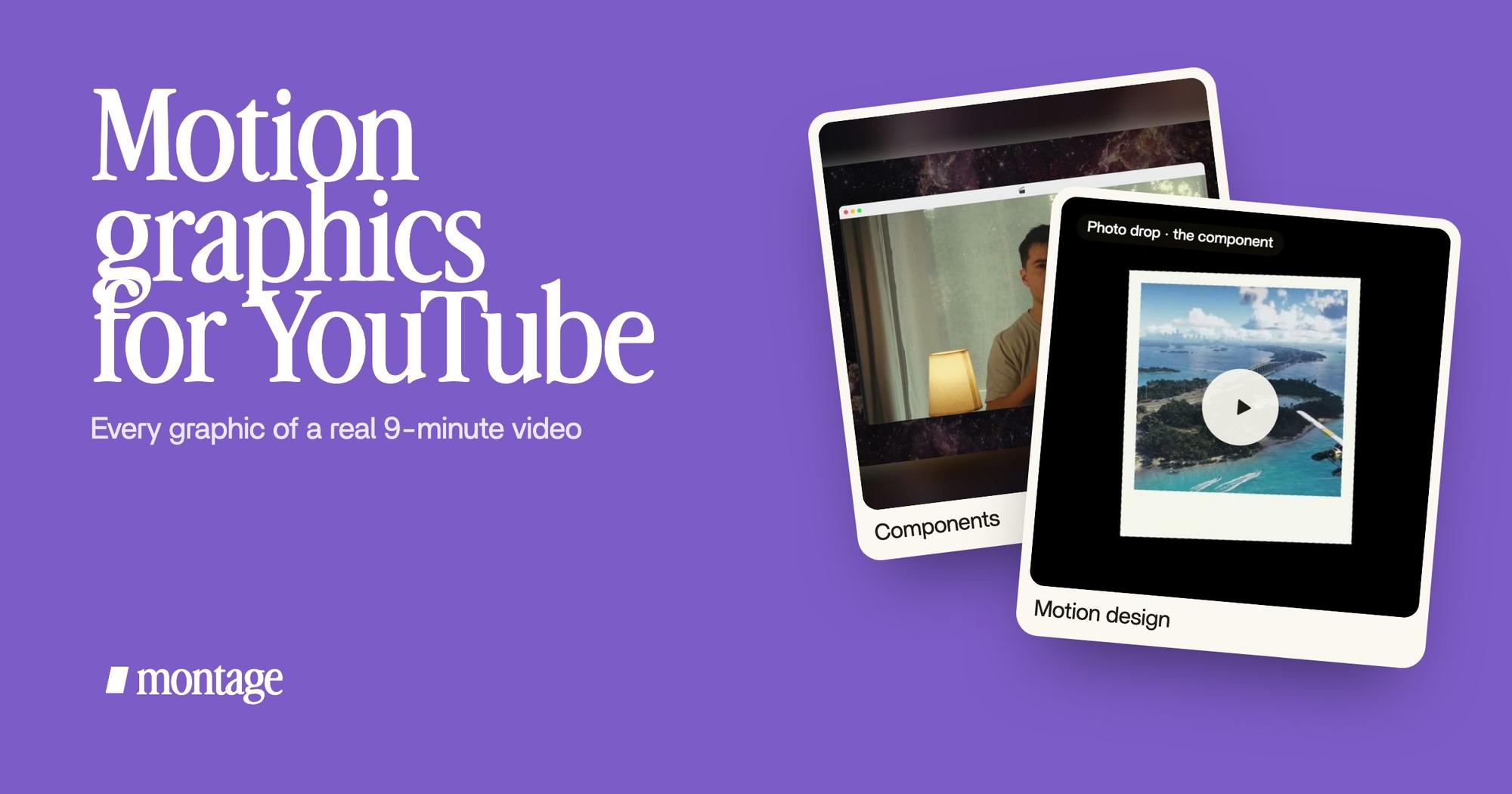
In Way too curious (56 seconds, vertical), each thing I love drops in as a photo the moment I say it. The Photo drop is a component Montage made from my words: I say GTA VI, it drops in. And the graphic itself? A flash, the shutter, the print falls in and lands tilted. Here are two motion graphics video examples from that short.
 ComponentsThe Photo drop is a component Montage made from my words: I say GTA VI, it drops in.
 Motion designThe Photo drop itself, exported on its own. Click to watch it: a flash, the shutter, the print falls in and lands tilted.
Same idea. One graphic, made once, used every time a word calls for it.
A short needs fewer graphics, not different ones.
Three ways to make motion graphics for YouTube.
Okay. How do you actually get them? There are three ways, and each one is right for someone.
| Template packs | After Effects | Describe it to an AI editor | |
|---|---|---|---|
| Examples | Jitter (300+ templates, free ones among them), Motion Array, Uppbeat | Adobe After Effects | Montage |
| How it works | Download a title, sticker or overlay, change the text, drop it on your timeline | You design every frame by hand, with keyframes | You say what the graphic should be, it's made on your footage, you comment on what's wrong |
| What it looks like | Someone else's design, used by a lot of channels | Exactly what you drew | Built for your video, kept as a component |
| Best for | Someone already editing in a timeline who needs a quick title | Motion designers, or anyone who wants full control | Creators who want their own graphics without learning a program |
| Not for | A channel that wants its own look | People who just want the video out this week | Someone who wants a graphic file on its own to use in another program |
A word on the free route. Jitter offers « 300+ motion graphics templates » for titles, social media, logos and more, and its FAQ names the uses: text overlays, animated logos, transitions (jitter.video, read on 2026-10-29). Galleries like Uppbeat offer intros, stickers, titles, icons and overlays to download (from its Google result). If that's what you need, it's a good place to start.
Truth is, if you already work in Premiere Pro or After Effects every day, keep doing it. You'll go further by hand.
AI motion graphics: what they can do today.
So can AI make motion graphics? Yes, on your own footage. Let me be clear about what that means.
With Montage, you describe the graphic in a sentence: « put my face cam in a macOS window », « drop in a photo each time I name something ». Montage makes it on your video, and you can keep it as a component and reuse it in the next one. That's motion design made by asking.
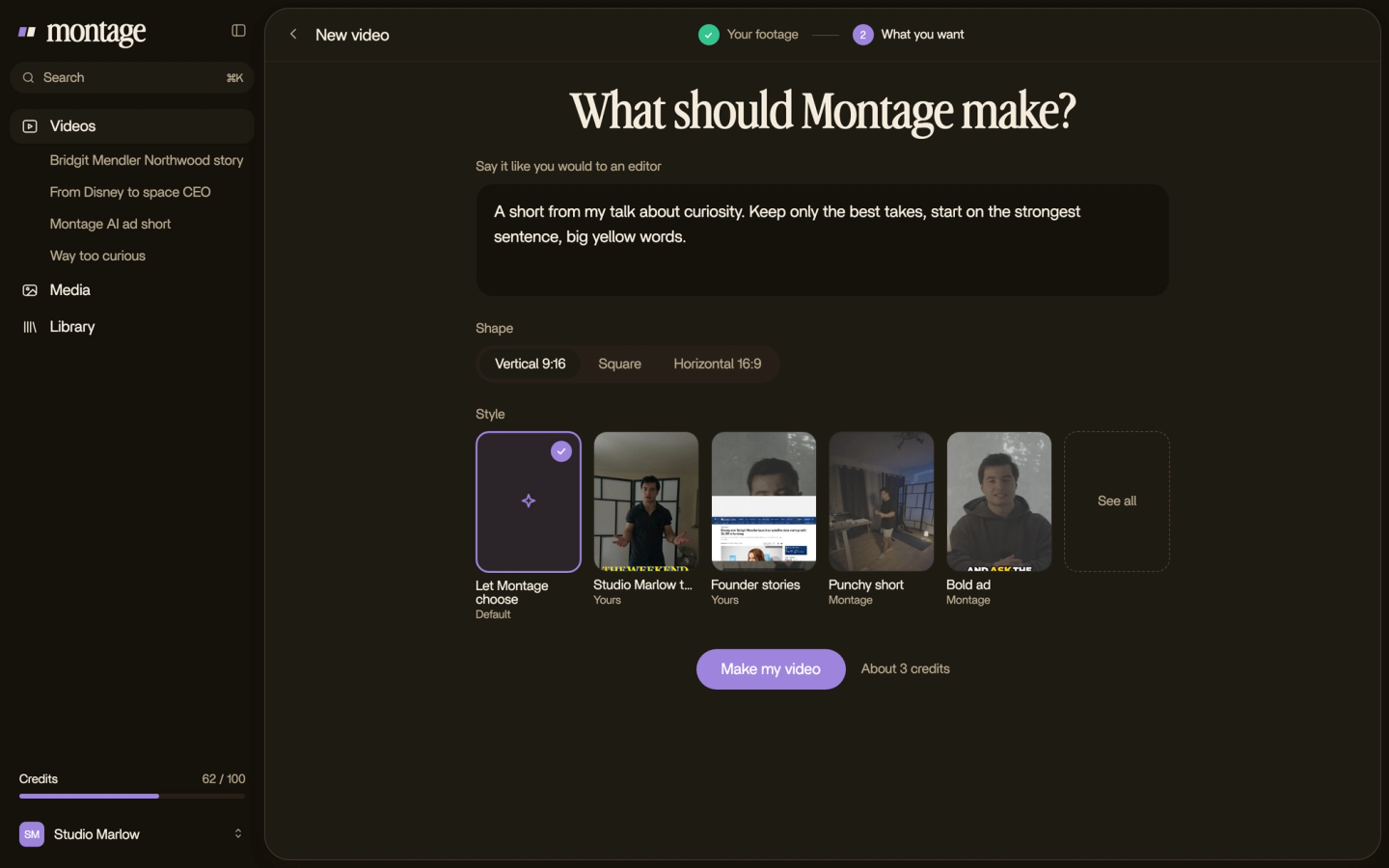
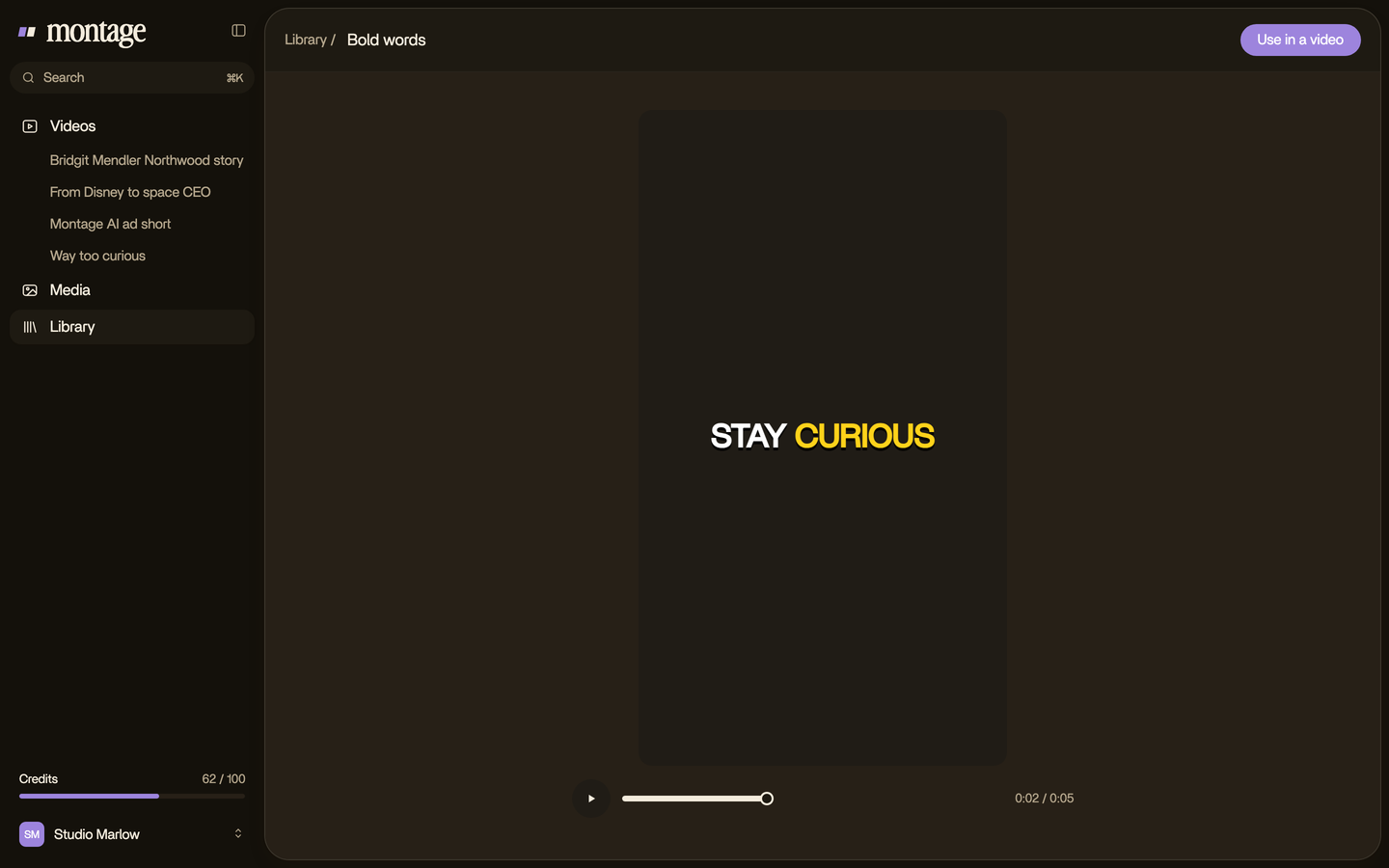
Then you watch. If one card is wrong, you pause on it and say what's off.
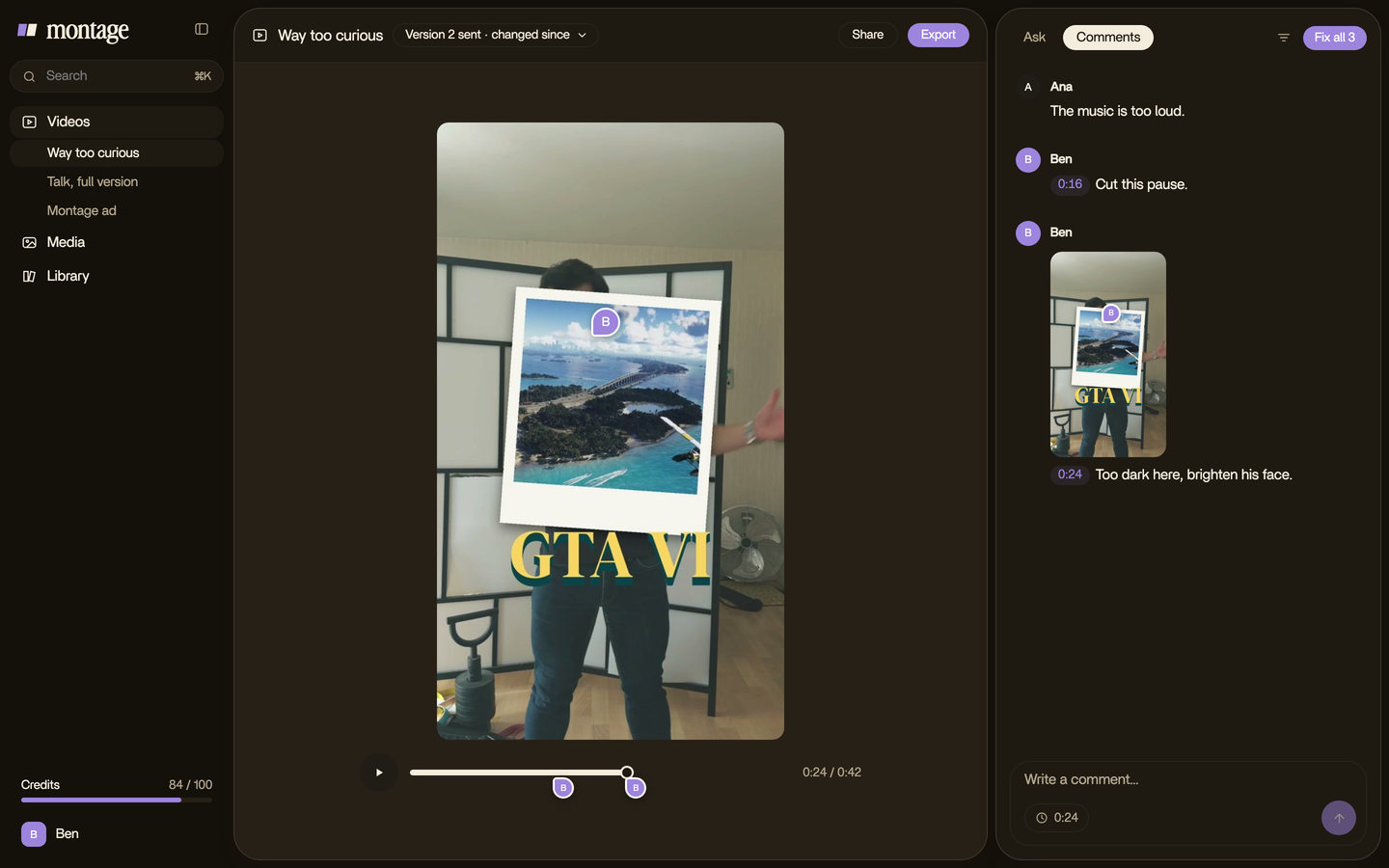
What it doesn't do: make a video from nothing. Montage works on the footage you film. And it doesn't export a graphic on a transparent background to use in another editor. If that's your workflow, a template pack or After Effects fits better.
Describe the graphic. Comment on the one that's wrong. Done.
And if you want them in your own fonts and colors, ask for them, and keep them as a style for the next video.
Motion graphics for YouTube: your questions.
What motion graphics does a YouTube video need?
A few, reused. In my 9-minute video: a window around the face cam, a media card for pictures and clips, a highlighted
headline, a sponsor card and a window for the guest. The window is on all 216 cuts and the card comes back 26 times. You
don't need a new animation for every moment.
Are there free motion graphics for YouTube?
Yes. Jitter has free templates among its 300+, and galleries like Uppbeat have free intros, titles, stickers and overlays
to download. The catch: other channels use the same ones.
Can AI make motion graphics?
Yes, on your footage. With an AI video editor built for YouTube videos like
Montage, you describe the graphic and it's made on your video, kept as a component. It doesn't make a video from nothing.
Do I need After Effects for motion graphics?
No. After Effects gives you full control, and it's worth learning if you want to design motion for a living. For your own
channel, templates or describing the graphic to an AI editor will get you there without it.
What's the difference between motion graphics and animated text?
Animated text is one kind of motion graphic: words that move, like a headline highlighted while you read it. Motion
graphics also cover windows, cards, stickers and shapes. Here's how to go about adding animated text to a
video.
See the graphics in the real videos.
Everything in this article is in real videos, each graphic asked for in a sentence.
 9:18
 2:07
 0:56
 0:38
That's it for this one. Pick the two graphics your videos need most, and make them once.
See you in the next one.