Animated text in video:
where it goes, and how to add it.
Every tool gives you a list of presets and a box that says « your text here ». Here's the part they skip: where animated text goes in your video, and what goes in it.
 Ben, founder of Montage · · 8 min read
In this post7 parts
The short answer.
Ladies and gentlemen, let's start with the answer.
To add animated text in video, you pick the moment it should appear, decide what the words are and how they come in, then put it on your footage with a template, an online editor's text tool, or an AI editor you describe it to. Then you watch it and fix the one that lands wrong.
That's the how. Every tool page tells you that part. Type a line, pick « slide in » from a list, place it. Done.
Here's the thing: none of them tells you where animated text belongs in a video, or what to put in it. And that's what makes it work or makes it noise.
So that's what this guide is about. Five places animated text earns its spot, shown in three real videos. What to put in it. And three ways to add it, compared honestly. If you'd rather see the feature itself, here's animated text described in your own words.
Where animated text goes in a video.
So where does animated text actually go? Let me show you.
Not everywhere. In the videos I've made with Montage, it shows up at five kinds of moments. Each one is a place where the viewer needs something on screen, right then.
| The moment | What's on screen | The real example |
|---|---|---|
| The hook | Something that stops the scroll | A white Instagram reply, made as a component and reused (Edit it all with AI) |
| A source you read out | The source itself | A real headline, highlighted in yellow while I read it (From Disney star to space CEO) |
| A number | The number, pointed at | The article tilts in and a red marker underlines the number (From Disney star to space CEO) |
| The product, or the sponsor | The thing you're selling, and how to get it | The product card swiped in from the right (Edit it all with AI); the sponsor card with the QR code and the code BLG (From Disney star to space CEO) |
| Every line you say | Your words, as captions | One line at a time (Edit it all with AI); yellow, uppercase, the key word bigger (Way too curious) |
A source, and a number
When you quote something, show it. In From Disney star to space CEO, a 9:18 YouTube film, the real headline comes up and gets highlighted in yellow while I read it. Elsewhere in the film, an article tilts in and a red marker underlines the number.
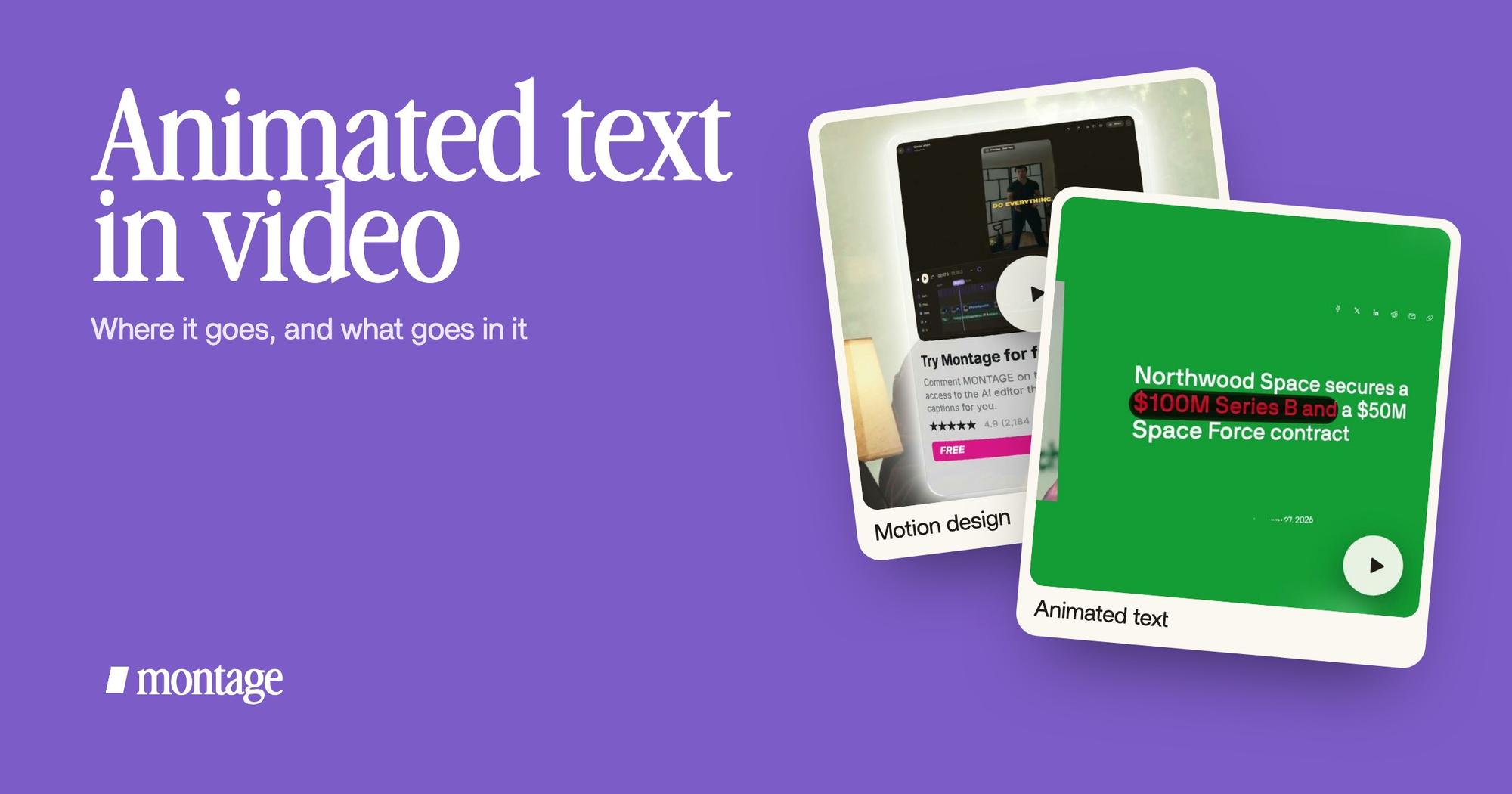
 Motion designA real headline, highlighted in yellow while I read it. Click to watch it.
 Animated textThe article tilts in and a red marker underlines the number. Click to watch it.
When the text names a person or a source for a few seconds, it's close to a lower third. More on that in lower thirds for a name or a source.
The hook, the product, the sponsor
The hook comes first. In Edit it all with AI, a 38-second ad, it's a white Instagram reply on screen. Then the product card comes in. Then, in the long film, the sponsor gets its own card: frosted glass, the QR code and the code BLG.
 ComponentsThe hook: a white Instagram reply, made as a component and reused. Click to watch it on its own.
 Motion designThe product card: frosted at 80 %, a fisheye, a big glow, swiped in from the right. Click to watch it on its own.
 Sponsor cardA component made for the sponsor: frosted glass, the QR code and the code BLG. Click to watch it.
The hook and the sponsor card are both components. The hook was made once, then reused. Here's how a card made once and reused works. And if your video is an ad, here's a video ad with the product on screen.
Every line you say
Captions are animated text too. The kind you see the most, I think. They come in line by line, timed to the voice.
 CaptionsOne line at a time, white on the take, dark on the white stage.
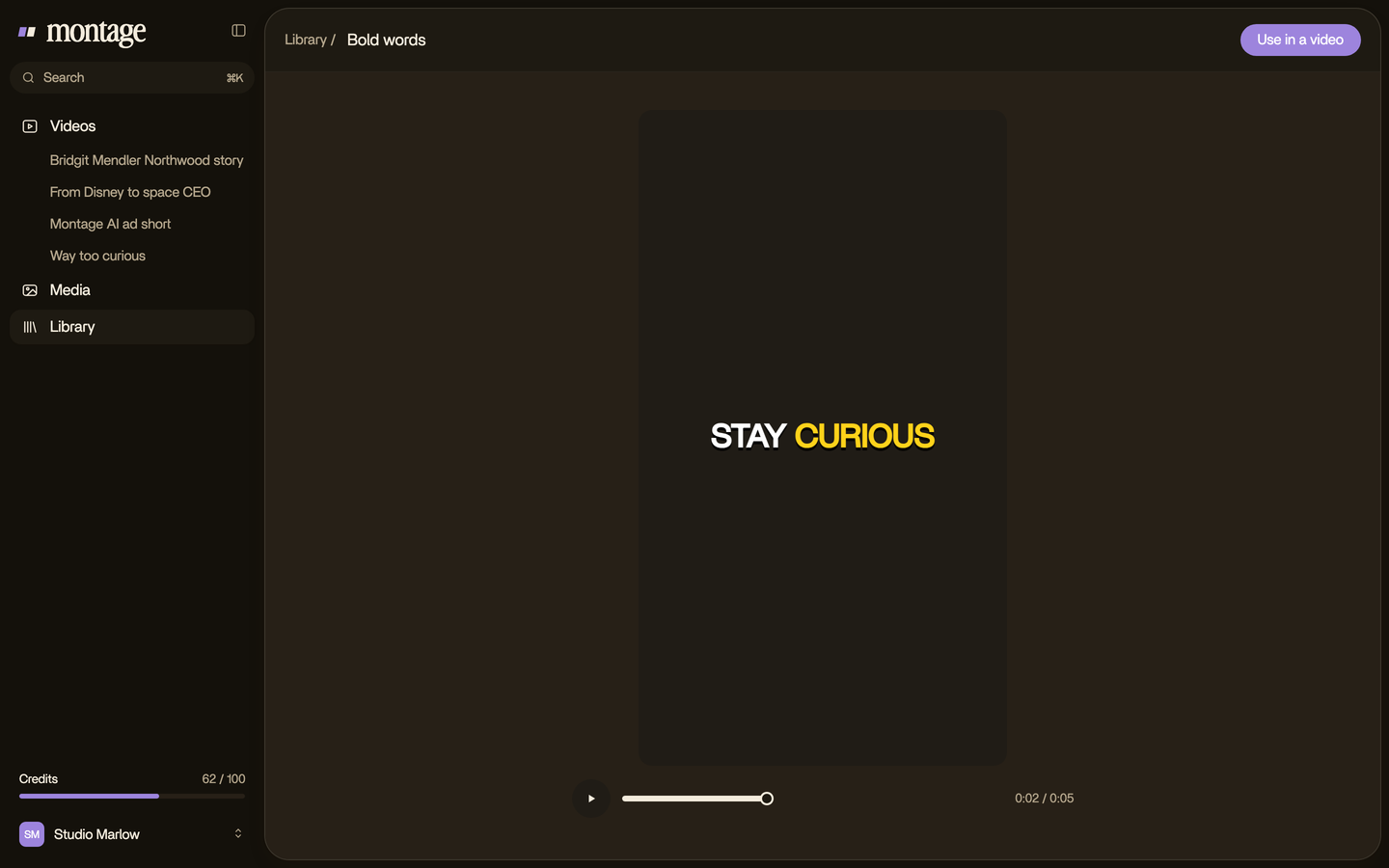
 CaptionsYellow, uppercase, a blue drop shadow, and the key word drawn bigger.
In Edit it all with AI, it's one line at a time, white on the take, dark on the white stage. In Way too curious, yellow, uppercase, a blue drop shadow, and the key word drawn bigger. More on captions styled in your colors.
Animated text goes where the viewer needs words. Nowhere else.
What to put in it.
Okay. Now look at those five moments again. What do they have in common?
Not one of them says « your text here ». Every piece of animated text is made of something from the video itself. The real headline. The article and its number. The product. The sponsor's code. The words I say.
That's the rule, in my opinion. Animated text in a video should show something the viewer needs at that second, taken from the video. A title typed into a preset rarely does that. It just moves.
Not « your text here ». Something from your video.
So when is animated text noise? When it repeats what's already obvious. When it's there because the tool had a preset. When three lines fly in at once and nobody can read any of them. Let's be clear: moving text isn't the goal. Being read is.
How to add animated text to a video.
Here's how I'd do it. Three steps.
- Pick the moment. Watch your video and stop where the viewer needs words: the hook, a quote, a number, the product, the code. Those are your spots.
- Say what's on screen, and how it comes in. The words, the look, the movement. Be precise. In Edit it all with AI, the product card is described in one line, four settings: frosted at 80 %, a fisheye, a big glow, swiped in from the right.
- Watch and comment. Play it through once. Where a line comes in too early, or covers your face, pause and point at it. Then fix everything at once.
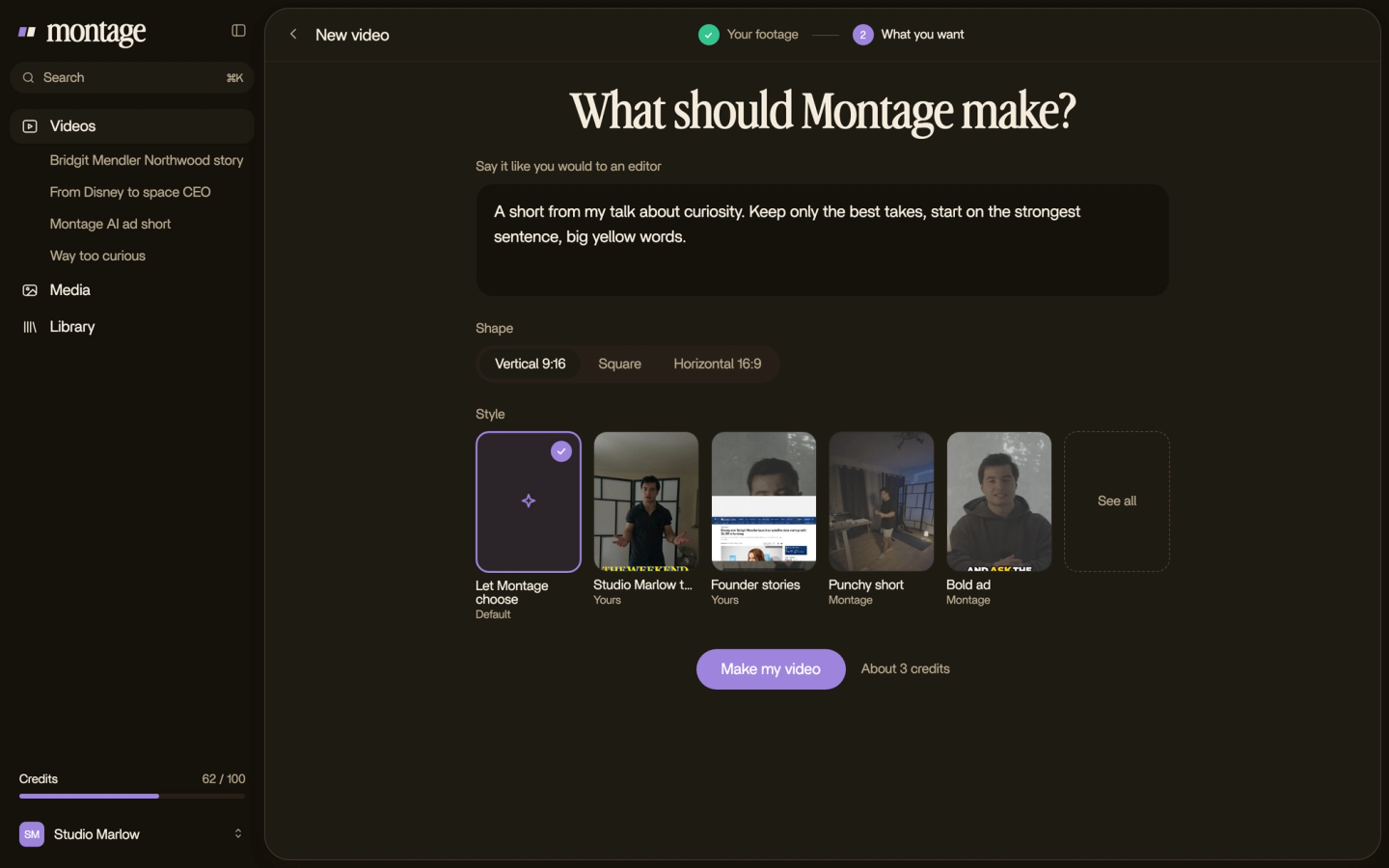
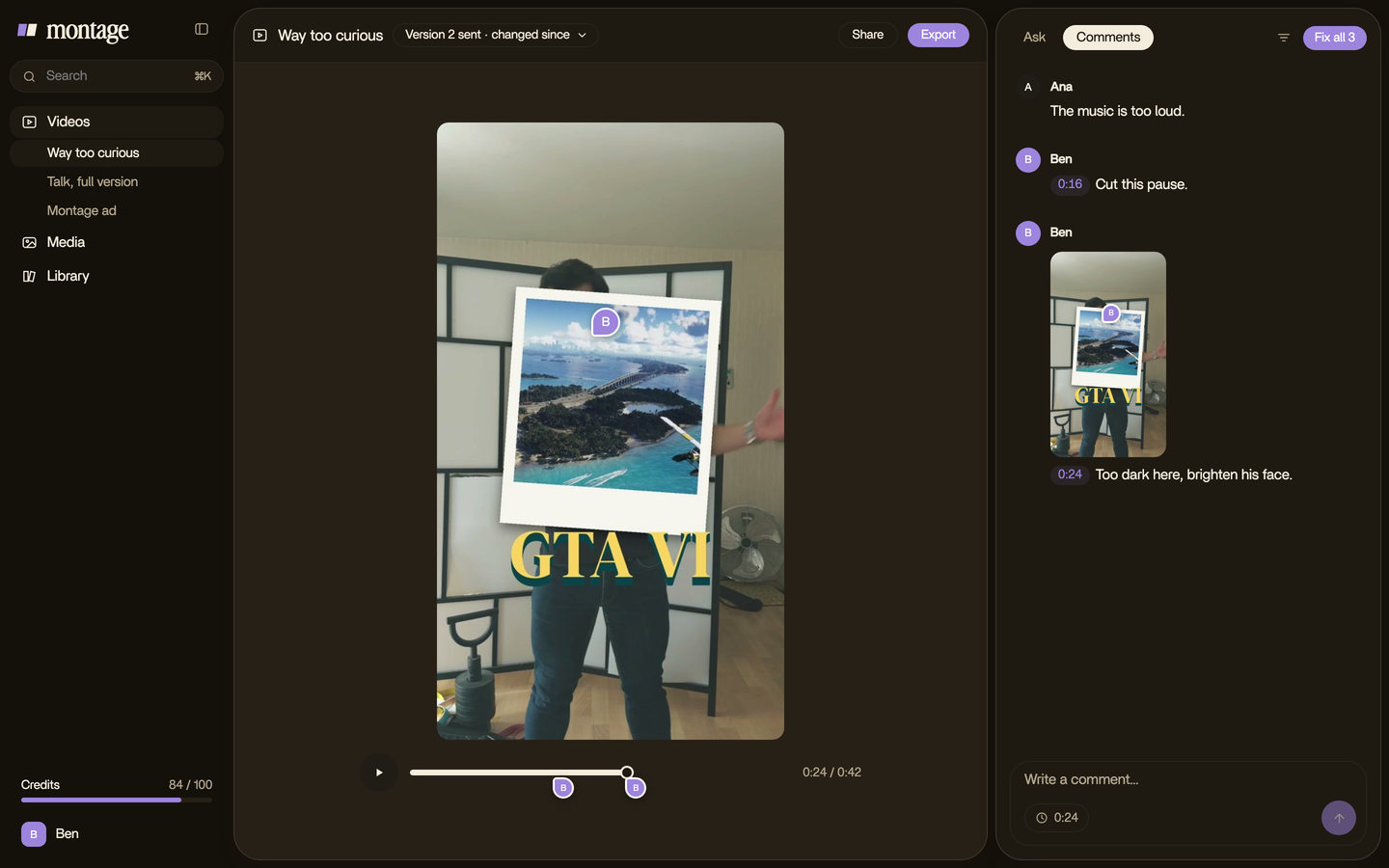
Here's the thing about step 2: a preset list gives you one « slide in ». A sentence can hold four settings at once. That's the difference between picking from a menu and saying what you want.
And when the same text comes back in every video, like a hook or a sponsor card, keep it as a component. In Way too curious, « The Photo drop is a component Montage made from my words: I say GTA VI, it drops in. »
Three ways to add it, compared.
Let's put the three ways side by side.
| Way | How it works | Who it's for |
|---|---|---|
| A generator or template (Jitter, Renderforest) | You make the text as a clip apart from your video, export it, then line it up in your editor yourself | People who already edit in Premiere or CapCut and want a ready-made look |
| A text tool in an online editor (VEED, Canva) | Upload your video, type the text, pick an animation from a list, place it on the timeline by hand | Quick one-off titles when the preset is close enough |
| Describing it to an AI editor (Montage) | You say what the text is, how it comes in and when; Montage puts it on your video; you comment on the one that's wrong | Creators and founders who film themselves and want the text made of their own video |
A few facts, from their own pages. Jitter exports GIF, MP4, MOV, WebM and Lottie, at 480p or 720p on its free plan and 1080p or 4K on Pro (jitter.video). Renderforest has you pick a template, type your words, export, then « incorporate it into your videos » (renderforest.com). VEED's route is three steps: upload, add text and pick an animation style, export (veed.io).
Sure, templates are fine. If you already edit on a timeline and you want a look you can't describe, a template gets you there. But for everybody else? The text that works is the text made of your video, at the moment it matters.
Animated text in video: your questions.
How do I add animated text to a video?
Pick the moment the viewer needs words, decide what they say and how they come in, then add it with a template, an
online editor's text tool, or an AI editor you describe it to. Watch it once and fix what lands wrong.
Can I add animated text to a video online for free?
Yes. Some online editors and template sites have free plans, with limits: Jitter, for example, exports at 480p or 720p
on its free plan (jitter.video). Check what each free plan exports before you start.
How do I animate text without Premiere Pro or After Effects?
Use an online editor's text tool, a template site, or describe the text to an AI editor like Montage. None of them needs
keyframes. If you want the basics of each movement first, read the kinds of text animation,
explained.
What is kinetic typography?
It's text that moves in time with what's said or heard. VEED uses the term for its animated text tool (veed.io). Your
captions, timed word by word to your voice, are a simple kind of it.
How do I make a typing effect?
That one has its own guide: a typewriter text effect.
See it in real videos.
Everything above is in real videos. The 38-second ad has the hook, the product card and the captions. For more, there's the motion graphics of a full YouTube video, and a transition between two shots.
 9:18
 2:07
 0:56
 0:38
That's it for this one. Find the one second your video needs words, and put them there.
See you in the next one.