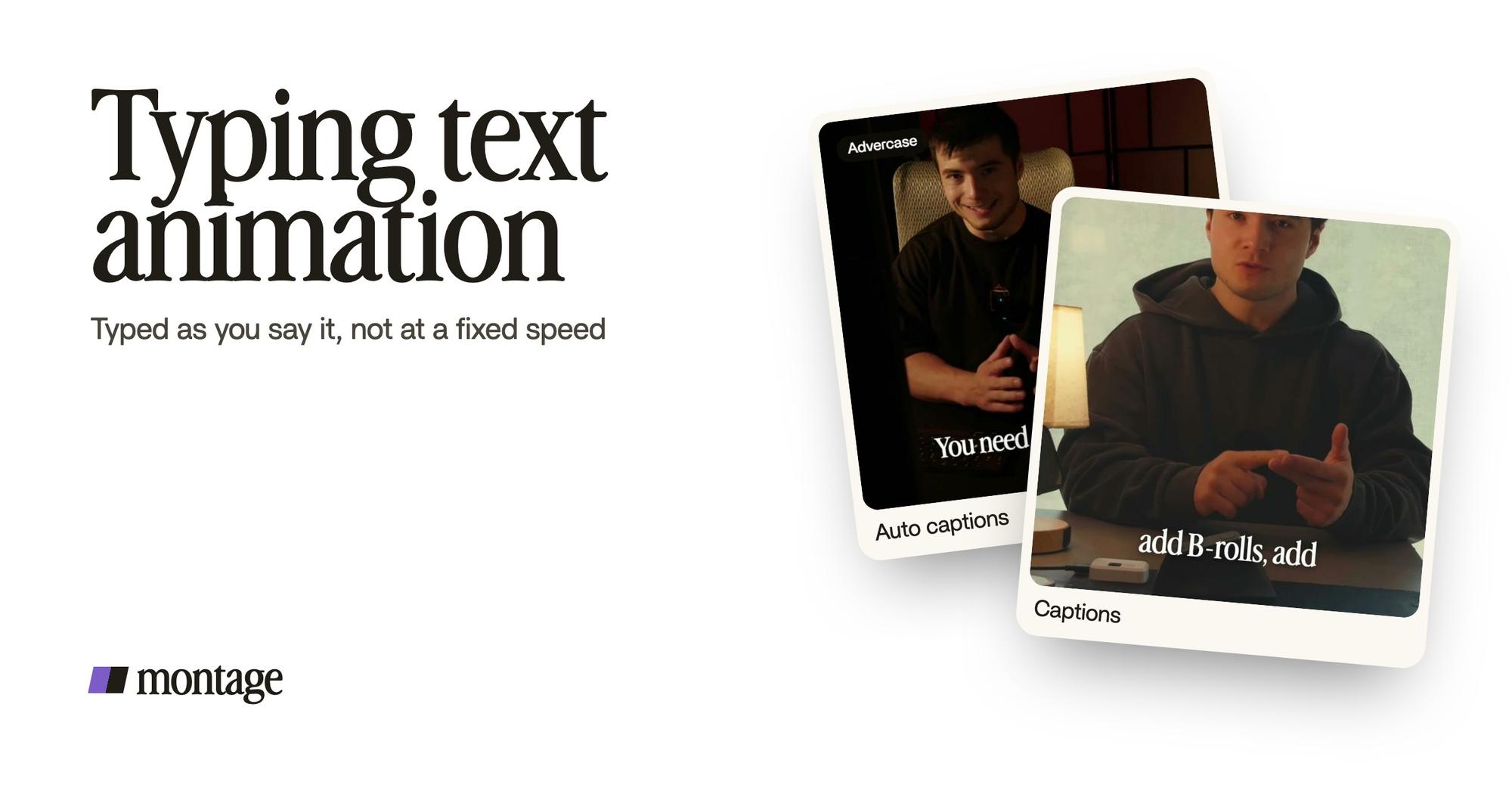
Typing text animation:
how to make one for your video.
The typewriter effect looks simple: words appear one letter at a time. Here's the thing: in a video where you talk, the hard part isn't the letters. It's the timing. Let me show you.
 Ben, founder of Montage · · 8 min read
In this post8 parts
The short answer.
Ladies and gentlemen, let's start with the answer, because that's what you came for.
A typing text animation is text that appears on screen one character at a time, often with a blinking cursor at the end, like someone typing it live. You'll also hear it called the typewriter effect, or type-on text. There are three ways to make one: a generator that gives you a clip to put on your timeline, a few lines of code for a website, or an AI editor you describe it to, which puts it straight on your own video.
And one rule that matters more than the tool: in a video where you talk, the words should type out at the speed you say them, not at a speed you pick on a slider.
Type it at the speed you say it. That's the whole trick.
What a typing text animation is, really.
So what is a typing text animation, really? Let me explain.
It's one effect inside a big family. Text can fade in, slide in, bounce, get underlined, get highlighted. Typing is the one where the letters come in one by one, in order. TypeFlow, the generator that ranks first for this search, calls it « one of the most recognizable text effects in video » (typeflow.studio, read 2026-10-29). If you want the rest of the family, here are the other kinds of text animation.
You've seen it plenty of times. A hook that types itself out. A search bar filling up. A prompt typed into a chat. A line of code in a terminal. A quote, letter by letter.
Now, here's what makes it different from every other kind of text on screen: typing takes time. A word that pops in is read at once. A word that types out makes people wait for it. Sometimes that's the point. Sometimes it's just slow.
Three ways to make a typing text animation.
Okay. Let's put the three routes side by side.
| A generator | Code | An AI editor | |
|---|---|---|---|
| Examples | TypeFlow, Jitter | CSS-Tricks' snippet, Magic UI, Framer | Montage |
| What you get | A clip to export: MP4, MOV with a transparent background, or a PNG sequence (TypeFlow) | Typing text on a web page | The typing on your own video, at the moment you say the line |
| Who it's for | People who already edit in Premiere Pro, CapCut, Final Cut or DaVinci Resolve | Web designers and developers | Creators who film themselves and don't want to line clips up by hand |
| What it costs you | Lining the clip up with your voice, by hand. Free plans: TypeFlow 3 exports at 720p, Jitter 480p or 720p (their FAQs, read 2026-10-29) | It's for websites, not videos | Describing it, then commenting on what lands wrong |
1. A generator
You pick a template, change the text, the colors, the font and the timing, and export. TypeFlow's export list covers Premiere, After Effects, Final Cut, Resolve and CapCut. Jitter has a whole gallery of text templates to start from.
That works. Truth is, if you already have a timeline editor open, it's the fastest way to get the clip. But the clip plays on its own clock. You still drag it to the right moment and stretch it until it matches what you say.
2. Code
The classic is CSS-Tricks' typewriter snippet: the text is revealed in 40 steps over 3.5 seconds, and the cursor is a blinking orange border (css-tricks.com, read 2026-10-29). Magic UI and Framer offer ready-made components for the same thing. Great for a website's headline. Not for your video.
3. Describe it to an AI editor
The third way: you say what you want. « When I say the prompt, type it out in a white search bar, and finish when I finish the sentence. » Montage makes animated text you ask for in a sentence on your video, then you watch it and comment on what's off.
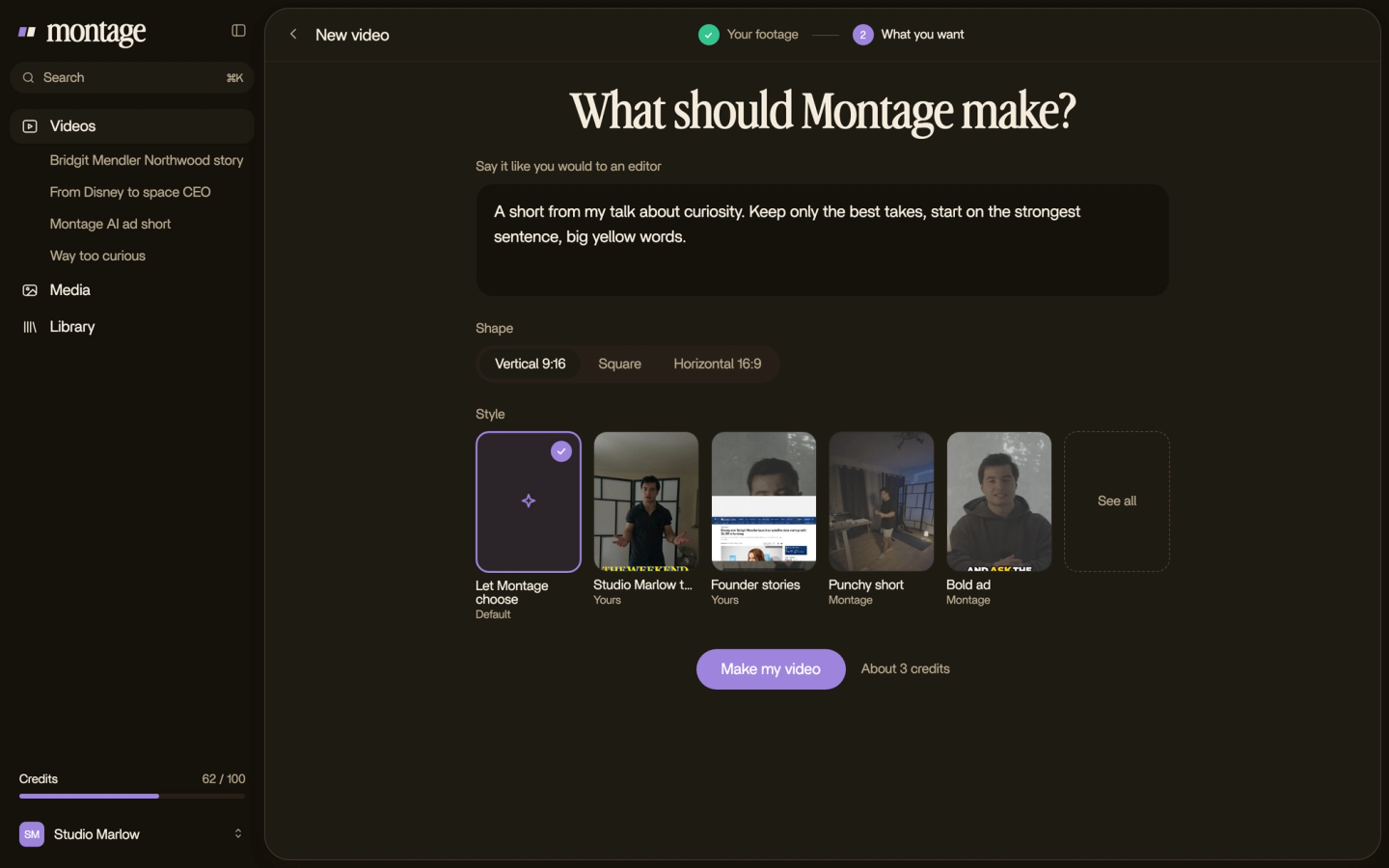
Let's be clear about what it doesn't do: it doesn't give you a transparent clip to take into another editor. It makes the animation on your video.
How fast should it type?
Here's the thing: every tool sets the speed with a number. CSS-Tricks uses 40 steps in 3.5 seconds. Magic UI has a type speed, a delete speed, a pause between words, a loop, and three cursor styles: line, block or underscore (magicui.design, read 2026-10-29). TypeFlow has a timing setting.
On a website, that's fine. Nobody is talking. In a video where you talk, the voice is already the clock. If the words finish typing two seconds after you said them, it feels late. If they finish before, it feels like a spoiler.
So, my decisions for a video:
- Speed: the pace of the voice. The line starts typing when you start saying it, and ends when you end it.
- Rhythm: not perfectly even. Motion's docs put it well: « no human types each character at a monotonous interval » (motion.dev, read 2026-10-29). An even rhythm looks robotic.
- Loop: no. Looping is for a website's hero. In a video, it types once.
- Cursor: only if it means something. A search bar, a terminal, a message. On a quote, drop it.
Let me show you the rule on real videos. None of these is a typewriter effect. They're text timed to my voice, which is the same rule a typing animation should follow.
 Auto captionsEvery line on screen in my own font, timed to my voice.
 CaptionsOne line at a time, white on the take, dark on the white stage.
In How to be creative, every line on screen is in my own font, timed to my voice. In Edit it all with AI, the words come one line at a time. That's how captions timed to your voice work in Montage.
 Motion design
And in a 9-minute YouTube video, From Disney star to space CEO, a real headline is highlighted in yellow while I read it. Same rule. The text moves when the voice gets there.
When it works, and when it's just slow.
In my opinion, a typing animation is worth it when the typing means something. You're searching. You're prompting. You're writing a message. You're running a command. Then people expect the letters to come one by one, because that's what typing looks like on a real screen.
- A hook typed into a search bar. The question your video answers, typed out.
- A prompt in a demo. If you're making a product demo from a screen recording, the line typed into your product is the moment people watch.
- A terminal in a tutorial. When you're editing a tutorial video, a command that types out shows what to type.
- A name card. A name that types in can work for lower thirds, the name and title on screen.
Sure. But for anything else? A long sentence nobody wants to wait for, a caption, a point you're making fast: a word that simply appears when it's said reads faster.
If the typing doesn't mean typing, skip it.
Put one in your video, step by step.
Here's how I'd do it.
- Pick the line. One short line. A search, a prompt, a command, a quote. Not a paragraph.
- Film it said out loud. Say the line in the take, so the voice can set the pace.
- Drop your takes in. As they are.
- Say what it should look like. « Type the search in a white bar, a blinking cursor, starting when I say it. »
- Watch it once. Notice if the typing ends after you do.
- Comment on the one that lands late. Pause on it and say what's wrong: « start it half a second earlier ».
- Export. The video, ready to post.
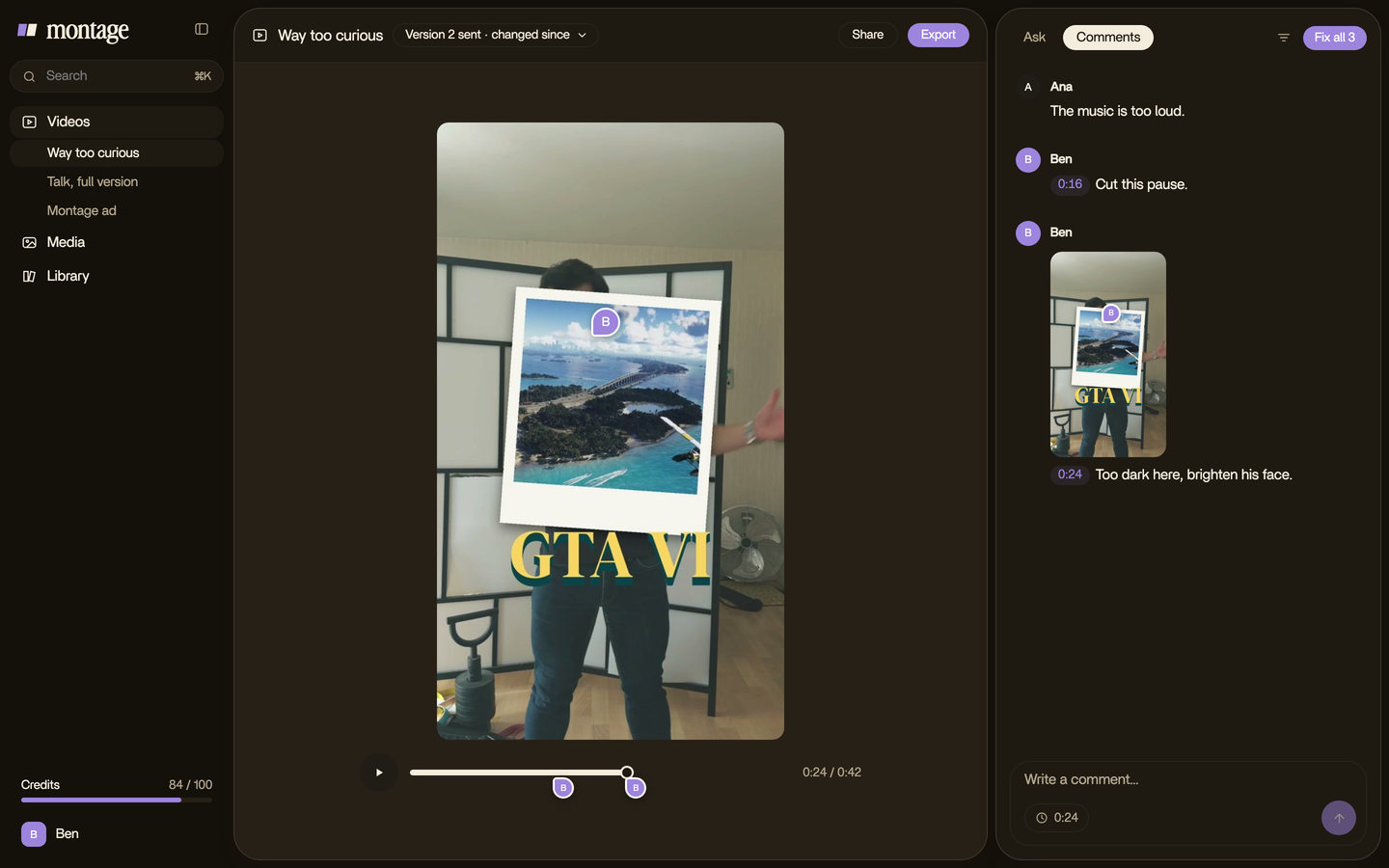
With a generator, steps 4 to 6 become: make the clip, export it, drop it on your timeline, slide it until it matches. Do you see the difference?
Typing text animation: your questions.
How do I make a typing text animation?
Three ways. Use a generator like TypeFlow or Jitter and drop the clip on your timeline. Use code (CSS or a component) if
it's for a website. Or describe it to an AI editor like Montage, which types it out on your video when you say the line.
Is there a free typing text animation generator?
Yes. TypeFlow's free plan gives 3 exports at 720p, and Jitter's free plan exports at 480p or 720p (their FAQs, read
2026-10-29). Check before you start: plans change.
Can I use a typing text animation in Premiere Pro or CapCut?
Yes. TypeFlow, for one, exports MP4, MOV with a transparent background, or a PNG sequence for Premiere, CapCut, Final
Cut and DaVinci Resolve. Then you line it up with your voice by hand.
What's the difference between typing and text animation?
Typing is one kind of text animation: one character at a time. Text animation is the whole family: fades, slides,
highlights, underlines. More on adding animated text to your video.
How fast should text type in a video?
At the speed of the voice. The line starts typing when you start saying it and finishes when you finish. Not perfectly
even, or it looks robotic.
See it in a real video.
The rule of this guide, words on screen timed to the voice, is all over the 2-minute short filmed in Apple Log. And if you want more than text, here are transitions between shots and motion graphics for a YouTube channel.
 9:18
 2:07
 0:56
 0:38
That's it for this one. Now go type something.
See you in the next one.