Transitions for video:
the types, and when to use each.
You opened the transitions tab and found twenty names: burn, glitch, heart, spin. Here's what each kind does, when it works, and what four real videos actually use between their shots.
 Ben, founder of Montage · · 9 min read
In this post9 parts
The short answer.
Ladies and gentlemen, let's start with the answer.
Transitions for video are what happens between two shots. The most common one is the one nobody notices: the plain cut. Then come the cut to B-roll, the zoom, the push or the wipe, the dissolve, the fade to black, and the effects from a transitions tab, like the glitch or the spin.
Which one is good? The one with a reason. A word that calls for a picture. A new topic. A new place. If there's no reason to move, cut. That's the whole rule, and the rest of this guide is how to use it.
Want to see it in a real video first? Way too curious, the 56-second short, drops a photo in on each thing I love, and pulls back on black on two words only.
What a transition actually is.
So what is a transition, really? Let me explain.
Most editors show you a transition as an effect you drag between two clips. Clipchamp's list of 20 video transitions is that: burn, blinds, pixelate, page turn, heart, spin, and so on, each with a mood.
But film editors see it differently. StudioBinder's guide to editing transitions starts with the cut: one shot moves to the next with no effect at all. That's a transition too. And it's the one you'll use the most.
Every cut is a transition. Most of them should be invisible.
Here's the thing: the effect is the last decision, not the first. First you decide why the picture changes. Then how.
Types of video transitions, side by side.
Okay. Here are the types you'll actually meet, grouped. Not twenty, about a dozen.
| Type | What it does | When it works | Source |
|---|---|---|---|
| Cut | One shot to the next, no effect | Almost always. It's the default | StudioBinder |
| Jump cut | A cut inside the same shot, so the picture jumps a little | Time passing. In talking-head videos, taking out pauses and retakes | StudioBinder |
| J-cut and L-cut | The next shot's sound starts before its picture (J), or this shot's sound runs over the next picture (L) | Interviews and conversations, so the cut feels smooth | StudioBinder |
| Cutaway (B-roll) | Cuts to what you're talking about, then back | When you name a thing, a place or a person | StudioBinder |
| Match cut | Links two shots by a shape, a movement or a sound | When two moments belong together | StudioBinder |
| Dissolve and cross fade | One shot melts into the next, usually over 24 to 48 frames (about 1 to 2 seconds) | Time passing, a softer change of scene | StudioBinder, Clipchamp |
| Fade to black | The picture goes to black, or comes up from it | Openings and endings. Careful: it can read as « the story is over » | StudioBinder |
| Wash (fade to white or a color) | A fade to a solid color instead of black | A flash, or a moment like fainting | StudioBinder, Clipchamp |
| Zoom in and out | The picture pushes in or pulls back into the next shot | On a word you want to land | Clipchamp |
| Push and wipe | The next shot slides or wipes the old one off the screen | A new topic, a new section, a list | Clipchamp, StudioBinder |
| Whip pan | A fast camera swing, with the cut hidden in its blur | Energy, a jump to another place | StudioBinder |
| Spin, glitch, burn, heart | Effects from a transitions library | Gaming intros, tech videos, a wedding slideshow | Clipchamp |
StudioBinder splits the match cut in three: the graphic match (a shape), the match on action (a movement) and the sound bridge (a sound carried across). Worth knowing. You'll start seeing them everywhere.
What makes a good transition.
So what are good transitions? Honestly, most of the twenty in a transitions tab you'll never need.
A good transition has a reason. Here are the three that count:
- A word. You say « CrossFit », the CrossFit picture comes in. The word is the cue.
- A new topic. You move from the problem to the answer. A push, a wipe, or a beat of black says « new part ».
- A new place or a new time. You were at home, now you're outside. Or it's the next morning. That's where a dissolve or a fade earns its place.
No word, no new topic, no new place? Then it's a plain cut.
No reason to move? Cut.
Sure. But what about the flashy ones? They have their place. A gaming intro wants the glitch. A wedding slideshow can take the heart. Clipchamp's own rule is fair too: there's no limit, but leave « enough time and space between transitions » so people watch the video, not the editing. I'd just go one step further. If you notice the transition more than the shot after it, it's the wrong one.
Transitions for video in four real videos.
Now, let's look at what real videos do between their shots. Four showcase videos, edited in Montage. None of them uses a burn, a heart or a page turn. Here's what they use instead.
The cut on the word
All four videos cut to B-roll. In the shorts, it lands right on the word.
 B-rollWhile I talk, it cuts to the right shot: the book, the notebook, the whiteboard.
 B-rollI say CrossFit, my photo drops in. One picture for each thing I love.
In How to be creative, while I talk, it cuts to the right shot: the book, the notebook, the whiteboard. In Way too curious, I say CrossFit and my photo drops in, one picture for each thing I love. That's StudioBinder's cutaway, in a creator's video. The word is the reason, so the cut feels natural. Here's how B-roll drops in on the word.
The zoom and the push, on purpose
The zoom works best when it's rare.
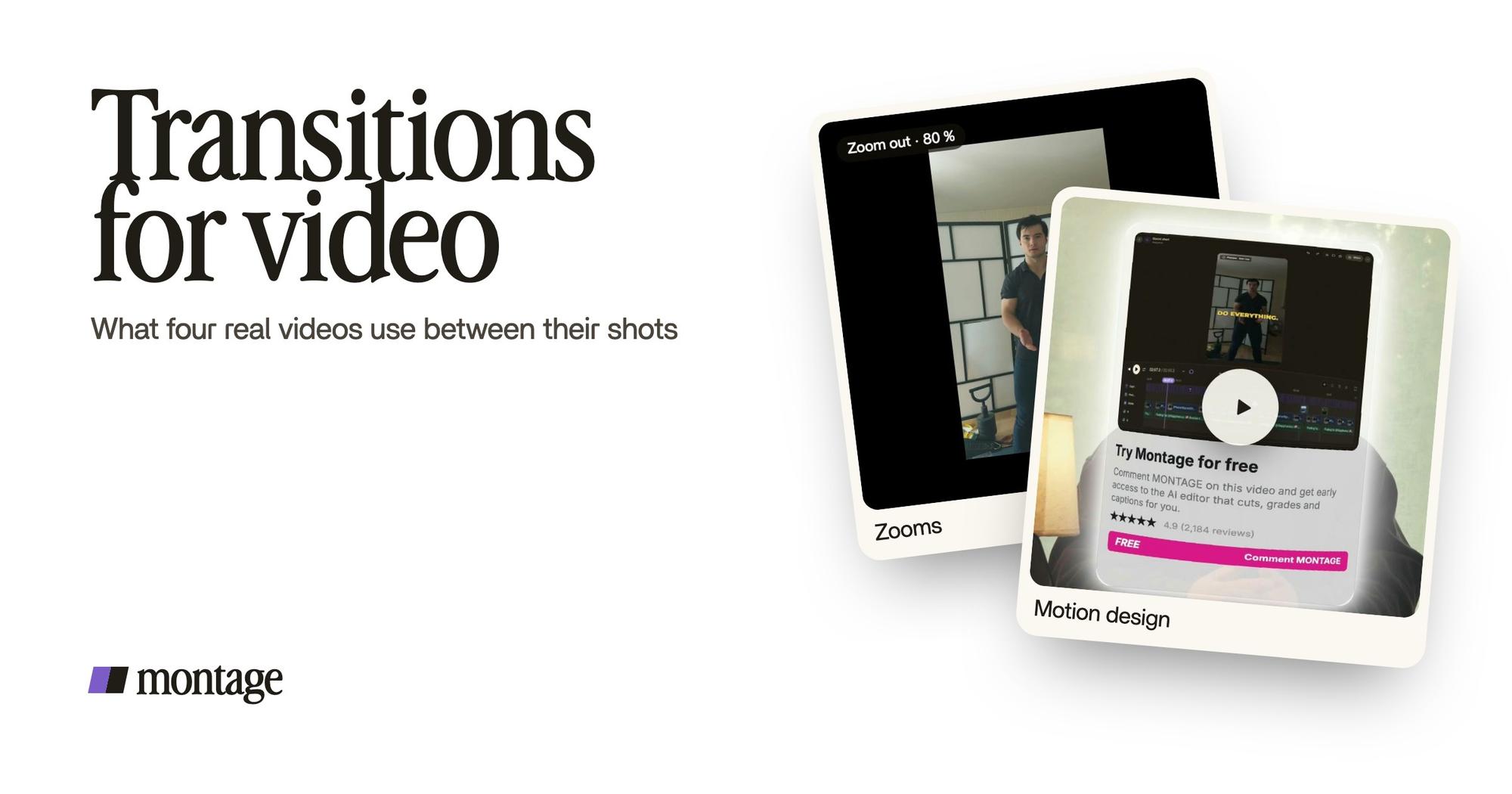
 ZoomsA slow push-in on every shot, and on « everything » and « curious » the picture pulls back on black.
 Motion designThe product card: frosted at 80 %, a fisheye, a big glow, swiped in from the right. Click to watch it on its own.
Way too curious has a slow push-in on every shot, and on two words only, « everything » and « curious », the picture pulls back on black. Two moments, not twenty. That's what makes them land. More on punch-ins and pull-backs on a word.
In Edit it all with AI, the push moves one thing, not the whole frame: the product card is swiped in from the right. Same idea as a push transition, used on a single element.
The transition as motion design
Sometimes the transition is a little animation of its own.
 Motion designThe Photo drop itself, exported on its own. Click to watch it: a flash, the shutter, the print falls in and lands tilted.
 B-rollGood Luck Charlie, Ready or Not, Billboard, the TODAY antenna: the face cam moves to the corner while each plays.
The photo drop in Way too curious is a flash, the shutter, then the print falls in and lands tilted. It's a component Montage made from my words: I say GTA VI, it drops in. In From Disney star to space CEO, a 9-minute film, the face cam moves to the corner while each clip plays, from Good Luck Charlie to the TODAY antenna. If you like this kind of thing, read the guide to motion graphics for YouTube, or the one on animated text in a video.
And that 9-minute film? 216 cuts in all.
How to put transitions in a video.
There are two ways.
The timeline way. In Clipchamp, Premiere Pro or DaVinci Resolve, you drag a transition from the library and drop it between two clips, then set how long it lasts. If you already work there and want more looks, transition packs exist: CinePacks sells them for Premiere, After Effects and Resolve, at about $20 to $59 each (checked 2026-10-29). That's the way for people who like full manual control.
The sentence way. In Montage, you say the transition the way you'd say it to an editor sitting next to you: « Pull back on black when I say everything. » « Swipe the card in from the right. » « Cut to the book when I mention it. »

Then you watch. If one is wrong, you pause on that moment and say what to change.
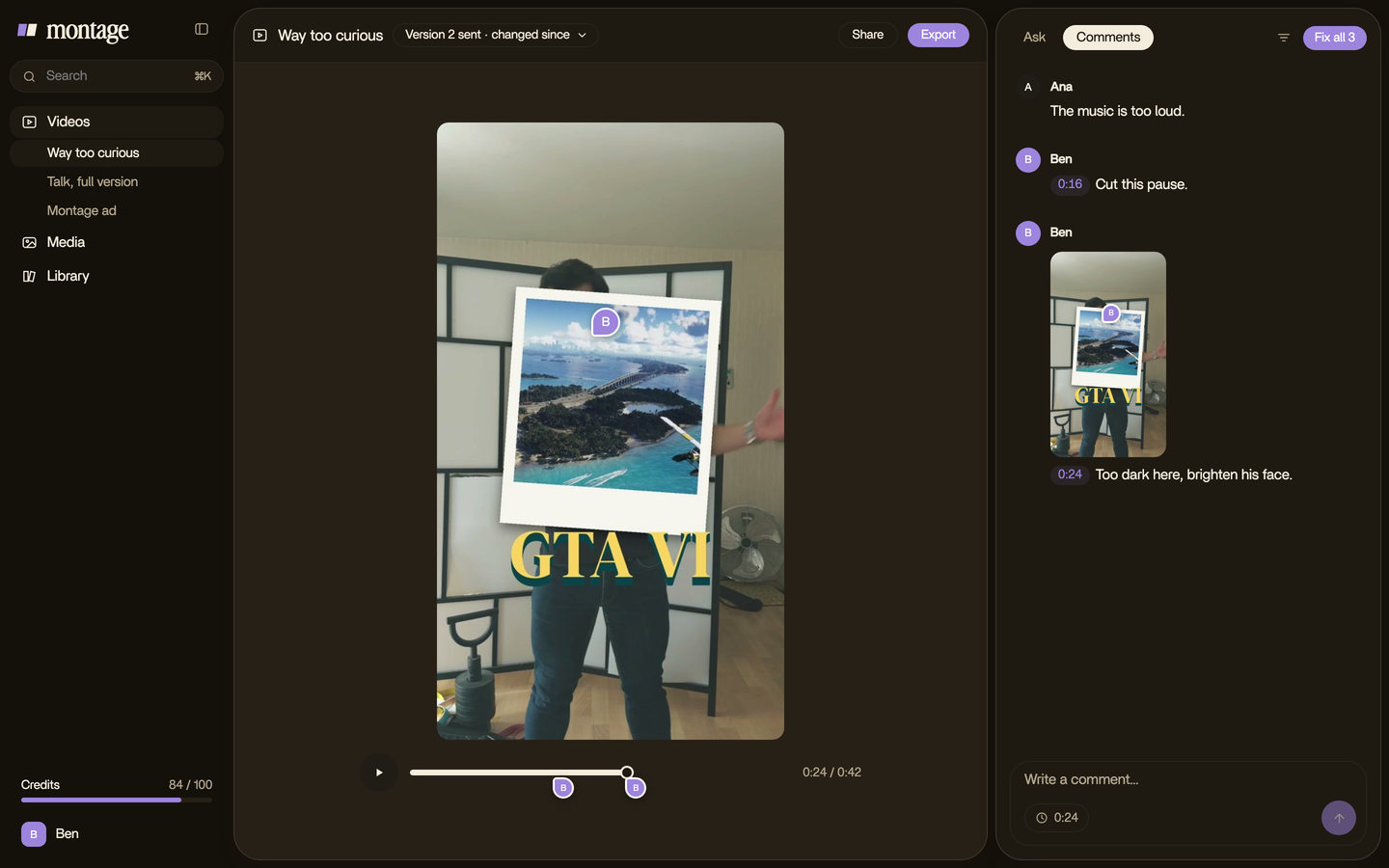
So, which way? If you want to tweak every frame of a transition by hand, use a timeline. If you'd rather decide where and why and let the editor do the hands, say it. Here's how video effects asked for in one sentence work, and the same for animated text, made by asking.
The mistakes to skip.
Let's be clear: these are the ones that make a video look cheap.
- A different transition on every cut. Pick one or two, and keep them.
- A transition with no reason. If nothing changes, cut.
- Fading to black in the middle. It can read as the end, as StudioBinder warns.
- Dissolves on a talking head. A jump cut is cleaner. A two-second melt of your own face is not.
- A big sound on every transition. Clipchamp pairs transitions with sounds like a swoosh or a glitch. Good on the moments that matter. Tiring on all of them.
Transitions for video: your questions.
What are some good transitions for video?
The plain cut, the cut to B-roll on a word, the zoom in or out, the push or wipe for a new topic, and the dissolve or fade
for a change of time or place. A good one has a reason. With no reason, cut.
How do I put transitions in a video?
In a timeline editor, drag the transition between two clips and set its length. In Montage, say it in a sentence, like
« pull back on black when I say everything », then watch and comment on any moment that's wrong.
How many transitions should a video have?
There's no fixed number. Clipchamp says leave enough time and space between them. I'd say: as many as you have reasons,
and plain cuts everywhere else.
How long should a transition last?
A cut lasts no time at all. A dissolve usually runs 24 to 48 frames, about 1 to 2 seconds, per StudioBinder. A zoom or a
push on a short video can be much quicker.
Should a transition have a sound?
It can. A swoosh on a push or a click on a photo drop helps a moment land. Just not on every cut.
Keep going.
Transitions are one part of motion design. The others are titles, text that moves, and graphics on screen. Start with lower thirds, the pillar of motion design, then text animation.
And to see every transition in this guide in the real videos, here are the four films.
 9:18
 2:07
 0:56
 0:38
That's it for this one. Next time you open the transitions tab, ask one question first: what's the reason?
See you in the next one.