AI video editor with prompt:
what to type, and what you get.
« Prompt » means two different things in video tools. One changes the picture of a short clip. The other edits your whole video. Here's which is which, and what to type.
 Ben, founder of Montage · · 7 min read
In this post6 parts
The short answer.
Ladies and gentlemen, let's start with the answer.
So what is an AI video editor with prompt? It edits footage you filmed from a sentence you type. There are two kinds: tools that regenerate a few seconds of a clip (remove the car, add rain), and editors that make the whole edit of your video (the cuts, the captions, the B-roll, the color), which you then correct in words.
So before you type anything, ask one question: do I want to change the picture of one clip, or do I want my video edited? The answer picks the tool. And if you want the second kind, you can edit a video by talking to it in Montage. For the wider field, here are the best AI video editors, compared.
Change a clip, or edit a video. Pick one first.
Two kinds of AI video editor with prompt.
Here's the thing: search « AI video editor with prompt » and pretty much every page on the first results page is a tool's own page. None of them says which kind it is. So let me sort them.
The first kind regenerates the pixels of a short clip. You upload a few seconds, you type one change, the model makes a new version of the clip. Magic Hour's sample prompts are « Remove the car from this video. » and « Add rainy weather to this scene. » It says itself that it is « designed for generative edits rather than manual timeline cutting ». Media.io, GoStudio, DeeVid and Kling work the same way.
The second kind edits your whole video. You drop in your takes, you say what the video is for, and the AI makes the cut: which takes stay, what shows on screen, the captions, the color. ChatCut works this way, and so does Eddie (« Describe the story. Eddie builds the first cut. »). So does Montage.
Okay. Let's put them side by side, from each tool's own page, read on 29 October 2026.
| Prompt that changes a clip | Prompt that edits your video | |
|---|---|---|
| What the prompt changes | The picture: remove an object, swap a background, restyle the shot | The edit: cuts, captions, B-roll, color, sound |
| How long the video can be | Seconds: DeeVid up to 10 s, Media.io 3 to 10 s, GoStudio up to 15 s, Kling 30 s of combined input | Your whole video: one of the films below runs 9 minutes 18 seconds |
| What you get back | A new version of the clip | A finished edit of your footage |
| How you correct it | A new prompt, a new generation | ChatCut and Eddie: a timeline you finish by hand. Montage: a comment on the video |
| Examples | Magic Hour, DeeVid, Kling, GoStudio, Media.io | ChatCut, Eddie, Montage |
To be fair to the first kind: if you need a car gone from a shot, that's the right tool. That's not the job Montage does. But a clip tool won't cut your 9-minute video either. Different jobs. If the first kind is what you're after, read generative AI for video. If you mean an agent that does the whole job, here's what an AI agent for video editing really does.
What to type: three rules for an edit prompt.
So what do you actually type? Let me explain.
The pages that rank give prompt tips for one object in one clip. Media.io's are the best of them, and they're good: « Name the exact thing you want to change », « Describe what should stay the same », « Use a reference image when appearance matters ». Kling says the same: « state what should remain unchanged as well as the exact subject ».
That idea works for a whole edit too. Here are three rules, each one shown on a real video I made, in the words of what was asked and what came out.
1. Say the look exactly
« Make the captions nice » gives you somebody else's idea of nice. Say the font, the color, the case, the shadow.
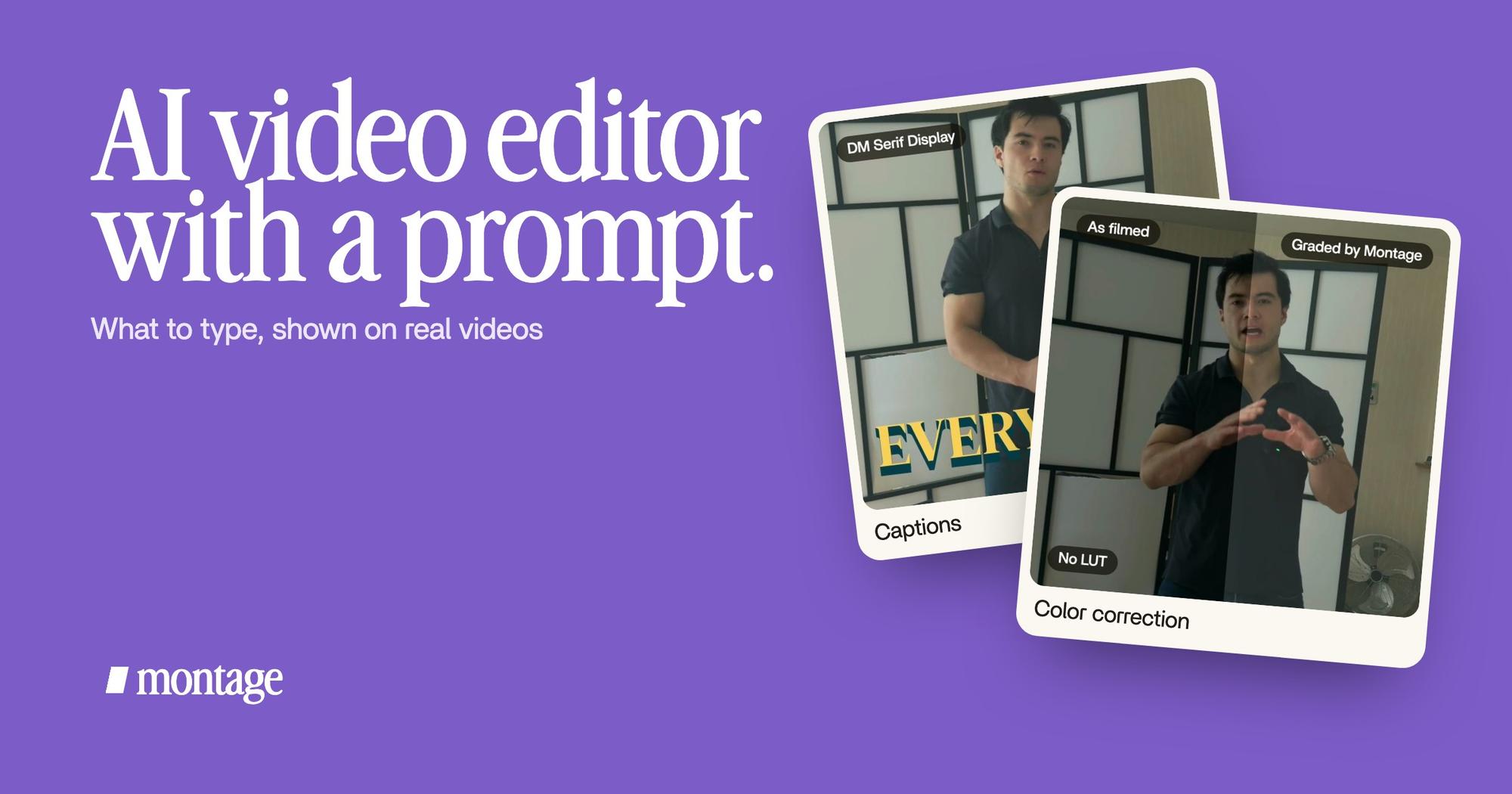
 CaptionsYellow, uppercase, a blue drop shadow, and the key word drawn bigger.
 Auto captionsEvery line on screen in my own font, timed to my voice.
In Way too curious, the captions are yellow, uppercase, with a blue drop shadow, and the key word drawn bigger. In How to be creative, every line is on screen in my own font, timed to my voice. Here's how captions in your own fonts and colors work.
2. Say where it applies, and where it doesn't
This is Media.io's « what should stay the same », at the scale of a video. A look is rarely for every shot.
 Color correctionFilmed too dark on an iPhone. I asked for a grade, no LUT: Montage lifted it on its own. Same frame, split.
 Color correctionTakes 4 to 7 were filmed flat: the NOMAD LUT on each, the first three left as they were. Same frame, split.
Way too curious was filmed too dark on an iPhone. I asked for a grade, no LUT, and Montage lifted it on its own. In From Disney star to space CEO, takes 4 to 7 were filmed flat: the NOMAD LUT went on each of them, and the first three were left as they were. More on color grading by asking.
3. Tie a picture to a word
B-roll is the shot that plays while you talk. The simplest way to ask for it is to tie it to what you say.
 B-rollI say CrossFit, my photo drops in. One picture for each thing I love.
 B-rollWhile I talk, it cuts to the right shot: the book, the notebook, the whiteboard.
In Way too curious, I say CrossFit, my photo drops in: one picture for each thing I love. In How to be creative, while I talk, it cuts to the right shot: the book, the notebook, the whiteboard. That's B-roll that drops in on the word.
Say the look. Say where. Tie it to a word.
The second prompt is the one that matters.
Truth is, no first prompt is perfect. Not mine, not yours. So the real question is: how do you say what's wrong?
None of the pages that rank talks about it. Every tip is about the first prompt.
In my opinion, the first prompt matters less than the second one. And the second one shouldn't be a whole new prompt. It should be a note on the video, at the moment where it's wrong.
Here's how it works in Montage.
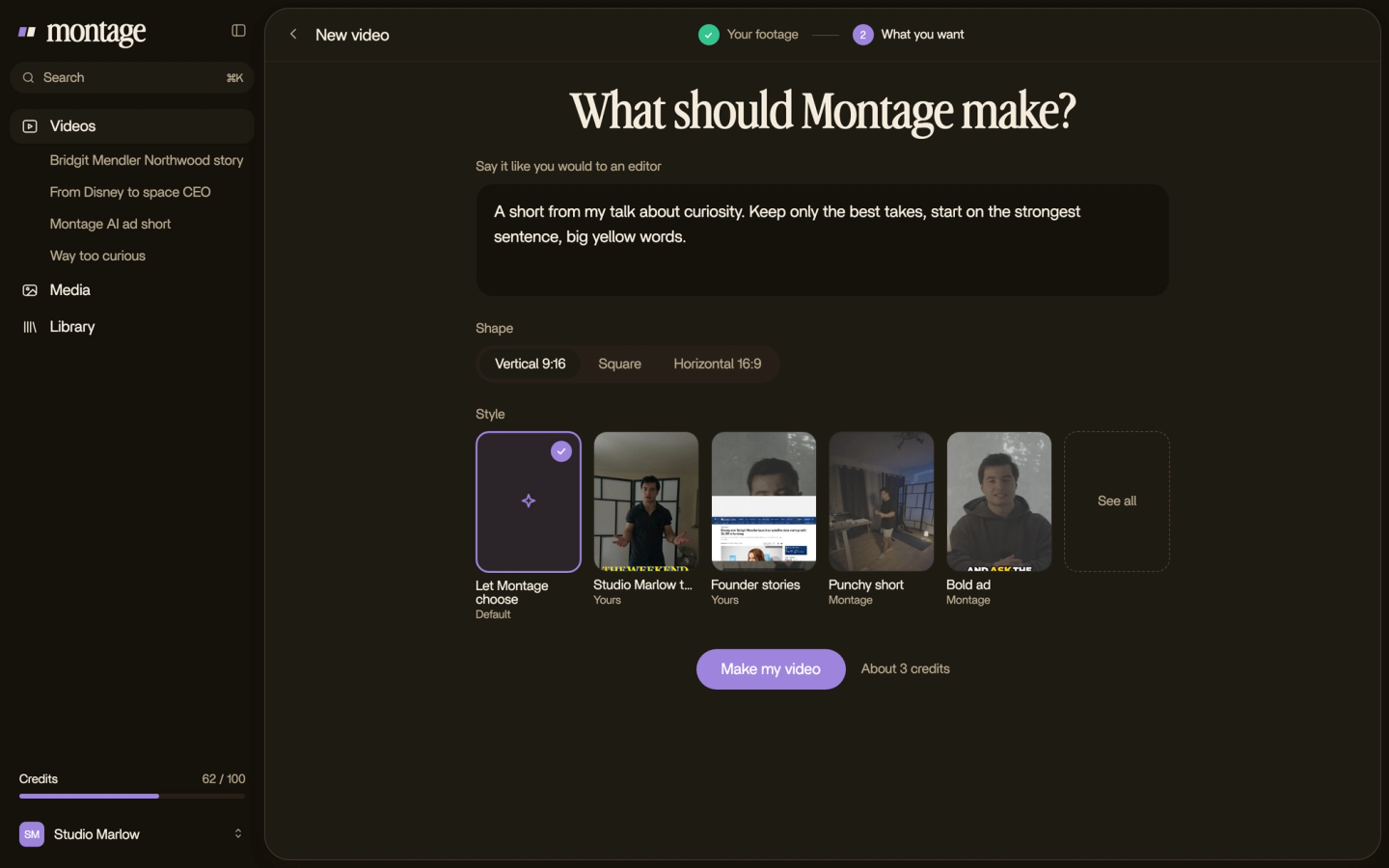
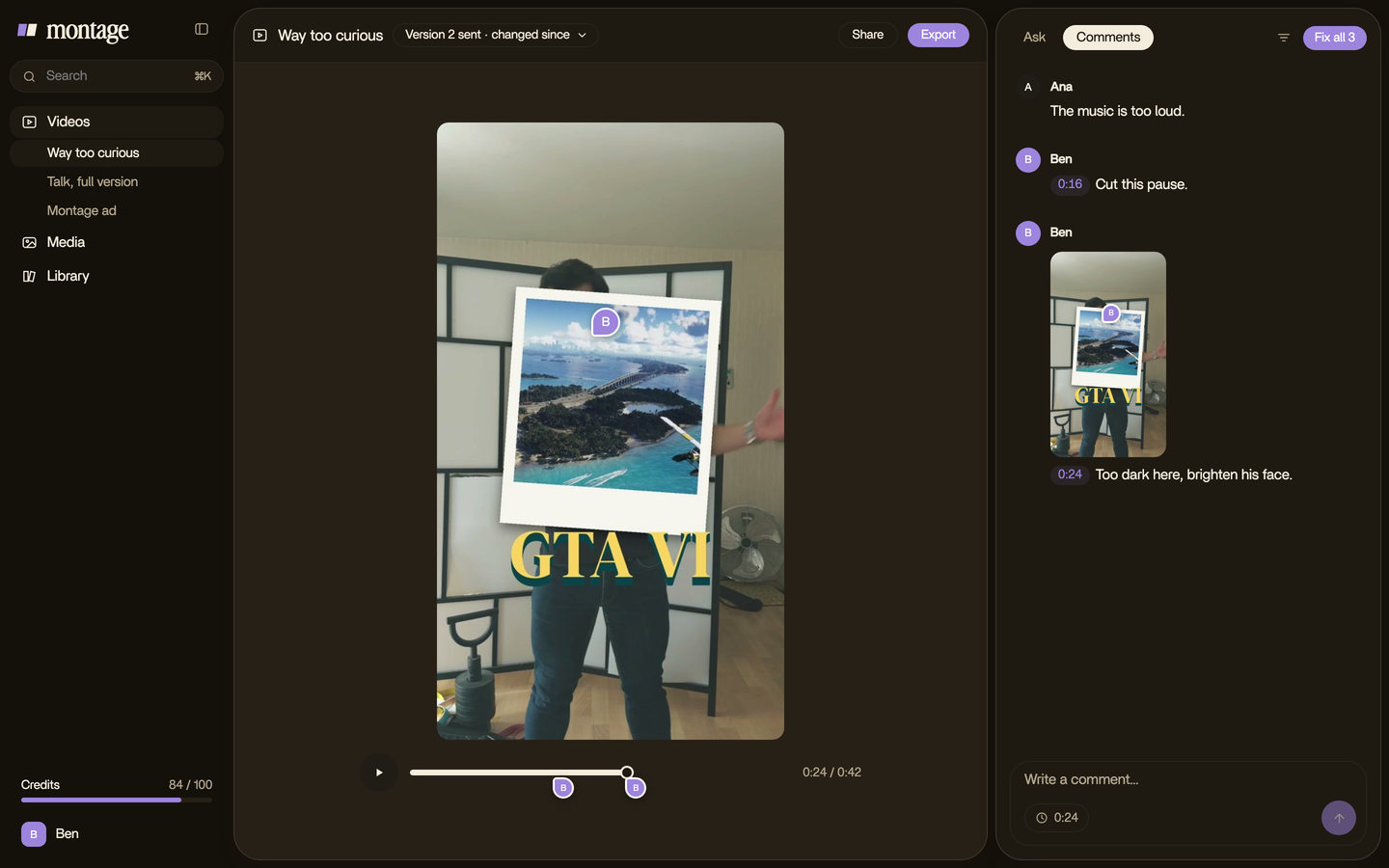
You watch the edit. Where something's off, you pause and comment: at that moment, or on a spot of the picture. Then you press « Fix all ». If a change isn't what you wanted, Undo takes back Montage's last change.
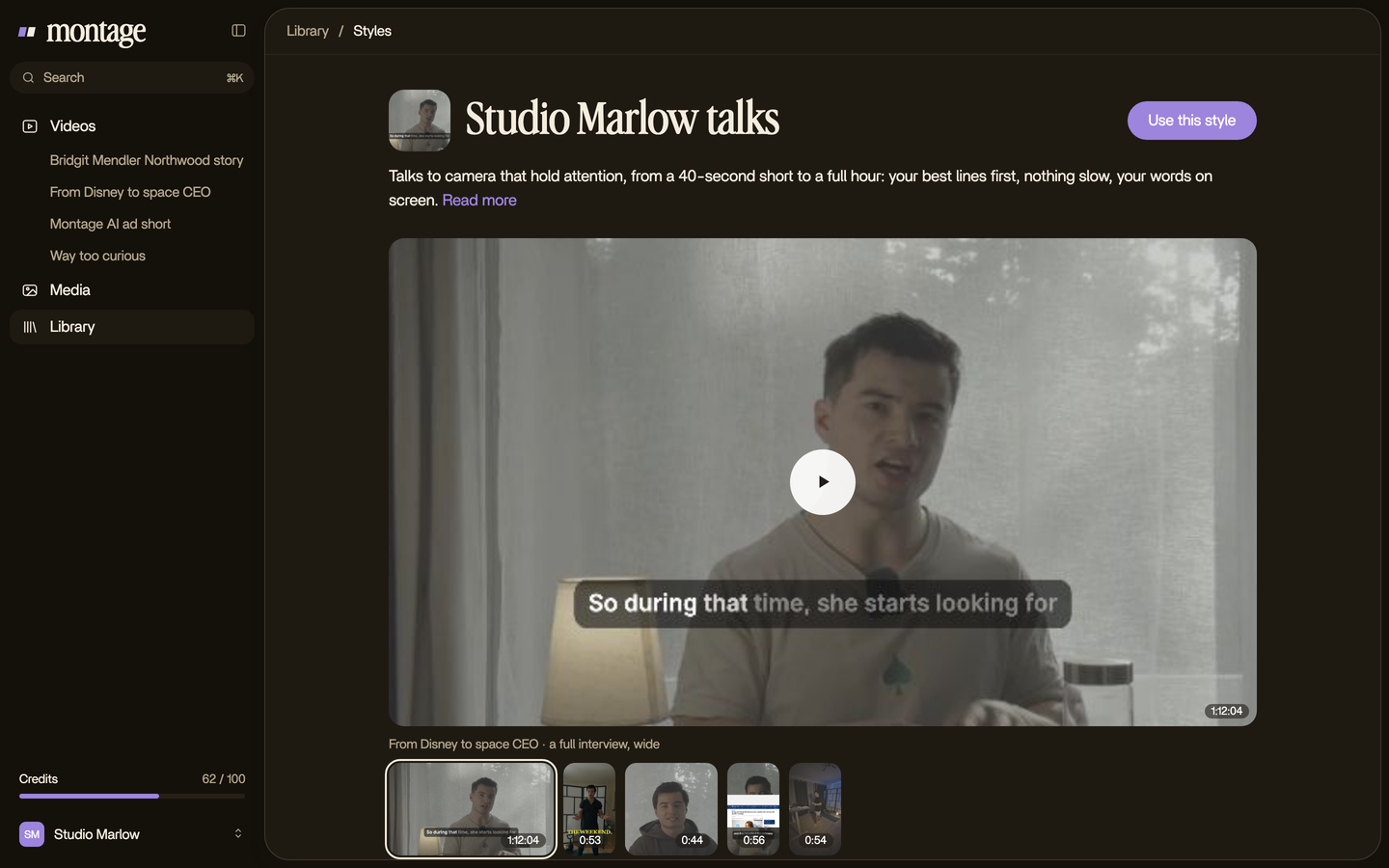
And once a look is right, you can keep it as a style in the Library, for the next video.
Now, ChatCut answers the same question differently, and it's a fair answer: « Every edit lands on the timeline and canvas, free for you to change. » If you like a timeline and want the last touch by hand, that's for you. If you'd rather never open one, comment instead.
Say what you want. Then say what's wrong.
AI video editor with prompt: your questions.
How can I edit videos using an AI prompt?
Upload your footage to an editor that edits whole videos, say what the video is for, and watch the result. Then comment
on what's wrong until it's right. For one change to a short clip, like removing an object, use a generative clip tool.
Is there an AI that will edit my video?
Yes. ChatCut, Eddie and Montage all edit footage you filmed from what you type. ChatCut and Eddie hand you a timeline to
finish. Montage takes your corrections as comments on the video.
Which AI can generate videos from prompts?
That's a video generator, a different job: it makes footage from nothing, and Montage doesn't. More on making a video
from a prompt alone.
What is the best AI video editor with prompt?
It depends on the job, clip or whole video. They are side by side in this guide to AI video editors.
Can I edit a video with a prompt online?
Yes. Montage runs in your browser, and your originals stay on your computer. There's a free plan to try it; the
pricing page has the details. And if you wonder whether ChatGPT can edit your
videos, that one has its own answer.
See it in real videos.
Every card above comes from a real video, made by asking. The four real videos show what went in and how each one was made.
 9:18
 2:07
 0:56
 0:38
That's it for this one. Now go type your first prompt. And your second.
See you in the next one.