How to make YouTube Shorts from existing videos:
three ways that work.
You already made the long video. Now you want Shorts from it, without editing everything twice. Here are the three ways, and what a crop throws away.
 Ben, founder of Montage · · 9 min read
In this post9 parts
- The short answer
- Three ways to make YouTube Shorts from existing videos
- Way 1: YouTube's Edit into a Short, on your phone
- Why a centre crop makes bad Shorts
- What a tall cut needs instead
- Way 2: a clipping tool
- Way 3: from your original file, step by step
- See it in real videos
- Questions about making YouTube Shorts from existing videos
The short answer.
Let's start with the answer, because that's what you came for.
How to make YouTube Shorts from existing videos? There are three ways. One: YouTube's own Edit into a Short button, on your phone, for a quick Short of up to 60 seconds of one of your public videos. Two: a clipping tool that picks moments from your long video for you. Three: take your original file into an editor and make a real tall cut of the moment you want.
Honestly, for one quick Short, YouTube's button is all you need. For Shorts that look like they were made to be tall, you need the third way. Let me show you why.
And if you want the edits of a short itself, one by one, that's in how to edit a short, edit by edit.
Three ways to make YouTube Shorts from existing videos.
Okay. Let's put the three side by side.
| YouTube's Edit into a Short | A clipping tool | Your original file in an editor | |
|---|---|---|---|
| Where | The YouTube app, on the watch page | The tool's site (Opus Clip, for one) | An editor, with the file on your computer |
| What goes in | Your own public long video | Your video, uploaded or linked | Your original file |
| Length | Up to 60 seconds of the video | What the tool suggests | Whatever you cut |
| The wide picture | Re-laid out in a tall frame | Reframed automatically | Rebuilt for the tall frame |
| Music | No Audio Library music on these Shorts | Depends on the tool | Yours |
| Cost | Free | The tool's plans | The editor's plans |
| Best for | One quick Short of your own video | Many clips from an hour-long podcast | Shorts that look made to be tall |
The limits in the first column are YouTube's own, from its help page Create YouTube Shorts from your videos.
Way 1: YouTube's Edit into a Short, on your phone.
This is the fastest one. Here's how it works, per YouTube's help.
- Open your long video in the YouTube app.
- Tap Remix, then Edit into a Short.
- Select up to 60 seconds of the video.
- Pick a layout, add text or filters. You can also record more with the Shorts camera.
- Upload. The Short links back to the original video.
Now, the limits. It only works on your own long videos, and only public ones: not private, not unlisted, not a video with a third-party copyright claim. And you can't use Audio Library music on these Shorts.
Don't see the button? YouTube's help says to turn on « Allow people to sample this content » in YouTube Studio: Content, then the video, then Show more, then Shorts remixing.
One more thing. The 60 seconds is the button's limit, not the limit of a Short. A Short you upload yourself can run up to three minutes (YouTube's help). More in how long a YouTube Short can be.
For one quick Short of your own public video, the button is enough. Simple as that.
Why a centre crop makes bad Shorts.
So can't you just crop the wide video to a tall one? You can. Let me show you what you lose.
A wide video is 16:9. A Short is 9:16, so 1080 × 1920 (Hollyland's guide gives that size). Crop the middle of a wide frame to a tall one and you keep a narrow strip down the centre. Everything else goes.
And a long video puts a lot of things beside you. Here's a real one: my film From Disney star to space CEO, 9 minutes and 18 seconds, 16:9, 216 cuts.
 ComponentsMy face cam is a component: a macOS window over the James Webb images, on every one of the 216 cuts. Click to watch it.
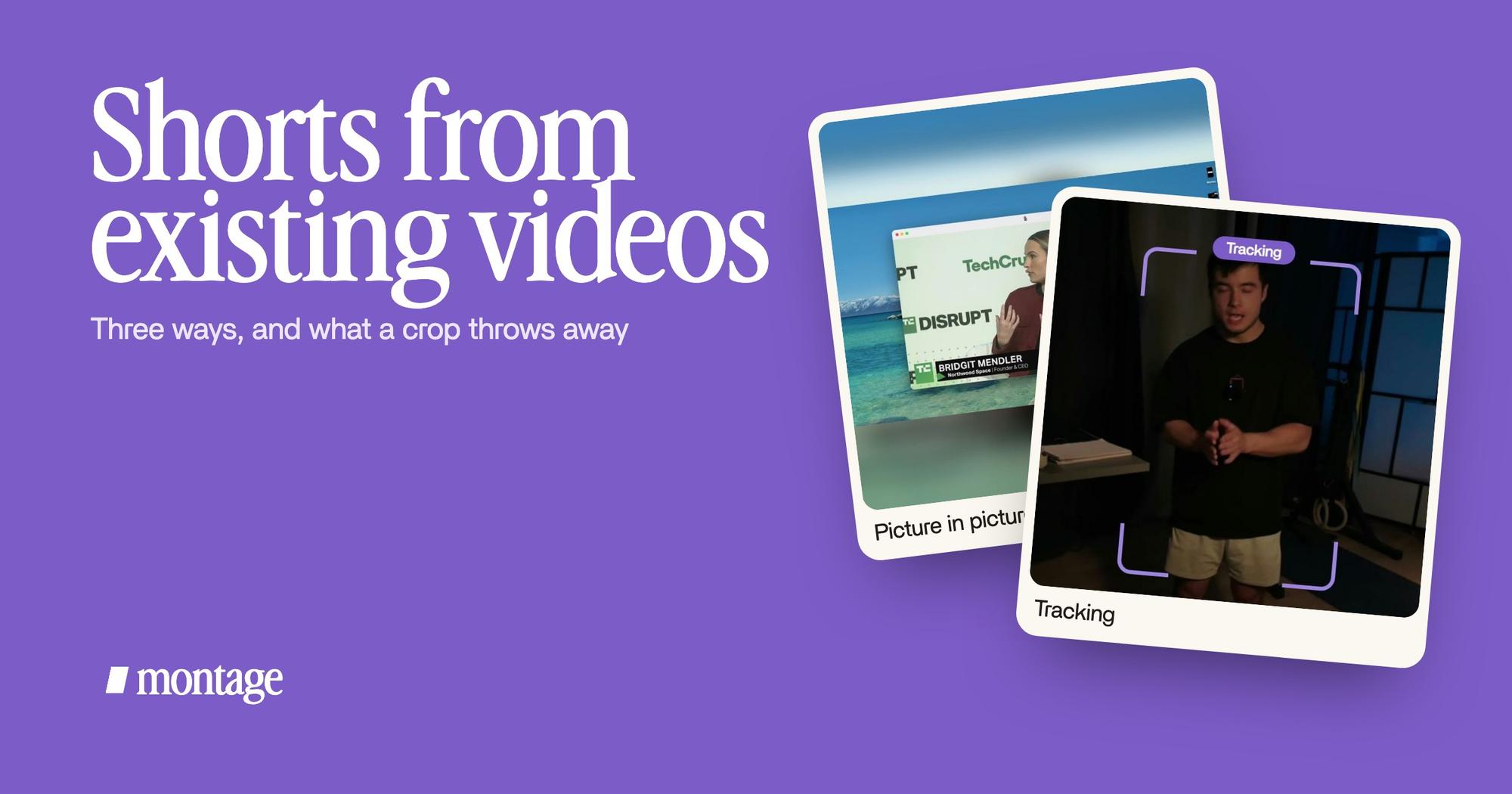
 Picture in pictureThe guest gets a window of her own: Bridgit at TechCrunch Disrupt, over a Mac desktop, while I keep talking.
 Animated textThe article tilts in and a red marker underlines the number. Click to watch it.
My face cam is a macOS window over the James Webb images, and it moves to the corner while each clip plays. The guest, Bridgit, gets a window of her own over a Mac desktop while I keep talking. A real article tilts in and a red marker underlines the number.
Now crop the centre. The face cam in the corner? Gone. Bridgit's window? Half of it. The underlined number? Maybe. That's why « just resize it » makes Shorts that look like a wide video squeezed into a phone. And YouTube Studio won't fix it for you: Hollyland's guide says Studio's own editor won't turn a 16:9 video into a 9:16 one, so you crop it elsewhere.
Wide, things sit beside you. Tall, they take your place.
More on that in what changes when the frame stands up.
What a tall cut needs instead.
So what does a Short do with the things a wide video puts beside you? It stacks them, one after the other, in the same narrow frame. Here's how my three tall videos do it: How to be creative (2:07), Way too curious (0:56) and Edit it all with AI (0:38), all 9:16.
 TrackingLocked on me: Montage tracks me as I walk around the room.
 B-rollThe site drops in on a white stage while I say « go to this app called Montage ».
 CaptionsOne line at a time, white on the take, dark on the white stage.
- The frame follows you. In How to be creative, Montage tracks me as I walk around the room, so I stay in the tall frame. That's a frame that follows you, not a fixed crop.
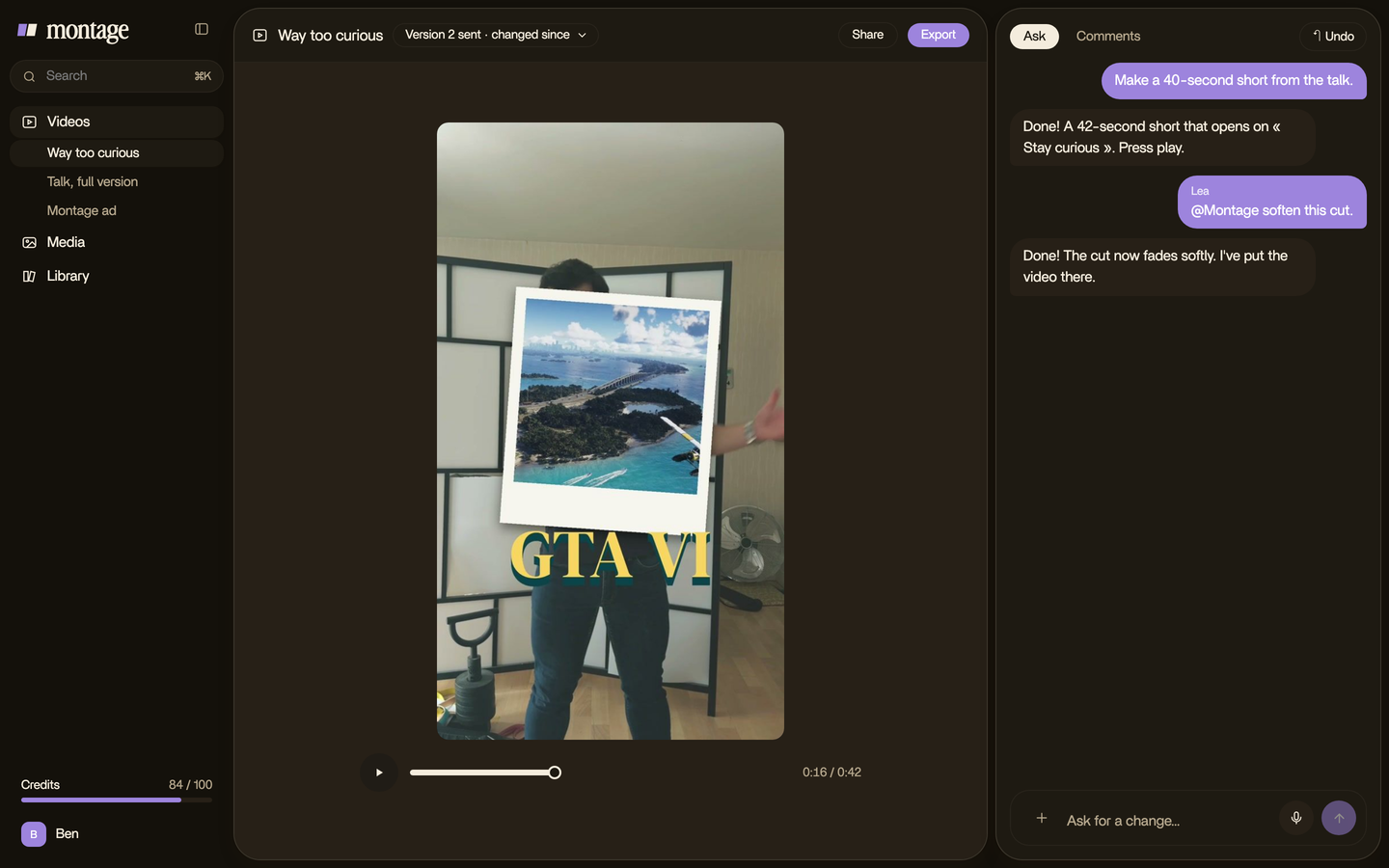
- The picture takes your place. In Edit it all with AI, the site drops in on a white stage while I say « go to this app called Montage ». It doesn't sit beside me. It replaces me, for a moment.
- One line of captions at a time. White on the take, dark on the white stage. Short lines fit a narrow frame.
Let's be clear: those three were filmed tall. I didn't cut them from the Disney film. But that's the point. A Short cut from a long video needs the same things a Short filmed tall has, not just a narrower frame.
Way 2: a clipping tool.
Now, the second way. A clipping tool like Opus Clip takes your long video, uploaded or linked, and its AI picks the moments. Its page lists auto reframe, captions and B-roll on top.
Sure, it's fast. If you have an hour-long podcast every week and want ten clips out of it, it does the picking for you. But the clips come out in the tool's templates, and its reframe is still a reframe: it has to choose what stays in the tall frame. Check every clip before you post it.
Running a podcast? There's a page on clips from a podcast episode too.
Way 3: from your original file, step by step.
The third way starts from the file you already have: the original you filmed, or the long video you exported. Not a YouTube link. Here's how I'd do it in Montage.
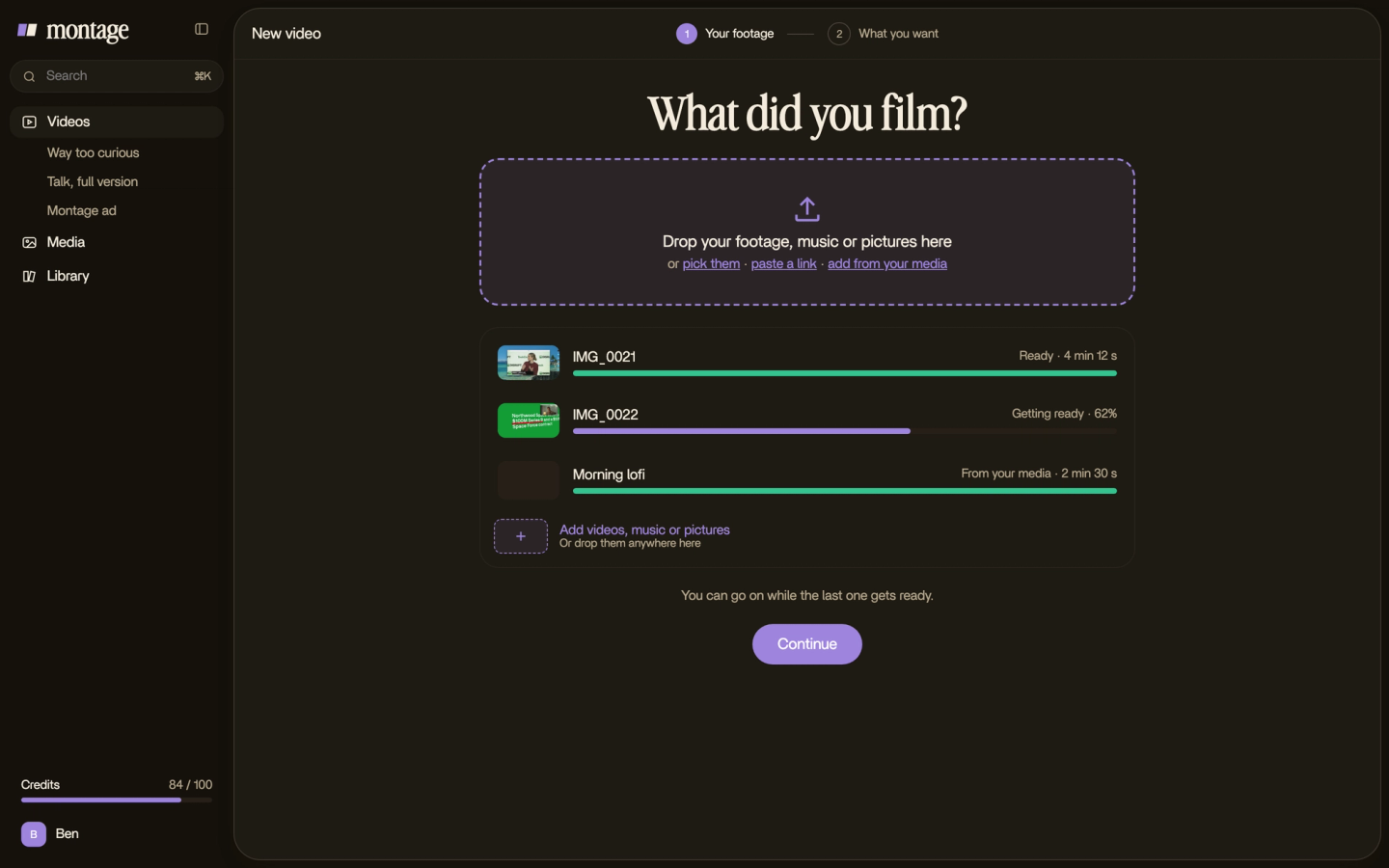
- Drop the original file in. As it is.
- Say which moment and which size. « The part from 3:20 to 4:10, as a 9:16 Short, under a minute. Keep my face in the frame, one line of captions at a time. »
- Say what the first seconds show. The line that makes people stay goes first. More on a hook in the first seconds.
- Watch it once, all the way through. Notice where something's off.
- Comment on what's wrong. Pause on the picture and say it: « move the guest's window up », « this caption is too long ». Then fix everything at once.
- Export. The MP4, ready to upload as a Short.
Making more than one Short from the same video? Make them look the same. A part made once can be reused on every cut.
 ComponentsThe hook: a white Instagram reply, made as a component and reused. Click to watch it on its own.
 Reusable componentsOne media card, used 26 times: a picture or a clip, its caption, on the dark page. Click to watch it.
In Edit it all with AI, the hook is a white Instagram reply, made as a component and reused. In the Disney film, one media card is used 26 times. Same idea for a series of Shorts. Here's how the same video in a tall size for Shorts works, and how editing the long YouTube video itself works, if you haven't made it yet.
The crop decides what you lose. The cut decides what you show.
See it in real videos.
One wide film and three tall ones. The four videos in the showcase show what went in and how each one was made.
 9:18
 2:07
 0:56
 0:38
Questions about making YouTube Shorts from existing videos.
How do I make YouTube Shorts from existing videos?
For a quick one, open your long video in the YouTube app, tap Remix, then Edit into a Short, and select up to 60
seconds. For a Short made to be tall, take your original file into an editor, cut the moment, rebuild it for a 9:16
frame, and upload it as a Short.
Can I make YouTube Shorts from existing videos?
Yes. With YouTube's button, from your own public long videos: not private, not unlisted, not with a third-party
copyright claim. From your own file, from any video you made.
Why don't I see Edit into a Short?
YouTube's help says to turn on « Allow people to sample this content » in YouTube Studio: Content, the video, Show more,
Shorts remixing. Also check that the video is public and has no third-party claim.
How do I do it on a computer?
Download your original, or use the file you exported, then edit it into a tall cut and upload it as a Short.
Can I make a Short from someone else's video?
Not with Edit into a Short: YouTube's help says it works on your own videos. Hollyland's guide notes that clipping
someone else's video needs the creator's permission.
How long can a Short from a long video be?
Up to 60 seconds with YouTube's button. A Short you upload yourself can be up to three minutes, per YouTube's help. The
details are in how long a YouTube Short can be.
Is there a free way without a watermark?
Yes: YouTube's own Edit into a Short is free, and it's made right inside YouTube, with no other tool in between.
Clipchamp also says its free plan adds no watermark.
That's it for this one. Now go find the best minute of your last video.
See you in the next one.