Remove filler words:
how to cut the ums from your videos.
The ums are the easy part. Here's how to remove filler words, pauses and retakes from a video of you talking, and how to keep the cuts from showing.
 Ben, founder of Montage · · 7 min read
In this post8 parts
The short answer.
Let's start with the answer, because that's what you came for.
There are three ways to remove filler words from a video. One: by hand, on a timeline, scrubbing to every « um » and cutting it out. Two: a filler-word tool that finds the words on its list (um, uh, like) and deletes them for you. Three: an AI editor you ask in a sentence: « cut the pauses, the ums and the retakes, keep the best take ».
Here's the thing: on a video of you talking, the « ums » are the small part. The dead air and the sentences you said three times are most of what goes. So whatever you pick, pick something that cuts the ums and the dead air together, and the retakes with them.
And on video, every cut shows. Remove a word, and the picture jumps. More on that below.
Three ways to remove filler words, compared.
Okay. Let's put the three side by side.
| By hand on a timeline | A filler-word tool | Asking an AI editor | |
|---|---|---|---|
| Examples | Any timeline editor | Descript, Cleanvoice, Riverside | Montage |
| What it finds | Whatever you spot yourself | The words on its list, and the pauses | Every word said and every retake |
| How you remove them | Scrub, cut, close the gap, again | Review the list, then delete | Say it once, then comment on the cut you don't like |
| The retakes | By hand | Not on the list: a second take isn't a filler word | Cut, the best take kept |
| Smooth cuts | Your ear | Descript's « Avoid harsh cuts » skips the fillers it can't cut cleanly; Cleanvoice's Preserve Length puts silence instead of a cut | Asked for: a push-in, B-roll, a frame around you |
| Best for | Short clips, full control | Podcasts and audio | Talking-head videos with many takes |
A few facts, from their own pages. Descript underlines the fillers in the script and gives you four choices for each one: delete it, delete it and leave a gap, ignore it, or remove it from the transcript only. It works on English transcripts. Riverside's « Remove pauses » lets you choose how long a pause has to be before it goes. Cleanvoice works on audio and video, and says plainly that on a video the cuts become jump cuts unless you turn on Preserve Length.
The ums are the easy part. The retakes are the real work.
What removing filler words looks like on a real video.
So what does it actually look like, on a real video? Let me show you.
My film From Disney star to space CEO started as seven takes, 33 minutes filmed on an iPhone. The finished video: 9 minutes and 18 seconds, with 216 cuts. The pauses and the retakes, out. The best take of each line, kept.
 Components
That's what « remove filler words » means on a talking-head video. Not a waveform with blue underlines. A 33-minute pile of takes turned into one film you can watch. You can see the 9:18 film and what went into it.
Do you see the difference? A word list would have taken out the « ums » and left the second and third take of every sentence in. That's the part that makes a video feel long.
How to remove filler words from a video, step by step.
Here's how I'd do it today.
- Drop all your takes in, as they are. No trimming first, no sorting.
- Say what to cut. « Cut the pauses, the ums and the retakes. Keep the best take of each line. »
- Say how to hide the cuts. « A slow push-in on every cut », or « show the book when I talk about it ». More on this in the next part.
- Watch it once, all the way through. Don't stop. Just notice where a cut feels off.
- Comment on that cut. Pause on it and say what's wrong: « keep this pause, it lands the point », « this cut is too tight ». Then « Fix all ».
- Export. The video, ready to post.

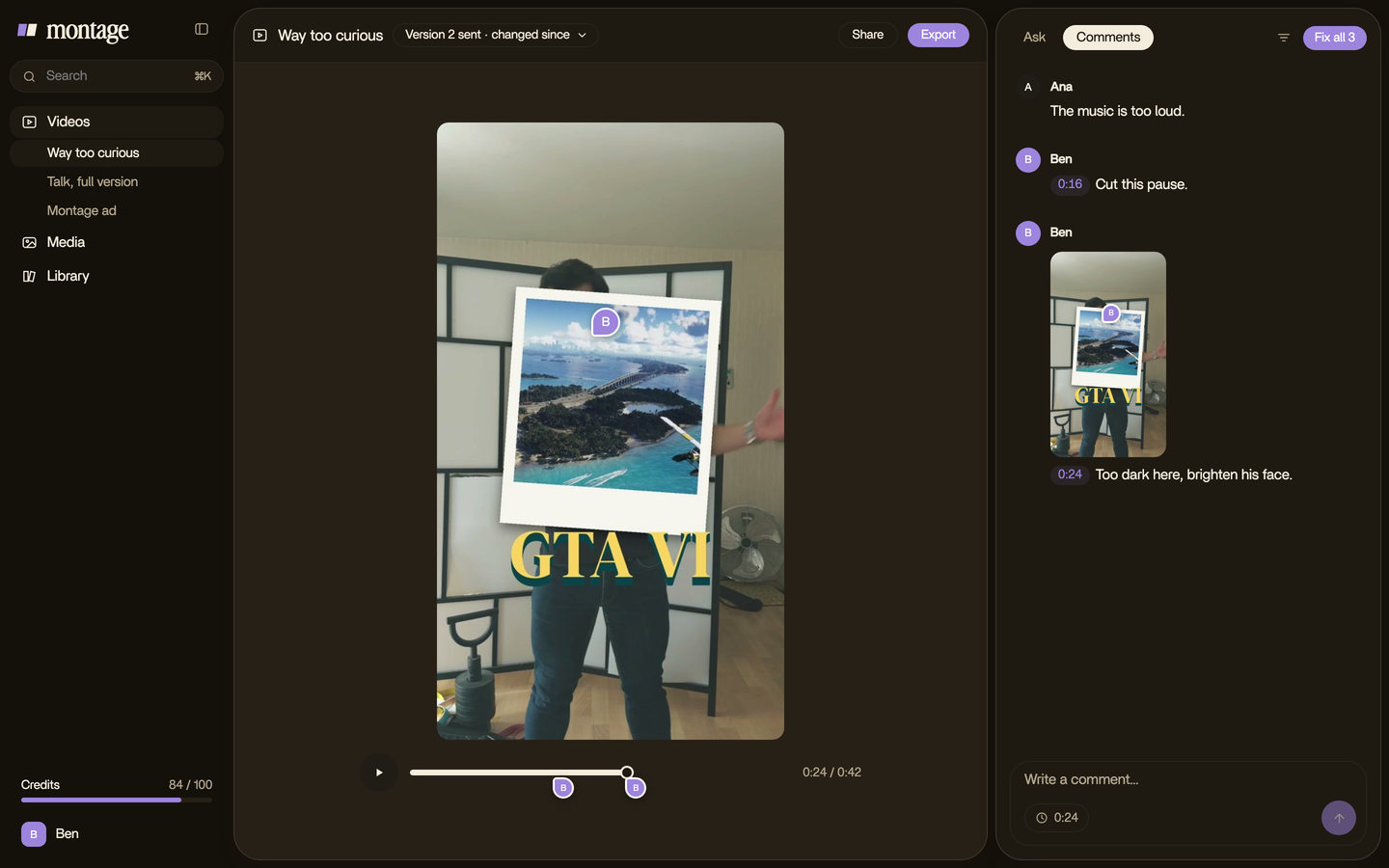
And if you'd rather do it by hand? Same steps, but 2, 3 and 5 become you on a timeline, one cut at a time. And if you want fewer retakes in the first place, start before the edit: here's how to film yourself with fewer of them.
How to keep the cuts from looking choppy.
Now, here's what the filler-word tools don't tell you. On audio, a cut is a cut. On video, every removed word is a jump in the picture. Your head moves a little, and everyone sees it. That's a jump cut.
On YouTube and TikTok, jump cuts are normal. But 216 of them, bare? That's a lot of jumps. So the trick is to make each cut look like it's on purpose. Three ways, each on a real video.
1. A push-in on the cut. In Way too curious, there's a slow push-in on every shot. The picture is moving anyway, so the cut doesn't jump: it reads as a new shot. That's a punch-in on every cut.
2. B-roll over the cut. In How to be creative, while I talk, it cuts to the right shot: the book, the notebook, the whiteboard. Put a cut in your voice under a different picture, and nobody sees it. That's B-roll footage, and a cutaway is the same idea. Here's how B-roll gets dropped in while you talk.
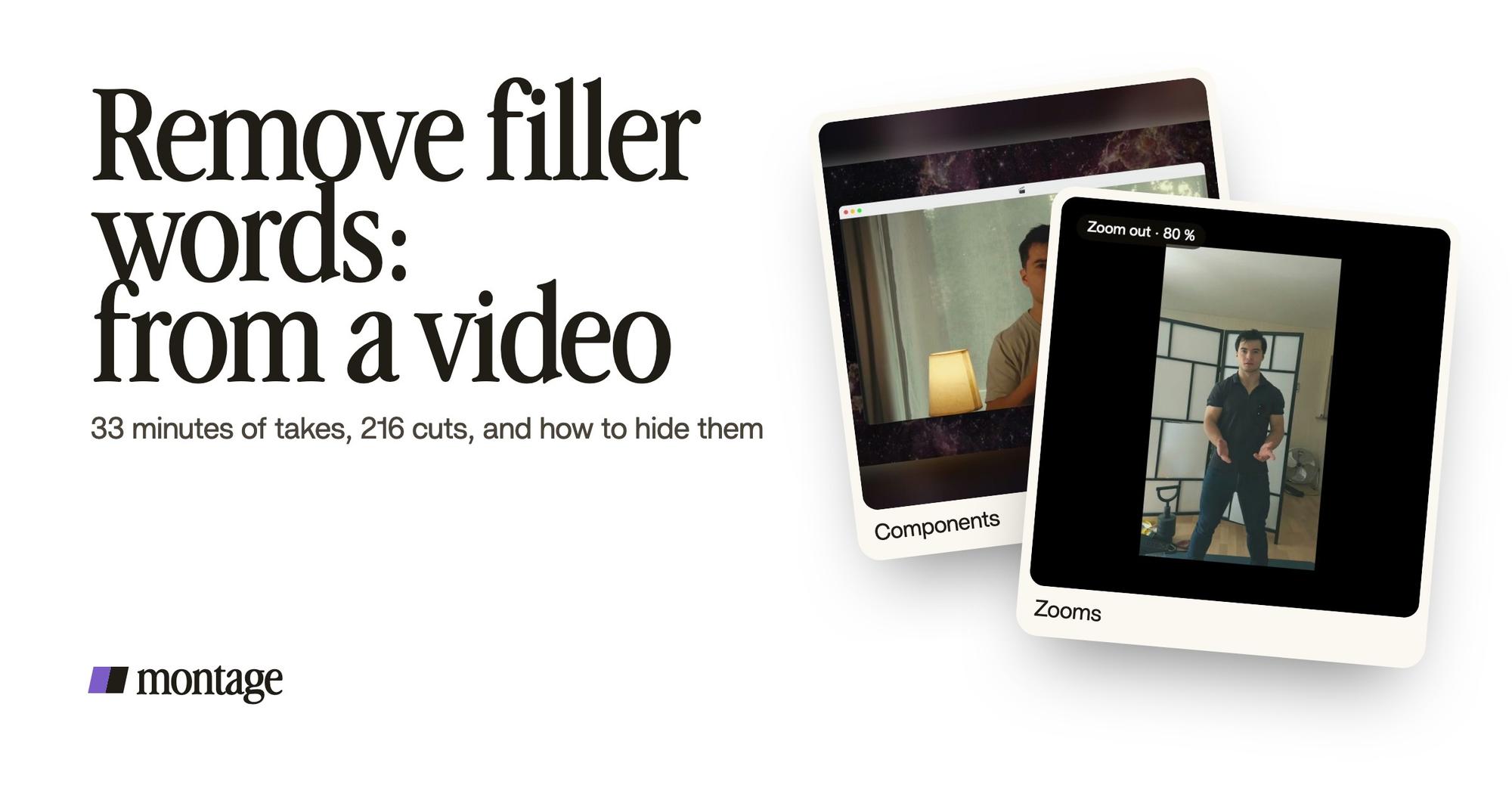
 ZoomsA slow push-in on every shot, and on « everything » and « curious » the picture pulls back on black.
 B-rollWhile I talk, it cuts to the right shot: the book, the notebook, the whiteboard.
3. The same frame around you on every cut. In From Disney star to space CEO, my face cam is a window over the James Webb images, on every one of the 216 cuts. The frame stays still, so the eye stays on the frame, not on the jump.
Every cut shows. So make it look like you meant it.
Should you remove every « um »?
To be honest, no. In my opinion, removing every « um » is the mistake.
Some pauses do work. You say something, you stop, and the stop lands the point. Take that out, and the sentence runs straight into the next one. Cleanvoice says it on its own page: « Not every um has to go. » They're right.
So here's my rule. The pause that lands a point stays. The pause where you lost your words goes. The « um » before a sentence you then said again? The whole first take goes, not just the « um ».
That's why I'd rather comment on one cut than review a long list of words. You watch the video, you feel where it drags, you point at it. Simple as that.
Remove filler words: your questions.
How do I remove filler words from a video?
Three ways: cut each one by hand on a timeline, use a filler-word tool that finds the words on its list, or ask an AI
editor to cut the pauses, the ums and the retakes in one sentence. On a video, then hide the cuts: a push-in, B-roll, or
the same frame around you on every cut.
What is a filler word example?
« Um », « uh », « er », « like », « you know », « so », « basically », « I mean ». Words you say while you think,
that carry no meaning in the sentence.
Which filler words should I cut?
The ones that slow you down: an « um » before a sentence, a « like » in the middle of one, a « you know » at the end. Keep
a pause when it lands a point. And on a video of you talking, cut the retakes too: they're longer than any filler.
Can I remove filler words from audio only?
Yes. On a podcast with no video, a cut doesn't show, so a filler-word tool on the sound is often enough. If your episode
is filmed, it's a video again, and the cuts show. Here's how to turn your video
podcast into clips.
See it in real videos.
Everything in this guide is in a real video: the pauses and the retakes cut, and the three ways to hide what's left.
 9:18
 2:07
 0:56
 0:38
That's it for this one. Now go film something, and say it three times if you need to.
See you in the next one.