YouTube video to podcast:
three ways to do it.
You already made the video. Now you want it on Spotify and Apple Podcasts too, without a second production. Here are the three ways, side by side, and what to cut so it still works when nobody can see it.
 Ben, founder of Montage · · 9 min read
In this post9 parts
- The short answer
- Way 1: make it a podcast on YouTube
- Way 2: a podcast host imports your YouTube videos
- Way 3: export the sound from your own edit
- What to change so a video works by ear
- AI « YouTube to podcast » converters: what they really make
- Which way should you pick?
- Questions about YouTube video to podcast
- See it in a real edit
The short answer.
Ladies and gentlemen, let's start with the answer, because that's what you came for.
Going from YouTube video to podcast comes down to three ways. One: make it a podcast on YouTube itself, in YouTube Studio. Two: let a podcast host import your YouTube videos and turn them into a feed for Spotify and Apple Podcasts. Three: export the sound from your own edit and upload it to your host, like any other episode.
So is a YouTube video already a podcast? On YouTube, pretty much. Everywhere else, not yet.
Here they are side by side.
| 1. A podcast on YouTube | 2. A host imports your videos | 3. Export the sound from your edit | |
|---|---|---|---|
| Where it plays | YouTube and YouTube Music | Spotify, Apple Podcasts, every app that reads a feed | Spotify, Apple Podcasts, every app that reads a feed |
| Cost | Free | A host's plan (Podbean: a paid plan) | Your host's plan |
| Where the audio comes from | Your YouTube video | YouTube's copy of your video | Your own edit, on your computer |
| Effort | A few clicks | Set it up once | One export per episode |
| Best for | Staying on YouTube only | Lots of videos, little time | The best sound, and an episode made for the ear |
Which one? If you only care about YouTube, take the first. If you have a back catalogue and no time, the second. If you want the episode to sound like it was made for listening, the third. In my opinion, that last one is the one most people skip, and the one that matters. More on that below, and in the podcast editing software guide.
Way 1: make it a podcast on YouTube.
Let me explain how YouTube sees it. In YouTube's own help page, a podcast show is a playlist, and its episodes are the videos in that playlist. That's it. No file to convert.
- Open YouTube Studio. Go to Create, then New podcast. Or take a playlist you already have and set it as a podcast.
- Add a square thumbnail. YouTube recommends 1280 × 1280.
- Put full episodes in the playlist. Not clips: YouTube asks for the whole episode.
- Save. Your videos are now podcast episodes on YouTube.
What do you get? YouTube's help page says podcast videos get audio-only playback, and they can show up in YouTube Music, where most podcasts can be played in the background without Premium.
And YouTube is big for this. On its page for podcasters, YouTube says over a billion people tune in to podcasts there every month. It also quotes Edison Research's Gen Z Podcast Report (2023): 84% of Gen Z monthly podcast listeners surveyed in the U.S. discovered a podcast on YouTube.
Sure. But it stays on YouTube. Your show isn't on Spotify or Apple Podcasts this way. And two limits from the same help page: you can't upload an MP3 and turn it into a podcast on YouTube, and content that isn't yours may not be eligible.
Way 2: a podcast host imports your YouTube videos.
Now, this is where Spotify and Apple Podcasts come in. They don't read YouTube playlists. They read an RSS feed: a link that lists your episodes, which you submit once to each app. A podcast host makes that feed for you.
Some hosts can fill it straight from YouTube:
- Podbean imports a YouTube playlist or a video RSS feed, and can convert the videos to audio episodes or keep them as video. Its help page says it imports the latest 10 videos, can sync future ones, and starts from its Unlimited Audio plan. One catch: a change you make on YouTube doesn't follow the episode once it's imported.
- Listenbox imports a channel or a playlist, and its home page says each video becomes a hosted episode, ready for your RSS feed.
Prices change, so check their pricing pages (both read on 29 October 2026).
Set it up once, and every new video becomes an episode.
That's the strength of this way. Here's the thing, though: the host pulls the audio from YouTube's copy of your video, not from your original. And it pulls the video as it is, made to be watched.
Way 3: export the sound from your own edit.
The third way skips YouTube entirely. You already have the edit on your computer. You make a sound file from it, and you upload that file to your podcast host as a new episode.
In Montage, the same edit gives you both files. In the Export window you pick Video, the MP4 for YouTube, or Sound only, « Just what is heard ». There's a third choice too: the cut for Premiere Pro or DaVinci Resolve, if you want to finish the mix there. That's how you export the sound only, on every plan.
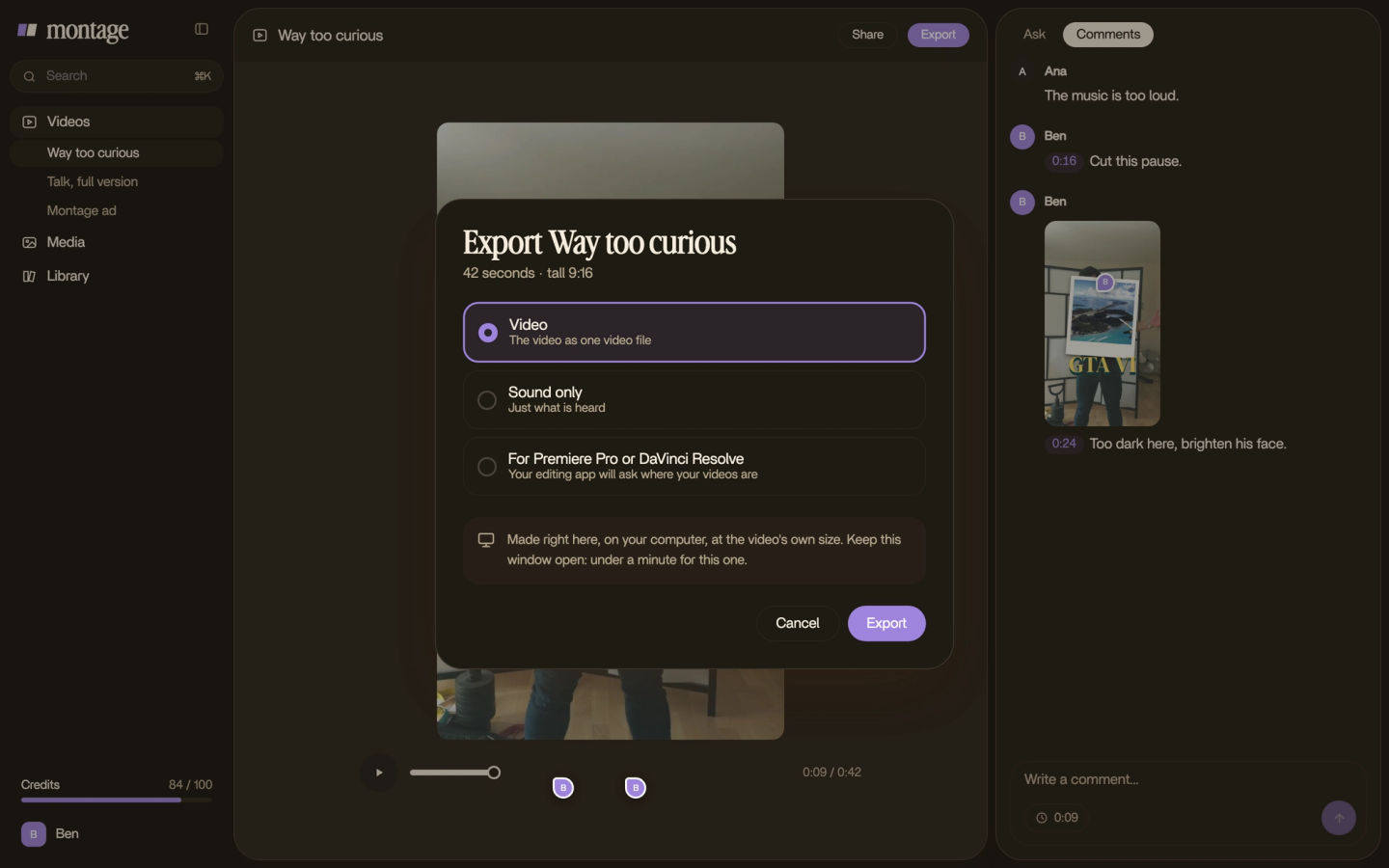
Let's be clear: Montage doesn't host your show. Your podcast host does that, and makes the feed. Montage makes the edit and the file.
Before you upload, it's worth a listen with your eyes closed. And if your voice needs work, here's how to clean up the audio before it goes out.
What to change so a video works by ear.
This is the part the pages ranking for this search leave out. So let me show you.
Your listener can't see the video. Everything that works on screen is lost, or worse, confusing, when it's only heard.
My film From Disney star to space CEO is a YouTube video, not a podcast. 9 minutes and 18 seconds, 216 cuts. And it's full of things a listener would miss.
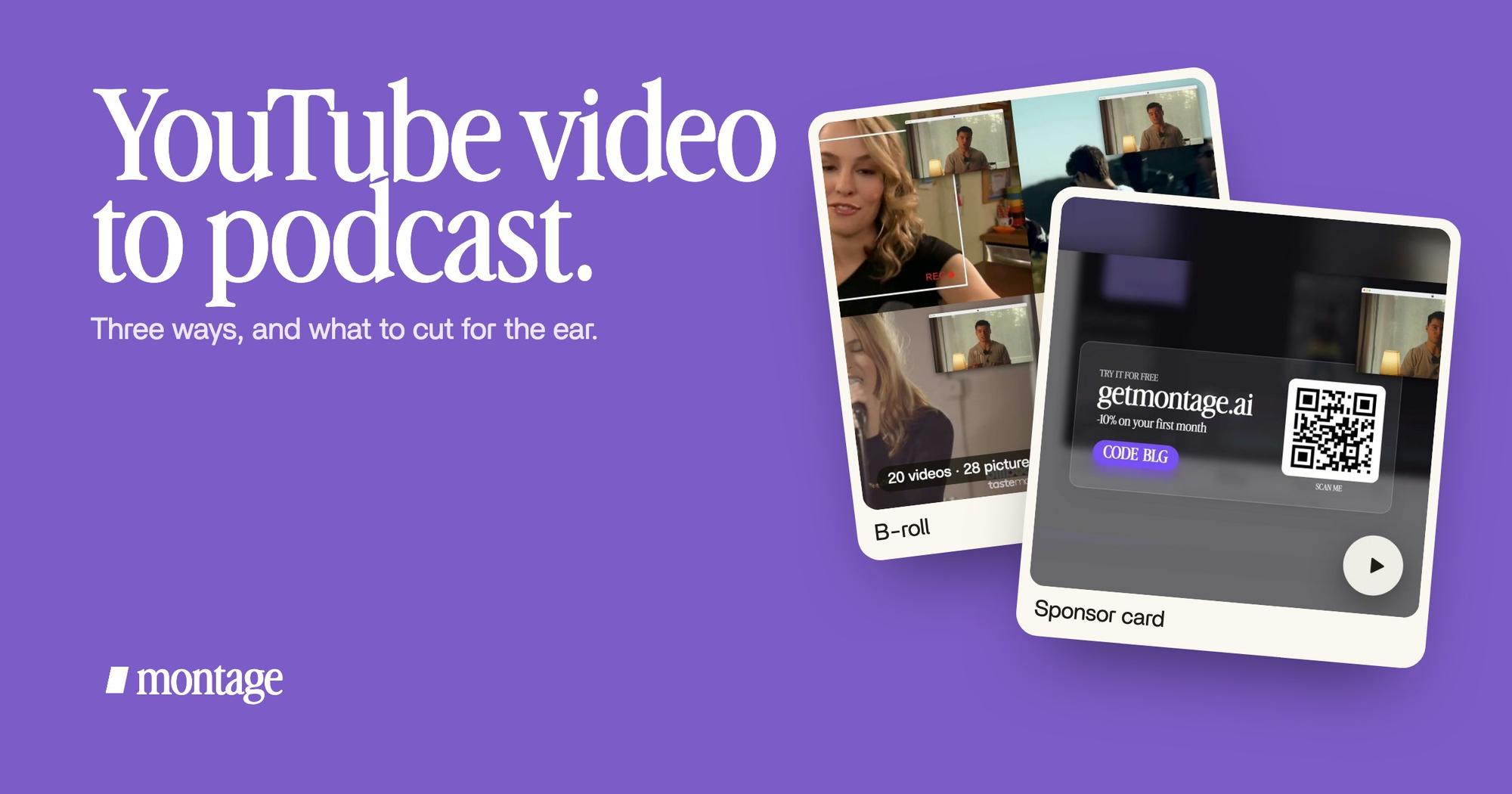
 B-rollGood Luck Charlie, Ready or Not, Billboard, the TODAY antenna: the face cam moves to the corner while each plays.
 Motion designA real headline, highlighted in yellow while I read it. Click to watch it.
 Sponsor cardA component made for the sponsor: frosted glass, the QR code and the code BLG. Click to watch it.
The B-roll: Good Luck Charlie, Ready or Not, Billboard, the TODAY antenna, each playing while my face cam moves to the corner. A real headline, highlighted in yellow while I read it. A sponsor card with a QR code and the code BLG. On YouTube, all of that does the explaining. By ear? Silence, or a sentence that points at nothing.
Your listener can't see the screen. Say what's on it.
Here's the checklist I'd go through:
- Say what's on screen. If a clip or a picture makes the point, name it out loud, in a few words.
- Read the headline, and say where it's from. On screen, the source is visible. By ear, it isn't.
- Read the code aloud. A QR code means nothing in a podcast. Say the code, say the address.
- Drop « as you can see » and « link below ». Say « in the show notes » instead.
- Cut the moments that only work on screen. A silent gag, a long look at a chart: cut them from the audio version.
- Name the guest. On screen there's a title under their face. By ear, introduce them.
In Montage you say it once, in words: cut the parts that only work on screen, keep the voice. Then you listen, and you comment on what's still wrong. The YouTube version stays the YouTube version, and you can still edit the YouTube version on its own.
AI « YouTube to podcast » converters: what they really make.
You'll also find converters that promise to turn any YouTube link into a podcast. Truth is, some of them don't give you your episode at all.
Podcastify, for example, says on its YouTube to podcast page that it reads the video's title, description, chapters and captions, then writes a new two-host AI episode, not the video's own audio track. Without captions it fails. One video at a time, $9.95 a month (read on 29 October 2026).
Is that bad? No. It's a different thing. If you want a summary of a video in two AI voices, it does that. If you want your episode, in your voice, it doesn't.
Which way should you pick?
Okay. Here's how I'd choose.
- You only want to be on YouTube: Way 1. Free, a few clicks.
- You have dozens of videos and no time: Way 2. A host imports them and keeps the feed going.
- You care how it sounds, and you talk about what's on screen: Way 3. Export the sound from your own edit, with the changes for the ear.
- You want short pieces of the episode for social: that's another job. Here's how to make clips from your video episode.
And if you're starting from zero, first read what a video podcast is, and the setup to film your show.
Made to be watched isn't the same as made to be heard.
Questions about YouTube video to podcast.
How do I turn a YouTube video into a podcast?
Three ways. Set the playlist as a podcast in YouTube Studio, to stay on YouTube. Let a podcast host import your YouTube
videos into an RSS feed, for Spotify and Apple Podcasts. Or export the sound from your own edit and upload it to your
host as an episode.
Can I turn a YouTube video into a podcast for free?
On YouTube, yes: making a podcast in YouTube Studio is free. To be on Spotify and Apple Podcasts, you need a podcast host
for the feed, and hosts that import from YouTube, like Podbean, do it on a paid plan.
What's a YouTube to podcast RSS feed?
It's the link that lists your episodes, which podcast apps read. Hosts like Podbean and Listenbox can build it from a
YouTube playlist. YouTube also has an RSS upload tool, but it goes the other way: it brings a podcast feed into YouTube.
Can I turn someone else's YouTube video into a podcast?
Not to publish, unless you have the rights. Podcastify's own page says you are responsible for having the rights to the
source content, and YouTube says content that isn't yours may not be eligible as a podcast. If you only want to listen, and
the video is already a podcast on YouTube, YouTube Music plays most podcasts in the background.
How do I start a podcast on YouTube for free?
Make a playlist of full episodes, set it as a podcast in YouTube Studio, and give it a square thumbnail. That's it. For
the rest, here's how to start a video podcast.
See it in a real edit.
The film above, and three more, are in the four videos in the showcase, with what went in and how each one was made.
 9:18
 2:07
 0:56
 0:38
That's it for this one. Go listen to your last video with your eyes closed.
See you in the next one.