AI color grading:
what it does on a real video.
Every tool on Google says it grades your video with AI. They don't mean the same thing. Here are the four kinds, and one real grade, same frame, split.
 Ben, founder of Montage · · 7 min read
In this post8 parts
The short answer.
So can AI really grade your video? Let's start with the answer.
AI color grading is software that sets your video's color and contrast for you. It does that from one of three things: a reference picture you give it, a preset or a slider you pick, or what you ask for in words. Yes, it works. But « AI color grading » means four different kinds of tools today, and most of them still expect you to know the look you want.
If you want the basics first, here's what color grading is, in plain words.
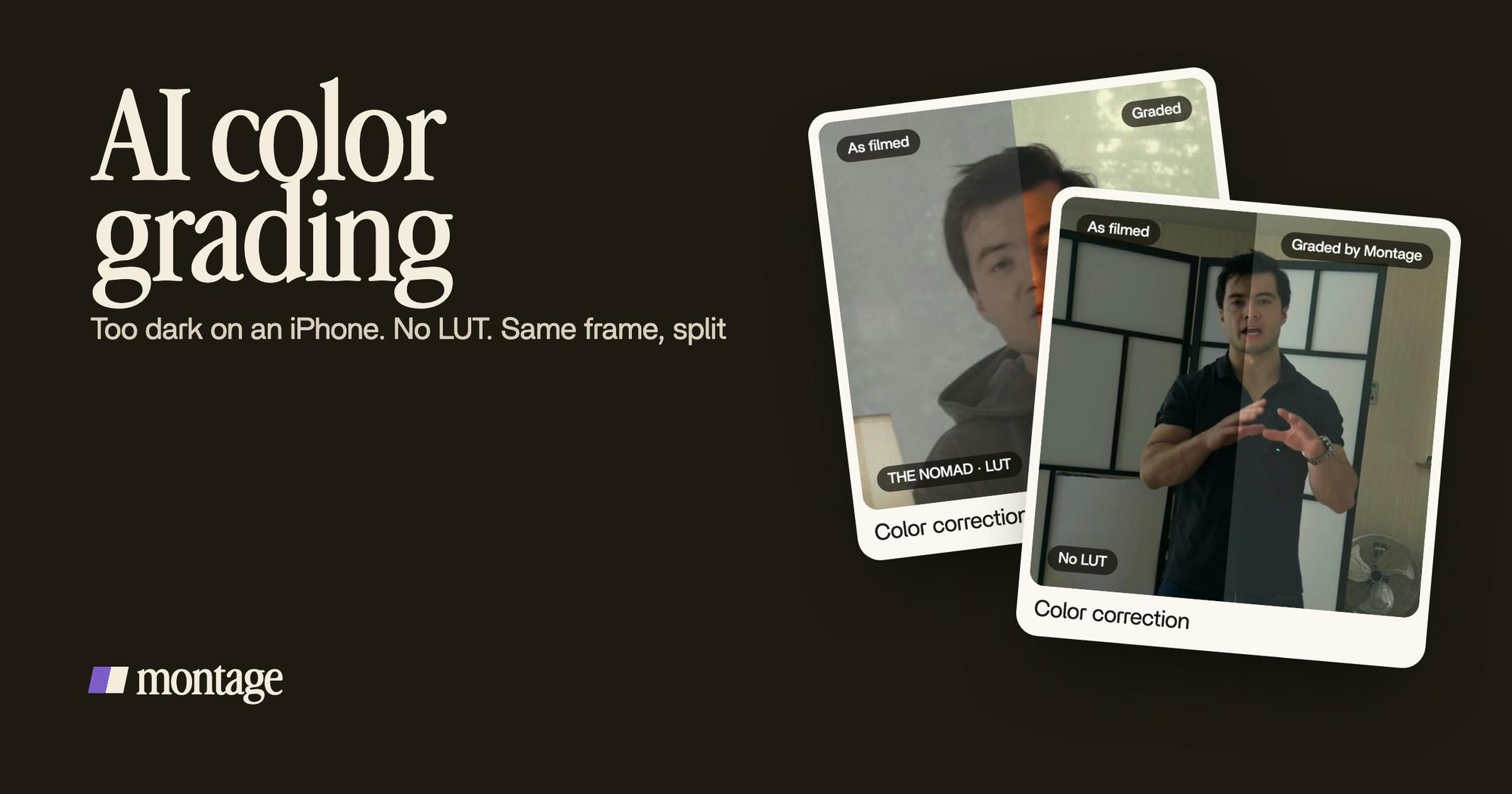
Now, here's a real one. My video Way too curious was filmed too dark on an iPhone. I asked for a grade, no LUT, and Montage lifted it on its own.
 Color correction
Same frame, split down the middle. No reference picture, no sliders. That's the case the rest of this article is built on. You can watch the video filmed too dark from start to finish.
The four kinds of AI color grading.
I read the pages Google shows for « ai color grading ». Most of them are tool pages, and most of those tools are for photos, not video. Each one explains its own product. None says there are four kinds. So let me sort them.
1. Reference matching
You upload a frame whose look you like. The AI reads it and moves that look onto your footage. Retouch4me's blog describes it this way: the AI builds a map of the look and transfers it, and keeps skin tones right. Evoto does the same for photos, in one click, in batches. Imagen's page, from its Google snippet, matches color across clips.
The catch: you need the reference. If you don't know what look you want, there's nothing to match.
2. Presets and sliders with an AI label
Higgsfield's color grading app works on images. You get presets and sliders: temperature, contrast, saturation, highlights, exposure, grain. Its own FAQ says it well: « Filters apply a fixed, one-size-fits-all effect. »
So who decides the grade? You do. The AI is in the name of the suite, not in the choice.
3. AI inside a colorist's program
This is the serious one. Colourlab Ai 4 balances and matches shots for you, and works with DaVinci Resolve, Premiere Pro, Final Cut and Avid. On its own page, on 2026-10-29: from $49 a month, a 14-day trial, Apple silicon Mac. It even has a Claude and MCP workflow that balances the clips and pushes the result back to Resolve Studio.
It's built for people who already grade. You still work in a timeline program, and you still judge every shot.
4. Asking in words
You say what's wrong with the picture. « Too dark. » « Warmer. » « Less contrast. » The AI decides the grade, you look at it, and you comment on what's still off. That's how Way too curious was graded. It's how you do color grading done by asking in Montage.
Most AI graders need you to know the look. The last kind needs you to know what's wrong.
The four kinds, side by side.
Okay. Here they are in one table. Prices and limits are from each tool's own page where it could be read, on 2026-10-29.
| What you give it | What it does | Video or photo | Best for | |
|---|---|---|---|---|
| Reference matching (Retouch4me, Evoto, Imagen) | A frame with the look you want | Copies that look onto your shots | Mostly photo; Imagen and Retouch4me's plugin mention video | Photographers, anyone with a reference |
| Presets and sliders (Higgsfield) | Your own slider moves | Applies the preset you picked | Images | Quick looks on a picture, free |
| AI in a colorist's program (Colourlab Ai) | Your timeline in Resolve, Premiere, Final Cut or Avid | Balances and matches shots | Video | Editors and colorists, from $49 a month |
| Asking in words (Montage) | A sentence: what's wrong, what you want | Grades the shot, you comment on it | Video | Creators who film themselves |
If you want the full list of software, I compared the color grading programs on their own page.
A real grade, asked for in words.
So what did the fourth kind actually do on Way too curious? Let me explain.
The footage was a creator's worst case: iPhone, indoors, too dark. The fix most guides give you is a correction first, then a look. Exposure up, shadows lifted, then the grade. That's video color correction, and it's where most of the work is.
I didn't move a wheel. I asked for a grade with no LUT. Montage lifted the picture on its own. Then I watched it.
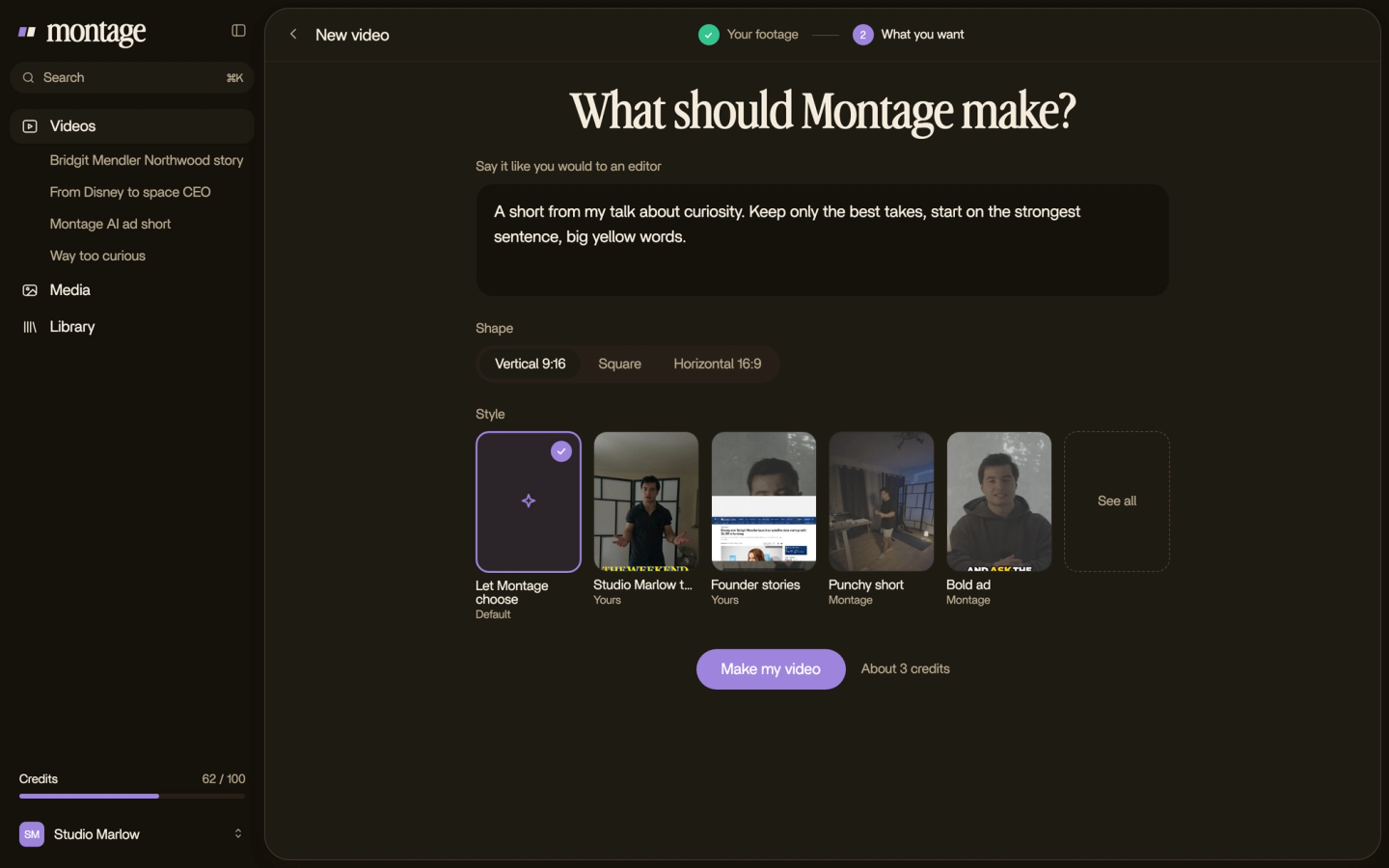
And if one shot is still off? You pause on it, click on the picture, and say so. Then « Fix all ».
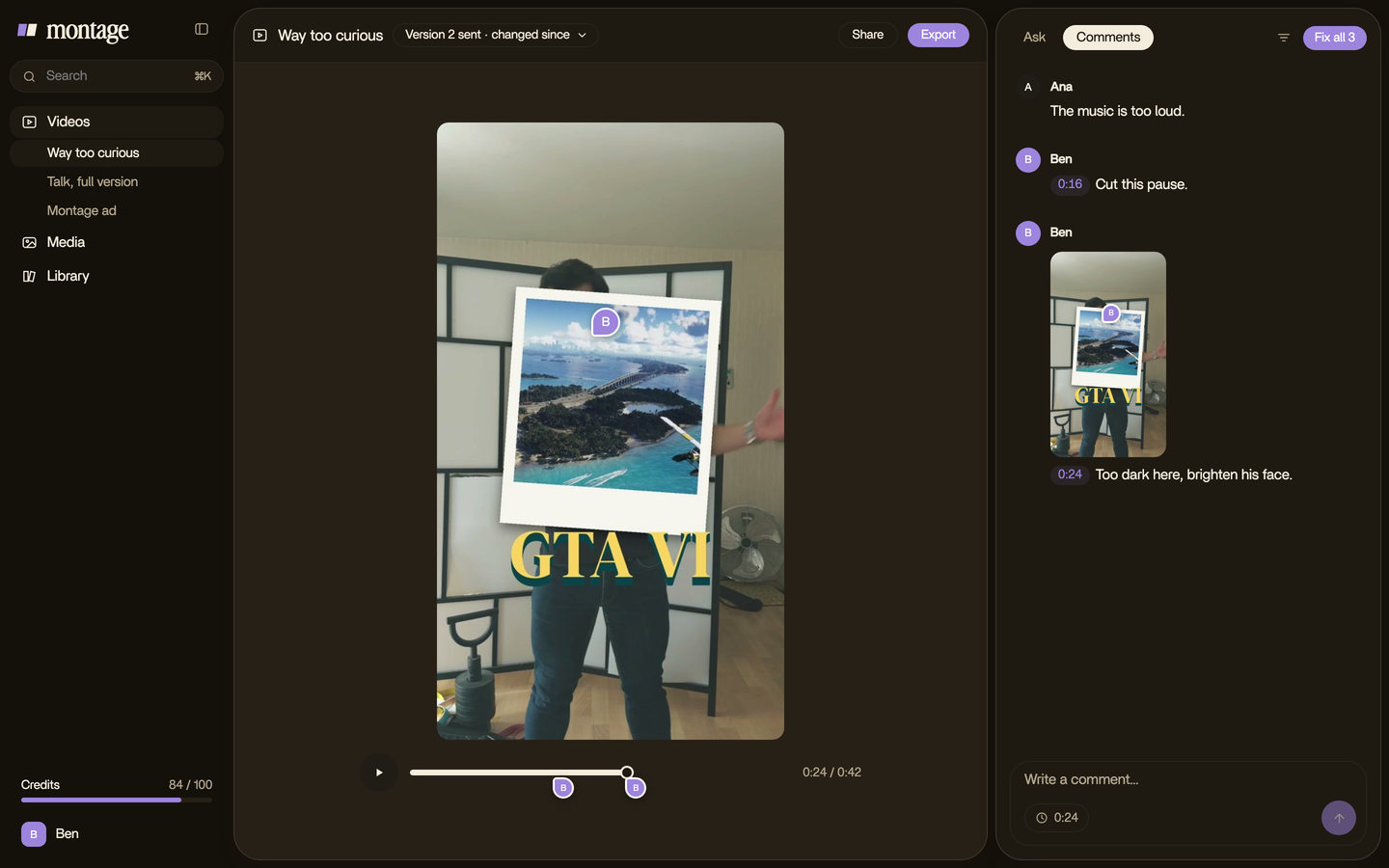
That's the whole loop. Say what you want, watch, comment, done. It's what an AI video agent is for.
When the AI shouldn't decide alone: your LUT.
Here's the thing: sometimes you already have a look. A LUT you bought, or one you made. Then you don't want the AI to invent a grade. You want it to use yours.
Three of my videos went that way.
 Color correctionFilmed flat in Apple Log, my LUT on every shot. Same frame, split down the middle.
 Color correctionFilmed flat in HDR, the NOMAD LUT on every shot. Same frame, split.
 Color correctionTakes 4 to 7 were filmed flat: the NOMAD LUT on each, the first three left as they were. Same frame, split.
- How to be creative was filmed flat in Apple Log, my LUT on every shot. Log footage looks grey until it gets one, which is why people look for an Apple Log LUT in the first place.
- Edit it all with AI was filmed flat in HDR, the NOMAD LUT on every shot.
- From Disney star to space CEO is the interesting one. Takes 4 to 7 were filmed flat: the NOMAD LUT on each. The first three were left as they were.
Do you see the point? The LUT didn't go on everything. Only the flat takes got it. And once you have a look you like, you can keep it as a style in Montage's Library, and ask for it again on the next video.
A LUT is your look. The AI is for when you don't have one.
So here's my verdict. Footage that's just too dark or too flat, with no look in mind? Let the AI grade it. A look you already own? Tell it to use yours, and to grade only the shots that need it.
Will AI replace colorists?
The top result on Google is a Reddit thread on r/colorists, and its title asks if anyone is actually using AI for color grading. It's a fair doubt. Let's be clear about who should still hire a person.
A film. A series. A client grade, checked on a calibrated monitor. For that, you want a colour grader with Resolve or Baselight, or Colourlab working inside Resolve. Truth is, nothing in this article replaces that eye.
Sure. But for a creator posting several times a week? In my opinion, the hard part was never the color wheels. It was knowing what to ask for. And if you do want a colorist to finish the job, Montage exports the cut for Premiere Pro or DaVinci Resolve, so they can pick it up there.
AI color grading: your questions.
Can AI color grade a video?
Yes. It either copies a look from a reference frame, applies a preset, matches shots inside a program like Resolve, or
grades from what you ask in words. Way too curious was graded from one request, with no LUT.
Is there free AI color grading?
The free ones I read are photo tools. Higgsfield's color grading app is free, for images. Evoto gives 3 free HD exports,
and Retouch4me 20 free retouches, both photo-first.
Does AI color grading work in Premiere Pro?
Yes, through plugins. Colourlab Ai works with Premiere Pro, Resolve, Final Cut and Avid. Montage exports the cut for
Premiere Pro or DaVinci Resolve, so you can finish the grade there.
Will AI replace colorists?
Not for films, series or client work on a calibrated monitor. For creators who post every week and don't have a
colorist, it already does the job they weren't doing.
Is AI color grading just a filter?
No. A filter applies the same effect to every picture, as Higgsfield's own FAQ says. A grade adapts to each shot: lift
the dark one, leave the good one alone.
See it in real videos.
Every grade in this article is from a real video, made in Montage. If you work in Claude, you can also run Montage from Claude, on Pro, Max and Ultra. And if you're new to all this, start with video editing for beginners.
 9:18
 2:07
 0:56
 0:38
That's it for this one. Now go fix that dark footage.
See you in the next one.