How to shoot Apple Log:
the settings, then the edit.
Apple Log is one setting on your iPhone. Getting it right is three more. Here they are, then what the grey footage needs once you've filmed it.
 Ben, founder of Montage · · 9 min read
In this post11 parts
- How to shoot Apple Log
- This is what Apple Log looks like
- Which iPhones can shoot Apple Log
- Turn on Apple Log, step by step
- Lock white balance and exposure
- How to expose Apple Log (and Apple Log 2)
- Other apps: Final Cut Camera, Blackmagic Camera, Moment
- What your Log footage needs in the edit
- Should you shoot Apple Log?
- How to shoot Apple Log: your questions
- See it in a real video
How to shoot Apple Log.
Ladies and gentlemen, let's start with the answer.
To shoot Apple Log, you need an iPhone 15 Pro or later. Turn on Settings › Camera › Formats › Apple ProRes, and set the encoding to Log. Lock the white balance. In the Camera app, tap the ProRes Log button, then lock the exposure on your face and bring it down a little. Then grade the footage, because Apple Log comes out grey on purpose.
That's it. Four things: the right iPhone, the setting, the locks, the grade after.
Now, the details. Because each of those four has a catch.
This is what Apple Log looks like.
So why does it look so grey? Let me explain.
Apple's own guide to Final Cut Camera calls Log « a flat, desaturated image intended for color grading ». The iPhone records more of the light and the shadows, and leaves the look for later. Normal iPhone video is finished in the phone. Log isn't finished at all.
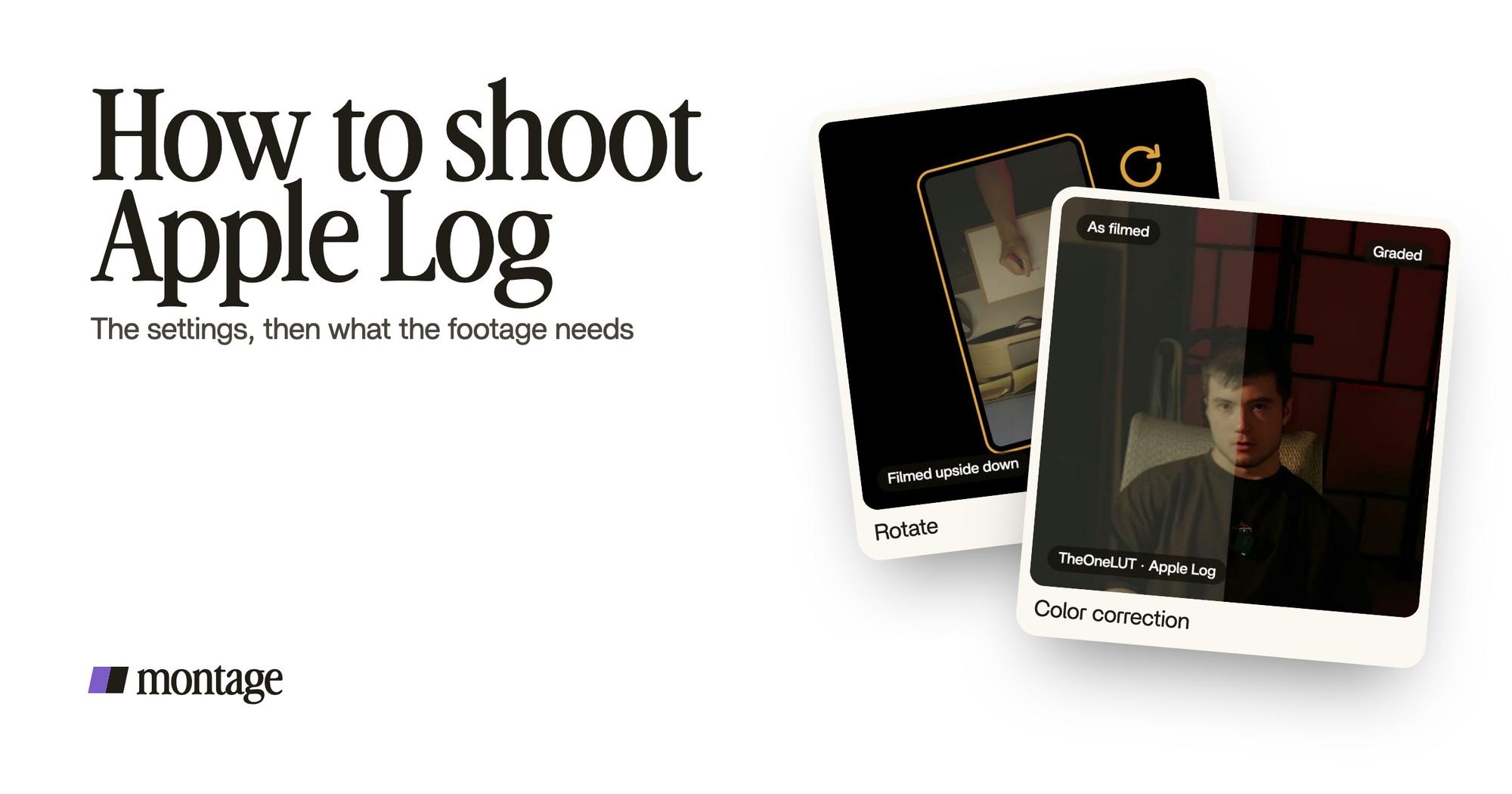
 Color correction
That's my short How to be creative: « Filmed flat in Apple Log, my LUT on every shot. Same frame, split down the middle. » Left, what the iPhone recorded. Right, the same frame after the LUT. If you're new to this, here's what color grading is, in plain words.
Grey on the phone. Normal after the LUT. That's the deal.
Which iPhones can shoot Apple Log.
Here's the short version, from Apple's own support pages (checked on 2026-10-29, iOS 27).
| iPhone | Apple Log? | What Apple says |
|---|---|---|
| iPhone 15 Pro, 15 Pro Max | Yes, Log | ProRes inside the phone up to 4K 30 fps; 1080p 30 fps only on the 128 GB model; 4K 60 on an external drive |
| iPhone 16 Pro, 16 Pro Max | Yes, Log | Same 1080p limit on 128 GB; 4K 120 on an external drive |
| iPhone 17 Pro, 17 Pro Max | Yes, Log or Apple Log 2 | ProRes Log Video Encoding: Log or Log 2; ProRes RAW in apps like Final Cut Camera |
| iPhone 18 Pro, 18 Pro Max | Yes, Log or Log 2 | Configure Pro Video Storage first |
| iPhone 14 Pro and older, and every non-Pro iPhone | No | Apple's pages say Log needs an iPhone 15 Pro or later |
What about the iPhone 14 Pro? People ask. There's even a Reddit thread titled « How do I shoot in log with an iPhone 14 Pro ». The honest answer: not Apple Log. More on the way around it below.
Turn on Apple Log, step by step.
Okay. Here's how to do it in the iPhone's own Camera app, as Apple's iPhone User Guide and Matt Johnson's guide on whoismatt.com describe it.
- Open Settings › Camera › Formats.
- Turn on Apple ProRes. On an iPhone 18 Pro, Apple says to configure Pro Video Storage first.
- Set ProRes Encoding to Log. On an iPhone 17 Pro or 18 Pro, the setting is called ProRes Log Video Encoding, and you pick Log or Log 2.
- Go back to Settings › Camera › Record Video, and turn on Lock White Balance.
- Open the Camera app, in Video. Tap the resolution and frame rate at the top, and pick a ProRes option.
- Tap the « ProRes Log » button, so it's on.
- Plug in a drive if you need 4K above 30 fps. Apple says ProRes inside the phone goes up to 4K 30, and up to 1080p 30 on a 128 GB iPhone 15 Pro or 16 Pro.
One thing to know before you film a lot: ProRes means big files. Apple says « larger file sizes ». Colorado State's social media team says « massive files ». Clear some space first.
Lock white balance and exposure.
Why lock anything? Because in Log, every shot has to grade the same.
If the iPhone changes the white balance between two takes, one comes out warmer than the other. Put the same LUT on both, and they still don't match. Same with exposure: if it moves while you walk past a window, the shot gets brighter and darker under the LUT.
So, two locks:
- White balance: the Lock White Balance setting above. It holds while you record.
- Exposure: tap and hold on your face until you see AE/AF Lock. That's Matt Johnson's first step.
Lock it once. Every shot grades the same.
How to expose Apple Log (and Apple Log 2).
Now, this is where the guides disagree. And none of them says so.
For Apple Log, Matt Johnson and Colorado State both say: underexpose by one stop. After the AE/AF Lock, drag the ± control down to -1.0. Their reasons: a small sensor, noise when the ISO goes up, and a Camera app that tends to expose too bright. Matt Johnson even says that on other Log cameras, like Sony's S-Log3, he'd overexpose instead. Apple Log is the exception.
For Apple Log 2, the Absoluts guide says the opposite: expose to the right. Bring the brightness up until the highlights sit around 85 to 90 IRE on a waveform, and never let anything touch 100.
Let's put them side by side.
| Apple Log | Apple Log 2 | |
|---|---|---|
| iPhones | 15 Pro and later | 17 Pro and 18 Pro |
| Advice | Lock on the face, then -1 EV | Expose to the right |
| How you check | The ± control in the Camera app | A waveform: highlights 85 to 90 IRE, nothing at 100 |
| Source | Matt Johnson (whoismatt.com), Colorado State | Absoluts |
| Either way | Lock exposure and white balance | Lock exposure and white balance |
So which one? In my opinion, follow the advice for the format you shoot. And don't judge your exposure from the grey preview. Colorado State adds two more rules, and I'd keep them for both: don't blow out the highlights in the sun, and don't plan on lifting the shadows much later, because that's where the noise is.
Other apps: Final Cut Camera, Blackmagic Camera, Moment.
You don't have to use the Camera app. Here are three others, and what each one is for.
- Final Cut Camera, Apple's own app. Apple says it records Log in HEVC (H.265) or Apple ProRes. So no, Apple Log doesn't have to be ProRes. HEVC keeps the files smaller.
- Blackmagic Camera. Colorado State and Matt Johnson both name it as an app that shoots Log with more controls than the Camera app.
- Moment's Pro Camera, for a non-Pro iPhone. Moment's guide explains that it records « Moment Log », its own Log, on a regular iPhone. It's not Apple Log, but it's flat footage you grade the same way. Moment also suggests a display LUT, so you see a normal picture while the file stays in Log, a shutter at twice the frame rate (1/50 at 25 fps), and an ND filter to keep that shutter in daylight.
What your Log footage needs in the edit.
Here's the part the other guides skip. You filmed it. Now what?
Every Log shot needs its LUT. Every one. And a real shoot of yourself brings back more than grey footage. When I filmed How to be creative, I walked around the room, and the notebook shots came back upside down.
 TrackingLocked on me: Montage tracks me as I walk around the room.
 RotateThe notebook shots were filmed from above, upside down. Montage turned them the right way up.
« Locked on me: Montage tracks me as I walk around the room. » That's the frame following you. And « the notebook shots were filmed from above, upside down. Montage turned them the right way up. » That's how to turn the upside-down shots.
So how do you put the LUT on? In a timeline editor, shot by shot. In Montage, there's no color panel. You say it, the way the card says it: « my LUT on every shot ». Montage puts it on. Then you watch, and comment on the shot that's still off.
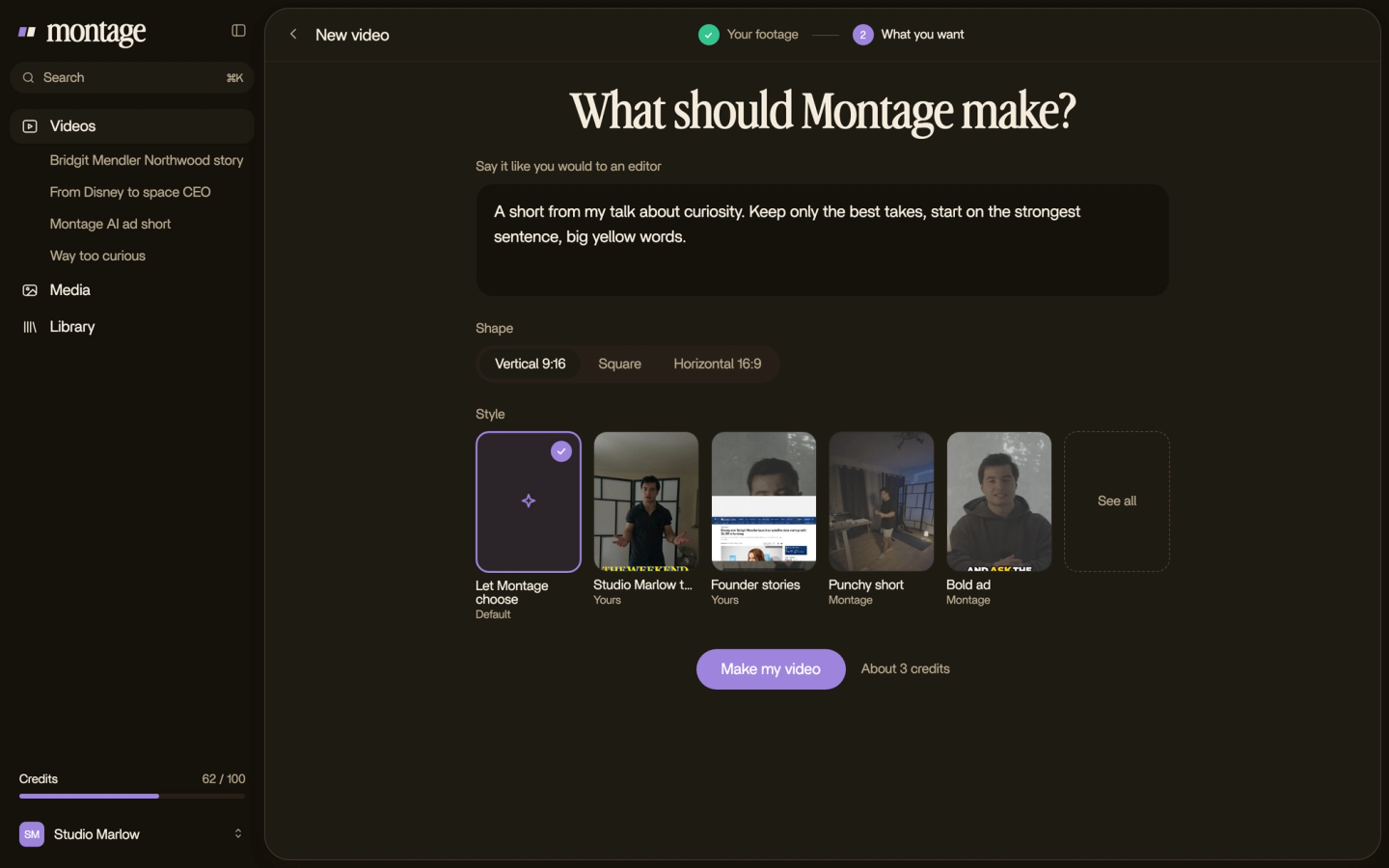
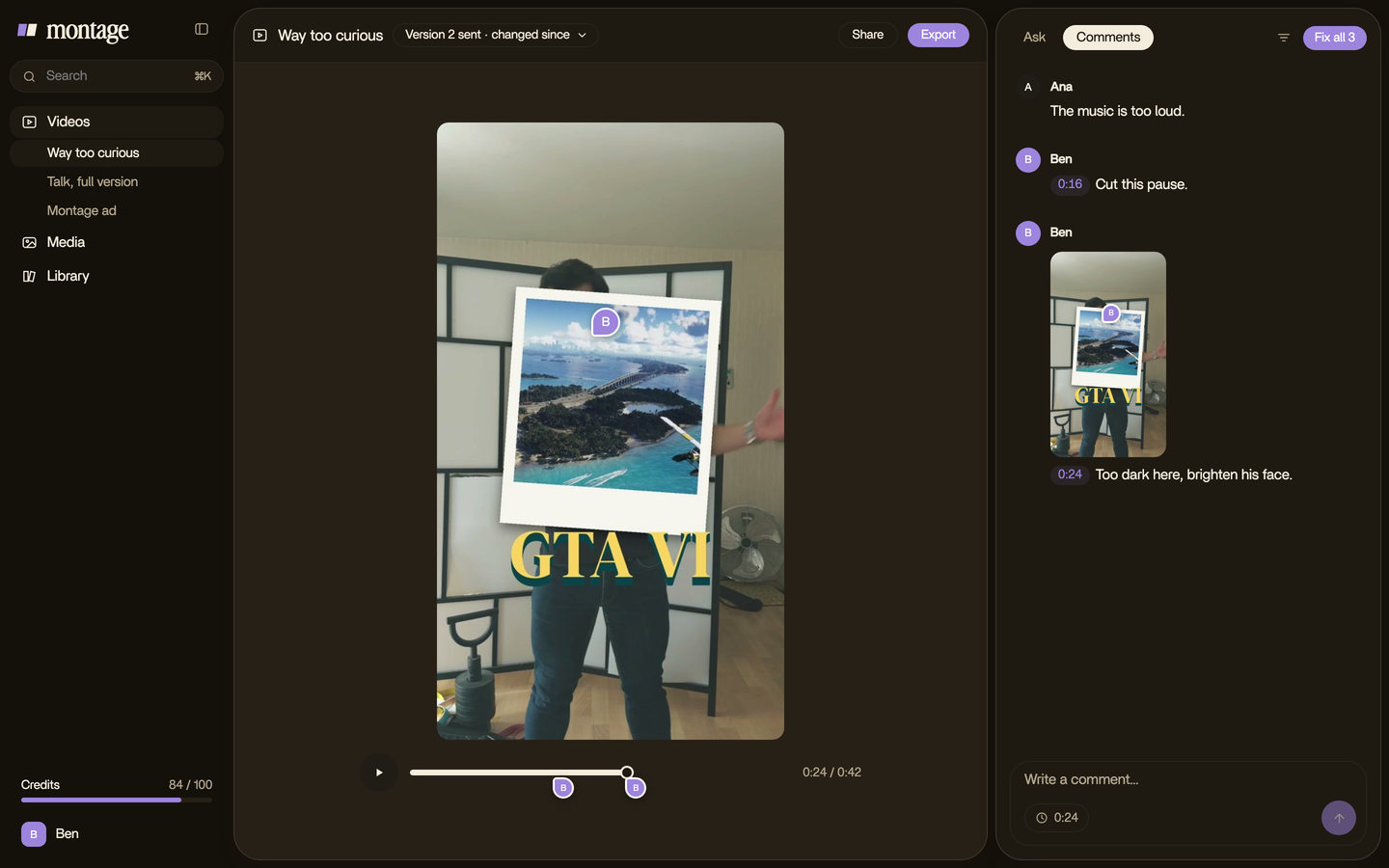
That's color grading done by asking, and more on grading with AI here. Need the LUT itself? Here's where to get an Apple Log LUT and how it works. And once it's on, you can still correct exposure and white balance shot by shot.
Want to grade it yourself in a color grading program? You can export the cut to Premiere Pro or DaVinci Resolve and finish it there.
Should you shoot Apple Log?
Okay. The honest question.
Apple's own guide says it plainly: Log suits documentary, corporate and independent film work. For social media with little post-production, it suggests normal video. I agree.
Now, here's what one of my videos shows: decide once, for the whole video.
 Color correctionTakes 4 to 7 were filmed flat: the NOMAD LUT on each, the first three left as they were. Same frame, split.
 Color correctionFilmed too dark on an iPhone. I asked for a grade, no LUT: Montage lifted it on its own. Same frame, split.
In From Disney star to space CEO, « takes 4 to 7 were filmed flat: the NOMAD LUT on each, the first three left as they were ». A LUT goes on the flat takes only. Put it on a normal take and you wreck it. So if you switch halfway through, remember where.
And Way too curious was « filmed too dark on an iPhone ». I asked for a grade, no LUT, and Montage lifted it on its own. A grade alone can save dark iPhone footage too.
So who is Apple Log for?
- For you if you film yourself for YouTube, want a look of your own, and will grade every video.
- Not for you if you post straight to TikTok with no grade. Honestly, then you don't need Log.
How to shoot Apple Log: your questions.
How do I shoot Apple Log on my iPhone?
On an iPhone 15 Pro or later, turn on Settings › Camera › Formats › Apple ProRes and set the encoding to Log. Lock the
white balance, tap ProRes Log in the Camera app, lock the exposure on your face, and grade the footage afterwards.
Which phones can shoot Apple Log?
The iPhone 15 Pro and later Pro models, per Apple's support pages. The iPhone 17 Pro and 18 Pro also shoot Apple Log 2.
Can a regular iPhone 17 shoot Log?
Not Apple Log: Apple's pages name the Pro models. On a non-Pro iPhone, Moment's Pro Camera app records its own Log,
Moment Log.
Should I shoot in Apple Log?
If you'll grade every video, yes. If you post with no edit at all, normal video is the better choice.
Why does my Apple Log footage look grey?
It's on purpose. Log keeps the light and the shadows, and leaves the color for later. Put an Apple Log LUT on it, and the
picture comes back.
See it in a real video.
Everything here, the grey frame, the LUT, the tracking, the turned shots, is in the Apple Log short, with what went in and how it was made.
That's it for this one. Now go film something flat.
See you in the next one.