Caption YouTube videos:
both kinds, step by step.
There are two kinds of captions on YouTube, and most guides only talk about one. Here are both, step by step, with three real short videos.
 Ben, founder of Montage · · 8 min read
In this post9 parts
- The short answer
- Closed captions vs burned-in captions
- How to caption YouTube videos in YouTube Studio
- How to burn captions into a YouTube video
- Three real short videos, three caption styles
- Captions on YouTube Shorts
- For viewers: turn captions on, off, and change their size
- Questions about YouTube captions
- See it in real videos
The short answer.
Ladies and gentlemen, let's start with the answer.
To caption YouTube videos, you have two options. The first one: add a closed caption track in YouTube Studio, the « CC » text a viewer can switch on. The second one: burn the captions into the picture, in your own font and colors, so they play whether anyone presses CC or not.
So which one do you need? Both. Let me explain.
The CC track is YouTube's own. You make it in YouTube Studio, from a file, a transcript, by typing, or with automatic captions. The viewer turns it on and picks the size. Burned-in captions are part of the video itself. They're what you see on many Shorts in the feed, because a lot of people scroll with the sound off and never touch CC.
CC is for the viewer who asks. Burned in is for the viewer who never will.
If you care about how they look, there's a whole guide on the best font for captions. Here, we'll do the how.
Closed captions vs burned-in captions.
Okay. Let's put the two kinds side by side.
| Closed captions (CC) | Burned-in captions (open) | |
|---|---|---|
| Who turns them on | The viewer, with the CC button | Nobody: they're always on |
| Who styles them | The viewer: font, size, color, background | You: your font, your colors, one line at a time |
| Where they live | A separate track on YouTube | In the picture of the video file |
| Read as text by YouTube | Yes | No, they're pixels |
| How you make them | YouTube Studio: upload a file, auto-sync, type, or automatic captions | In your editor, before you export |
| Other languages | One track per language | One language per video |
| Best for | Long YouTube videos, viewers who are deaf or hard of hearing, other languages | Shorts, and any video watched on mute |
Now, captions and subtitles. You'll see both words. Strictly speaking, captions also describe sounds, like « [applause] » or « [music] », for people who can't hear them. Subtitles are the words translated, for people who can hear but don't speak the language. YouTube puts both under « Subtitles/CC ».
And who uses captions? Not only people who need them. 80 % of people who use captions aren't deaf or hard of hearing, according to Verizon and Publicis Media, as cited by Pope Tech's guide.
How to caption YouTube videos in YouTube Studio.
This is the CC track. Here's how YouTube's own help page says to do it (Add subtitles & captions).
- Open YouTube Studio and click Subtitles in the menu on the left.
- Click the video you want to caption.
- Add a language if the video doesn't have one yet, then click Add under Subtitles.
- Pick one of four ways to make the captions (below).
- Check them, then publish.
The four ways
- Upload a file. If you already have a caption file, upload it, with timing or without. A common format is .SRT: a plain text file with a number, a start and end time, and the line, for each caption.
- Auto-sync. Paste the transcript of what you say, and YouTube sets the timings for you. It doesn't work for videos over an hour, or with poor audio.
- Type manually. Type the captions while the video plays. The timings are set automatically, and there are keyboard shortcuts to go faster. This is where you add « [applause] » and other sounds.
- Automatic captions. YouTube makes them with speech recognition and publishes them on its own, in the video's default language only.
My advice: start from the automatic ones
Automatic captions have been on YouTube since 2009, and they're now in 14 languages, according to the YouTube Team's own post (2023). They're fast. But they're not always right.
So here's how I'd do it. Let YouTube make the automatic captions, then open them with Duplicate and edit, fix the misheard words, add the punctuation and the capitals, and publish your copy. That's pretty much the fastest clean CC track there is.
A few rules for good captions, from Pope Tech's guide: one to three lines on screen, most of the time two, and each caption on screen for 3 to 7 seconds. Name the speaker when it changes. Include the music and the sound effects.
How to burn captions into a YouTube video.
Now the other kind. Burned-in captions aren't made in YouTube Studio. They're made in your editor, before you upload, and they come out inside the video file.
On a timeline editor, that means generating the captions, then styling them, then fixing them line by line. In Montage, you ask for the style in a sentence. Montage reads every word you say, writes the captions, times them to your voice, and draws them in the style you asked for.
- Drop your take in, as it is. Your own file: Montage doesn't import from a YouTube link.
- Ask for the style. « Captions one line at a time, yellow, uppercase, the key word bigger. »
- Watch it once. Don't fix anything yet.
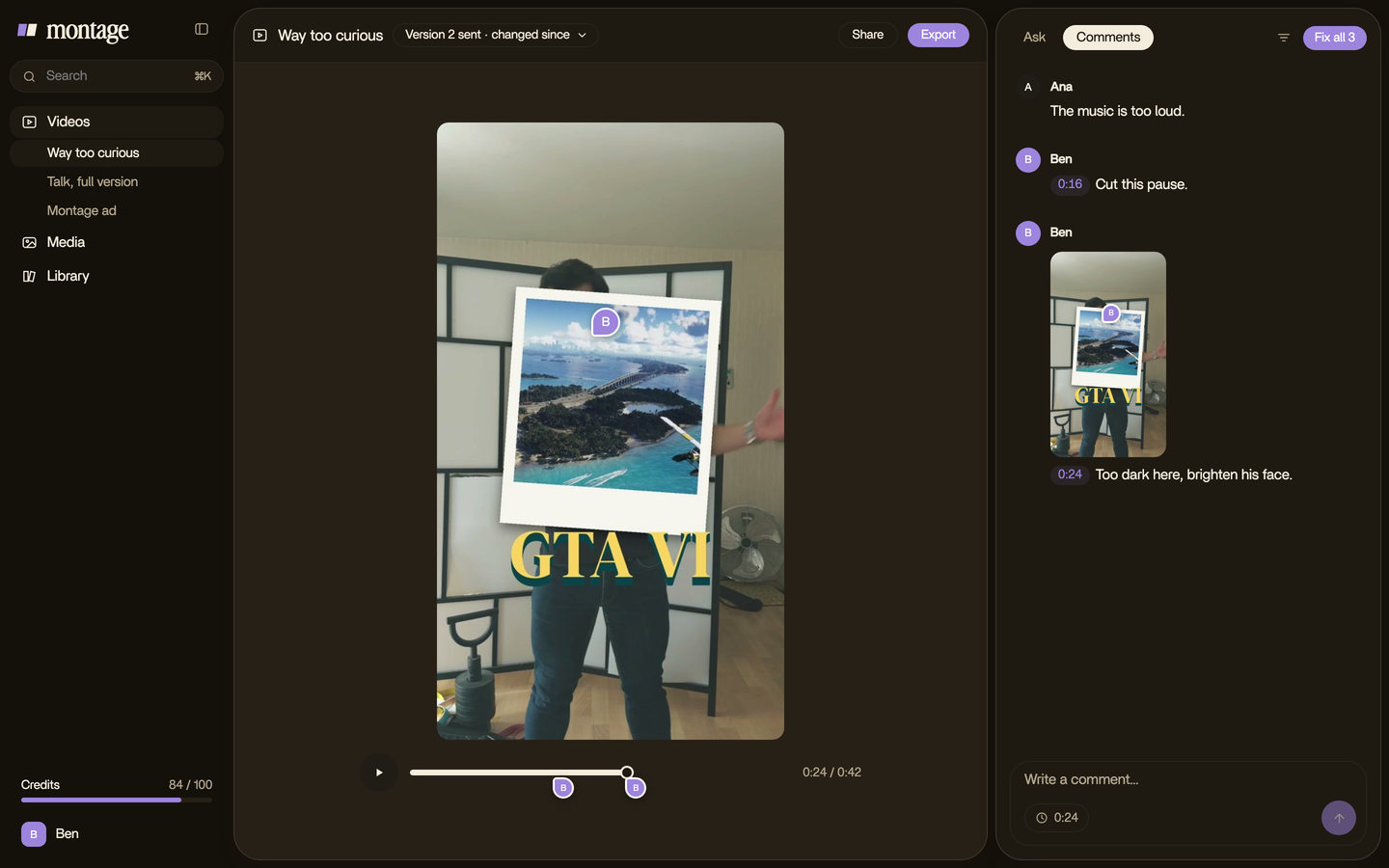
- Comment on what's wrong. A misheard word, a line too long: pause there and say it.
- Export the MP4. The captions are in the picture. Upload it to YouTube the way you always do.
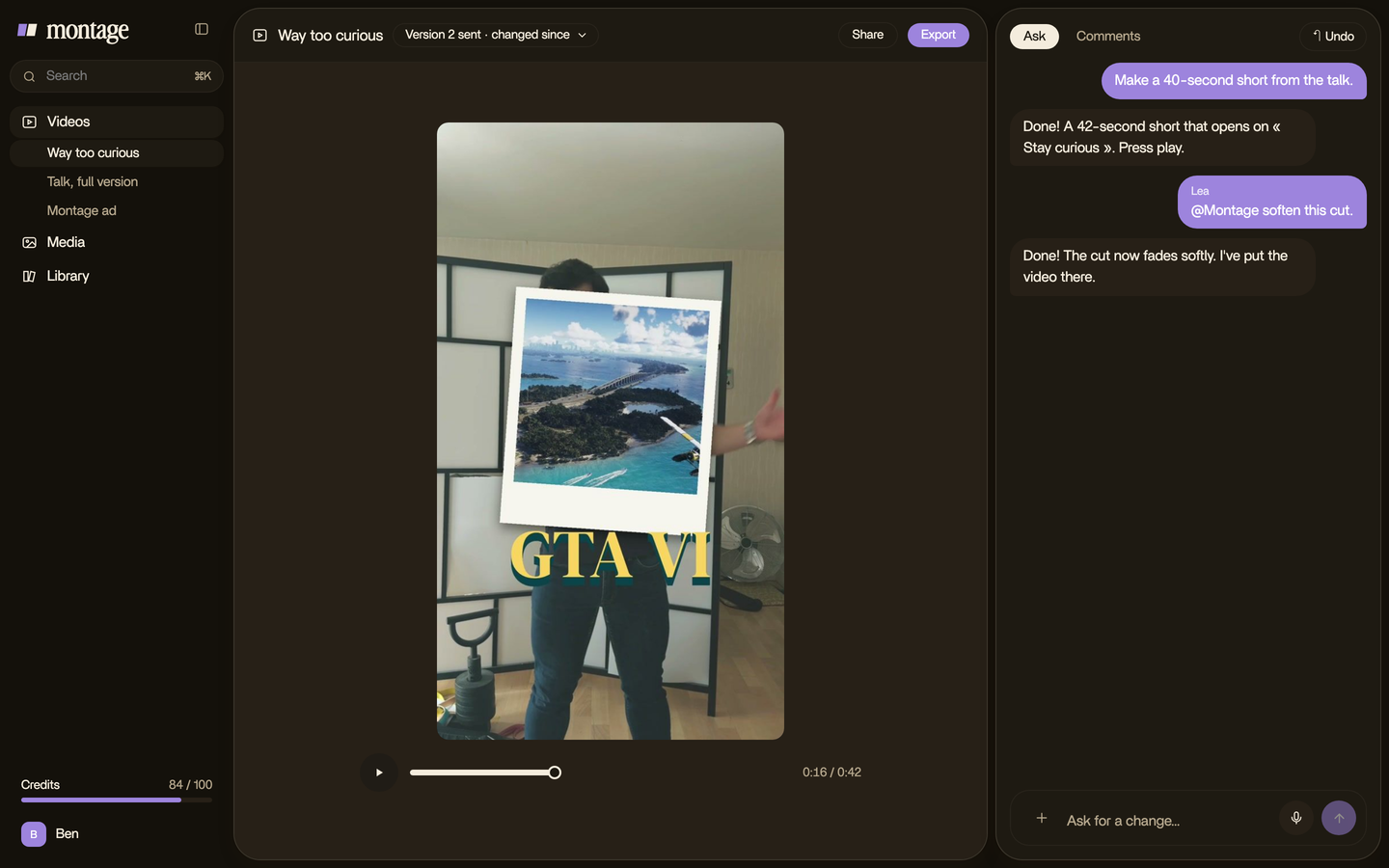
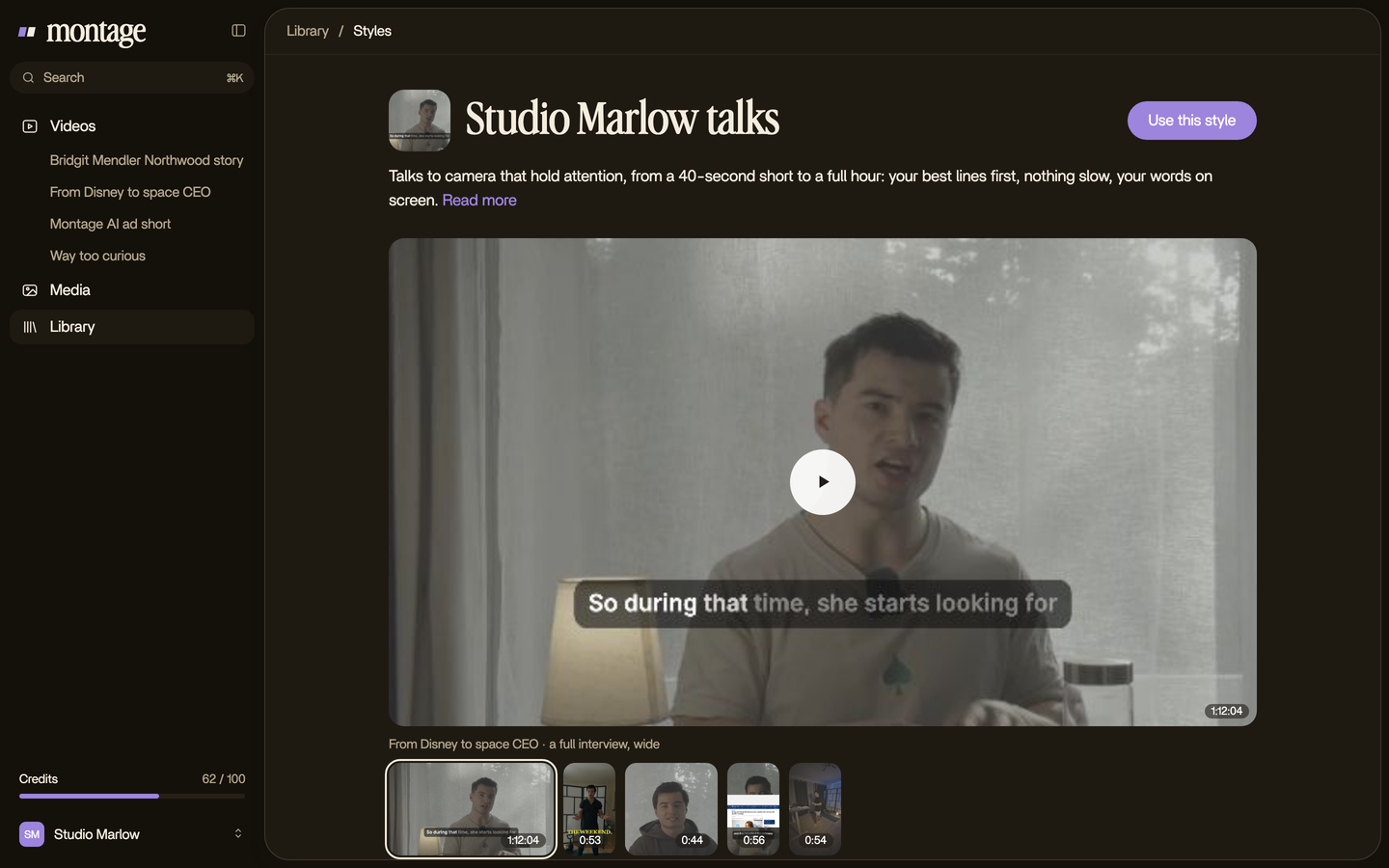
Here's the thing: once you have a style you like, you don't want to ask for it again on every video. In Montage, a style is kept in the Library, and the next video uses it.
Let's be clear about one thing. Montage makes the burned-in captions. It doesn't make the CC track: it exports the video, not a caption file. For the CC track, use YouTube Studio, as above. That's why you need both.
Three real short videos, three caption styles.
Okay. What does it look like? Here are three real short videos, each captioned by asking for the style in a sentence.
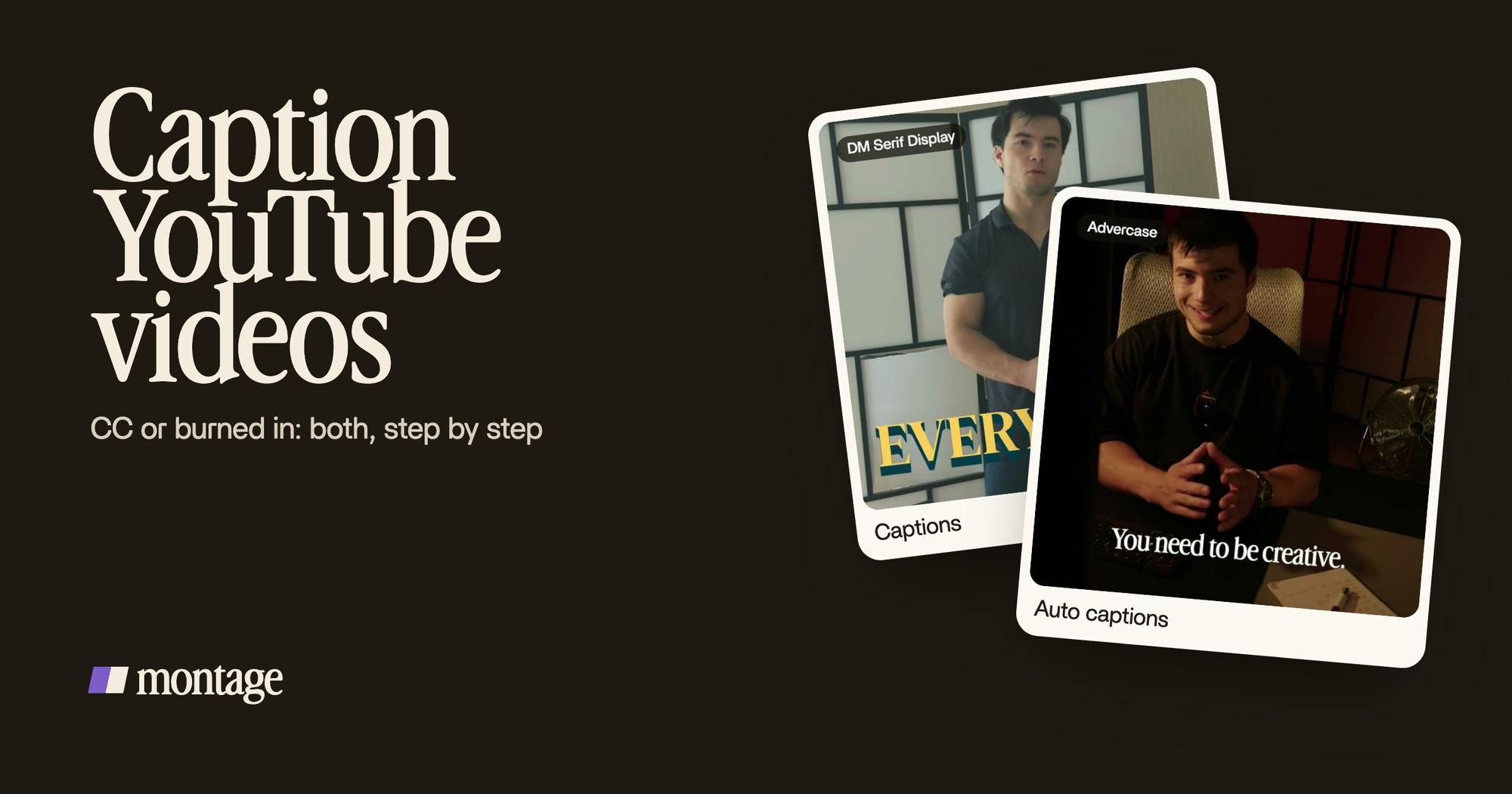
 Auto captionsEvery line on screen in my own font, timed to my voice.
 CaptionsYellow, uppercase, a blue drop shadow, and the key word drawn bigger.
 CaptionsOne line at a time, white on the take, dark on the white stage.
- How to be creative: every line on screen in my own font, timed to my voice.
- Way too curious: yellow, uppercase, a blue drop shadow, and the key word drawn bigger.
- Edit it all with AI: one line at a time, white on the take, and dark on the white stage when the site drops in.
Do you see the difference? Same job, three looks. None of them came from typing a transcript. More on captions in your own fonts and colors, and on your brand's fonts and colors for every video.
If you want more looks to pick from, there's a guide on caption styles, and one on MrBeast-style subtitles.
Captions on YouTube Shorts.
Can you caption YouTube Shorts the same way? Yes. A Short is a YouTube video, so YouTube Studio's Subtitles page works for it too.
But honestly, on a Short, I'd never rely on CC alone. People swipe through the feed. A lot of them won't stop to turn captions on. The words have to be in the picture already, big enough to read on a phone, one line at a time.
On a Short, the captions are part of the look.
The same Short often goes to TikTok and Instagram too. Here's how to add captions on TikTok, which font TikTok captions use, how to put captions on an Instagram Reel, and how to caption a Facebook video.
For viewers: turn captions on, off, and change their size.
Maybe you're not the one who made the video. You just want the captions. Here's what YouTube's help page says (Manage caption settings).
- Turn captions on: click CC at the bottom right of the player.
- Turn captions off, auto captions included: click CC again.
- Change the size and the style: open Settings, then Subtitles/CC, then Options. There you pick the font, the color, the opacity, the size, the background, the window and the character edge.
One thing to know: those settings only change the CC track. Burned-in captions are in the picture, so nobody can turn them off or resize them. That's the point.
Questions about YouTube captions.
How do I get captions on YouTube?
On your own video: open YouTube Studio, click Subtitles, pick the video, and add captions by uploading a file, auto-sync,
typing, or automatic captions. For captions in your own style that are always on, burn them into the video in your
editor before you upload. As a viewer: click CC on the player.
What is a YouTube caption?
It's the text of what's said in a video, and of the sounds that matter, shown on screen. On YouTube it's usually the CC
track, which the viewer switches on. Captions can also be burned into the picture by the creator.
How do I turn off auto captions on YouTube?
As a viewer, click CC at the bottom right of the player, and they go away. Burned-in captions can't be turned off: they're
part of the video.
How do I turn on captions?
Click CC on the YouTube player. To change how they look, go to Settings, then Subtitles/CC, then Options.
Can I caption YouTube Shorts?
Yes, in YouTube Studio like any other video. But on Shorts, burned-in captions do most of the work, because a lot of people
watch on mute and never press CC.
See it in real videos.
Every caption in this guide is in a real video, each one asked for in a sentence. The four videos in the showcase show what went in and how each one was made. And if YouTube is your main channel, here's an AI video editor for YouTube.
 9:18
 2:07
 0:56
 0:38
That's it for this one. CC for the viewer who asks, burned in for everyone else.
See you in the next one.