How to add captions on TikTok:
three ways, step by step.
TikTok's Captions button takes four steps. The captions you see on the feed come from somewhere else. Here are the three ways, and what each one can't do.
 Ben, founder of Montage · · 8 min read
In this post9 parts
- The short answer
- Way 1: How to add captions on TikTok with the Captions button
- Way 2: Type each line with the Text tool
- Way 3: Burn styled captions in before you upload
- The three ways side by side
- How to add captions on TikTok after posting
- When the Captions button is missing
- Questions about adding captions on TikTok
- See it in real videos
The short answer.
Ladies and gentlemen, let's start with the answer.
To add captions on TikTok, tap Captions in the editor after you record or upload your video. Four steps:
- Tap + and record or upload your video.
- Tap Captions in the toolbar on the right.
- Read the text TikTok wrote, and fix any word it got wrong.
- Pick a Style and a Format if you want, then post.
That's it. That's TikTok's own way, and for a lot of videos it's enough.
Now, there are two other ways. You can type each line yourself with TikTok's Text tool. Or you can burn styled captions into the video before you upload it. That last one is how the big, colorful captions on your feed get there. Each way has something it can't do, and that's what this guide is about.
And if you're still choosing a look, here's which font to use for captions.
Way 1: How to add captions on TikTok with the Captions button.
This is TikTok's auto captions. TikTok launched them in April 2021: you pick them on the editing page after you record or upload, you can edit the text once it's written, and viewers can turn them off (TikTok's newsroom, 2021).
Here are the steps in full.
- Open TikTok and tap +. Record your video, or upload one from your phone.
- Tap Captions. It's in the toolbar on the right side of the editor. TikTok listens to your voice and writes the words.
- Check every line. The text sits under each timestamp. Tap a line to fix a word it misheard.
- Change the look. Style and Format change how the captions look on screen.
- Save and post.
So what can't it do? Two things, and they matter.
- You can't change the timing. According to riverside.com (2026), you can't change the timestamps of TikTok's auto captions, even when a line doesn't match what you say.
- One language per video. Riverside.com notes you get one caption language on a video.
To be honest, for a quick reply video, TikTok's button is enough. Your words are on screen, and the viewer can turn them off. Boom.
Way 2: Type each line with the Text tool.
What if the auto captions get the timing wrong, or you want a line somewhere else on screen? Then you type it yourself.
- Tap Text in the editor and type the first line.
- Place it. Drag it where you want it on the picture.
- Tap the line, then Set duration. A slider sets when the line appears and when it goes (riverside.com, rev.com).
- Repeat for every line. One line at a time, from the start of the video to the end.
Here's the thing: this gives you full control over timing and position. But it's all by hand. On a 30-second video where you talk the whole time, that's a lot of lines.
TikTok's button is for the words. The Text tool is for control. Neither one is for the look.
Way 3: Burn styled captions in before you upload.
So how do the captions you see on the feed get there? The big ones, one word in color, a shadow behind them? Not with that button. Let me explain.
They're burned in. The captions are part of the picture before the video ever reaches TikTok. You make them in an editor, export the video, and upload that file. TikTok doesn't take a separate caption file anyway (rev.com, 2024), so for any style TikTok doesn't offer, this is the way.
Here's how I do it in Montage.
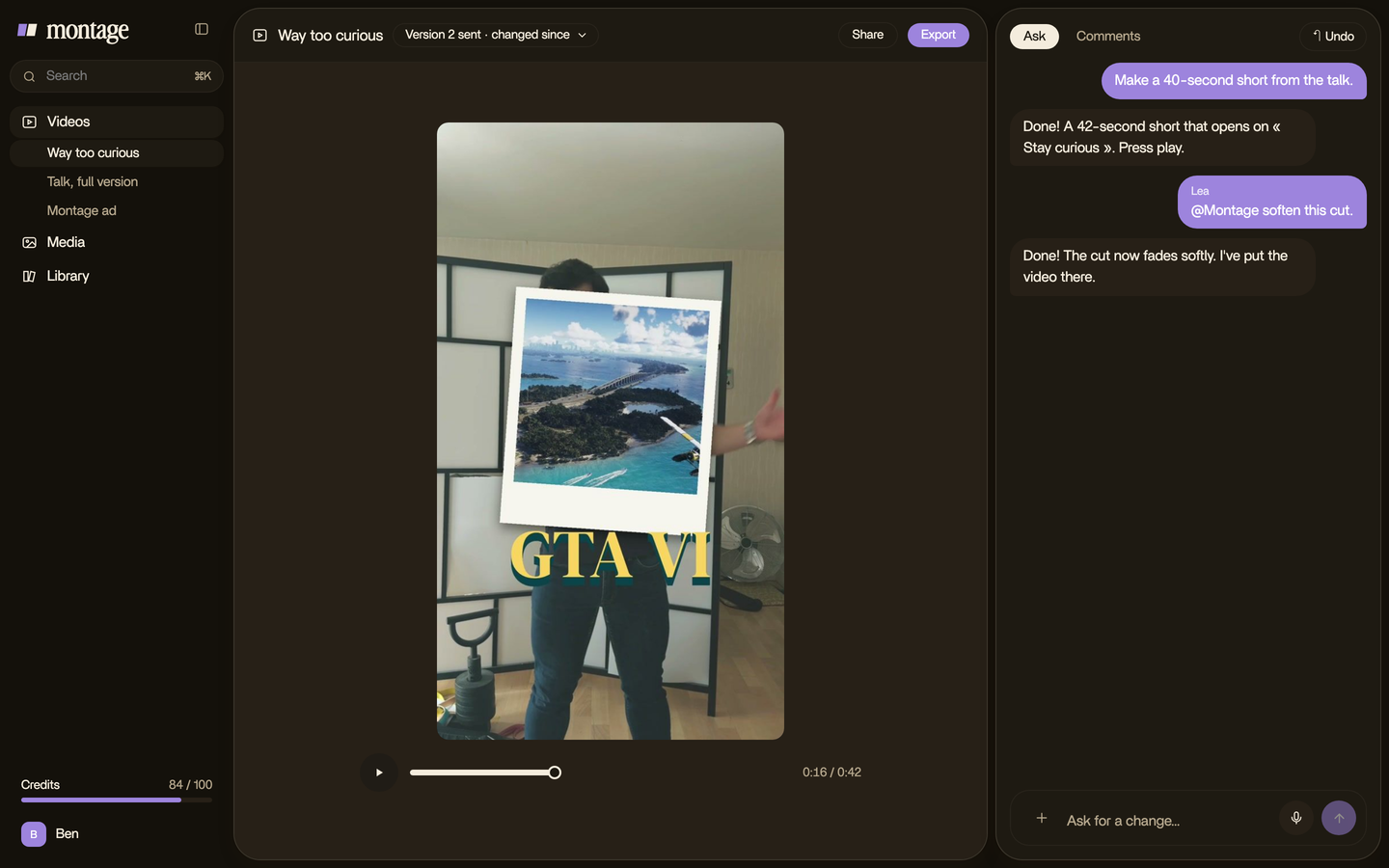
- Drop your take in, as it is. Montage reads every word you say.
- Ask for the caption style in one sentence. The font, the color, how many words at a time, which word stands out.
Here are three real 9:16 videos, each captioned that way.
 Auto captionsEvery line on screen in my own font, timed to my voice.
 CaptionsYellow, uppercase, a blue drop shadow, and the key word drawn bigger.
 CaptionsOne line at a time, white on the take, dark on the white stage.
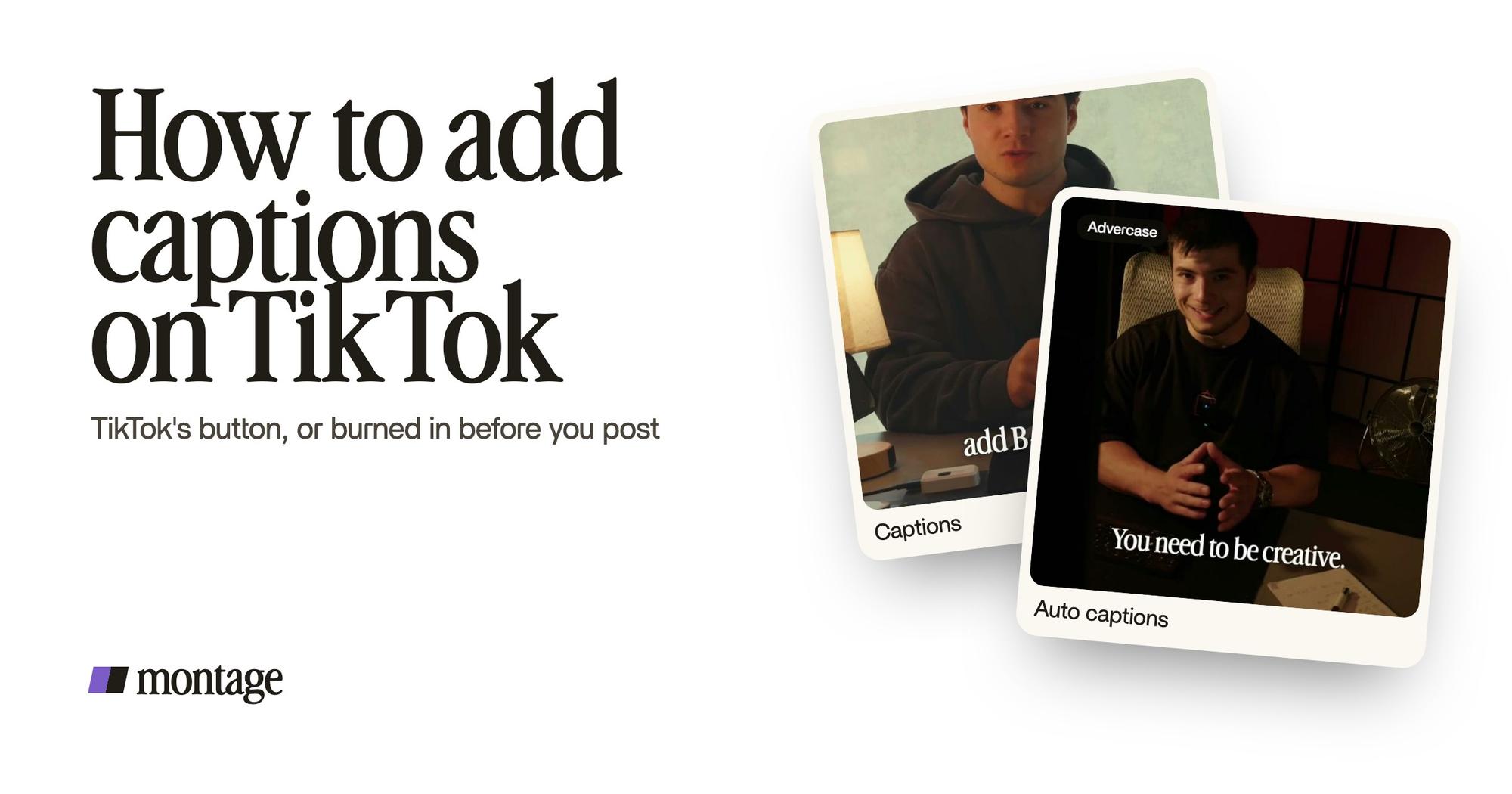
In How to be creative, every line is on screen in my own font, timed to my voice. In Way too curious, I asked for yellow, uppercase, a blue drop shadow, and the key word drawn bigger. In Edit it all with AI, it's one line at a time, white on the take and dark on the white stage. More on TikTok captions in your own fonts and colors, or browse six caption styles and the MrBeast caption look.
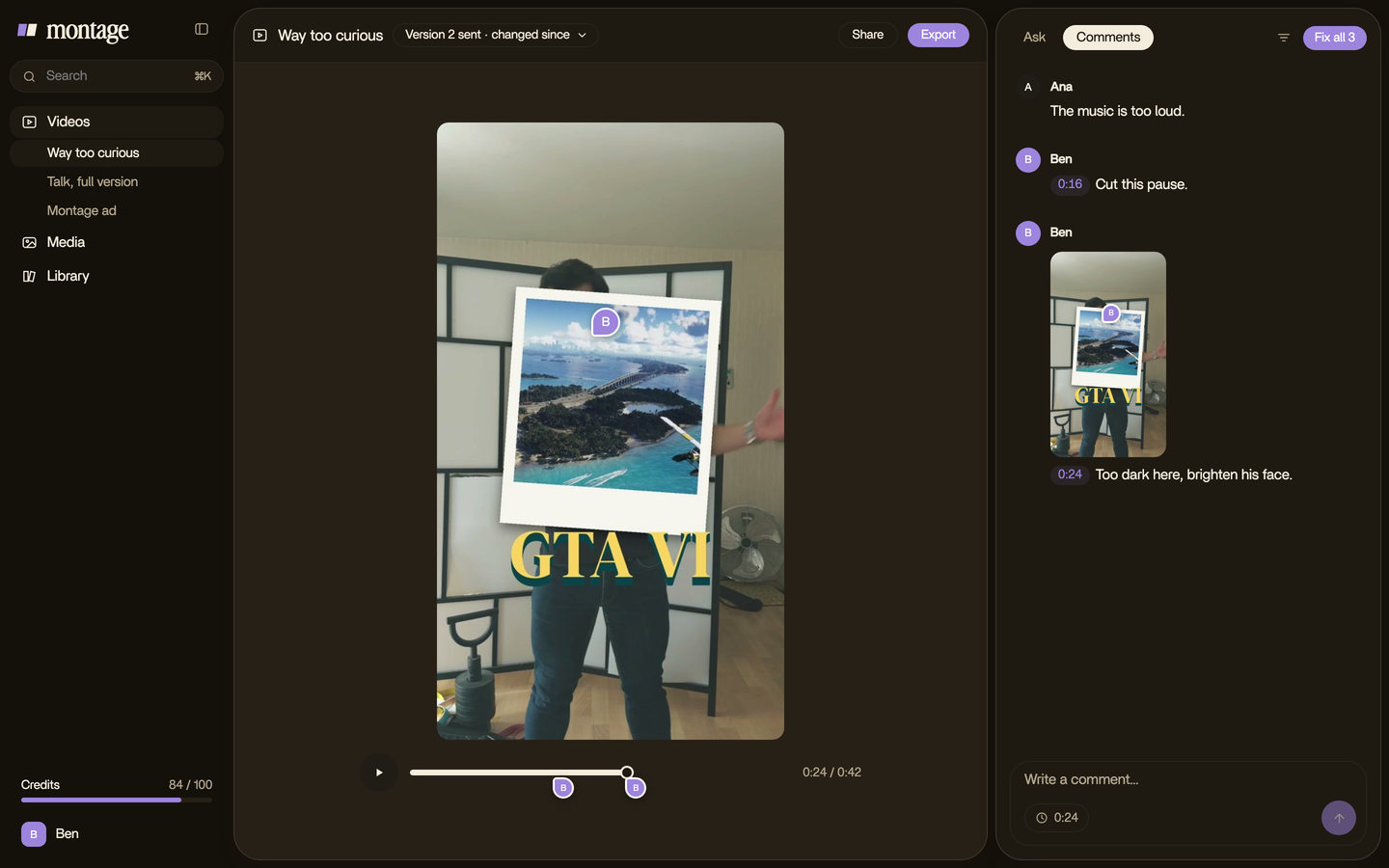
- Fix what's wrong on the video itself. This is the part that hurts on TikTok, where you fix auto captions line by line and can't touch their timing. In Montage, you pause on the wrong line and comment on the picture. Say something like « this word is "Montage", not "montaj" ». Then « Fix all ».
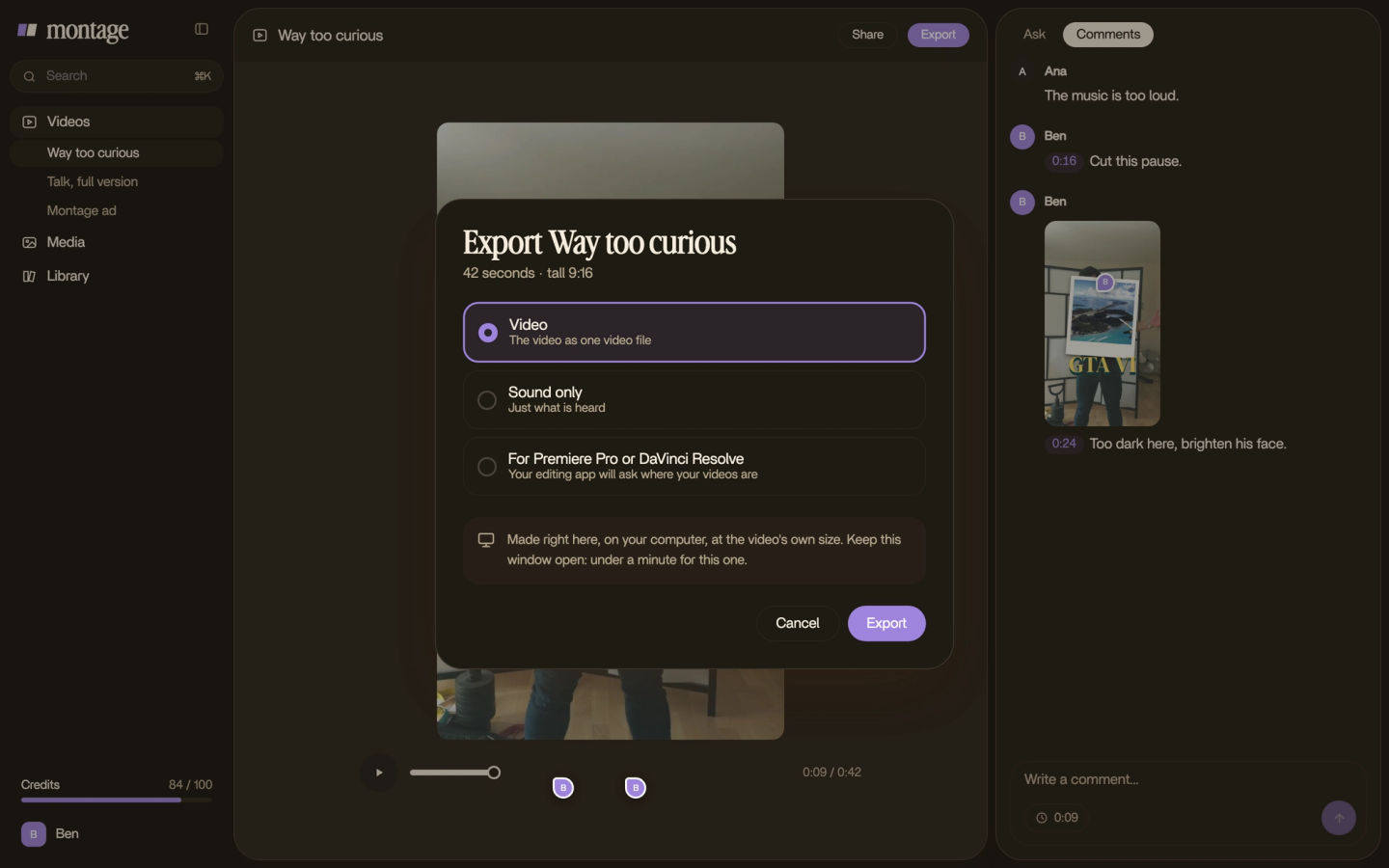
- Export the MP4 with the captions in it, at the right 9:16 size.
- Upload it to TikTok yourself, like any video.
One rule, and don't skip it: leave TikTok's Captions off on a video that already has captions burned in. Otherwise the words are on screen twice.
The three ways side by side.
Okay. Let's put them next to each other.
| Captions button | Text tool | Burned in before you upload | |
|---|---|---|---|
| Who writes the words | TikTok, from your voice | You, line by line | Your editor, from your voice |
| Viewer can turn them off | Yes | No | No |
| Fix the timing | No (riverside.com) | Yes, with Set duration | Yes, before export |
| Style one word | No | Only line by line, by hand | Yes |
| Fix after posting | Text only, within 7 days (riverside.com) | No | No: delete and repost |
| Time it takes | A few taps | Every line by hand | One sentence, then comments |
| Best for | Quick replies, simple talking videos | A few lines placed exactly | Videos where the captions are part of the look |
Sure, burning them in takes one more step than tapping a button. But for a video where the captions are the look? It's the only way to get that look.
Burned-in captions are final once posted. So fix them before you export.
How to add captions on TikTok after posting.
Can you add or fix captions once a video is live? It depends on the way.
- TikTok's auto captions: riverside.com (2026) says « Edit Captions » works on videos posted in the last 7 days. Open the posted video, tap ···, then Edit Captions.
- Text tool lines and burned-in captions: they're part of the video. You can't edit them after posting. You delete the video, fix it, and post it again.
That's why you fix everything before export. Every time.
When the Captions button is missing.
No Captions button? Riverside.com (2026) lists the usual reasons:
- You uploaded from a computer. The Captions button doesn't show for desktop uploads. Edit on your phone instead.
- Your region. The feature isn't offered everywhere.
- The file. Some files aren't supported. Export as MP4 in H.264 and try again.
And if the button still isn't there, burn the captions in before you upload. That works on any video.
Questions about adding captions on TikTok.
How do I add captions on TikTok?
Record or upload your video, then tap Captions in the toolbar on the right of the editor. Check the text, fix any wrong
word, and post.
Is it better to add captions on TikTok?
In my opinion, yes. A lot of people scroll with the sound off, and captions let them follow you anyway. On a short
vertical video, they're part of the look too.
Does TikTok automatically add captions to videos?
Not on its own. You turn auto captions on in the editor with the Captions button, then TikTok writes them from your
voice (TikTok's newsroom, 2021).
How do I add more captions on TikTok?
Use the Text tool: type a line, tap it, tap Set duration, and set when it shows. Repeat for each line you want to add.
How do I turn on subtitles on TikTok in 2026?
As a creator, tap Captions in the editor before you post. As a viewer, TikTok lets you turn captions on or off from the
share panel (TikTok's newsroom, 2021).
How do I add subtitles on TikTok?
The same way as captions. TikTok calls subtitles captions, so tap Captions in the editor after you record or upload.
Can I add captions on TikTok after posting?
Only TikTok's auto captions, and only their text: open the video, tap ···, then Edit Captions, within 7 days of posting
(riverside.com, 2026). Burned-in captions can't be changed once posted.
Is a TikTok caption the words on screen or the text under the video?
On TikTok, « caption » means both. This guide is about the words on screen, not the description you write under the
post.
See it in real videos.
Every caption in this guide was asked for in a sentence, in real TikTok-shaped videos. The four videos in the showcase show what went in and how each one was made. If you edit for TikTok, Reels and Shorts every week, here's an AI editor for TikTok, Reels and Shorts.
 9:18
 2:07
 0:56
 0:38
Posting the same video elsewhere? Here's captions on a Reel, captioning a YouTube video, a Facebook video, and TikTok's caption font, and when to use your own.
That's it for this one. Now go caption something.
See you in the next one.