How to add captions to an Instagram Reel:
three ways, step by step.
Instagram's captions toggle takes a few taps. The bold captions you see in your feed come from somewhere else. Here are the three ways, and what each one can't do.
 Ben, founder of Montage · · 8 min read
In this post10 parts
- The short answer
- Way 1: how to add captions to an Instagram Reel with the closed-captions toggle
- Way 2: the Captions sticker
- Way 3: burn styled captions in before you upload
- The three ways side by side
- Where captions go on a Reel
- Adding captions after posting
- When the captions option is missing
- Questions about adding captions to an Instagram Reel
- See it in real videos
The short answer.
Ladies and gentlemen, let's start with the answer.
To add captions to an Instagram Reel, turn on Enable closed captions under More options before you share it. Instagram listens to what you say and writes it at the bottom of the video. That's it.
There are two other ways. You can put Instagram's Captions sticker on the picture. Or you can burn styled captions into the video before you upload it. That's where the big, bold captions in your feed come from.
One thing first. On Instagram, « caption » means two things: the words on the video, and the text you write under the post. This guide is about the words on the video. The other one gets one answer in the FAQ.
And if your question is what those captions should look like, start with the best font for captions.
Way 1: how to add captions to an Instagram Reel with the closed-captions toggle.
This is Instagram's own way, and the steps come straight from Instagram's Help Center (iPhone version, read on 29 October 2026). Instagram's menus move from one app version to the next, so yours may look a little different.
On a new Reel:
- Tap Create (or swipe right from your Feed) and pick Reel.
- Choose your video and tap Next.
- Tap Next again.
- Tap More options.
- Turn on Enable closed captions. Beside it, Translate closed captions lets viewers read them in their own language.
- Share the Reel.
Instagram uses speech recognition to write what you say, at the bottom of the video. The viewer can turn them off.
What it doesn't do: your style. No font of your own, no color of your own, no word bigger than the others. OpusClip's guide says Instagram's auto captions come with only « a handful of font and color options » and can miss « jargon, brand names, or fast speech ». So read them before you trust them.
And one more limit, from Instagram's help: the toggle is not available on computers. It's in the app.
To be honest, for a quick Reel where the words are all that matter, the toggle is enough.
Way 2: the Captions sticker.
Instagram has a second thing called captions: a sticker you put on the picture.
The path, as OpusClip describes it: tap the sticker icon, pick Captions, then review the words and correct the ones it got wrong. Instagram's help adds that viewers can read the sticker translated or in its original language.
So what's the difference from the toggle? The sticker sits on the picture, where you put it, in one of Instagram's own looks. The toggle writes at the bottom, and the viewer decides if they see it.
Sure. But it's still Instagram's presets. If you want your own font, your own colors, one word drawn bigger, you need the third way.
Way 3: burn styled captions in before you upload.
So where do those nice-looking captions in your feed come from? Not from the toggle. Let me explain.
They're part of the picture. Someone put them into the video before it ever reached Instagram. Instagram doesn't know they're captions. It just plays the video.
That means any style you want. And here's how I do it in Montage.
You drop your take in. Then you say the style you want, in one sentence. Not line by line: Montage writes the captions from what you say, and you describe how they should look.
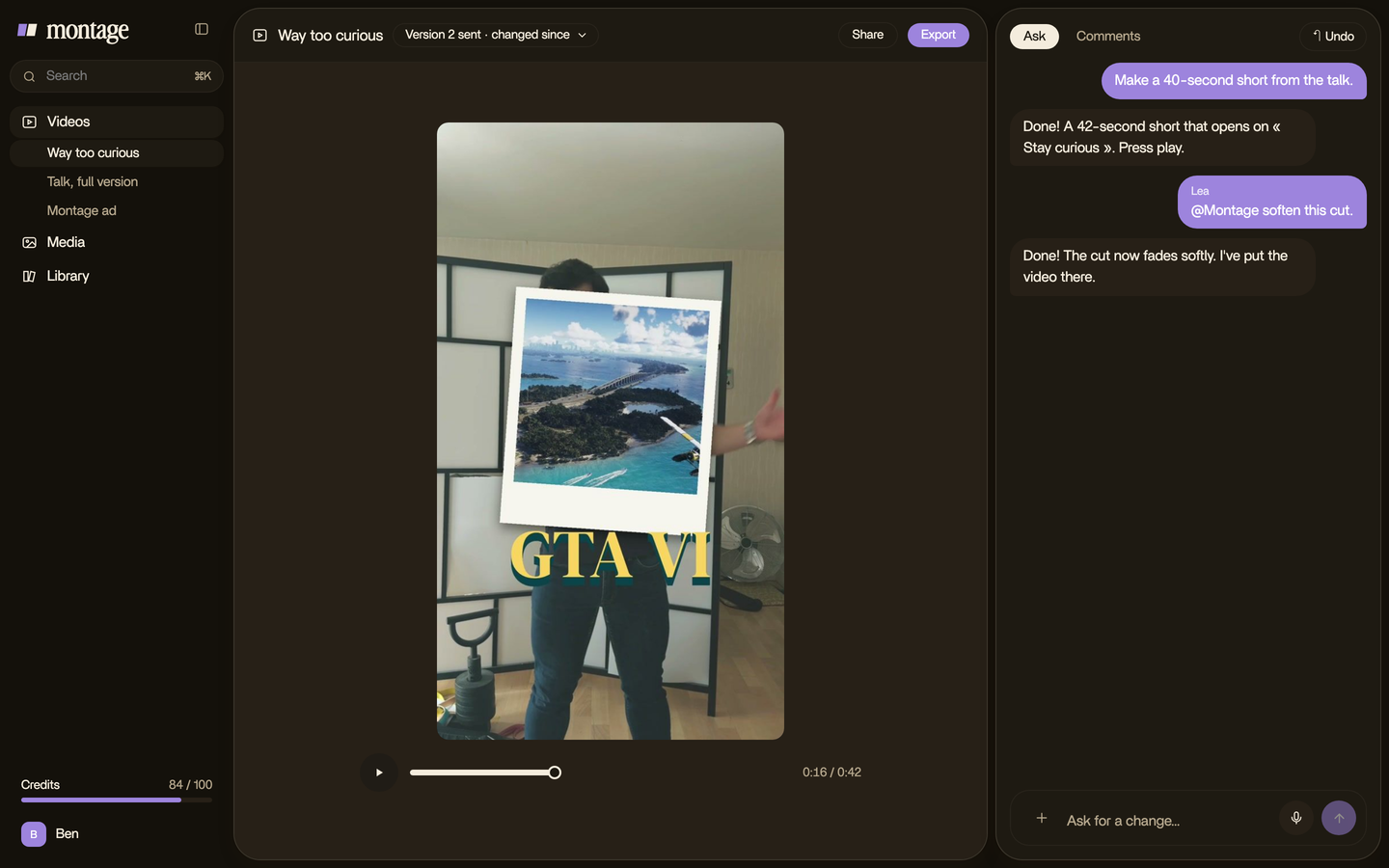
Here are three real 9:16 videos, each captioned that way.
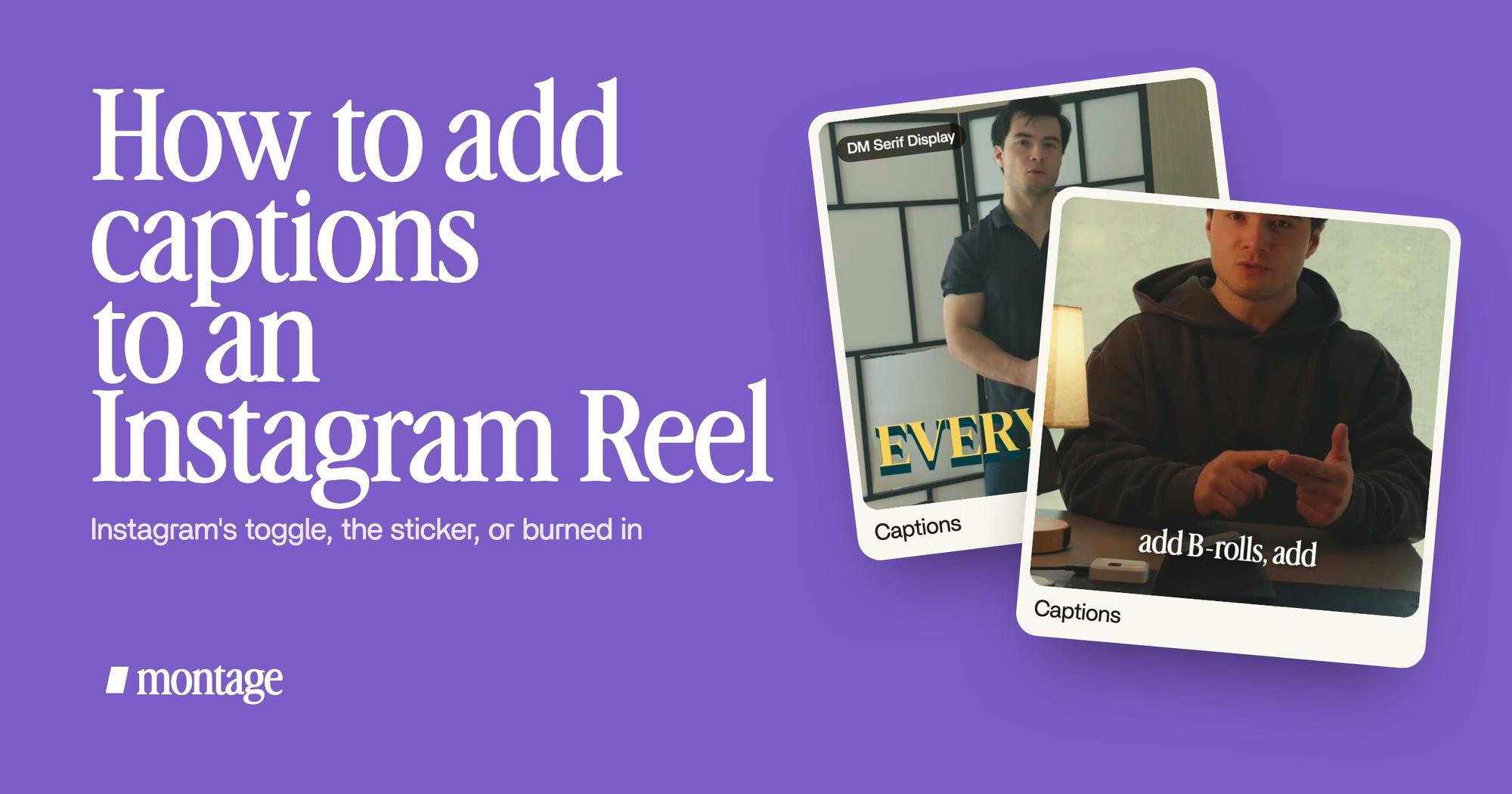
 CaptionsYellow, uppercase, a blue drop shadow, and the key word drawn bigger.
 Auto captionsEvery line on screen in my own font, timed to my voice.
 CaptionsOne line at a time, white on the take, dark on the white stage.
In Way too curious, I asked for yellow, uppercase, a blue drop shadow, and the key word drawn bigger. Neither the toggle nor the sticker makes that. In How to be creative, every line is on screen in my own font, timed to my voice. In Edit it all with AI, it's one line at a time: white on the take, dark on the white stage. The color changes with what's behind it, so it always reads.
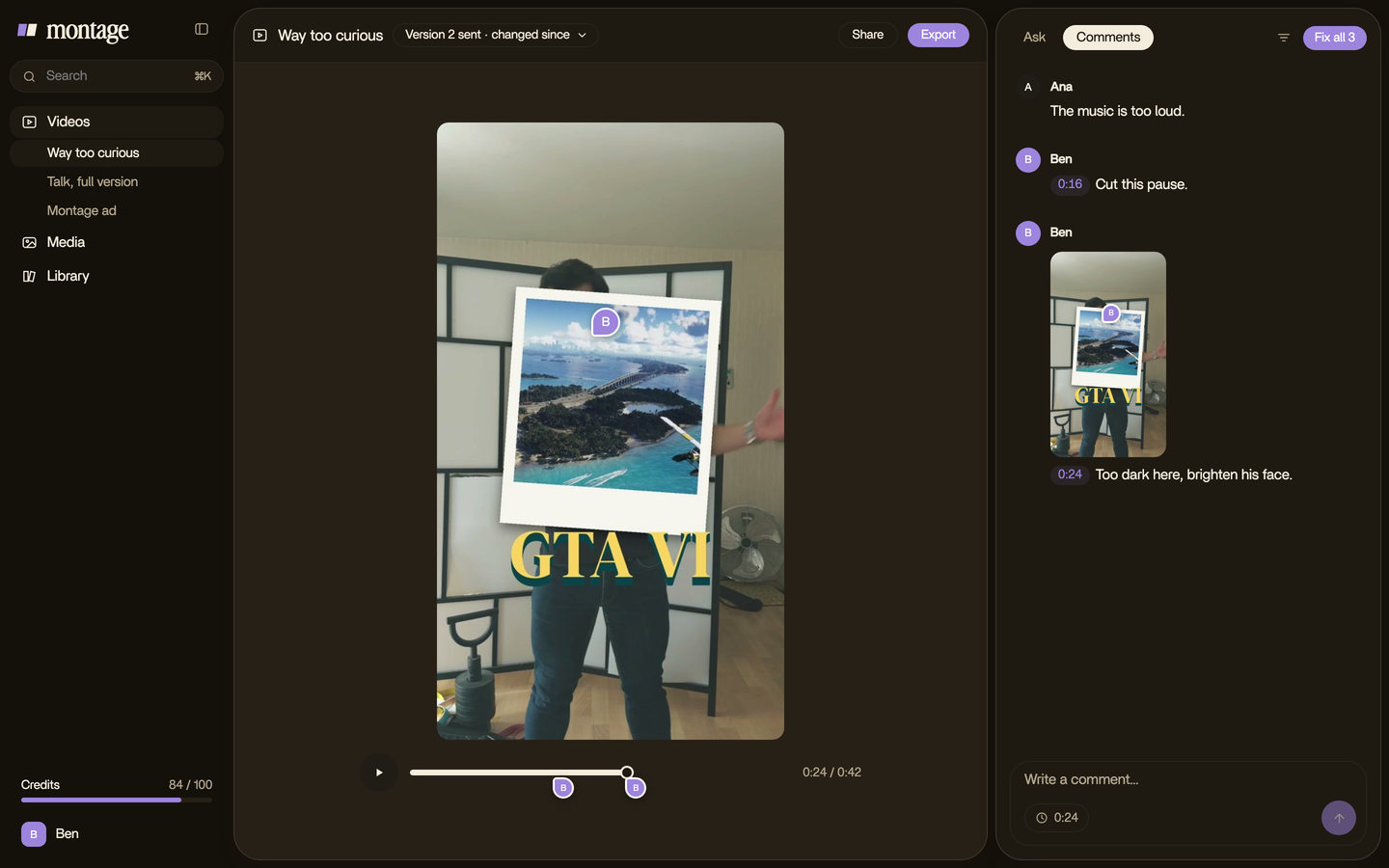
A word wrong? Fix it before you export. You pause on the line, click on the picture, and say something like « this word is "Montage", not "montage" ». Then « Fix all ».
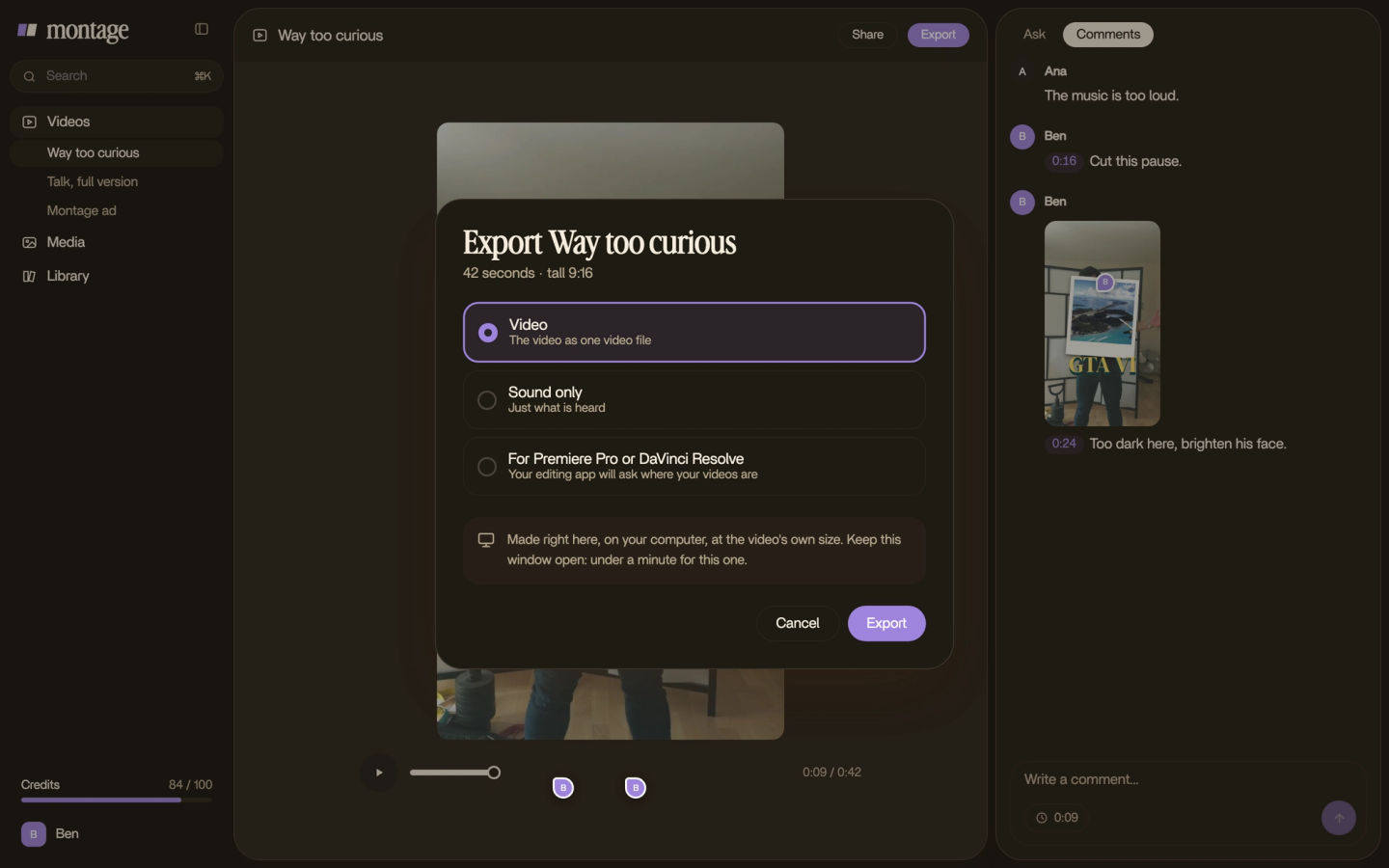
Then export the MP4, with the captions in it, and upload it to Instagram yourself as a Reel.
If your video isn't vertical yet, here's resizing a video to 9:16 for Instagram. More on captions in your own fonts and colors, and on caption styles that read on a phone.
The toggle is for the words. Burning them in is for the look.
The three ways side by side.
Okay. Let's put them next to each other.
| Closed-captions toggle | Captions sticker | Burned in before upload | |
|---|---|---|---|
| Where you do it | Instagram app, More options | Instagram app, sticker icon | Your editor, before you upload |
| Where the words sit | At the bottom of the video | On the picture, where you place it | Anywhere you want |
| Style | None of your own | Instagram's presets | Any font, any color, one word bigger |
| Can the viewer turn them off? | Yes | Not stated in Instagram's help | No, they're in the picture |
| Translation | Translate closed captions | Read translated or in the original | No |
| After posting | On or off, from Edit | Not stated in Instagram's help | Final: re-upload to change them |
| Sources | Instagram Help Center | Instagram Help Center, OpusClip |
So, which one is for you? If you just want your words readable, the toggle. If you want them to look like your brand, burn them in. You can see the same three ways on TikTok, with TikTok's own buttons.
Where captions go on a Reel.
Here's the thing: Instagram puts things on top of your Reel. Your username, the audio credit, the buttons. They sit at the top and the bottom.
So OpusClip's rule is simple: keep your captions in the center third of the frame. And remember that the toggle writes at the bottom too. One more reason your burned-in line sits higher.
Now the rule nobody says out loud. OpusClip writes « make sure the two caption layers do not overlap ». The rule that follows: if your Reel already has its captions burned in, turn Instagram's closed captions off. Same toggle, under More options. Otherwise the words show up twice.
Captions in the picture? Then the toggle stays off.
Adding captions after posting.
Can you add captions to a Reel after it's posted? With the toggle, yes. From Instagram's help:
- Go to your profile and open the Reel.
- Tap Options, then Edit.
- Tap More options.
- Turn Enable closed captions on (or off).
Instagram's help also says posted Reels « default to your caption settings ».
Burned-in captions are different. They're part of the video, so they're final once it's posted. To change them, you fix the video and upload it again. That's why you read them before you export.
When the captions option is missing.
Can't find Enable closed captions? Three things to check.
- Your location. Instagram's help says it plainly: « This feature is only available in some locations. » Flixier's page says the same: no option, probably your region.
- Your app version. Update Instagram, then look again under More options.
- Your device. It's in the app, not on a computer.
If it's still not there, burning the captions in works anywhere, because Instagram just plays the video.
Questions about adding captions to an Instagram Reel.
How do I add captions to an Instagram Reel?
Before you share it, tap More options and turn on Enable closed captions. For a style of your own, burn the captions into
the video before you upload it.
How do you put subtitles on your Instagram reel?
The same way. On a Reel, captions and subtitles are the same thing in practice, and Instagram calls them captions.
How do I post a reel with a caption?
If you mean the text under the Reel, you write it in the caption field on the last screen before you share. If you mean
words on the video, use one of the three ways above.
Why can't I read captions on reels?
Two reasons. As a viewer, your own caption setting may be off, or the option isn't available where you are. As a creator,
your burned-in captions may sit under Instagram's username and buttons: keep them in the center third.
Can I add a caption to a reel after it's posted?
Yes, the closed captions. Open the Reel, tap Options, then Edit, then More options, and turn them on. Burned-in captions
can't be added afterwards: you upload a new video.
How do I turn off captions on Instagram Reels?
On your own Reel, the same toggle: More options, then turn Enable closed captions off. Do it on any Reel that already has
its captions burned in.
See it in real videos.
The three captioned videos above are among the four videos in the showcase, each with how it was made. And if you post the same video on Reels, TikTok and Shorts, here's an AI editor for Reels, TikTok and Shorts.
 9:18
 2:07
 0:56
 0:38
Want to go further? There's the TikTok caption font, MrBeast-style subtitles, captions on YouTube, and captioning a Facebook video.
That's it for this one. Now go caption something.
See you in the next one.