Caption a Facebook video:
two ways, step by step.
There are two kinds of captions on Facebook: the ones Facebook adds to the post, and the ones in the picture. Here's how to do both, and which one I'd count on.
 Ben, founder of Montage · · 8 min read
In this post10 parts
- The short answer
- Why captions matter on Facebook
- Facebook's captions or burned-in captions: the difference
- How to caption a Facebook video with Facebook's own captions
- How to burn captions into a Facebook video
- Captions on a Facebook Reel
- When captions don't show up
- Make captions people actually read
- Questions about how to caption a Facebook video
- See it in real videos
The short answer.
Let's start with the answer.
To caption a Facebook video, you have two ways. The first one: add Facebook's own captions to the post, in the video's Subtitles & Captions settings. Facebook can generate them, you can type them, or you can upload a caption file (an SRT). The second one: burn the captions into the video before you post it, so they're part of the picture.
So which captions does Facebook need? The ones in the picture. Let me explain.
Facebook's captions are a text track on the post. They come in Facebook's look, and the viewer can switch them off. Burned-in captions are in the video itself: your font, your colors, always on, on the feed, on a Reel, and in the file when someone reposts it or sends it on.
Facebook's captions belong to the post. Burned-in captions belong to the video.
If you want to go deeper on the look itself, start with the best font for captions. Here, let's stay on Facebook.
Why captions matter on Facebook.
Why do Facebook videos have captions at all? Because people scroll with the sound off.
The 2026 guide to Facebook video captions on whisperbot.ai puts it at 85% of Facebook videos watched without sound, citing Rev's roundup of closed caption statistics. Whatever the exact number, you've seen it yourself: on a bus, in bed, at work, the phone is on mute.
So a face talking with no words on screen is a face people scroll past. Captions are also what makes the video accessible to people who are deaf or hard of hearing. That's the whole point of a CC track.
Facebook's captions or burned-in captions: the difference.
Okay. Let's put the two side by side.
| Facebook's captions (CC) | Burned-in captions | |
|---|---|---|
| Where they live | A text track on the Facebook post | In the picture of the video file |
| How you add them | In the video's Subtitles & Captions settings: auto-generate, write, or upload an SRT | In your editor, before you export |
| The look | Facebook's own | Your font, your colors, your size |
| Can the viewer turn them off? | Yes | No, they're always on |
| On a Reel | Depends on what Facebook offers where you post | The same as everywhere |
| When the file is reposted or sent on | They stay behind on the original post | They go with the video |
| Read as text | Yes, a screen reader can read them | No, they're part of the picture |
The whisperbot.ai guide sums it up well: burned-in text gives you total control of the style, an uploaded caption file keeps the accessibility settings. And captioncreator.cc makes the other point plainly: a video you caption elsewhere and download is a separate file, not an edit to a post that's already up.
So, which one? Honestly, on a Reel, I wouldn't count on CC alone. If you want the best of both, burn the captions in for the people who scroll on mute, and add Facebook's CC track too when you can, for accessibility.
How to caption a Facebook video with Facebook's own captions.
Here are Facebook's steps for a video posted from a desktop browser, as Illinois State University's accessibility help lays them out (page last modified in February 2022). Facebook moves its menus around, so the names may differ a little today.
- Start a post with Photo/Video, on your profile or your Page.
- Upload the video and give it a title.
- Open Subtitles & Captions (CC) in the video's settings.
- Pick the video's language.
- Choose how to add the captions: Auto-generate, Write them yourself, or Upload an SRT file.
- Check every line. Illinois State warns that auto-generated captions may not be fully accurate and come without punctuation. Fix names, numbers and anything misheard.
- Publish.
Two things to know. First, the same guide said in 2022 that mobile devices didn't have this option, so use a computer. Second, if you upload an SRT, whisperbot.ai's advice is to export it from the final cut, so the timing matches, and to watch the video once without sound before you post.
That's it for Facebook's own captions.
How to burn captions into a Facebook video.
Now the second way. Burned-in captions are made in your editor, then the video goes to Facebook with the words already in it.
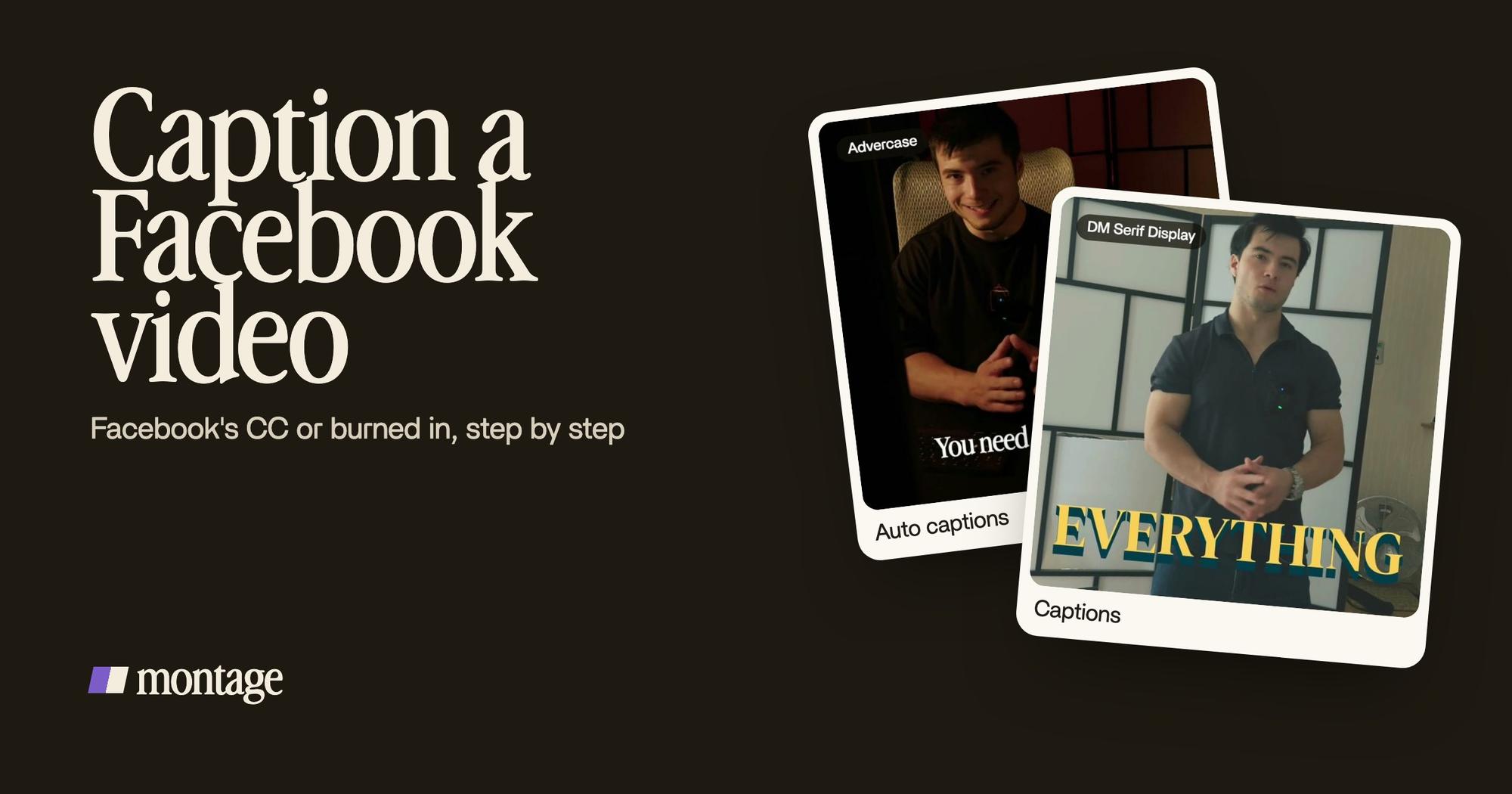
Let me show you three real 9:16 takes, the size of a Facebook Reel, each with its own caption style:
 Auto captionsEvery line on screen in my own font, timed to my voice.
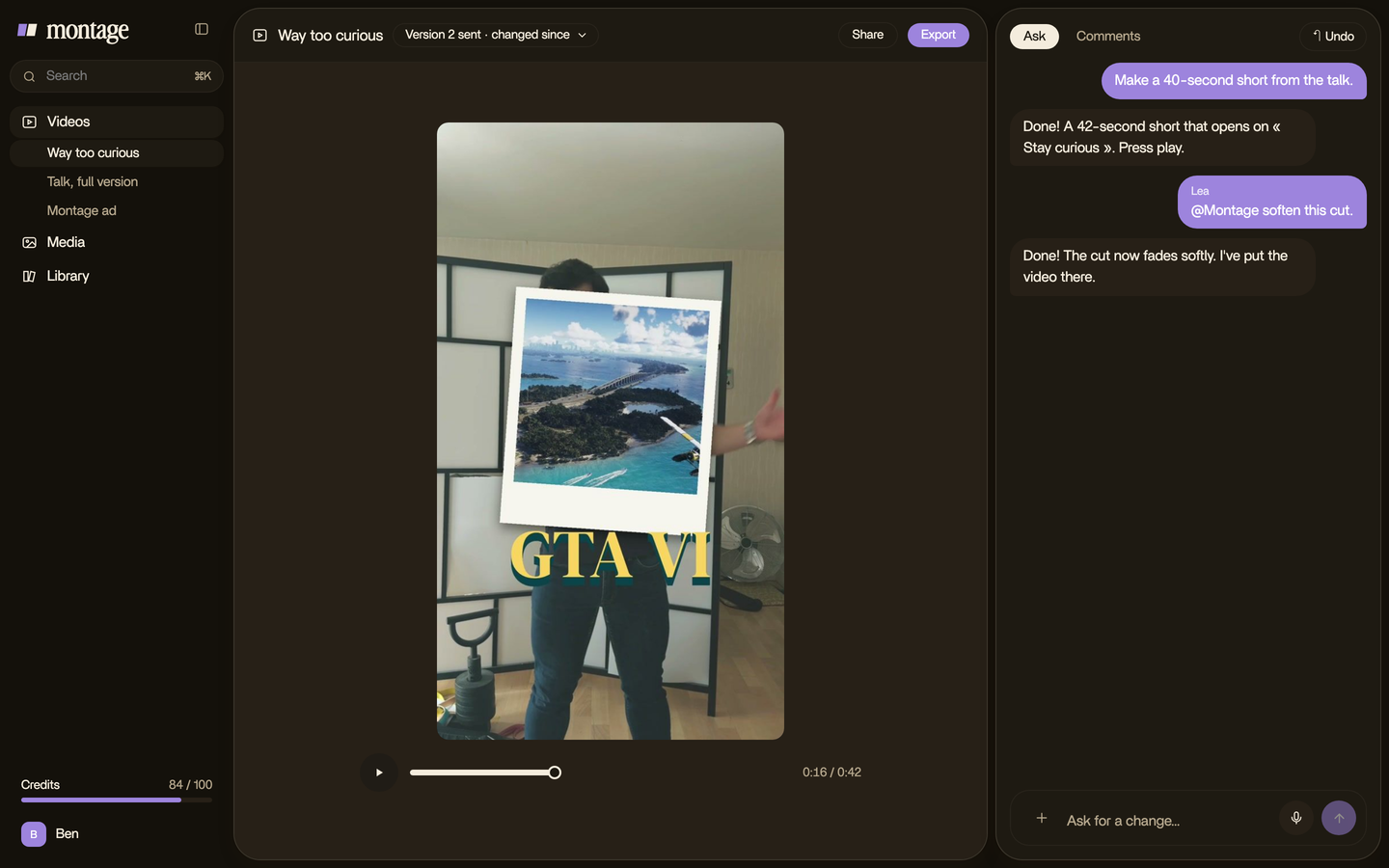
 CaptionsYellow, uppercase, a blue drop shadow, and the key word drawn bigger.
 CaptionsOne line at a time, white on the take, dark on the white stage.
In How to be creative, every line is on screen in my own font, timed to my voice. In Way too curious, yellow, uppercase, a blue drop shadow, and the key word drawn bigger. In Edit it all with AI, one line at a time, white on the take, dark on the white stage. Three different looks. None of them typed line by line.
Here's how it works in Montage:
- Drop your take in, as it is. Your own file, from your phone.
- Ask for the caption style in one sentence. « Captions in yellow, uppercase, a blue drop shadow, the key word bigger. » Montage reads every word you say and times each line to your voice.
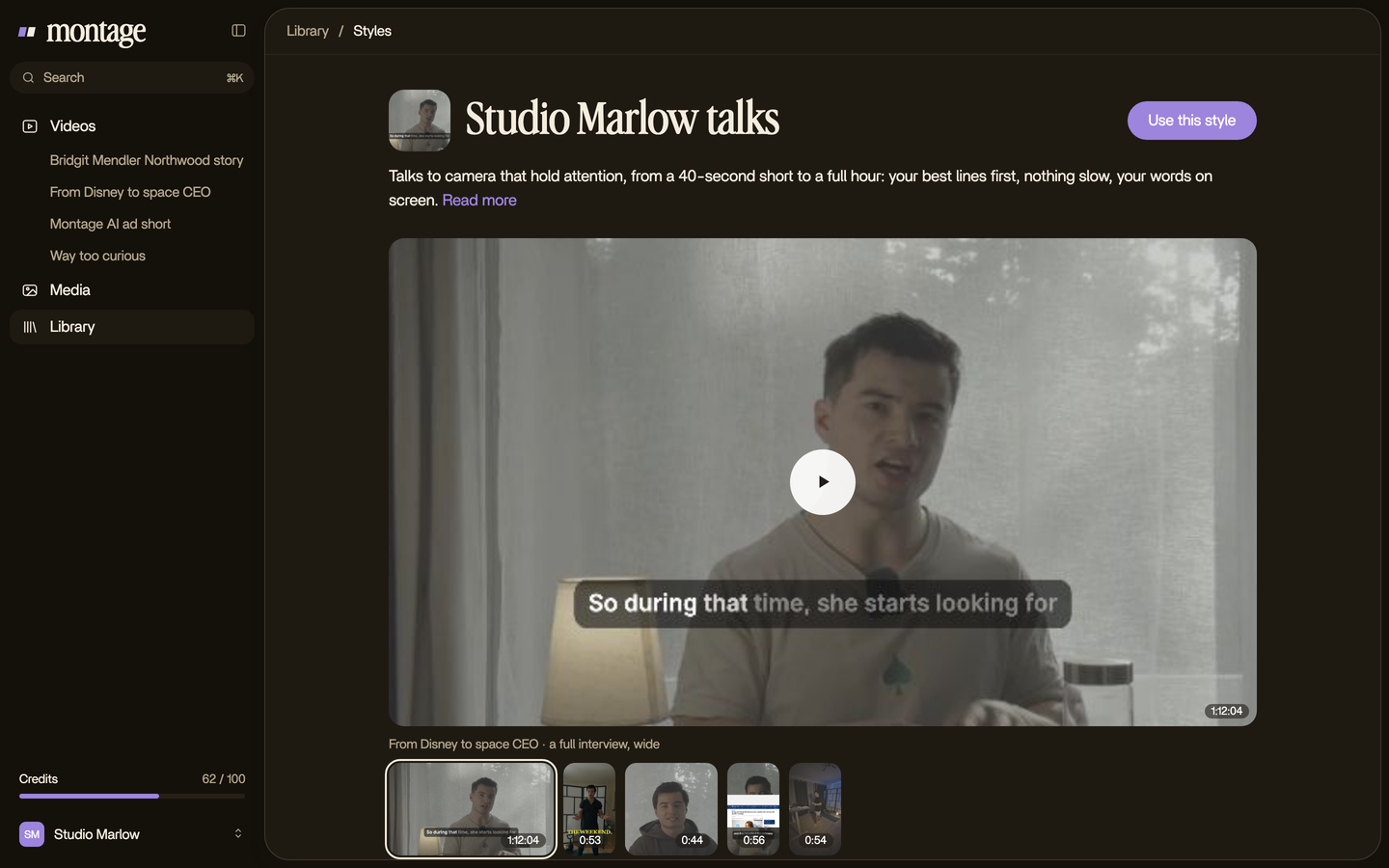
- Keep the style. Save it in the Library and reuse it on the next video, so every post on your Page looks the same.
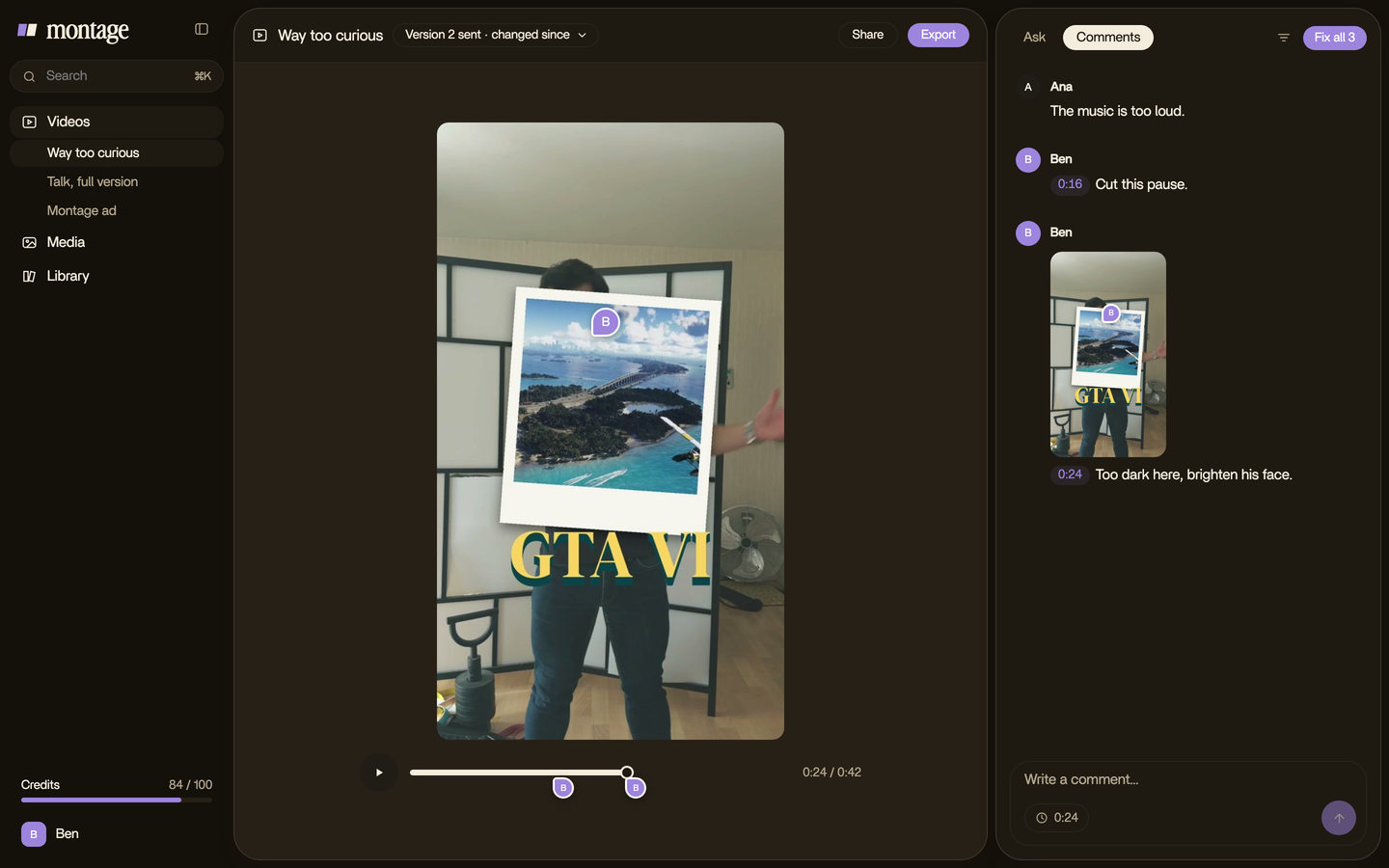
- Comment on any line that's wrong. A misheard name, a line too long to read on a phone: pause there, point at it, say what to change. Then « Fix all ».
- Export the MP4 and post it to Facebook yourself.
More on how burned-in captions in your fonts and colors work, and how to resize the same video for Reels and the feed. If you post for a business, keep your Page's fonts and colors on every video.
Let's be clear about what Montage doesn't do: it doesn't export a caption file (no SRT), it doesn't post to Facebook, and it can't caption a video that's already posted. For the CC track, use Facebook's own Subtitles & Captions settings.
Captions on a Facebook Reel.
Can you caption a Facebook Reel? Yes. And here's the thing: a Reel is where burned-in captions make the most sense.
A Reel is 9:16, full screen, and often the same video you posted on Instagram or TikTok. Captions in the picture look the same on all three, with nothing to redo per app. Keep them clear of the bottom of the frame, where the buttons and the text of the post sit, and keep each line short enough to read on a phone.
Posting the same take elsewhere? Here's how to add captions on an Instagram Reel, the closest case, then adding captions on TikTok and captions on YouTube.
When captions don't show up.
Sometimes you add captions and nobody sees them. Why?
- The viewer's caption setting is off. Facebook's CC track only shows when captions are turned on where it's watched.
- The CC track was never added. Check the video's Subtitles & Captions settings.
- The SRT doesn't match the cut. If you trimmed the video after making the file, the timing is off. Export the SRT again from the final cut.
Burned-in captions don't have this problem. They're in the picture, so they always show.
Make captions people actually read.
A few rules that work on any Facebook video:
- Short lines. One line at a time, a few words each.
- Big enough for a phone. If you squint on your own screen, it's too small.
- One word bigger when it matters, like in Way too curious.
- Contrast. Light words on a dark picture, dark on a light one, or a shadow behind them.
- Watch it once on mute before you post. If it makes sense without sound, it's ready.
Want ideas? Here are caption styles that read on a phone, MrBeast-style subtitles, and the font TikTok captions use.
Questions about how to caption a Facebook video.
Can I add captions to a video in Facebook?
Yes. On a computer, open the video's Subtitles & Captions (CC) settings, pick the language, then auto-generate, write or
upload an SRT file, check each line and publish. Or burn the captions into the video before you post it, so they're
always on.
Why are captions not showing up on Facebook videos?
Either the viewer has captions turned off, or the CC track was never added to the post. Burned-in captions always show,
because they're part of the picture.
Why do Facebook videos have captions?
Because a lot of people watch Facebook with the sound off, and because captions make the video accessible to people who
are deaf or hard of hearing.
Can I caption a Facebook Reel?
Yes. Burning the captions into the Reel before you post is the surest way: they show the same on Facebook, Instagram and
TikTok.
What is a good caption for a Facebook video?
If you mean the text written above the post: one line that says what the video is, in a sentence or two. Say it plainly,
and let the video do the rest.
See it in real videos.
Every caption in this guide is from a real video, asked for in a sentence. The four videos show what went in and how each one was made.
 9:18
 2:07
 0:56
 0:38
That's it for this one. Now go caption something.
See you in the next one.