Explainer video examples:
what's inside the ones you can copy.
Most lists of explainer video examples show you what studios made. Here are three made by one person filming himself, taken apart moment by moment, and the famous ones sorted by what you can copy.
 Ben, founder of Montage · · 8 min read
In this post9 parts
- The short answer
- Example 1: a product explainer in 38 seconds
- Example 2: an idea explainer you can film in your room
- Example 3: a person explainer, one picture per word
- Explainer video examples, sorted by what you can copy
- How long the examples are
- How these three were made
- Questions about explainer video examples
- See them whole
The short answer.
Let's start with the answer, because that's what you came for.
The best explainer video examples for you are the ones you can actually make. An explainer video is a short video that explains one thing: a product, an idea, or a person. It says the problem, shows the answer, and tells you what to do next.
Here are the three I'll take apart, each one explaining something different:
- A product: Edit it all with AI, 38 seconds, vertical. It explains Montage.
- An idea: How to be creative, 2 minutes 7 seconds, vertical.
- A person: Way too curious, 56 seconds, vertical.
All three were filmed by one person, me, and edited by asking Montage, in plain sentences. After them, the famous explainers from the big lists, sorted by what one person can copy. If you want ads more than explainers, here are more video ad examples, taken apart.
So what do the good ones have in common? Let me explain.
Say the thing. The thing appears.
When you say a word, the thing you're talking about is on screen. The words are on screen too, for everyone watching with the sound off. And there's one part you make once and reuse. That's the whole pattern. You'll see it in all three.
Example 1: a product explainer in 38 seconds.
What it explains: Montage, the product. Length: 0:38, 9:16. Watch it: the 38-second product explainer, whole.
 ComponentsThe hook: a white Instagram reply, made as a component and reused. Click to watch it on its own.
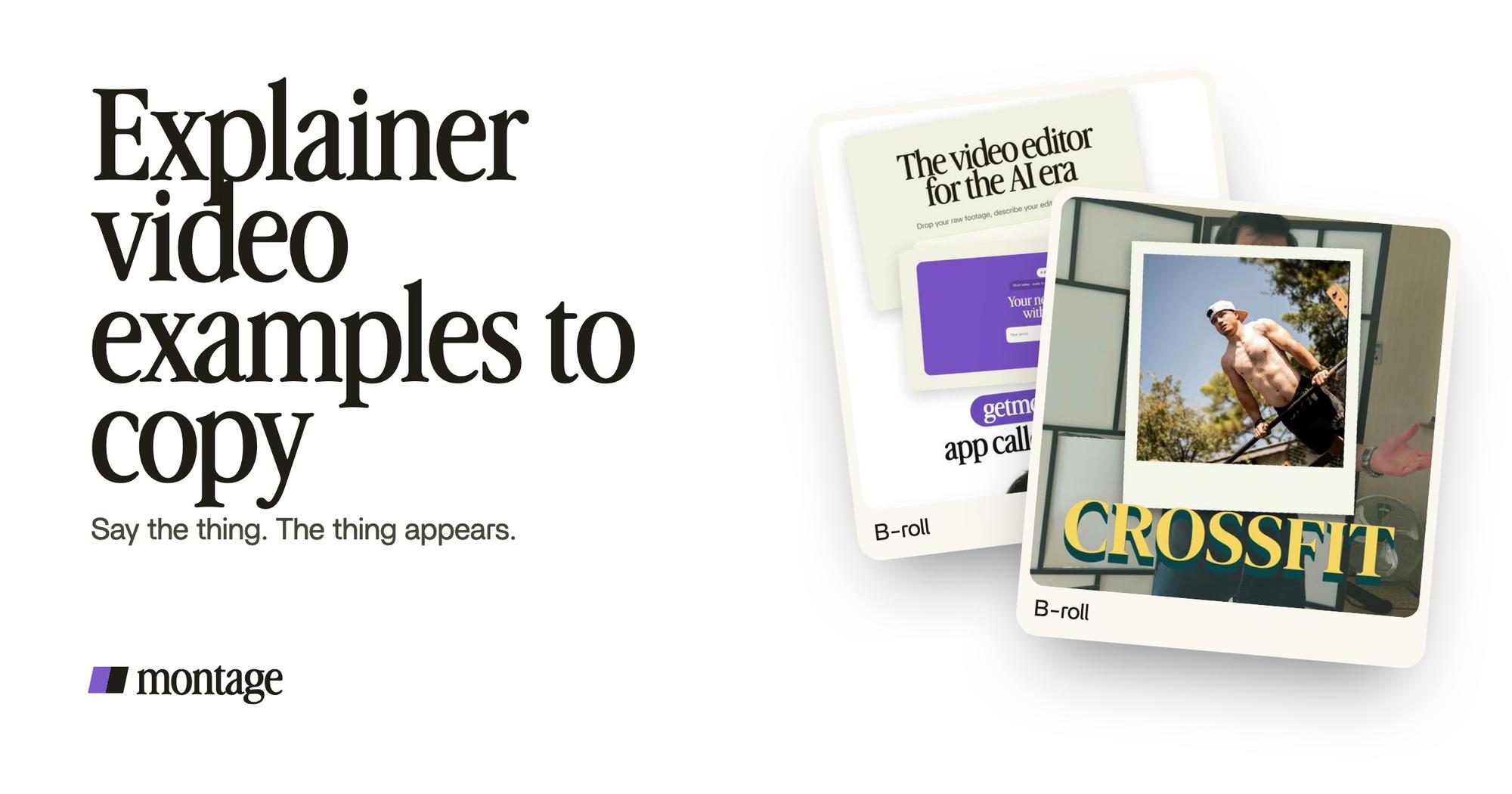
 B-rollThe site drops in on a white stage while I say « go to this app called Montage ».
 Motion designThe product card: frosted at 80 %, a fisheye, a big glow, swiped in from the right. Click to watch it on its own.
What's on screen, and when:
- The hook is a white Instagram reply. It was made as a component and reused.
- The product, at the word. The site drops in on a white stage while I say « go to this app called Montage ». Not before, not after. You can drop the real thing in at the word like this in any video.
- The product card: frosted at 80 %, a fisheye, a big glow, swiped in from the right.
What to copy: open on something your viewer already knows (a reply, a comment, a question). Then show the product the moment you name it. A product explainer doesn't need a cartoon of your product. It needs your product.
Example 2: an idea explainer you can film in your room.
What it explains: an idea, how to be creative. Length: 2:07, 9:16. Watch it: the two-minute idea explainer.
 B-rollWhile I talk, it cuts to the right shot: the book, the notebook, the whiteboard.
 Auto captionsEvery line on screen in my own font, timed to my voice.
 RotateThe notebook shots were filmed from above, upside down. Montage turned them the right way up.
What's on screen, and when:
- The right shot at the right line. While I talk, it cuts to the book, the notebook, the whiteboard.
- Every line on screen, in my own font, timed to my voice.
- The notebook shots were filmed from above, upside down. Montage turned them the right way up.
What to copy: an idea is invisible. So film the objects that hold it: the book you read it in, the page you wrote it on, the board you drew it on. And put the words on screen. Here's how to get captions for the muted feed in your own font.
Honestly, I think that's the part a filmed explainer skips most easily: a face, talking for two minutes. The face is fine. But the idea needs something to look at.
Example 3: a person explainer, one picture per word.
What it explains: a person, me, and what I love. Length: 0:56, 9:16. Watch it: the 56-second person explainer.
 B-rollI say CrossFit, my photo drops in. One picture for each thing I love.
 ComponentsThe Photo drop is a component Montage made from my words: I say GTA VI, it drops in.
 CaptionsYellow, uppercase, a blue drop shadow, and the key word drawn bigger.
What's on screen, and when:
- One picture for each thing. I say CrossFit, my photo drops in.
- The Photo drop is a component Montage made from my words: I say GTA VI, it drops in.
- Captions: yellow, uppercase, a blue drop shadow, and the key word drawn bigger.
What to copy: make one part once, then use it every time. Here it's the Photo drop. In the first example, it's the Instagram reply. These are parts you make once and reuse, so the second video looks like the first.
One part, made once. Every video after that looks like yours.
Explainer video examples, sorted by what you can copy.
Okay. Now the famous ones.
Most lists of explainer video examples (Columnfive's 50, Piehole's, PlayPlay's 12, Clipchamp's 15) show finished videos made by studios and big brands, sorted by animation style. Six of the seven written pages at the top of Google are by a studio or a tool selling the making of one. Fair enough. But they don't tell you which ones you could make yourself.
So here they are, sorted that way. I describe each example only as its source describes it.
| Style | Example (and its source) | What it needs | One person with a phone? |
|---|---|---|---|
| Animation (2D) | Dropbox's animated explainer, 53 seconds (Clipchamp); Piehole's 2D character style | Illustrators and animators, or a template tool | No |
| 3D and isometric | Piehole's 3D and isometric styles | A 3D studio | No |
| Whiteboard | Piehole's and Loom's whiteboard style | An illustrator, or a template tool | No |
| Kinetic typography | Loom's « kinetic typography » type | Words that move on screen | Partly: captions and animated text on your own footage |
| Screencast | Loom's screencast type; Piehole's software demo with real recorded screens | A screen recording | Yes |
| Picture-in-picture walkthrough | Microsoft Flight Simulator's walkthrough (Clipchamp) | A screen recording and a face cam | Yes |
| Live action with a presenter | Samsung Galaxy S23, which « feels more like a YouTube review » (Clipchamp) | A camera, a presenter, the real product | Yes, if you film yourself |
| Self-captured on phone or laptop | Piehole's style: footage you shoot yourself; the trick, Piehole says, is to « supplement the footage with graphics and dynamic typography » | A phone, and an edit | Yes: like the three above |
| No voiceover | Dyson (Clipchamp) | Strong pictures, words on screen | Yes |
Loom calls live action « expensive »: high-definition cameras, professional lighting, multiple actors. That's true for a brand shoot. For a creator or a founder talking to a phone? It's the cheapest one on the list.
So how do you pick a style? b2w, a studio, has the clearest rule on this: motion graphics are for when « the idea is easier to draw than to film ». And mixed media is right when one shot shows « something real » and « something invisible ».
If you can film it, film it. If it's easier to draw, animate it.
Let's be clear about where Montage stops. Montage edits what you film and record. It doesn't make an animated explainer from a script, and it has no avatars, no AI voice-over, no cartoon characters. If your idea can't be filmed, a studio or a template tool is the right call. If it can, you're the presenter.
How long the examples are.
Here are the real lengths, from the examples themselves:
| Example | Length | Source |
|---|---|---|
| Edit it all with AI (a product) | 0:38 | Montage showcase |
| Dropbox | 53 seconds | Clipchamp |
| Way too curious (a person) | 0:56 | Montage showcase |
| How to be creative (an idea) | 2:07 | Montage showcase |
| GoPro | almost 10 minutes | Clipchamp |
PlayPlay and Clipchamp both advise 60 to 90 seconds. PlayPlay adds a hook in the first 5 seconds, then the problem, the solution, how it works, and a call to action.
My take? Short explainer video examples like the first and third work for one thing: a product, a person. An idea took two minutes. Make it as long as the thing takes to explain, and not a second more.
How these three were made.
Short version. I filmed myself, dropped the takes in, and said what I wanted, in sentences: my photo when I say CrossFit, the captions in my own font.
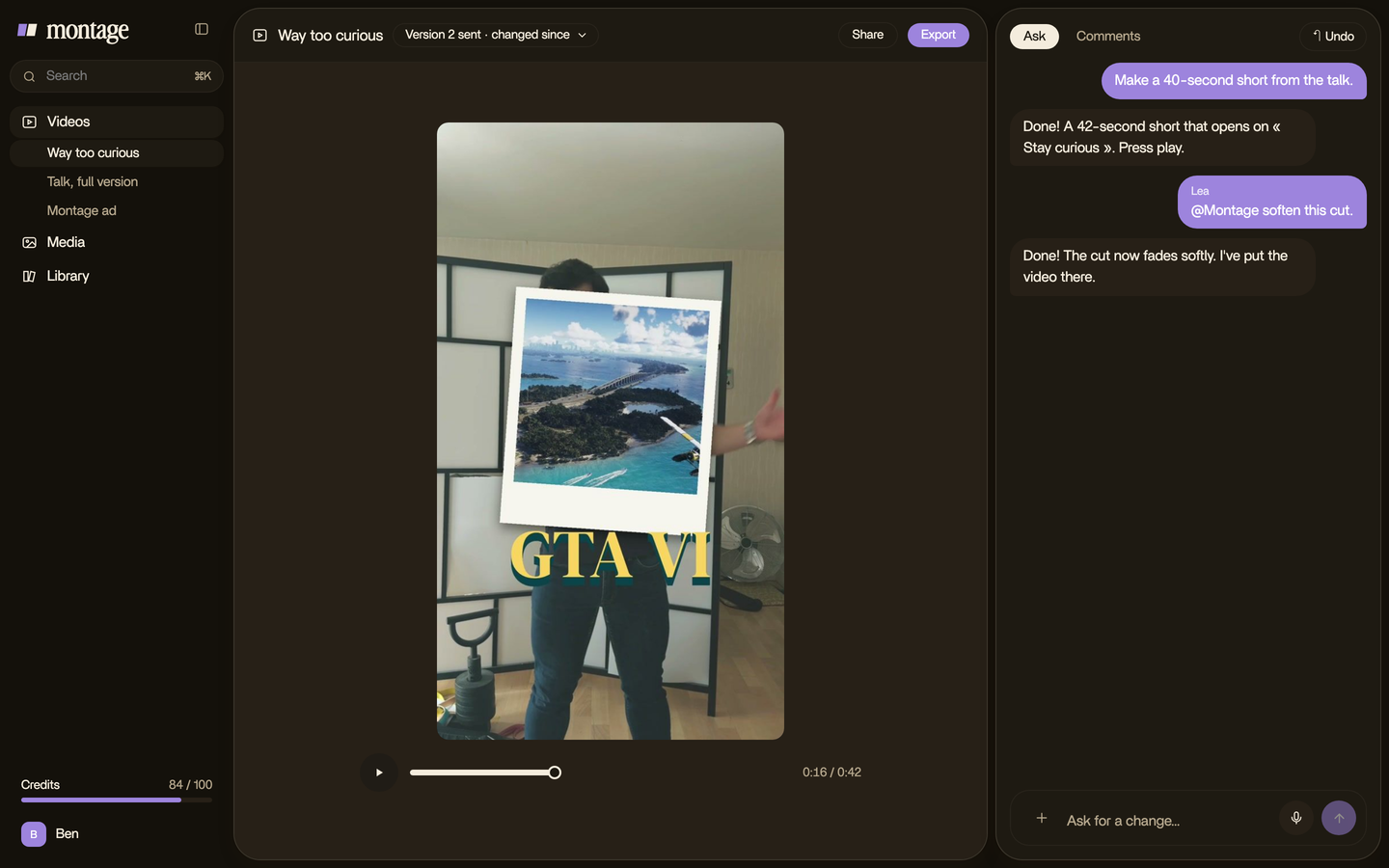
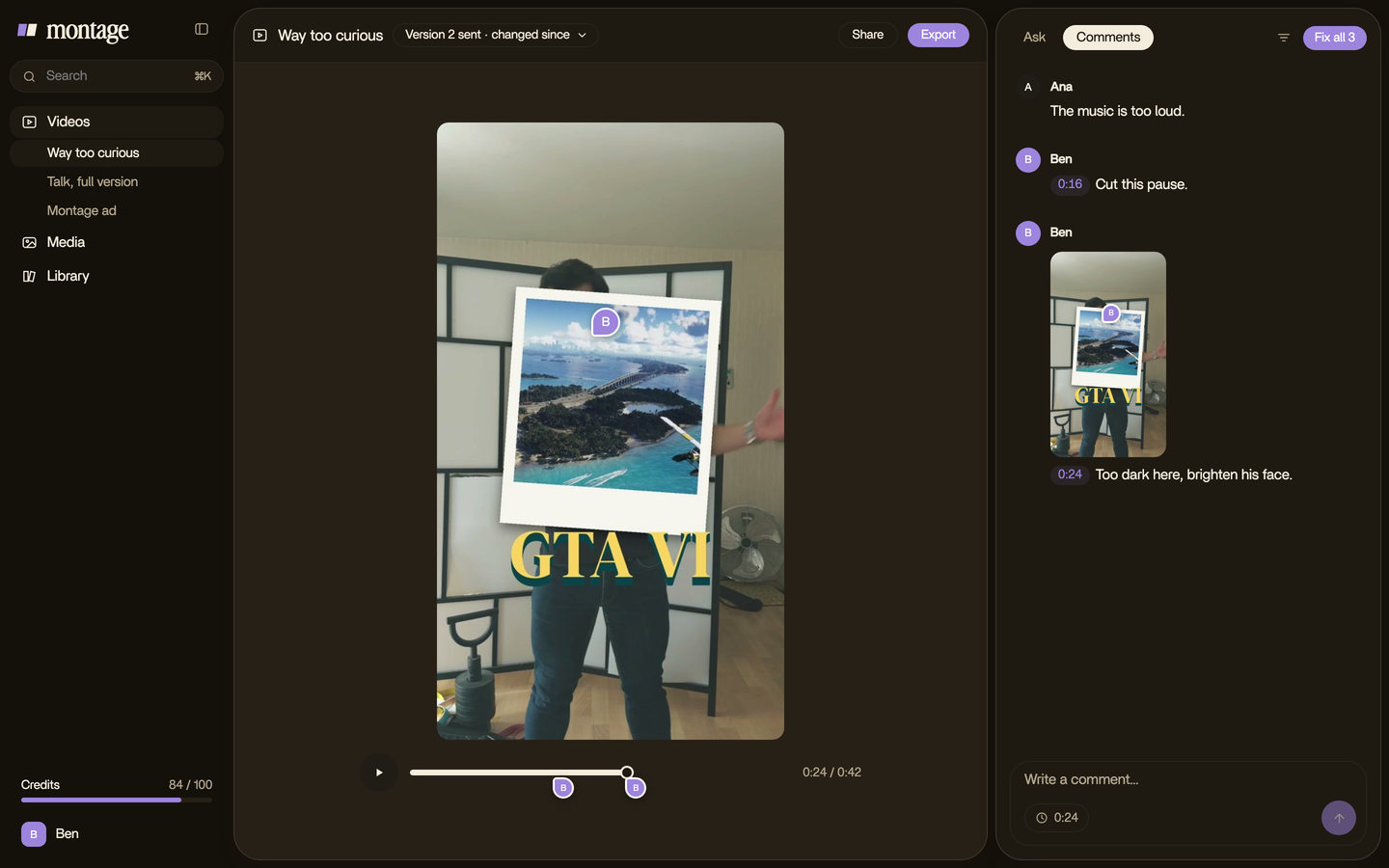
Then you watch it, and comment on the moment that's wrong, right on the picture.
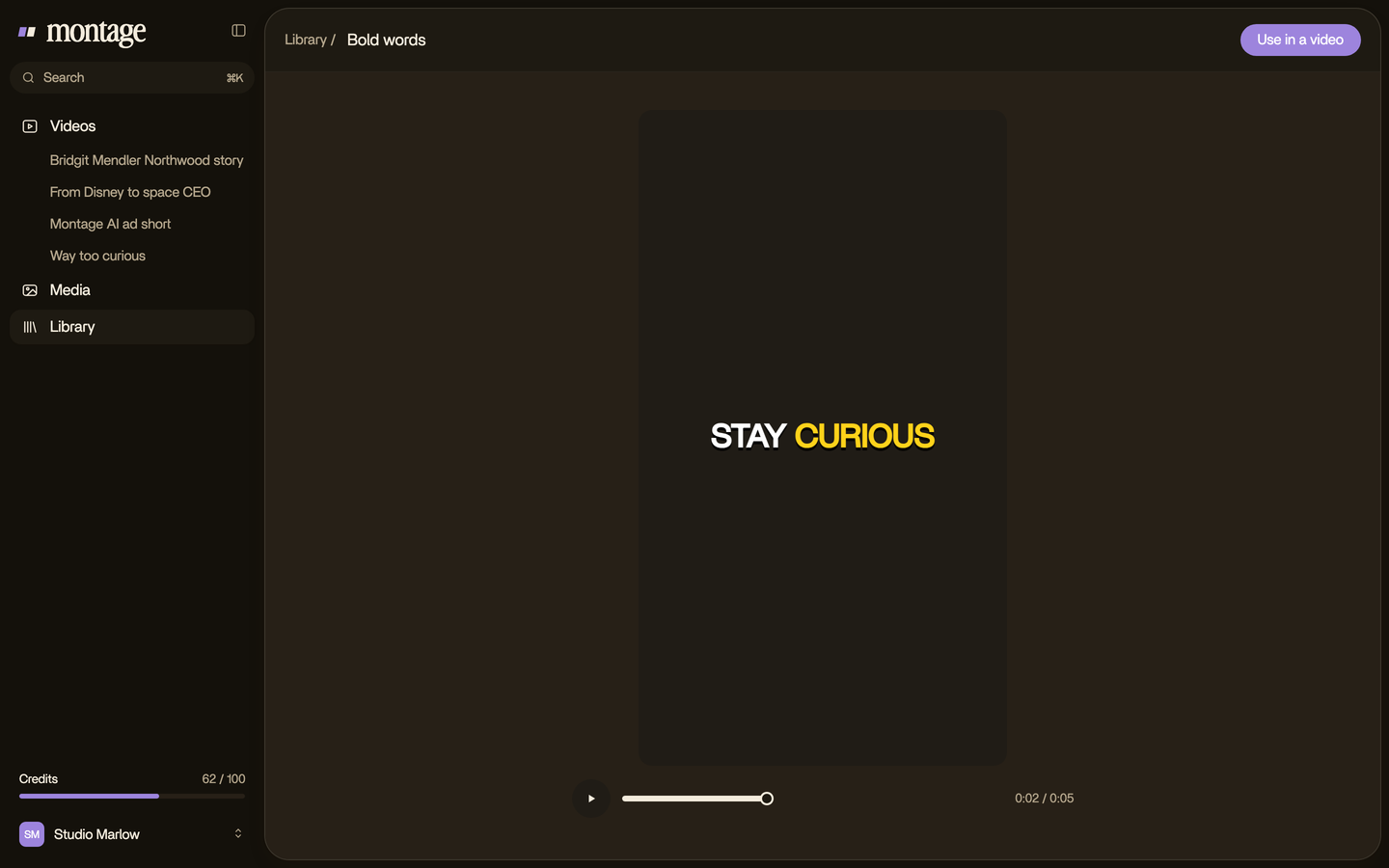
And the parts worth keeping, like the Photo drop or the Instagram reply, stay as components for the next video.
That's it. For the full process, here's how to make an explainer video, step by step. Explaining software? See an explainer for software, or turn a screen recording into a product demo video, and here's a demo from a screen recording in Montage. Launching something? Read about a launch video. And for paid placements: Instagram video ads and examples from LinkedIn.
Questions about explainer video examples.
What are some of the best explainer video examples?
If you film yourself, the three here: Edit it all with AI for a product, How to be creative for an idea, Way too
curious for a person. For the famous ones by style: Dropbox for animation and Dyson with no voiceover (Clipchamp),
Samsung Galaxy S23 for live action (Clipchamp), Microsoft Flight Simulator for picture-in-picture (Clipchamp), and
Piehole's and Columnfive's lists for every animation style.
What is an explainer video?
A short video that explains one thing: a product, an idea, or a person. It names the problem, shows the answer, and ends
on what to do next.
How can I create an explainer video?
Write what you'll say, film it on your phone, and show the thing at the word you say it. Then add captions. Here's the
full how-to.
Can ChatGPT create explainer videos?
ChatGPT can draft the script; Loom suggests it for a first draft. It doesn't film your footage or edit it. For that, you
need a camera and an editor.
How long should an explainer video be?
PlayPlay and Clipchamp advise 60 to 90 seconds. The three examples here run 38 seconds, 56 seconds, and 2 minutes 7 seconds.
As long as the thing takes to explain.
See them whole.
Reading about an edit only goes so far. Here are the videos, each one opening its page in the showcase.
 9:18
 2:07
 0:56
 0:38
That's it for this one. Now go explain something.
See you in the next one.