How to make a product demo video:
step by step.
A product demo video is your product doing one job, with you saying why, cut so nothing waits. Here's how to make one, with a real 38-second demo taken apart.
 Ben, founder of Montage · · 9 min read
In this post9 parts
- The short answer
- What a product demo video actually is
- What to record before you edit
- How to make a product demo video, in four steps
- A real 38-second demo, taken apart
- The three ways to make a product demo video
- The mistakes that make a demo drag
- Questions about making a product demo video
- See it in real videos
The short answer.
Let's start with the answer, because that's what you came for.
To make a product demo video, you record your product doing the one job it's for, you record yourself saying why it matters, and you cut the two together so nothing waits. The product shows up on the word that names it. Captions go on, because a lot of demos play on mute. Then you export it for the place it lives: the site, a launch, a sales email.
That's it. Four steps. No studio, no editor on the team.
If you want to see where a demo fits next to the other kinds of video a founder makes, start with these video ad examples. And if you already have a screen recording and want to turn it into a product demo from a screen recording, that page shows the short version.
Say it, then show it.
What a product demo video actually is.
So what is a product demo, really? Let me explain.
It isn't a tour of every button. It's one problem, solved on screen, in the order a customer would live it. Vimeo's guide to software demos puts it as problem, solution, outcome (vimeo.com). I think that's the whole recipe.
Loom's guide splits demos by length (atlassian.com): an introductory demo runs 2 to 3 minutes, a full walkthrough 15 to 30. For a landing page or a launch post, you want the short kind. Shorter, even. The one I'll take apart below is 38 seconds.
Here's the thing: most founders don't lack a demo. They have the recording. It's sitting on the desktop, never edited. Honestly, a demo is mostly cutting the waiting: the loading, the typing, the « okay, so… ». Cut that, and what's left is usually good.
What to record before you edit.
Two recordings, not one.
- The screen. Your product doing the job, start to finish. Close the other apps, slow down, and click like someone is watching, because someone is. Do it two or three times. You'll keep the clean run.
- You. One take of you, to the camera or as a voice, saying what the product does for the person watching. Say each line twice.
Why separate? Because talking while you click makes both worse. HowdyGo's co-founder gives the same advice in his guide to demo videos (howdygo.com): capture first, narrate after.
And when you write your lines, write the benefit, not the button. « Your invoices go out on their own » beats « Click the Send button ». HowdyGo says that too, and he's right.
How to make a product demo video, in four steps.
Here's how I'd do it today.
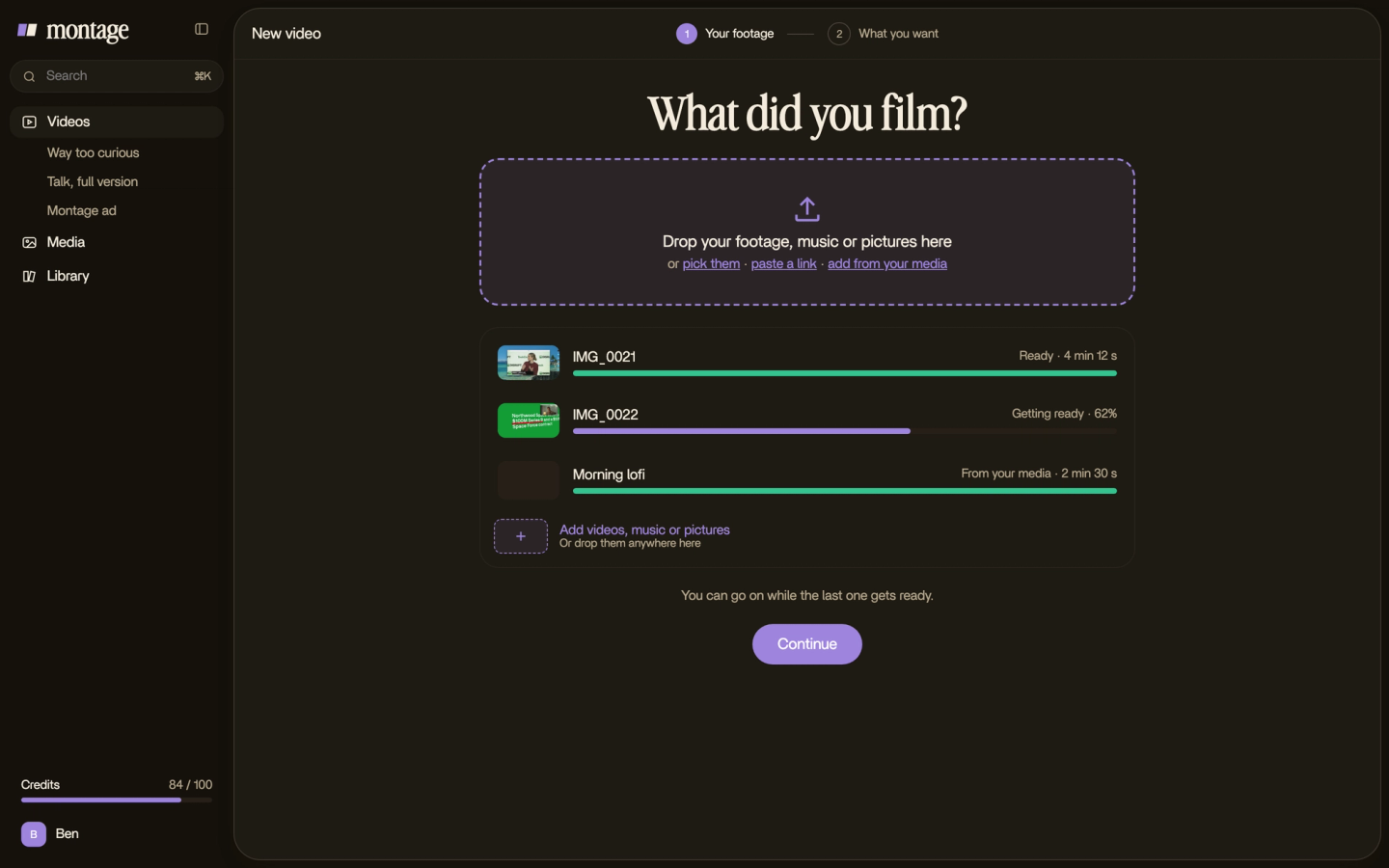
1. Bring the two recordings in
Drop the screen recording and the take of you into the editor, as they are. No sorting, no renaming.
2. Say the edit
Now, instead of placing clips on a timeline, you describe the demo. Something like this: « A 40-second vertical demo. Cut the waiting and the retakes. A zoom on the click that matters. Show the site when I say its name. Captions, one line at a time. My logo at the end. »
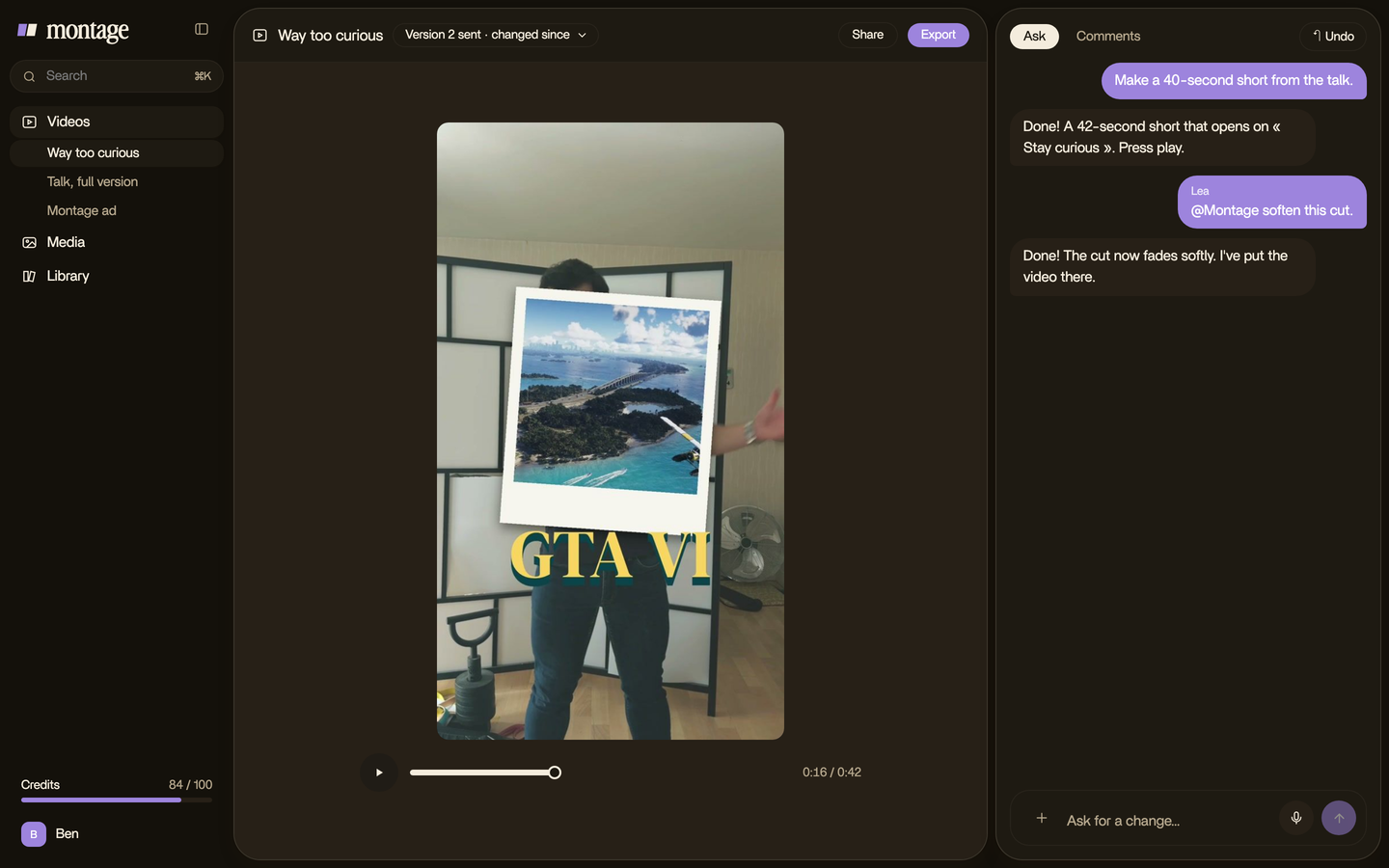
That one paragraph is the whole brief. And « show the site when I say its name » isn't a wish: you'll see it in the real demo below.
3. Fix it by commenting
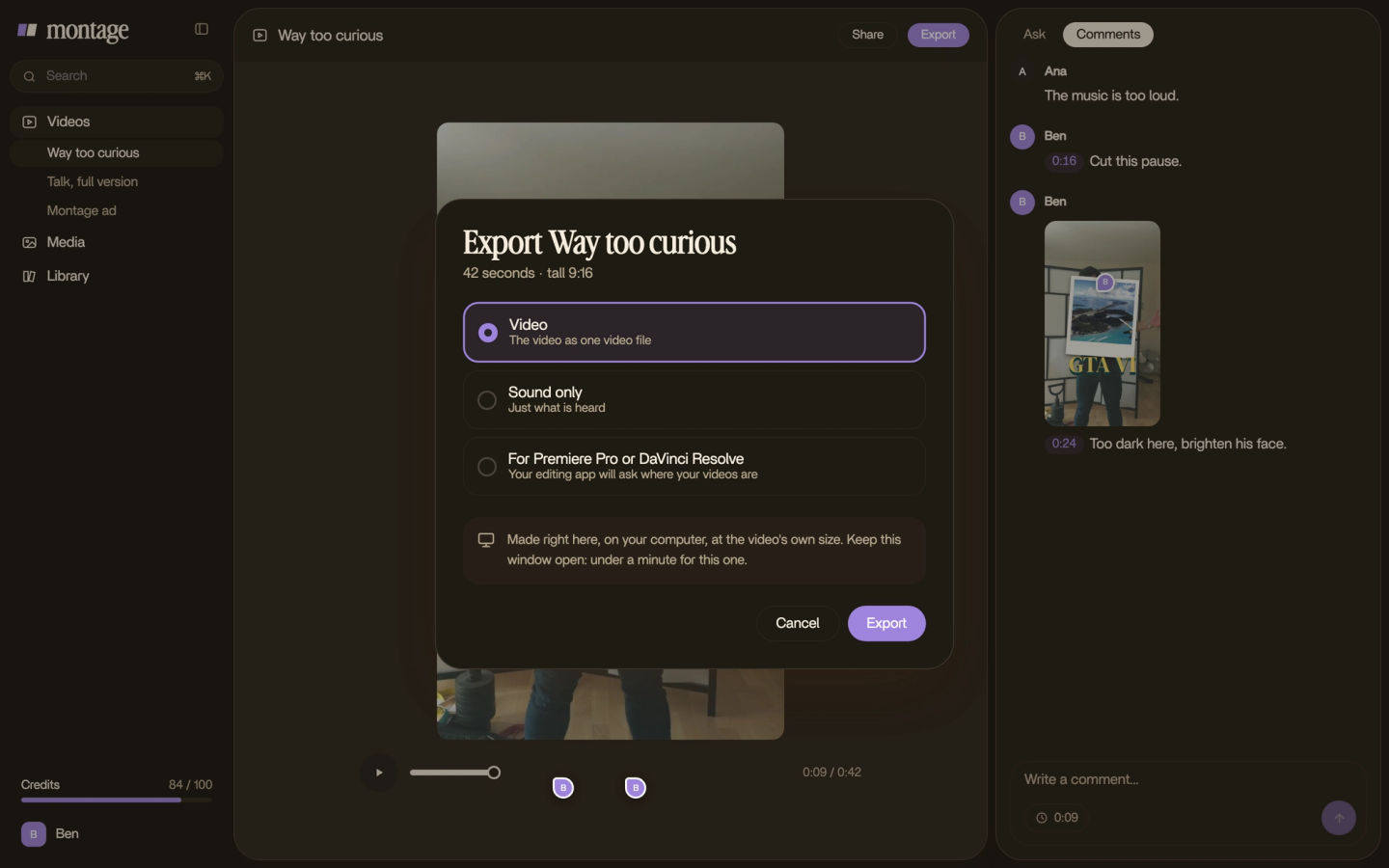
Watch it once, all the way through. Then pause on the moment that's wrong, click on the picture, and say what's wrong there: « the zoom is too early », « hold the product card one second longer ». Then « Fix all ».
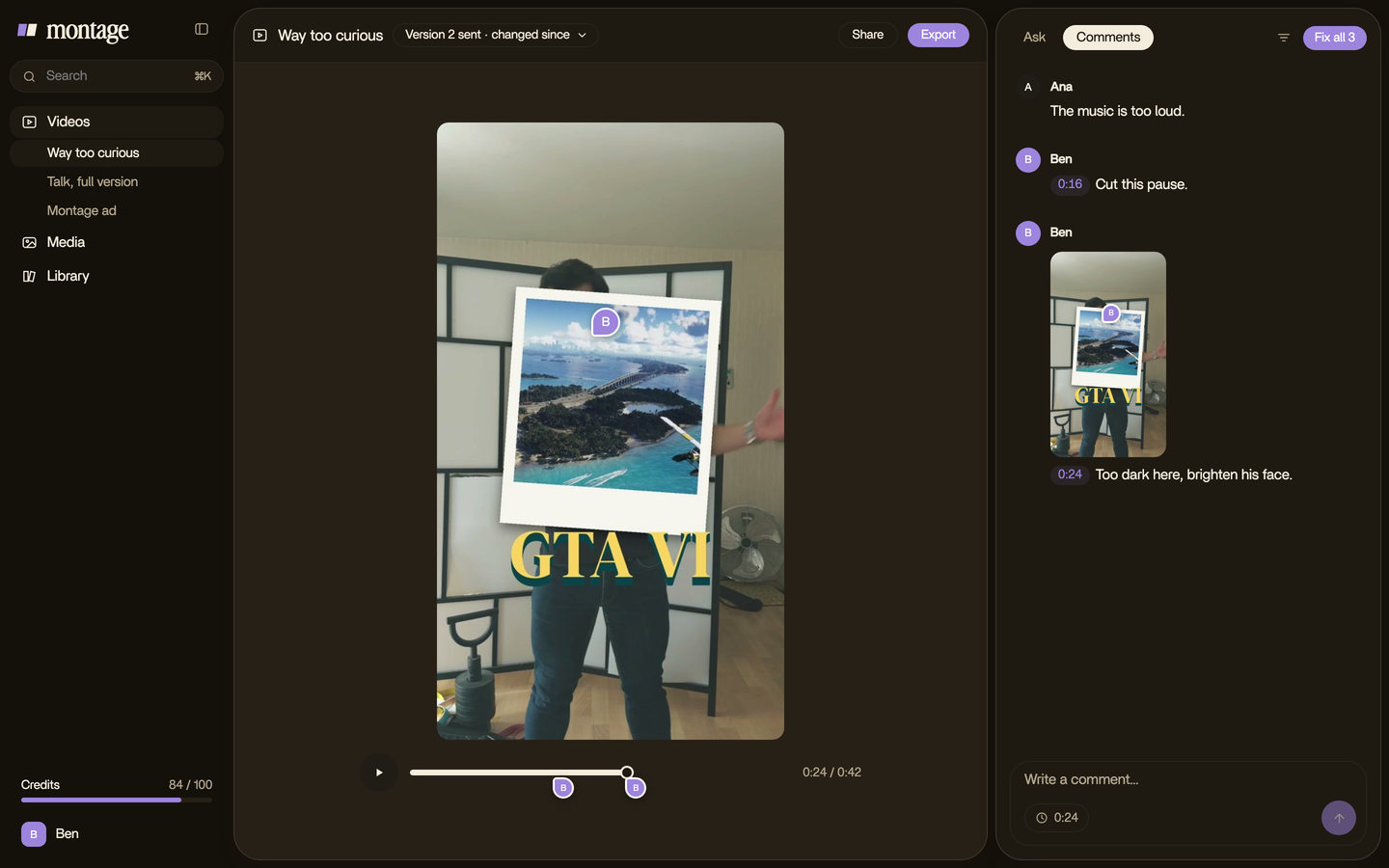
You don't open the edit again. You comment on it, like you would with an editor sitting next to you.
4. Export it for where it goes
The MP4, ready to post. Or the sound only. Or the cut for Premiere Pro or DaVinci Resolve, if someone on your team wants to finish it by hand.
A real 38-second demo, taken apart.
Okay. Let's look at a real one. Edit it all with AI is the 38-second vertical ad I made for Montage. You can watch the whole 38-second video. Here are its parts, and the job each one does.
The product shows up on the word
So when does the product show up? When you say its name.
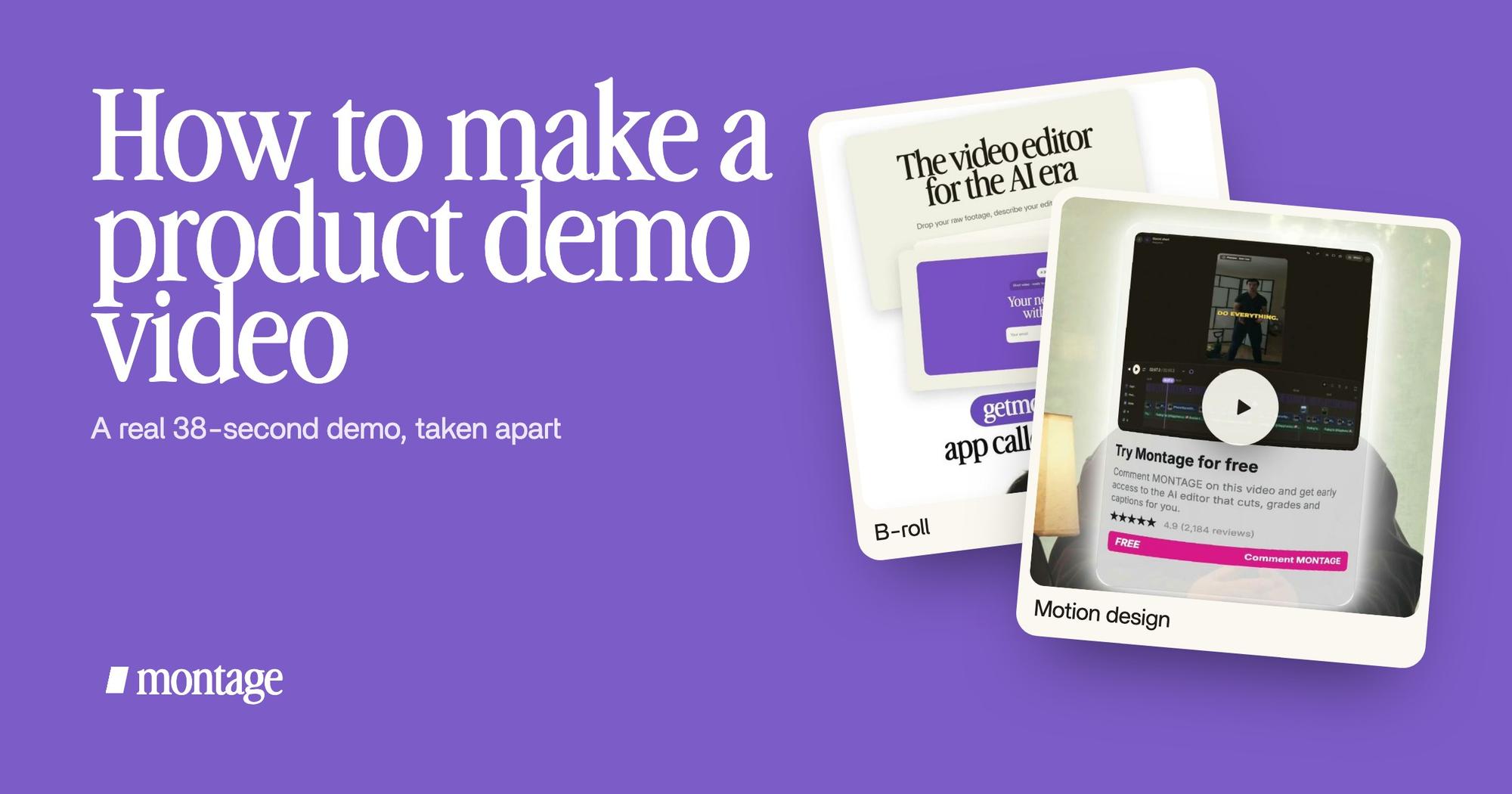
 B-rollThe site drops in on a white stage while I say « go to this app called Montage ».
 Motion designThe product card: frosted at 80 %, a fisheye, a big glow, swiped in from the right. Click to watch it on its own.
In the video, the site drops in on a white stage while I say « go to this app called Montage ». Not before, not after. The voice decides when the screen appears. That's the rule I'd teach first: write the line, and the screen lands on it.
Then there's one product moment: the product card, frosted at 80 %, a fisheye, a big glow, swiped in from the right. One piece of motion, on the product. Not a dozen. HowdyGo's advice is to go easy on zoom, and I'd say the same of every effect.
One moment of motion, on the product. That's enough.
It works on mute, and the parts are kept
A demo in a feed, or on a landing page that autoplays, often plays with the sound off. So the captions carry the pitch.
 CaptionsOne line at a time, white on the take, dark on the white stage.
 ComponentsThe hook: a white Instagram reply, made as a component and reused. Click to watch it on its own.
Here they run one line at a time, white on the take, dark on the white stage. And the hook, a white Instagram reply, was made as a component and reused. So the next demo starts with the hook already built.
That's what makes the second demo faster than the first. Keep the parts that worked: the hook, the product card, your logo, fonts and colors.
 Reusable components
In a longer video, the same idea goes further: one media card, used 26 times.
The three ways to make a product demo video.
Sure. But is an editor always the right tool? No. Let's put the three ways side by side.
| Interactive demo builder | Polished screen recorder | An editor you describe the edit to | |
|---|---|---|---|
| Examples | HowdyGo, Arcade | Screen Studio, Loom | Montage |
| What you get | A demo people click through | One screen recording, polished as you record | A video mixing you, the screen, captions and cards |
| How you edit | You build steps from captured screens | Automatic zoom and cursor, light trimming | You say what you want, then comment on the picture |
| Best for | A click-through demo on the pricing page | A quick walkthrough to send a prospect | A demo for a launch, a landing page or an ad |
| Not for | A video for a feed or a launch post | A demo cut from several takes, with cards and captions | A demo people click on |
A few facts from their own pages: Screen Studio is Mac only, $9 a month billed yearly or $29 monthly (screen.studio, read 2026-10-29). HowdyGo's co-founder writes that he wouldn't make a standalone demo video at all in 2026 and pushes interactive demos, which is what HowdyGo sells.
Let's be clear about Montage's limits too. It edits what you record: it doesn't record your screen, it doesn't make a click-through demo, it has no AI avatars or generated voice-over, and it doesn't publish the video for you. If what you need is a demo people click on the pricing page, an interactive builder is the right tool.
The mistakes that make a demo drag.
- Showing every feature. One problem, one solution. Save the rest for a product launch video or a series of short demos, as Vimeo suggests.
- Narrating while you click. You'll stumble on both. Record them apart.
- The product before the word. If the screen shows up before you name it, people look at it without knowing why.
- Zooming on everything. « Big mouse cursor, zoom in when focused », as an r/SaaS thread puts it. Fine, once. One zoom on the click that matters is plenty.
- No captions. On mute, a demo without captions is a silent screen.
- No next step. End on one thing to do: try it, book a call, sign up.
If your demo turns into a story about the problem itself, that's a SaaS explainer video. There are good explainer video examples and a guide to making an explainer video for that. And to cut the demo down for paid placements, see Instagram video ads and these LinkedIn video ad examples.
Questions about making a product demo video.
How do I make a product demo video?
Record your product doing one job, then record yourself saying why it matters. Cut the waiting and the retakes, show the
product on the word that names it, add captions, and export it for where it'll play. Four steps.
How do I record a product demo video?
Record the screen and your voice separately. Close the other apps, slow down, and do two or three clean runs. Then record
your lines, each one twice. A free recorder like QuickTime or OBS is enough.
What is the best tool to create product demos?
It depends on where the demo lives. For a demo people click through on the pricing page, an interactive builder like
HowdyGo or Arcade. For a quick walkthrough on a Mac, Screen Studio or Loom. For a demo that mixes you, the screen,
captions and cards, an editor you describe the edit to, like Montage. The table above has the details.
How long should a product demo video be?
Loom's guide puts an introductory demo at 2 to 3 minutes and a full walkthrough at 15 to 30. For a landing page or a
launch post, go shorter: the one taken apart here is 38 seconds.
Can I make a product demo video for free?
Yes. HowdyGo's guide lists a free stack: OBS or QuickTime to record, CapCut or DaVinci Resolve to edit. Montage has a
free plan too, and paid plans start at $25 a month on the pricing page.
See it in real videos.
Every part in this guide comes from a real video, each one asked for in sentences. Here are the four.
 9:18
 2:07
 0:56
 0:38
That's it for this one. Now go record that demo.
See you in the next one.